How to Use Cricfy TV: Complete Beginner Tutorial (Servers, Quality, Cast, Alerts)
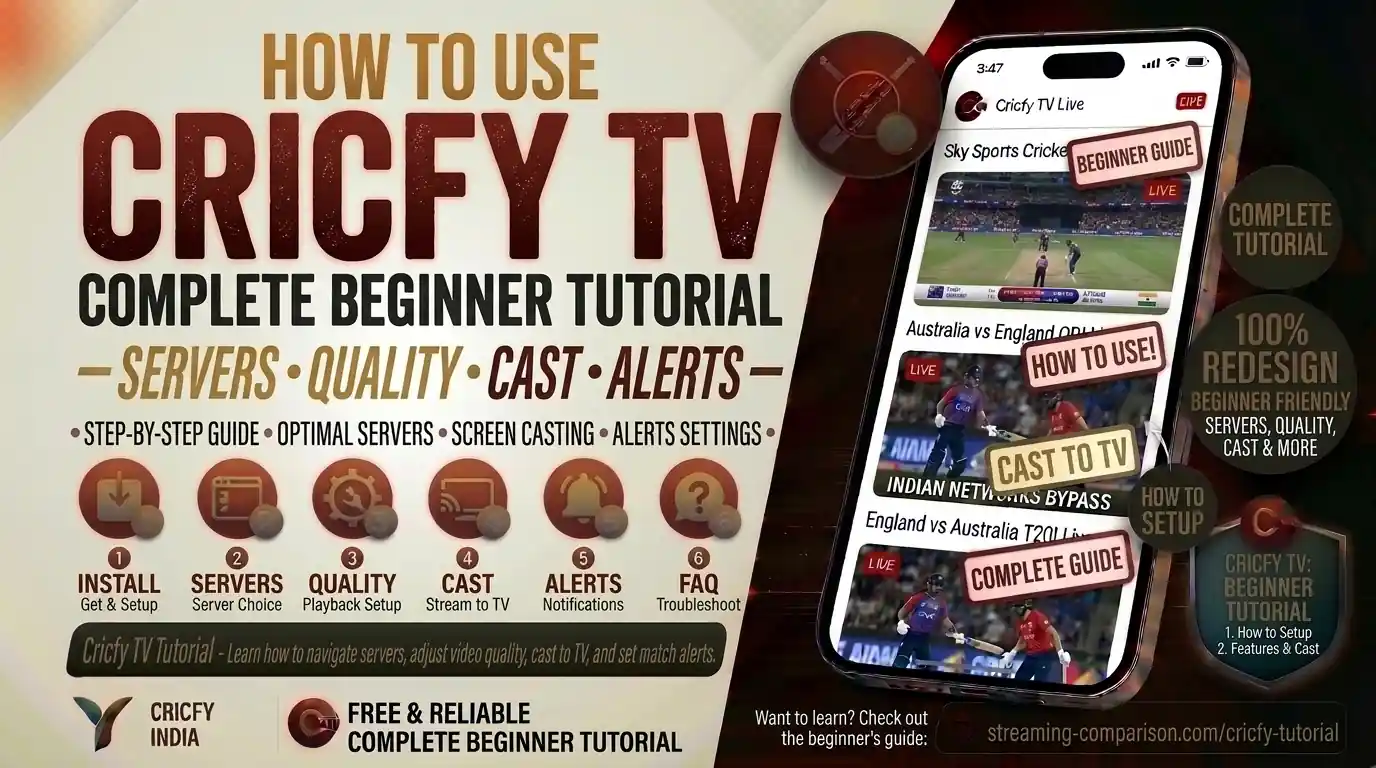
Learning how to use Cricfy TV the right way takes about five minutes — and it makes all the difference. Most first-time users stare at a wall of channels, tap one, and immediately hit a buffering wheel — then close the app and never come back. That is a shame, because once you understand how Cricfy TV actually works, it becomes one of the fastest and most reliable free live sports streaming tools on Android. This guide walks you through every feature, step by step — servers, stream quality, casting to your TV, match alerts, and all the hidden tricks that make the experience smooth.
How to Use Cricfy TV: The Interface at a Glance
When you open Cricfy Live TV, you land on a home screen divided into a few clear tabs. The exact labels vary slightly between app versions, but you will always see something like Live, Scores, and Settings.
- Live tab — This is your main destination. It lists every channel currently streaming a live event. Channels carrying an active match are pinned at the top with a red “LIVE” badge.
- Scores tab — Real-time scorecard view. Even if the stream is loading, you can follow the action here with ball-by-ball updates.
- Settings (gear icon) — Stream quality defaults, notification preferences, cache management, and app version info all live here.
The layout is deliberately minimal. Cricfy TV is a lightweight app under 25 MB because it does not host video itself — it connects to live streams from broadcasters around the world. That is worth understanding before you go further, because it explains why server choice matters so much.
You do not need to create an account to watch live streams. Just install the APK, open the app, and tap a channel. Personalized alerts and favourite lists may ask for a lightweight sign-in in some versions, but all live streaming works without it.
Finding a Live Match
You have two ways to reach a live match in Cricfy TV.
Browse the Live Channel List
Go to the Live tab. Channels currently broadcasting a match appear at the top of the list with a live indicator. The channel card shows the broadcaster name — things like Star Sports, PTV Sports, Ten Sports, Sky Sports, Sony LIV, SuperSport, beIN Sports, or Willow TV — along with an estimated stream quality badge (SD or HD) and a brief match title underneath where available.
Tap any channel card to open the player and start the stream. The app does not require you to scroll through settings first. It is literally one tap from home screen to live match.
Use the Scores Tab to Jump In
If you already know which match you want, go to the Scores tab first. Find the match, tap it, and the app will offer you a direct link to the channels broadcasting that specific game. This saves you from hunting through a long channel list during busy match days when ten fixtures run simultaneously.
During tournaments like the ICC Cricket World Cup, IPL, PSL, UEFA Champions League, or FIFA World Cup qualifying rounds, the Live tab fills up fast. Use the Scores tab search function if the app version you have supports it — it cuts directly to the right channel in seconds.
Once you tap through to a channel, the built-in video player opens. This is where the real Cricfy TV experience begins — and where most beginners need a quick orientation on servers.
How Servers Work — and Why You Should Switch Them
This is the single most important thing to understand about Cricfy TV. The app aggregates streaming links from multiple sources for every major live match. These are labelled as servers, links, or sources depending on your app version. Expect between three and five options for any high-profile fixture.
What a Server Actually Is
Each server is a separate streaming link pointing to the same match feed from a different source or CDN (Content Delivery Network). Think of them as different roads leading to the same destination. When one road is congested — because too many viewers hit that server at once — another road might be clear.
During a high-demand event like an India vs Pakistan Test match or a Champions League knockout game, global viewer traffic spikes dramatically. That is exactly when you need to know how to switch servers without panicking.
How to Switch Servers
- Open any live channel in the player.
- Look for a row of server buttons labelled Server 1, Server 2, Server 3 — or similar — at the top or bottom of the player screen.
- If your current server buffers or freezes, tap Server 2. The stream reloads in a few seconds.
- Keep going to Server 3 or beyond if needed. The best server for your location and ISP will not always be Server 1.
- Once you find a smooth server, stay on it for the rest of the match unless it degrades again.
If the stream stalls, do not close the app and do not change your Wi-Fi. Just tap the next server. Most buffering during live cricket or football is a server load issue, not a device or internet problem.
Server Quality Badges
Recent versions of Cricfy TV label each server with a quality indicator — SD, HD, or FHD. Always pick the highest quality server your connection can handle without stutter. The HD and Full HD servers tend to be slightly more loaded during peak hours because everyone wants them, so do not rule out a smooth SD server if your HD option is choppy.
| Server Type | Best For | Typical Bitrate | When to Use |
|---|---|---|---|
| SD Server | Mobile data, slow connections | 300–700 kbps | When HD servers are overloaded or you are on 3G |
| HD Server | 4G LTE, standard Wi-Fi | 1–3 Mbps | Everyday watching on a stable connection |
| Full HD Server | 5G, fast broadband Wi-Fi | 4–8 Mbps | Big matches on TV via cast, highest clarity |
Adjusting Stream Quality
Beyond picking a server by its quality badge, you can manually control the playback resolution inside the video player itself. This is different from server switching — it adjusts the resolution the app requests from the active stream.
How to Change Stream Quality
- While a stream is playing, tap the screen once to bring up the player controls.
- Look for a settings or cog icon — usually at the top right corner of the player.
- A quality menu appears. Options typically include Auto, 480p (SD), 720p (HD), and 1080p (Full HD) where the stream source supports them.
- Select the quality level you want. The stream briefly rebuffers, then continues at the new resolution.
Auto Quality vs Manual Quality
The Auto setting lets Cricfy TV dynamically adjust quality based on your real-time internet speed. It is the safest option if your connection fluctuates — for example, if you move between rooms or switch from Wi-Fi to mobile data mid-match. The downside is occasional quality dips that can be noticeable on a big screen.
Manual quality selection is better when you know your connection is stable. Lock it at 720p on a 4G connection and 1080p on a good Wi-Fi or 5G connection and the picture stays crisp throughout.
Quality and Device Performance
On lower-end Android devices — those with 2 GB RAM or an older processor — Full HD decoding can cause frame drops. If the stream looks smooth but then stutters every few seconds even on a good connection, drop to 720p. The visual difference on a phone screen is minimal, and the playback stability improvement is significant.
Mobile data on the go: use Auto or 480p. Home Wi-Fi on a phone: 720p. Casting to a large TV via Chromecast or screen mirror: 1080p where available.
Casting Cricfy TV to Your TV
Watching live cricket or football on a 6-inch phone screen is fine in a pinch. But getting it onto your 55-inch TV is a totally different experience. Cricfy TV supports a couple of ways to do this.
Method 1 — Chromecast
Some versions of Cricfy TV include a cast icon inside the video player. If you see it, tap it, select your Chromecast device, and the stream jumps to your TV immediately. The phone becomes a remote control while the TV handles playback.
Not all app versions expose a native cast button, and the availability depends on the stream source. If you do not see a cast icon inside the Cricfy player, use Method 2 instead.
Method 2 — Android Screen Mirroring (Works on All Versions)
This is the universal fallback and it works regardless of app version. You mirror your entire phone screen to your TV.
- Connect your Android phone and your TV to the same Wi-Fi network.
- On your phone, pull down the Quick Settings panel (swipe from the top).
- Find the Cast, Screen Mirror, or Smart View tile (the label depends on your phone brand — Samsung calls it Smart View, stock Android calls it Cast).
- Tap it, and select your TV or Chromecast device from the list.
- Open Cricfy TV on your phone. Everything you see on your phone now appears on the TV.
- Lock your phone screen brightness, turn off notifications during the match, and enjoy.
Method 3 — Sideload Directly onto Android TV or Amazon FireStick
If you have an Android TV box or a Amazon FireStick, you can install the Cricfy TV APK directly on the device. No phone required. This gives you a native big-screen experience with the full remote control.
On FireStick, use the Downloader app to sideload the APK. On Android TV, enable APK install from unknown sources and use a file manager or browser to load it. See our dedicated Android TV setup guide for the step-by-step walkthrough.
Native Chromecast casting (where the phone stops handling the stream and passes it directly to the Chromecast device) is available in select Cricfy TV versions but is not universal. If it is absent, screen mirroring via Google Home produces near-identical results with no quality loss on a fast Wi-Fi network.
Casting on LG, Samsung, or Sony Smart TVs
If your TV runs LG webOS, Samsung Tizen, or Sony Google TV, you have two options. You can screen mirror from your Android phone as described above, or you can sideload the Cricfy TV APK directly onto Samsung and Sony Android-based smart TVs that support it. Check our Samsung Smart TV guide for the full process.
Setting Match Alerts and Notifications
One of the most underused features in Cricfy TV is the match alert system. Set it up once and you will never miss a match start, a wicket flurry, or a last-minute goal again.
How to Turn On Match Notifications
- Open Cricfy TV and go to Settings (the gear icon).
- Find Match Notifications or Alerts in the settings menu.
- Toggle it on. On Android 13 and above, the app will request the POST_NOTIFICATIONS permission — grant it, or notifications will not fire.
- Return to the home screen or the Scores tab and browse upcoming fixtures.
- Tap the bell icon or “Set Alert” on any upcoming match to subscribe to alerts for that specific game.
What Alerts You Can Set
Cricfy TV lets you pick and choose which events trigger a notification. Depending on the version you are running, you can typically configure alerts for:
- Match start (5 minutes or 30 minutes before kickoff or toss)
- Half-time and full-time for football
- Wickets and over milestones for cricket
- Goals and red cards for football
- Tournament schedule updates and upcoming round fixtures
This level of granularity means you do not have to put up with a constant buzz of irrelevant pings. You choose exactly what matters to you.
Notifications Not Firing? Here Is Why
On Android 13 and later, apps need explicit permission to post notifications. If you upgraded to a newer Android version after installing an older Cricfy TV build, the permission might be missing. Go to Settings → Apps → Cricfy TV → Notifications and make sure they are enabled at the system level.
Battery optimisation is the other common culprit. Android aggressively kills background processes to save power. Exclude Cricfy TV from battery optimisation by going to Settings → Battery → Battery Optimisation, finding Cricfy TV, and setting it to “Don’t Optimise.” This keeps the alert service alive in the background even when the app is not open.
Cricfy TV covers alerts for ICC events like the Cricket World Cup and Champions Trophy, PSL, IPL, BBL, The Hundred, Test series, UEFA Champions League, Europa League, Premier League, La Liga, and more. The alert system works across all these tournaments for viewers anywhere in the world.
Picture-in-Picture (PiP) Mode
Picture-in-picture mode is a game-changer for multitasking. Available on Android 8.0 (Oreo) and above, it lets you shrink the Cricfy TV player into a floating mini window that sits over your other apps.
Here is how you use it:
- Start a live stream in Cricfy TV.
- Press your phone’s Home button (or use the gesture to go home). Instead of closing, the player shrinks into a small floating window.
- You can now browse your phone, reply to messages, or check emails while the match continues in the corner of your screen.
- Tap the floating window to expand it back to full screen, or drag it to any corner of the display.
PiP mode was introduced in Cricfy TV v5.5. If you are on an older version, update to the latest APK to get it.
Channel List Overview — What You Can Watch
Cricfy TV aggregates over 600 live channels from around the world. Here is a snapshot of the major broadcaster categories available across different regions.
| Category | Key Channels Available | Region Focus |
|---|---|---|
| Cricket | Star Sports, PTV Sports, Ten Sports, Sky Sports Cricket, Willow TV, Sony LIV, SuperSport | Global |
| Football | beIN Sports, Sky Sports Football, Canal+, BT Sport, SuperSport Football | Global |
| Multi-Sport | ESPN, Fox Sports, Eurosport, DAZN feeds, TSN | Americas, Europe |
| News & General | BBC News, Al Jazeera, ARY News, Geo News, Aaj Tak | South Asia, Global |
| Entertainment | Zee TV, Sony Entertainment, Colors, Star Plus | South Asia, Diaspora |
For the complete up-to-date list, see our Cricfy TV channel list page. The lineup expands regularly with new server sources added during major tournaments.
Multi-Language Commentary
For matches with multiple broadcast feeds — a common situation with big ICC events or the IPL — Cricfy TV often carries several language options. You can switch between English, Hindi, Urdu, Bengali, Tamil, Telugu, Punjabi, and Sinhala commentary feeds where the match broadcasters provide them. Just look for language-labelled server links in the player.
Using External Media Players
Cricfy TV supports opening streams in external media players. This is useful if the built-in player on your device underperforms, or if you want more codec support and playback controls than the default player offers.
Recommended External Players
- MX Player — The most popular choice. Hardware decoding support makes it smooth on mid-range devices.
- VLC for Android — Open-source, highly compatible, excellent for HLS and RTMP streams.
- Kodi — Best for users who want a full media centre experience alongside live streaming.
How to Open a Stream in an External Player
- Tap a channel in Cricfy TV to open the player screen.
- Look for a “Open in external player” option, usually available via a three-dot menu or a share icon within the player.
- Select your preferred player from the system chooser that appears.
- The stream opens in your chosen player with that app’s full control set.
Not every stream supports external player handoff — it depends on the stream format the server uses. HLS streams (the most common type) work well in MX Player and VLC.
Data Saving Mode
Mobile data is a real cost, especially when you watch three hours of live cricket on the go. Cricfy TV includes a data-saving mode that reduces stream resolution to cut data consumption significantly.
Enabling Data Saving
- Go to Settings in the app.
- Find Data Saver or Low Quality Mode (the label varies by version).
- Toggle it on.
- All streams default to the lowest available quality until you disable the mode.
How Much Data Does Cricfy TV Use?
| Quality | Approximate Data Per Hour | Best Connection |
|---|---|---|
| SD (480p) | 300 MB – 500 MB | 3G or slow 4G |
| HD (720p) | 700 MB – 1.2 GB | 4G LTE |
| Full HD (1080p) | 1.5 GB – 3 GB | 5G or Fast Wi-Fi |
A full 50-over cricket match running around 7 hours in HD will use roughly 5–8 GB of mobile data. Plan accordingly if you are not on Wi-Fi.
Using Cricfy TV on FireStick and Android TV
Installing Cricfy TV on a streaming stick transforms your regular TV into a full live sports setup. The experience is significantly better than casting from a phone because you get the full app interface on your TV screen, controlled by the FireStick remote or an Android TV remote.
FireStick — Quick Setup
- On your FireStick, go to Settings → My Fire TV → Developer Options and enable “Apps from Unknown Sources.”
- Install the Downloader app from the Amazon App Store.
- Open Downloader and navigate to cricfyapp.pk to get the latest verified APK link.
- Download and install the APK through the Downloader app.
- Launch Cricfy TV from your app list and start watching.
For the full illustrated walkthrough, see our Cricfy TV on FireStick guide.
Android TV and Google TV
The process is similar on Android TV and Google TV devices. Enable unknown sources, download the APK using a browser or file manager, and install. The Cricfy TV interface scales well for TV displays, and navigation with a D-pad remote works smoothly. See our Android TV installation guide for details.
Some streaming servers in Cricfy TV are geo-restricted. If certain channels show a black screen or VPN error on FireStick, connecting through a reputable VPN server in a region where the broadcast rights apply usually resolves it. See our best VPN for Cricfy TV guide for tested options.
Using Cricfy TV on PC or Laptop
Cricfy TV is an Android application and does not have a native Windows or macOS version. But you can run it on any PC or laptop through an Android emulator. The experience is surprisingly good on a decent machine.
Best Emulators for Cricfy TV
- BlueStacks 5 — The most widely tested option. Detailed setup guide available on our BlueStacks setup guide.
- LDPlayer 9 — Performs better on lower-spec PCs, strong alternative to BlueStacks.
- MEmu Play — Solid option, especially for Windows 11.
Basic Setup Steps
- Download and install BlueStacks or LDPlayer from their official websites (bluestacks.com or ldplayer.net).
- Download the latest Cricfy TV APK from cricfyapp.pk.
- Open the emulator and drag-and-drop the APK file into the emulator window, or use the emulator’s APK installer feature.
- The app installs automatically. Launch it from the emulator home screen.
- All features — server switching, quality control, cast — work exactly as they do on Android.
For Windows 11 users, also check our Windows 11 Cricfy TV guide. Laptop users can find a dedicated walkthrough on our Cricfy TV on laptop page.
Quick Troubleshooting Reference
Even with the best setup, you will occasionally hit a snag. Here are the fastest fixes for the most common Cricfy TV problems.
Switch to a different server first — this solves it 90% of the time. If switching servers does not help, lower your stream quality one step (HD to SD, for example). Also try clearing the app cache: Settings → Apps → Cricfy TV → Storage → Clear Cache.
Full buffering guide: Cricfy TV Buffering Fix.
A black screen on a channel usually means the stream link has expired or the server is down. Switch to another server for the same channel. If all servers show black, the channel itself may be temporarily unavailable — try again in a few minutes or switch to a different channel carrying the same match.
More detail: Channels not loading fix.
Check your device volume first. If the stream video plays fine but there is no commentary audio, switch to a different server — some server feeds carry video without audio due to broadcast feed issues. If the problem persists across all servers, try opening the stream in an external player like VLC.
Full fix: Cricfy TV audio not working fix.
Crashes on Android 14 and 15 are almost always fixed by updating to the latest Cricfy TV APK. Clear cache and data, reinstall the latest version from cricfyapp.pk, and exclude the app from battery optimisation.
Specific guide: Crashing on Android 14/15 fix.
Certain stream sources detect VPN usage and block access. If you see a VPN detection error, temporarily disconnect from the VPN and retry. For channels that are genuinely geo-restricted, reconnect to a server in a region where that channel is licensed.
Detail: VPN detected error fix.
The most common cause is “Unknown Sources” being disabled. Go to Settings → Security → Install unknown apps, find your browser or file manager, and allow it to install APKs. Then try the installation again.
Fix guide: APK not installing / parsing error fix.
Frequently Asked Questions
Do I need to create an account to watch live cricket on Cricfy TV?
No. Cricfy TV does not require registration or login for live streaming. Open the app, pick a channel, and start watching. Some optional features like a personalised favourites list may prompt a lightweight sign-in in certain app versions, but that is entirely optional.
Why do some servers buffer more than others?
Each server carries the same match content but routes it through a different CDN or hosting source. Server load varies depending on how many viewers are connected to that specific link at a given moment. During peak events, some servers get overwhelmed while others stay clear. Switching servers is the quickest solution.
Can I watch Cricfy TV outside my home country?
Yes. Cricfy TV works globally on Android. Some specific channel feeds may be geo-restricted by the broadcaster, in which case a VPN connecting you to a supported region will help. The core app and most general sports channels are accessible worldwide. Users in the UK, USA, Canada, Australia, the UAE, and across Europe regularly use Cricfy TV for live sports. See our country-specific guides for UK and USA and Canada.
Is Cricfy TV on the Google Play Store?
No. Cricfy TV is not available on the Google Play Store or the Apple App Store. You download and install the APK manually from the official source at cricfyapp.pk. This is called sideloading and requires you to allow APK installs from unknown sources in your Android settings.
Can I use Cricfy TV on iPhone or iPad?
There is no genuine official iOS version of Cricfy TV. Any IPA file claiming to be a Cricfy TV iOS app should be treated with caution. iOS users can sideload via tools like AltStore, though this involves additional steps and Apple restrictions. See our iOS sideload guide for the safest available method.
How do I update Cricfy TV?
Cricfy TV does not auto-update because it is not on the Play Store. You need to manually download the latest APK from cricfyapp.pk and install it over your existing version. Your settings and favourites are typically preserved during an over-the-top install. Check our Cricfy Live TV page regularly for new release announcements.
What sports besides cricket can I watch on Cricfy TV?
Cricfy TV covers football (soccer), tennis, basketball, baseball, rugby, golf, hockey, darts, boxing, and motor racing alongside cricket. The channel list includes global sports broadcasters covering tournaments like the UEFA Champions League, FIFA World Cup, NBA, Grand Slam tennis, and Formula 1 alongside ICC and bilateral cricket series.
Why is Cricfy TV showing a “Harmful App Blocked” warning?
Google Play Protect flags apps installed outside the Play Store as a precaution, even if the app is clean. This is a system-level alert and does not necessarily mean the APK is malicious. Download only from the official source at cricfyapp.pk to minimise risk, and see our harmful app blocked fix guide to resolve the warning.
Final Word
Cricfy TV is not a complicated app — but it rewards users who take five minutes to understand how it actually works. Switch servers when it buffers. Lock quality to what your connection handles. Set alerts so you never stumble into a match blind. Cast to a TV for any match that deserves a big screen. That is genuinely all it takes to get a premium-feeling live sports experience for free on Android, FireStick, and PC.
Download the latest APK from Cricfy Live TV, bookmark this tutorial, and you are ready for every live fixture — from the next PSL clash to the FIFA World Cup 2030.