
“Harmful App Blocked”: Fix the Play Protect Warning for Cricfy TV
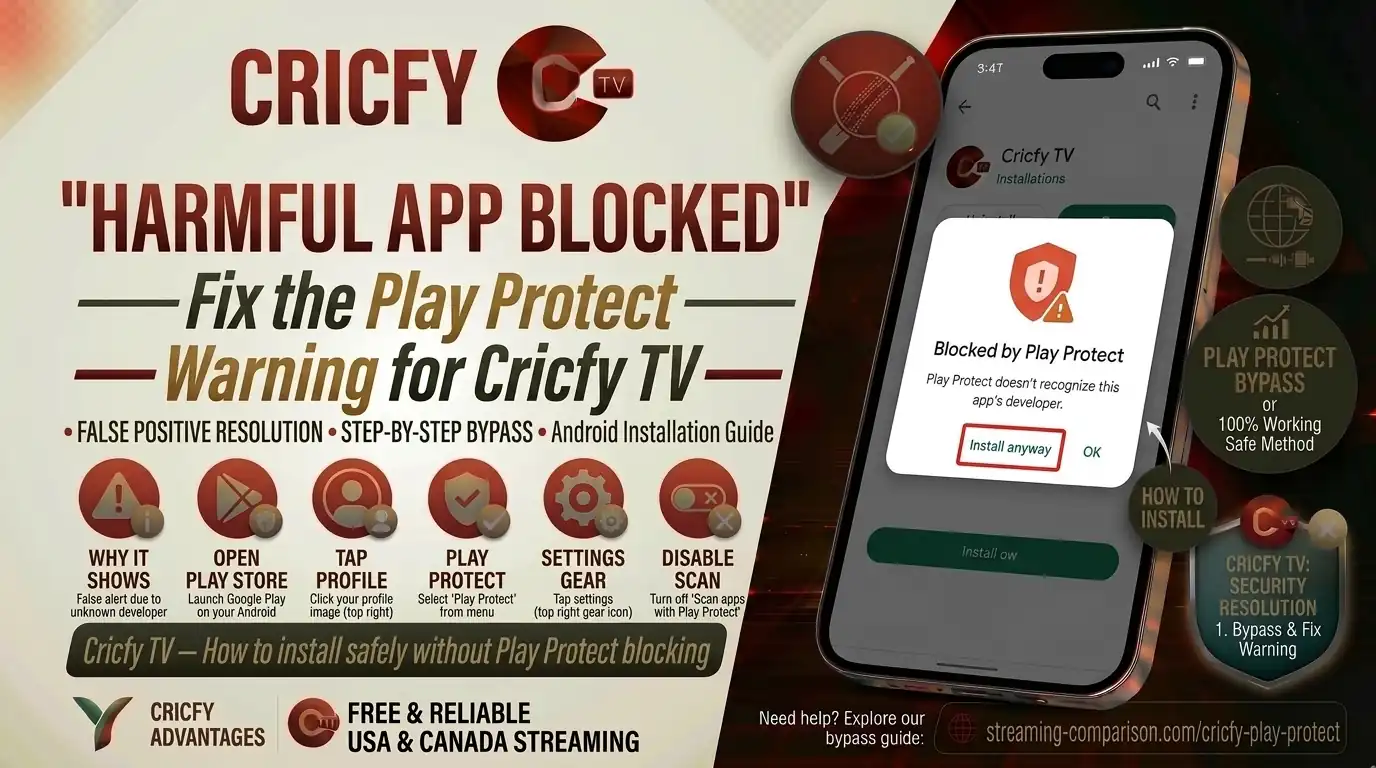
Harmful app blocked on Cricfy TV — that red screen from Google Play Protect is one of the most common walls users hit when trying to install the Cricfy live TV APK. Frustrating, right? This warning fires for almost every sideloaded app that did not come from the Play Store, and Cricfy Live is not alone in this. Millions of users across the globe hit this exact wall every day. The good news is that it is fixable in under two minutes, and this guide walks you through every method, every device type, and every edge case so you can get back to watching live sports fast.
What Is Google Play Protect?
Google Play Protect is Android’s built-in security scanner. It lives inside Google Play Services and works on any Android device that runs Google Mobile Services — meaning almost every phone, tablet, Android TV box, and Google TV device on the planet.
Play Protect does three main things. First, it scans every app you install from the Play Store before the download finishes. Second, and more relevant to Cricfy TV, it scans sideloaded APK files at install time. Third, it periodically re-scans everything already on your device in the background.
Since Cricfy TV is not listed on the Google Play Store, Play Protect treats the APK as an unknown sideloaded file every single time. That triggers the warning you are seeing — “Harmful App Blocked” or “App may be harmful.”
Play Protect blocked over 266 million sideloading attempts of apps it considered risky in 2025 alone, according to Google’s Security Blog. The vast majority of those are flagged purely because they come from outside the Play Store — not because they contain actual malware.
Why Is Harmful App Blocked Shown for Cricfy TV?
Cricfy Live TV is a sideloaded APK. It never went through Google’s app review process. That alone puts it on Play Protect’s radar instantly.
On top of that, starting in early 2026, Google Play Protect ramped up its enforcement against sideloaded streaming apps significantly. Apps that stream live sports content from unofficial sources — including Cricfy TV — became some of the highest-profile targets of this crackdown. On certain Android TV and Google TV devices, Play Protect went further than just showing a warning. It actively auto-removed installed APKs without the user tapping anything.
So if Cricfy TV vanished from your device without you uninstalling it, Play Protect is the reason. And if you see the “Harmful App Blocked” screen every time you try to install it fresh, you need to follow the steps below.
Disabling or pausing Play Protect removes a layer of malware protection from your device. Only do this temporarily and only for APKs you download from the official Cricfy source. Re-enable Play Protect immediately after the app installs. This guide is for informational and educational purposes.
The Three Play Protect Warning Types You Might See
Not every Play Protect warning looks the same. The screen you get depends on how severely Google has flagged the APK and what version of Android or Play Store you are running. Here is what each one means.
| Warning Text | What It Means | What to Do |
|---|---|---|
| “Harmful App Blocked” | Play Protect blocked the install entirely. No “Install Anyway” button visible by default. | Disable or Pause Play Protect first, then install. |
| “App May Be Harmful” | Softer warning. A “More Details” option appears with an “Install Anyway” button hidden inside. | Tap More Details, then tap Install Anyway. |
| “Scan App Before Installing” | Play Protect wants to upload the APK to Google servers for analysis. | Tap “Don’t Send” or “Skip” to proceed without uploading, then install. |
| App Silently Removed | Play Protect auto-deleted an already-installed Cricfy TV without warning. Common on Android TV / Google TV devices from early 2026 onward. | Disable Play Protect, reinstall the APK, then decide whether to re-enable. |
Fix on Android Phone and Tablet (Method 1 — Disable Temporarily)
This is the most common fix and works on Android 6 through Android 15. Follow every step exactly in order.
- Open the Google Play Store on your phone or tablet. This is the same Play Store you use to download regular apps.
- Tap your profile icon in the top-right corner of the screen.
- Select “Play Protect” from the menu that appears.
- Tap the gear/settings icon in the top-right corner of the Play Protect screen.
- Toggle off “Scan apps with Play Protect.” A confirmation dialog will appear. Tap “Turn Off.”
- Go back to the Cricfy TV APK file you downloaded. Open your file manager, locate the APK, and tap it to start the install.
- Tap “Install” when Android’s standard install dialog appears. The Play Protect warning should no longer block it.
- Re-enable Play Protect immediately after Cricfy TV finishes installing. Go back to Play Store > Profile > Play Protect > Settings and toggle it back on. See Section 8 for details.
Method 2 — Use “Install Anyway” (Fastest Option)
If you see the warning but notice a “More Details” link at the bottom of the screen, you do not need to disable Play Protect at all. Just do this:
- On the Play Protect warning screen, tap “More Details” or “More Info.”
- Scroll down and tap “Install Anyway.”
- Confirm by tapping “Install” on the next screen.
Done. This is the quickest path if Android gives you the option. Unfortunately, on more recent Play Protect versions, the “Install Anyway” button is hidden or missing entirely, which is why Method 1 exists.
Fix on Android TV and Google TV
Android TV and Google TV handle Play Protect slightly differently from a phone. The setting path is different and the interface is built for a remote control, not a touchscreen. Here is how to navigate it.
Method 1 — Through System Settings
- Press the Home button on your TV remote to go to the home screen.
- Navigate to Settings (the gear icon, usually found at the top of the home screen).
- Scroll down and open Apps or Security & Restrictions depending on your device model.
- Look for “Scan apps with Play Protect” or “Play Protect” and toggle it off.
Method 2 — Through the Play Store App on Your TV
- Open the Google Play Store on your Android TV or Google TV.
- Press the Menu button or navigate to the three-line icon (left side of the screen).
- Select “Play Protect.”
- Select Settings (gear icon).
- Toggle “Scan apps with Play Protect” to Off.
After Play Protect is off, go ahead and sideload the Cricfy TV APK using a file manager app on your TV. Once it installs, re-enable Play Protect right away.
If Cricfy TV keeps disappearing from your Android TV after a few days, that is Play Protect scanning in the background and auto-removing it. You have two options: disable Play Protect permanently (not recommended) or use a file manager with auto-reinstall support. Most users choose to keep Play Protect off and accept the trade-off.
Fix on Amazon Firestick and Fire TV
Amazon Firestick runs Fire OS, which is a fork of Android. Good news: it does not use Google Play Protect at all. If you see a warning on a Firestick, it comes from Amazon’s own app verification system, not Google’s.
To install Cricfy TV on a Firestick without any warning blocking you, follow these steps:
- On your Firestick, go to Settings > My Fire TV > Developer Options.
- Enable “Apps from Unknown Sources.” Amazon will show a warning — tap “Turn On.”
- Install the Downloader app from the Amazon Appstore if you have not already.
- Open Downloader, enter the Cricfy TV APK URL, and download the file.
- When prompted, tap “Install” and follow the on-screen steps.
There is no Play Protect on Firestick to deal with. The process is much smoother. For a complete walkthrough, check our dedicated Cricfy TV on Firestick guide.
The Better Option: Pause Play Protect Instead of Disabling It
Here is something most guides do not mention. Google quietly introduced a “Pause” button for Play Protect starting in Google Play Store version 42.2.19-31 and rolling it out broadly through 2025 and 2026.
The Pause feature is smarter than a full disable. When you pause Play Protect, scanning stops temporarily — just long enough for you to sideload the APK. After a set time, Play Protect automatically resumes on its own. You do not have to remember to turn it back on.
How to Use the Pause Feature
- Open the Google Play Store and tap your profile icon.
- Select “Play Protect” from the menu.
- Tap the gear/settings icon.
- Look for a “Pause” button next to the “Scan apps with Play Protect” toggle. If you see it, tap it.
- Install the Cricfy Live TV APK while Play Protect is paused.
- Play Protect will resume automatically after the pause period ends. No manual re-enable needed.
The Pause feature rolls out gradually with Play Store updates. If you do not see it yet, update your Play Store to the latest version via Play Store > Profile > Manage Apps & Device > Update. If it still does not appear, use the standard Disable method from Section 4.
Always Re-Enable Play Protect After Installing
This step is critical and most users skip it. Play Protect guards your device against actual malware, spyware, and ransomware 24/7. Leaving it off permanently is a real security risk.
Once Cricfy TV finishes installing, re-enable Play Protect immediately:
- Open Google Play Store.
- Tap your profile icon in the top-right.
- Select “Play Protect.”
- Tap the gear icon.
- Toggle “Scan apps with Play Protect” back on.
Play Protect will then scan all apps on your device, including the newly installed Cricfy TV. If it flags Cricfy again after re-enabling, it will typically show a notification rather than auto-removing it (unless you are on Android TV — see Section 5). You can dismiss that notification and keep using the app.
Harmful App Blocked on Cricfy TV Still Showing? Try These Fixes
A small number of users still hit a wall even after disabling Play Protect. Here is what to do in each scenario.
Issue: “Install Verification Failure” Error During Install
This error message — sometimes shown as INSTALL_FAILED_VERIFICATION_FAILURE — means Android’s package verifier is checking the APK independently of Play Protect. To bypass it, you need to disable both Play Protect and the package verifier. This is uncommon on consumer phones but happens more on managed or enterprise Android devices.
The simplest fix: download a fresh copy of the APK from the official Cricfy source and try again. A corrupted or partially downloaded APK also throws this error.
Issue: App Installs but Immediately Gets Removed
This is the auto-removal behavior Google activated in early 2026 for several sideloaded streaming apps, including Cricfy TV. Play Protect does not just warn you — it actively uninstalls the app in the background.
The fix is to keep Play Protect disabled, at least for scanning. Alternatively, you can check whether your specific device has a setting called “Improve Harmful App Detection” and turn that off. This sub-setting controls whether Play Protect uploads unknown APKs to Google for deeper cloud analysis. Turning it off reduces the chance of auto-removal.
Issue: The Warning Shows a Different Error Message
If you see a message like “App not installed” or a parsing error instead of a Play Protect warning, the problem is different — it is likely a corrupted APK file or an APK built for a different Android architecture. In that case, read our Cricfy TV parsing error fix guide for step-by-step help.
Issue: Warning Says “This App Is Harmful to Your Device”
This is a stricter Play Protect classification. Google has essentially added the specific APK hash to a blocklist. Your only options are to disable Play Protect before the install attempt or to wait for the Cricfy dev team to push a new APK version with a different signature. Check the Cricfy TV latest version page for updates.
Where to Download the Cricfy TV APK Safely
One of the biggest reasons users run into Play Protect issues — or worse, actual malware — is downloading Cricfy TV from a random website that mirrors or repackages the APK. Some of those files are modified and genuinely harmful.
Always get the Cricfy TV APK from the official source. That is cricfyapp.pk. No other domain is the official Cricfy website. If you downloaded from somewhere else, delete that file and start fresh.
| Check | Safe Source | Red Flag |
|---|---|---|
| Domain | cricfyapp.pk | Any other domain claiming to be “official” |
| APK File Size | Consistent with the stated version | Unusually small or large files |
| Permissions Requested | Storage, Network access | Calls, Contacts, SMS, Admin rights |
| Version Number | Matches the official changelog on cricfyapp.pk | “Pro,” “Mod,” or “Unlocked” versions from unknown sites |
If you want the Mod APK version, only use our official Cricfy TV Mod APK page. Third-party mod sites are where most genuine security risks come from, and Play Protect is right to flag those.
Related Guides on cricfyapp.pk
Frequently Asked Questions
Is the Play Protect warning on Cricfy TV a sign that the app has a virus?
Not necessarily. Play Protect flags any sideloaded APK that has not passed through the Google Play review process. Since Cricfy Live TV is only available as a direct APK download and not on the Play Store, the warning appears automatically for all users regardless of whether the file itself contains malicious code. That said, always download from the official cricfyapp.pk source to minimize genuine risk.
Will disabling Play Protect harm my phone?
Disabling Play Protect temporarily for a single app install does not harm your device. The risk is leaving it off permanently. Always re-enable it as soon as the APK finishes installing. If you forget and leave it off, your device will not get real-time malware scanning, which is a genuine security concern.
Why does Cricfy TV keep uninstalling itself from my Android TV?
This is Play Protect’s auto-removal feature, which became more aggressive on Android TV and Google TV devices from February 2026 onward. Google’s system silently removes sideloaded apps it deems harmful. To stop this, go to Play Store Settings on your TV, find Play Protect, and turn off both “Scan apps with Play Protect” and “Improve harmful app detection.”
Does the Play Protect warning affect Cricfy TV on Firestick?
No. Amazon Firestick and Fire TV run Fire OS, which is Amazon’s own Android fork. It does not include Google Play Protect. You only need to enable “Apps from Unknown Sources” in Firestick’s developer settings. No Play Protect warnings appear at all.
What is the difference between disabling and pausing Play Protect?
Disabling Play Protect turns it off indefinitely until you manually re-enable it. Pausing is a newer option available from Play Store version 42.2.19-31 onward. It stops scanning temporarily — just long enough to install your APK — and then automatically resumes. Pausing is the safer choice because you cannot forget to turn it back on.
Can I install Cricfy TV without turning off Play Protect at all?
Sometimes, yes. If Play Protect shows the softer “App may be harmful” warning instead of the hard block, you will see a “More Details” option. Tapping it reveals an “Install Anyway” button that lets you proceed without disabling anything. This path is not available when Play Protect issues a full hard block, in which case disabling or pausing is the only option.
Is Cricfy TV available on the Google Play Store?
No. Cricfy TV is only available as a direct APK download from its official website. It is not listed on the Google Play Store, Apple App Store, or any official app marketplace. This is why sideloading is the only install method and why Play Protect warnings appear on Android devices.
Does a VPN help bypass the Play Protect warning?
No. A VPN changes your network IP address but has no effect on Play Protect. Play Protect is a local device scanner, not a network filter. It reads the APK file directly on your device — your VPN connection status is completely irrelevant to whether the warning appears. If you need a VPN for streaming, our best VPN for Cricfy TV guide covers that separately.
Bottom Line
The “Harmful App Blocked” warning is not a sign that Cricfy TV is dangerous. It is Play Protect doing exactly what it was designed to do — flag every sideloaded APK that bypasses the Play Store review process. The fix is simple: pause or temporarily disable Play Protect, install Cricfy TV, and re-enable Play Protect immediately after.
If you are on Firestick, you do not need any of this — just enable unknown sources and install. If you are on Android TV or Google TV and the app keeps disappearing, Play Protect’s background scanner is the culprit, and you need to disable the “Improve harmful app detection” sub-setting as well.
Always download from cricfyapp.pk — the only official source — and you eliminate the biggest actual risk, which is a tampered APK from an unofficial mirror site.
2 Comments