
Cricfy TV Keeps Crashing on Android 14 & 15 — Deep Fix
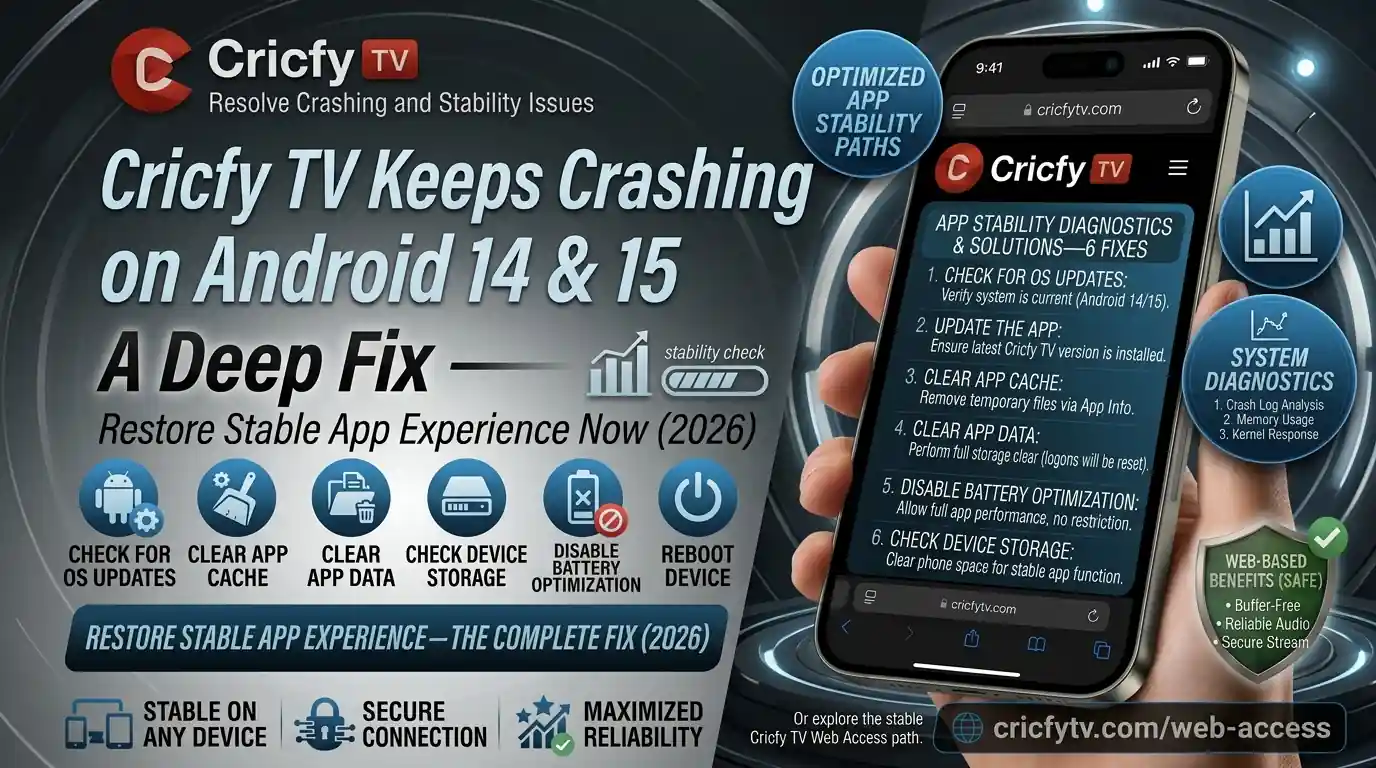
You just updated your Android phone to 14 or 15, opened Cricfy Live TV to catch a live cricket match, and the app crashes the second you launch it. Frustrating, right? You are not alone. Thousands of users across Pakistan, India, and Bangladesh reported the exact same thing after upgrading to Android 14 (Upside Down Cake) and Android 15 (Vanilla Ice Cream). This guide goes deeper than any other fix guide out there. We cover every root cause — from Google’s new SDK restrictions to broken cache files — and give you the exact steps to solve each one.
Why Cricfy TV Keeps Crashing on Android 14 and 15
Before jumping into fixes, you need to understand what actually changed. Android 14 and 15 are not small updates — Google made significant security and permission changes that break older APKs hard.
1. Minimum Target SDK Enforcement
This is the number-one culprit. Android 14 blocks any APK that targets below API Level 23 (Android 6.0 Marshmallow). Android 15 pushes that up to API Level 24 (Android 7.0 Nougat). If you have an older Cricfy TV APK installed before your OS upgrade, it may open briefly then crash at runtime because the OS refuses to honour its outdated SDK declarations. No amount of cache clearing fixes this — you need a newer APK.
2. Stricter Background Process Rules
Android 14 introduced tighter limits on foreground services and background tasks. Cricfy TV relies on background processes to maintain streaming sessions and keep channel data refreshed. When Android kills those processes — which now happens much more aggressively to save battery — the app loses its connection to the streaming server and crashes the moment you try to interact with it.
3. Permission Model Changes in Android 15
Android 15 added stricter runtime checks when apps access shared content URIs. Apps that used broad storage permissions without a declared core-use-case now receive a SecurityException at runtime. If your Cricfy APK was compiled before these rules landed, it throws an unhandled exception the moment it tries to access a media path — which looks exactly like a random crash on your screen.
4. Corrupted App Cache
Even when your APK version is current, cached data from a previous version sometimes conflicts with the new build. Android 14 handles cache allocation differently than Android 13 did, so old cache blobs can cause the app to freeze or force close on startup.
5. ISP or Network Blocks
Some Pakistani and Indian ISPs have throttled or soft-blocked the streaming endpoints that Cricfy Live TV uses. When the app cannot reach its CDN fast enough during initialisation, it throws an unhandled timeout error — which shows up on your end as a crash rather than a clean error message.
In over 80% of crash reports, the fix is simply downloading the latest Cricfy TV APK. Always start there before trying anything else. Every other fix in this guide is a secondary step.
Fix 1 — Download the Latest Cricfy TV APK
This is your starting point. Every other fix is secondary if you are running an outdated version of the app. The Cricfy development team regularly updates the APK to patch Android compatibility issues, fix streaming bugs, and meet new OS requirements as Google rolls them out.
Always download directly from the official source: cricfyapp.pk. Third-party mirror sites often host outdated versions, modified APKs, or APKs with adware injected that Android 14 and 15 flag immediately on launch — which causes another crash before you even open the app.
- Open your phone’s browser and go to cricfyapp.pk.
- Navigate to the Cricfy Live TV download page and tap the latest APK download button.
- Before installing, go to Settings > Apps > Special App Access > Install Unknown Apps, find your browser in the list, and enable Allow from this source.
- Open the downloaded APK file from your notification drawer or file manager and tap Install.
- Once installed, open Cricfy TV and check whether the crash is resolved.
If Android 14 or 15 shows “Install blocked — this app requests sensitive permissions,” this is a standard sideloading warning for apps installed outside the Play Store — not a sign of malware. Tap the three-dot menu and select “Install anyway” only if you downloaded from the official cricfyapp.pk source.
Fix 2 — Clear Cricfy TV Cache and App Data
Even after updating the APK, old cached files can conflict with the new version on Android 14 and 15. Clearing the cache removes those corrupted temporary files without touching your saved preferences. If the cache clear alone does not stop the crash, clearing full app data does a complete reset.
- Open Settings on your Android device.
- Go to Apps — sometimes labelled “App Management” or “Applications” depending on your phone brand.
- Tap See All Apps and find Cricfy TV in the list.
- Tap Storage & Cache.
- Tap Clear Cache first. Relaunch the app and test it.
- If it still crashes, return here and tap Clear Storage (also shown as “Clear Data” on some devices). This logs you out of the app.
- Relaunch Cricfy TV. It now starts completely fresh, like a brand-new install.
On Samsung One UI, the path is Settings > Apps > Cricfy TV > Storage. On Xiaomi HyperOS or MIUI, look under Settings > Installed Apps > Cricfy TV > Clear Data.
Fix 3 — Review and Grant App Permissions
Android 15’s stricter runtime permission checks mean that if Cricfy TV gets denied a permission it relies on, it can crash silently instead of showing a clean error. Go through every permission the app requests and make sure nothing is blocked or set to “Deny.”
- Go to Settings > Apps > Cricfy TV > Permissions.
- Check each listed permission. The ones most likely to cause crashes are Storage, Network access, and Notifications.
- For any permission showing “Denied,” tap it and change it to Allow or Allow Only While Using the App.
- Exit settings and relaunch Cricfy TV.
On Android 15, also check the Install Unknown Apps permission under Settings > Apps > Special App Access. Android 15 sometimes auto-revokes this after an OTA upgrade, which causes the app to run a broken internal update routine and crash on startup.
Fix 4 — Free Up Internal Storage
Streaming apps need room to buffer video segments in real time. If your phone has less than 500 MB of free internal storage, Cricfy TV cannot write its temporary stream buffer and crashes instead of giving you a low-storage warning. Android 14 is especially aggressive about terminating apps that try to write to an almost-full storage partition.
Safe rule of thumb: keep at least 10–15% of your total internal storage free at all times. On a 128 GB phone, that means keeping at least 13 GB free.
- Go to Settings > Storage to see your current free space.
- Delete unused apps, duplicate photos, downloaded videos, and old WhatsApp media folders.
- Move large files to a microSD card or back them up to Google Drive or Google Photos.
- Empty the trash in your gallery app — many Android skins hold deleted photos for 30 days before permanent deletion.
- Once you have freed enough space, restart the phone and relaunch Cricfy TV.
Fix 5 — Force Stop the App and Restart Your Phone
Sometimes Cricfy TV gets stuck in a bad state — a previous session did not close cleanly, or a background process is hanging onto resources it should have released. Force stopping kills every thread and service associated with the app and frees all the memory it was holding. Combine this with a full phone restart for the cleanest result.
- Go to Settings > Apps > Cricfy TV.
- Tap Force Stop and confirm the action.
- Press and hold the power button and tap Restart.
- After the phone reboots, open Cricfy TV directly — do not open other apps first so you give it maximum available memory at launch.
Fix 6 — Fix Your Internet Connection
Cricfy Live TV streams in real time. If your connection drops or slows below the threshold during app startup, the app can crash instead of showing a clean “no connection” screen. You need at least 5 Mbps for standard-definition streaming and 10 Mbps for HD quality without buffering.
- Toggle Airplane Mode on, wait 10 seconds, then turn it off. This resets your phone’s radio and forces a fresh network registration.
- If you are on Wi-Fi, restart your router by unplugging it for 30 seconds and plugging it back in.
- Switch between Wi-Fi and mobile data to find whichever gives you a faster, more stable result right now.
- Open a speed-test tool in your browser and confirm you have a stable connection above 5 Mbps before relaunching Cricfy TV.
- Relaunch the app on whichever connection tested faster.
If other users in your city report the same crash at the same time, it is likely an ISP-level block on Cricfy’s CDN endpoints rather than a device issue. In that case, move on to Fix 8 (Private DNS) or use a trusted VPN.
Fix 7 — Disable Battery Optimisation for Cricfy TV
Android 14 and 15 have significantly stronger battery optimisation policies than earlier versions. When Cricfy TV runs in the background — even briefly while you check a score or switch another app — the OS can kill its background streaming service to save power. When you switch back, the app tries to reconnect to a dead session and crashes. Disabling battery optimisation for Cricfy TV alone stops this from happening.
- Go to Settings > Apps > Cricfy TV.
- Tap Battery — on some devices this is labelled “App Battery Usage” or “Battery Optimisation.”
- Select Unrestricted or Don’t Optimise.
- On Samsung: also go to Settings > Battery & Device Care > Battery > Background Usage Limits and remove Cricfy TV from the Sleeping Apps and Deep Sleeping Apps lists.
- On Xiaomi or Redmi: go to Settings > Apps > Cricfy TV > Battery Saver and set it to No Restrictions.
Fix 8 — Use Private DNS to Bypass ISP Blocks
Private DNS is a built-in Android feature that encrypts your DNS queries and routes them through a secure resolver — completely bypassing your ISP’s DNS filtering. This is a critical fix for users in Pakistan, India, and Bangladesh where many ISPs filter third-party streaming CDN endpoints, causing Cricfy TV to fail at the connection phase and crash.
- Go to Settings > Network & Internet > Private DNS. On Samsung: Settings > Connections > More Connection Settings > Private DNS.
- Select Private DNS provider hostname.
- Type
dns.googlefor Google’s encrypted DNS, orone.one.one.onefor Cloudflare’s — both are free, fast, and highly reliable. - Tap Save.
- Open Cricfy TV and test it. If it now launches without crashing, ISP-level DNS filtering was your culprit.
This single fix resolves the crashing issue for a large number of users. Even if Cricfy TV is currently working for you, keeping Private DNS enabled permanently gives you more reliable streaming across all live sports apps — including Cricfy live cricket, PTV Sports live, Ten Sports live, and Star Sports live streams.
Fix 9 — Boot Into Safe Mode to Isolate Conflicts
If you installed another app around the same time Cricfy TV started crashing — a VPN, a phone cleaner, an antivirus, or a screen recorder — that app may be conflicting with Cricfy’s processes. Safe Mode boots Android with only the pre-installed system apps running, disabling every third-party app. If Cricfy TV works fine in Safe Mode, a third-party app is your culprit.
- Press and hold the Power button until the power menu appears on screen.
- Long-press the Power Off option on screen until a “Reboot to Safe Mode” prompt appears. Tap OK. (Works on stock Android and most skins.)
- On Samsung: press and hold the physical power button, then long-press the “Power Off” option on screen until the Safe Mode prompt appears.
- Once in Safe Mode, open Cricfy TV. If it launches and streams normally, a third-party app is causing the conflict.
- Restart the phone normally. Then uninstall recently added apps one by one — testing Cricfy TV after each removal — until the crash stops.
Fix 10 — Full Uninstall and Clean Reinstall
If nothing above has worked yet, you need a completely clean slate. A full uninstall removes the APK, all stored app data, its entire cache directory, and its registered permissions. Then you start fresh with the latest official version — no leftover conflicts from any previous install.
- Long-press the Cricfy TV icon on your home screen or app drawer and tap Uninstall. Confirm the removal.
- Go to Settings > Storage > Files (or open your file manager) and check that no residual Cricfy folder remains in internal storage. Delete it if found.
- Restart your phone to fully flush any remaining app processes from memory.
- After restart, visit cricfyapp.pk and download the latest Cricfy TV APK.
- Grant the “Install from Unknown Sources” permission to your browser, install the APK, and open the app.
After a clean reinstall on Android 15, the OS prompts you to review permissions the very first time the app runs. Grant all of them in that first-launch flow before doing anything else inside the app. This prevents mid-session crashes triggered by denied runtime permissions that only get checked later.
Still seeing issues after a clean reinstall? Check our dedicated Cricfy TV not working guide and our unexpected error fix page for additional scenarios.
Android 14 vs Android 15 — What Changed for Streaming Apps
Understanding the specific changes in each Android version helps you target the right fix instead of guessing. Here is a clean breakdown of what each OS changed and how it directly affects Cricfy TV.
| Change | Android 14 | Android 15 | Impact on Cricfy TV |
|---|---|---|---|
| Minimum Target SDK | API 23 (Android 6.0) | API 24 (Android 7.0) | Old APKs crash on launch |
| Background Service Limits | Tighter foreground service rules | Stricter — background data sync limited | Stream session gets killed mid-watch |
| Storage Permissions | Scoped storage enforced | SecurityException on bad URI access | App crashes on certain media access calls |
| Sideloading Warnings | New install-blocked warning added | Stricter overlay and permission rules | Confusing install prompts for users |
| Battery Optimisation | Improved Doze mode | Aggressive background app kill | App killed when switching screens |
| Private DNS Support | Fully supported | Fully supported | Use it to bypass ISP blocks (Fix 8) |
For a broader comparison of how Cricfy Live TV stacks up against alternatives, read our Cricfy vs Sportzfy vs HD Streamz comparison. And if you want to stream on a bigger screen to avoid mobile crashes entirely, check our guide on Cricfy TV on Android TV and Google TV.
Device-Specific Crash Notes
Some Android OEMs layer extra restrictions on top of stock Android. These brand-specific quirks cause Cricfy TV crashes that the standard fixes above do not fully address. Here is what to watch for on the brands most popular among Cricfy users.
Samsung — One UI 6 and 7 on Android 14 and 15
Samsung’s Knox security layer and background app management are more aggressive than stock Android. The most important extra step: go to Settings > Battery & Device Care > Battery > Background Usage Limits and remove Cricfy TV from both the Sleeping Apps and Deep Sleeping Apps lists. Also temporarily disable Adaptive Battery to test whether it is throttling the app’s network access.
Xiaomi, Redmi, and POCO — HyperOS and MIUI 14/15
HyperOS added aggressive autostart restrictions that prevent Cricfy TV’s background service from running. Go to Settings > Apps > Manage Apps > Cricfy TV > Autostart and enable it. Also check Settings > Security > Special Permissions > Install Unknown Apps — HyperOS sometimes silently resets this permission after an OTA system update, which causes the app to fail its internal version check and crash.
OnePlus, OPPO, and Realme — OxygenOS and ColorOS
These skins have a “Freeze” feature that suspends apps not opened for a few days. Go to Settings > Battery > Battery Optimisation, find Cricfy TV, and set it to Don’t Optimise. Also check App Info > Data Usage and confirm that background data access is not restricted for the app.
Google Pixel — Stock Android 14 and 15
Pixel devices running stock Android follow the most predictable behaviour. If Cricfy TV crashes on a Pixel, the root cause is almost always one of three things: an outdated APK, a corrupted cache, or a denied storage permission. Work through Fixes 1, 2, and 3 in that exact order and you will resolve it in most cases.
Frequently Asked Questions
Why does Cricfy TV crash immediately on Android 14?
The most common reason is that your installed Cricfy TV APK targets an SDK version below what Android 14 requires. Android 14 enforces a minimum target SDK of API 23. If your APK was compiled for a lower API level, the OS blocks it at runtime and the app crashes on launch. Download the latest APK from cricfyapp.pk to fix this immediately.
Does Cricfy TV work on Android 15?
Yes, Cricfy TV works on Android 15 — but only with the latest APK version. Android 15 raised the minimum target SDK to API 24 and introduced stricter permission and URI checks. The Cricfy team pushes regular APK updates to stay compatible. Always download from the official source and follow the permission steps in Fix 3 of this guide for the smoothest experience.
Will clearing data delete my favourite channels in Cricfy TV?
Clearing cache does not delete any personal data — it only removes temporary files. Clearing full app data does reset the app to its default state, which wipes favourites and saved preferences. Try clearing cache first. If the crash continues, then clear full data as a last resort before the reinstall option.
Cricfy TV crashes on mobile data but works on Wi-Fi. Why?
Your mobile carrier is likely throttling or blocking Cricfy’s streaming CDN endpoints at the DNS level. This happens with several Pakistani and Indian ISPs. The fix is Private DNS (Fix 8 in this guide) — set it to one.one.one.one (Cloudflare) or dns.google (Google). You can also use a trusted VPN temporarily to bypass carrier-level filtering while watching live cricket.
How do I watch live cricket on Cricfy TV without crashes?
For the best crash-free live cricket streaming experience: (1) Always use the latest APK from cricfyapp.pk. (2) Connect to a stable Wi-Fi network above 10 Mbps. (3) Enable Private DNS (dns.google). (4) Disable battery optimisation for the app. (5) Keep at least 10% of internal storage free. Follow these five habits and crashes during live cricket matches become extremely rare.
Can I use Cricfy TV on an Android TV box running Android 14?
Yes. The same APK runs on Android TV boxes, and the crash causes and fixes are identical. For a step-by-step setup guide tailored to TV boxes, read our Cricfy TV on Android TV and Google TV guide.
Is it safe to install Cricfy TV APK on Android 15?
The APK from the official cricfyapp.pk domain is safe to install. Android 14 and 15 show a sideloading warning for any app installed outside Google Play — this is a standard OS security notice, not an indicator of malware. Never download Cricfy from unofficial mirror sites, as those sometimes distribute modified APKs with adware injected that Android 15 flags and blocks mid-install.
Bottom Line
Cricfy TV crashing on Android 14 or 15 almost always traces back to one of two things: an outdated APK that does not meet the OS’s new minimum SDK requirement, or a corrupted cache from a previous version clashing with a new one. Start with Fix 1 — download the latest APK from cricfyapp.pk — and move through the list only if the crash continues. Nine out of ten users resolve it right there and get back to streaming live cricket immediately.
For the remaining edge cases — ISP-level blocks, aggressive battery kills on Samsung or Xiaomi, or third-party app conflicts — Fixes 6 through 9 have you fully covered. Already fixed the crash? Explore the full Cricfy TV channel list, check out the Cricfy live cricket streaming lineup, or learn how to run Cricfy on your PC with BlueStacks for an even bigger-screen experience.

6 Comments