
Cricfy TV VPN Detected Error — How to Bypass (Legally)
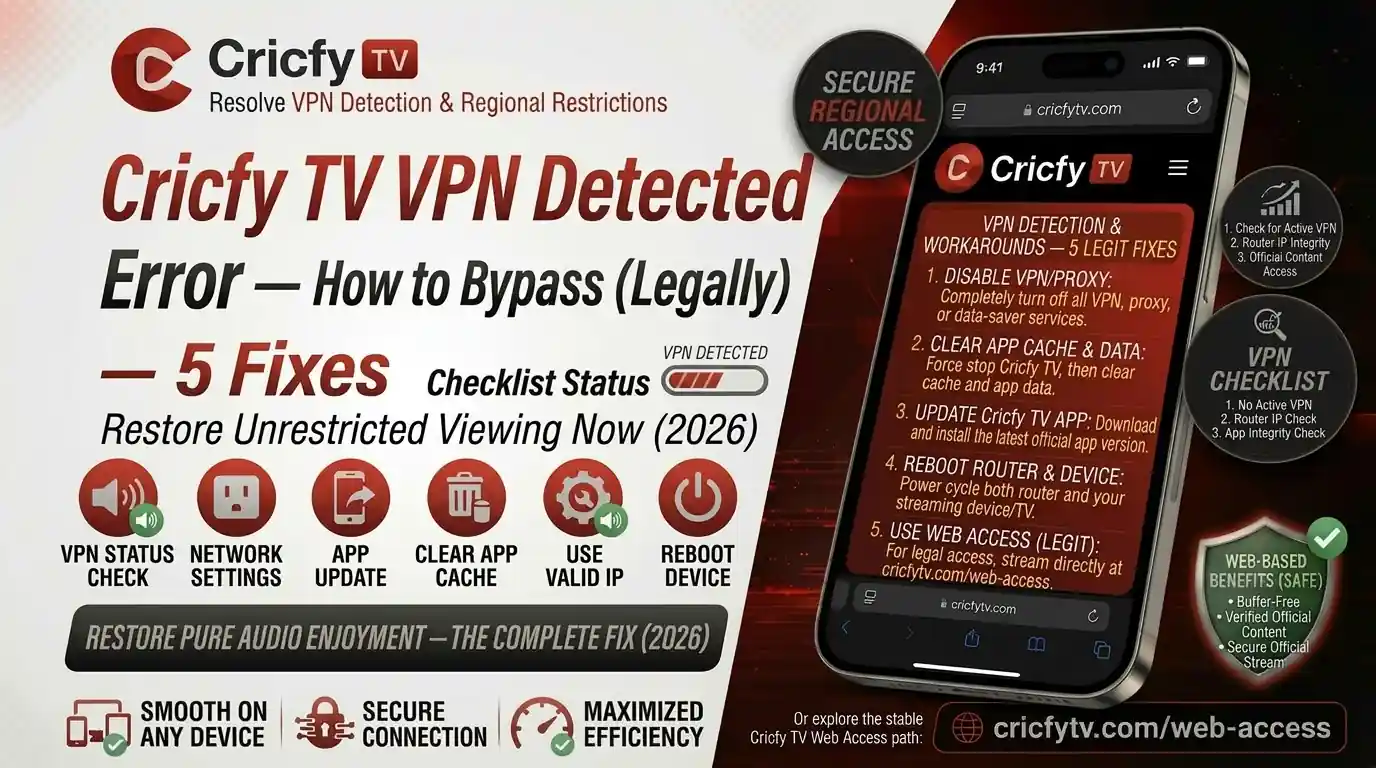
You fired up Cricfy TV, a big match is about to start, and suddenly you see it — the dreaded “VPN Detected” error. Everything freezes. The stream refuses to load. Your VPN is on, and the app just will not cooperate. Frustrating? Absolutely. Unfixable? Not even close.
This happens to thousands of Cricfy live TV users every week. The good news is that there are clear, working solutions — and you do not need to be a tech wizard to apply them. In this guide, we break down exactly why this error appears, how Cricfy TV detects VPNs, and how to legally bypass it on any device.
We also cover the legality angle honestly, so you know where you stand before you start streaming live cricket, PTV Sports live, Ten Sports live, or any other channel on the app.
Cricfy TV users who see a VPN-related error when they open the app or try to stream a live channel. We cover Android phones, Android TV, Amazon Firestick, Smart TV (LG, Samsung), and Windows PC via emulator.
What Is the Cricfy TV VPN Detected Error?
When Cricfy TV identifies that your internet connection is coming through a VPN, proxy, or similar tunneling tool, it blocks the stream and shows an error. The exact wording varies by app version, but it usually looks like one of these:
- “VPN Detected. Please disable your VPN to continue.”
- “Connection blocked. Disable your proxy or VPN.”
- “Unexpected Error Occurred” (which can also be VPN-triggered)
- “Request Failed — Please Try Again”
So here is the tricky part. Sometimes the app shows the generic “Unexpected Error Occurred” message even when VPN detection is the actual reason. If you have a VPN running — even in the background — that is your first suspect.
This error can hit on any device where you run Cricfy TV: Android phones, Android TV boxes, Amazon Firestick, LG WebOS TVs, Samsung Tizen TVs, or Windows PC through BlueStacks. The fix is the same logic across all of them.
Why Does Cricfy TV Block VPN Users?
This is a fair question. After all, you are trying to watch cricket — why would the app care whether you use a VPN?
There are a few real reasons behind this.
Content delivery and server routing
Cricfy TV fetches live stream links from third-party content delivery networks. Those networks often restrict access by geographic IP ranges. When your traffic arrives from a VPN server in a different country, the delivery network rejects the request. The app then shows you the block error.
Server load management
During big matches — think Pakistan vs India, IPL, PSL, or Asia Cup — millions of users join simultaneously. Many abuse VPNs to bypass rate limits or regional access controls. So the app started blocking all VPN traffic as a blanket approach to control server load.
Anti-scraping protection
Bots and stream scrapers almost always operate behind VPNs and proxies. By blocking known VPN IP address ranges, Cricfy TV prevents automated tools from harvesting its stream links.
The VPN block here is different from an ISP block. If your ISP has blocked Cricfy TV, a VPN actually helps. If the Cricfy app itself detects and rejects your VPN, that is a different scenario — and you need a different fix. We cover both below.
How Does Cricfy TV Detect Your VPN?
Understanding the detection method helps you pick the right bypass. Cricfy TV (like most modern streaming services) uses a layered approach to VPN detection.
| Detection Method | What It Checks | How to Bypass |
|---|---|---|
| IP Reputation Lists | Cross-checks your IP against commercial VPN blocklists (e.g., MaxMind) | Obfuscated VPN or residential IP server |
| IP Range Analysis | Identifies IP blocks owned by hosting companies or VPN providers | VPN with dedicated residential IPs |
| DNS Fingerprinting | VPN DNS servers leave recognizable patterns | VPN with custom DNS; obfuscated protocol |
| Deep Packet Inspection (DPI) | Analyzes traffic packet structure to spot VPN protocols | Stealth / obfuscated VPN protocol (e.g., WireGuard + Shadowsocks) |
| Multiple Simultaneous Connections | Many accounts from one IP signals a shared VPN server | Use a less-crowded VPN server or dedicated IP |
The bottom line: a standard VPN with a widely-shared IP address gets flagged every time. A VPN that uses obfuscation — disguising VPN traffic as normal HTTPS traffic — has a much higher chance of slipping through.
Fix 1: You Are Using a VPN and the App Rejects It — Turn It Off
This is the most common scenario. You have a VPN on for privacy or general browsing, and Cricfy TV blocks you because of it.
If you are in Pakistan, India, or Bangladesh — regions where Cricfy live TV works without geo-restrictions — you do not need a VPN to access the app at all. The app works fine on your real IP.
How to disable your VPN on Android
- Open Settings on your Android device.
- Go to Network & Internet (or Connections on Samsung).
- Tap VPN.
- Toggle off any active VPN connection.
- Also check for any proxy settings and disable those.
- Restart the Cricfy TV app. The stream should load immediately.
How to disable your VPN on Firestick
- Go to Settings on your Firestick home screen.
- Select My Fire TV and then Developer Options.
- Exit to the main menu and open your VPN app directly.
- Tap Disconnect inside the VPN app.
- Reopen Cricfy TV.
How to disable your VPN on Windows (BlueStacks)
- Right-click the VPN icon in your system tray (bottom-right corner).
- Select Disconnect or Turn Off.
- Wait 10 seconds, then reopen BlueStacks and launch Cricfy TV.
Some VPN apps run on startup and stay active in the background even when you think they are off. Always check the VPN app itself — not just the system settings — to confirm the connection is fully dropped.
Fix 2: Your ISP Has Blocked Cricfy TV — Here You Actually Need a VPN
This is the flip side of the previous scenario. Some users are in regions where their Internet Service Provider (ISP) has blocked Cricfy TV at the network level. When this happens, Cricfy TV does not even load — the connection times out before the app can detect anything.
In this case, a VPN is not the problem. A VPN is the solution.
How to tell if your ISP is blocking Cricfy TV
- The app does not load at all, even on a fresh install.
- It works on mobile data (4G/5G) but fails on your home Wi-Fi.
- Other apps and websites load fine — only Cricfy TV fails.
- Turning on a VPN makes Cricfy TV work again.
If your app works on mobile data but not Wi-Fi, your ISP is almost certainly blocking it at the router or DNS level. Switch to mobile data as a quick fix, or follow the VPN steps in the next section for a permanent solution on your Wi-Fi network.
Quick workarounds for ISP blocks (no VPN needed for mild blocks)
- Change your DNS: Go to your Wi-Fi settings and switch the DNS to
1.1.1.1(Cloudflare) or8.8.8.8(Google). This bypasses DNS-level blocks without a full VPN. - Use a different network: Try mobile data or a mobile hotspot to confirm the block is ISP-specific.
- Use a VPN: For a full and permanent fix, an obfuscated VPN is the gold standard (see Section 6).
Fix 3: Use an Obfuscated VPN to Bypass Cricfy TV’s VPN Detection
Here is where things get interesting. Some users genuinely need a VPN — either because their ISP blocks the app or because they want privacy while streaming. But a regular VPN gets flagged by Cricfy TV.
The answer is an obfuscated VPN (also called a stealth VPN).
What is an obfuscated VPN?
An obfuscated VPN disguises your VPN traffic so it looks like regular HTTPS web traffic. Instead of the distinctive packet signature of a standard VPN protocol (like WireGuard or OpenVPN), the connection looks like someone just browsing a normal website. Standard deep packet inspection tools — the kind Cricfy TV uses — cannot tell the difference.
Tools that make this work include Shadowsocks, V2Ray, NoBorders Mode, and Stealth Protocol. Different VPN providers call their version by different names, but they all achieve the same goal: making your VPN connection invisible to detection systems.
Step-by-step: Set up an obfuscated VPN for Cricfy TV
- Download a VPN that supports obfuscation (NordVPN, Surfshark, or Proton VPN — all three are tested and work well).
- Open the VPN app and go to Settings.
- Enable the obfuscation or stealth option: NordVPN calls it “Obfuscated Servers,” Surfshark calls it “Camouflage Mode,” and Proton VPN calls it “Stealth Protocol.”
- Connect to a server in a country where Cricfy TV content loads reliably. Pakistan, India, and UAE servers work well for most users.
- Connect to the VPN before opening Cricfy TV — not after.
- Open the Cricfy TV app. The stream should load without triggering the VPN block.
Free VPNs use shared IP addresses that are almost always on blocklists. They also log your data, serve ads, and often slow your connection too much for live streaming. For Cricfy TV specifically, free VPNs simply do not work reliably. Stick to a paid, reputable provider with obfuscation support.
Best VPNs That Work With Cricfy TV in 2026
We are not going to list 20 VPNs here. Instead, here are three that are tested and actually bypass Cricfy TV’s detection in 2026.
NordVPN’s obfuscated servers are the most reliable for bypassing streaming app VPN detection. The obfuscated server network is separate from the standard server pool — you activate it with a single toggle in Settings. NordVPN also uses SmartPlay technology, which automatically routes streaming traffic for the best performance.
Visit NordVPNSurfshark’s Camouflage Mode activates automatically when you use OpenVPN protocol — no separate toggle needed. It also offers NoBorders Mode, which is useful in regions with heavy ISP filtering. Surfshark allows unlimited simultaneous device connections, which makes it ideal if you want one subscription to cover your phone, TV, and PC.
Visit SurfsharkProton VPN is unique because it offers a genuinely usable free tier — no data limits. The free servers are in the US, Netherlands, and Japan, which may or may not work perfectly for Cricfy TV depending on the content delivery network. The paid plan adds Stealth Protocol (obfuscation over TLS) and Plus servers specifically optimized for streaming. Proton is Swiss-based and has a strong privacy track record.
Visit Proton VPN| VPN | Obfuscation Protocol | Free Tier | Works on Android TV / Firestick | Verdict |
|---|---|---|---|---|
| NordVPN | Obfuscated Servers (XOR) | No (30-day refund) | Yes (native app) | Best overall for Cricfy TV |
| Surfshark | Camouflage Mode (OpenVPN) | No (30-day refund) | Yes (native app) | Best value, unlimited devices |
| Proton VPN | Stealth (TLS obfuscation) | Yes (limited servers) | Yes (paid plan) | Best for privacy-focused users |
| ExpressVPN | Lightway with obfuscation | No (30-day refund) | Yes (native app) | Fast but pricier |
| Free VPNs | None (shared blocked IPs) | Yes | Limited | Do not use — blocked immediately |
Device-Specific Steps for Each Platform
Android phone or tablet
Android is the primary platform for Cricfy live TV on Android. The VPN detection fix is straightforward: either disable your VPN entirely, or switch to an obfuscated VPN before launching the app. Also make sure you are running the latest APK version from the official Cricfy TV website — older versions have more bugs around network handling.
Amazon Firestick
If you use a VPN directly on your Firestick, the VPN app tunnels all traffic from the device — including Cricfy TV. To fix the block, either open your VPN app and disconnect, or switch to a VPN with obfuscation enabled before opening Cricfy TV. NordVPN has a native Firestick app that supports obfuscated servers.
Android TV / Google TV
On Android TV and Google TV devices, the VPN usually runs as a system-level app. Go to Settings, then Network, then VPN, and disconnect your current VPN. Alternatively, use split tunneling if your VPN app supports it — this lets you exclude Cricfy TV from the VPN tunnel while keeping other apps protected.
LG WebOS Smart TV
Running Cricfy TV on an LG WebOS TV means the VPN is likely running through your router (since WebOS does not support VPN apps natively). The easiest fix is to disable the VPN at the router level, or create a separate Wi-Fi network without VPN and connect your TV to that.
Windows PC (BlueStacks)
When you run Cricfy TV on BlueStacks, your system-level VPN affects the emulator too. Disconnect your VPN, restart BlueStacks, and launch the app fresh. If you need a VPN for other reasons, use split tunneling to exclude BlueStacks from the VPN tunnel.
Other Fixes That Resolve VPN-Related Errors on Cricfy TV
Sometimes the VPN error is not purely about an active VPN connection. These additional fixes address related network-level issues that produce the same error message.
Clear the Cricfy TV app cache
A corrupted cache can sometimes mimic a VPN error because the app cannot establish a clean connection to its servers. Go to Settings > Apps > Cricfy TV > Storage > Clear Cache. Then restart the app. This takes 30 seconds and fixes more issues than most people expect.
Update to the latest APK
Older Cricfy TV versions have stricter and sometimes buggy VPN detection that triggers false positives — blocking users even when no VPN is active. Always run the latest version from the official Cricfyapp.pk website. The latest versions handle VPN detection more accurately.
Check your date and time settings
This one sounds unrelated, but it matters. When your device clock is wrong, Cricfy TV’s servers reject the connection as suspicious — and the error message looks identical to a VPN block. Go to Settings, find Date & Time, and enable Automatic date and time. This is an officially documented cause of the unexpected error.
Disable any proxy settings
Proxy connections produce the same detection trigger as a VPN. Check your Wi-Fi network settings on your device. Under the Wi-Fi network properties, look for a Proxy setting and make sure it is set to None.
Switch from Wi-Fi to mobile data
Some home ISPs and corporate networks route traffic through a proxy server automatically. If Cricfy TV works on mobile data but fails on Wi-Fi, your network is the problem — not your device or the app. Either use mobile data to stream or change the DNS settings on your router (set primary DNS to 1.1.1.1 and secondary to 1.0.0.1).
Use split tunneling
If you do not want to turn off your VPN entirely, use split tunneling. This feature — available in NordVPN, Surfshark, and Proton VPN — lets you route specific apps outside the VPN tunnel. Add Cricfy TV to the excluded apps list. Your other traffic stays protected; Cricfy TV uses your real IP and loads without issue.
If Cricfy TV loads after you fix the VPN error but then buffers constantly, that is a different issue. Read our full guide on fixing Cricfy TV buffering for a complete set of solutions.
The Legality Question: Is Bypassing the VPN Block Legal?
Let us be straight with you here, because this matters.
Using a VPN is legal in most countries
In Pakistan, India, Bangladesh, the UK, the US, and most of Europe, using a VPN is completely legal. VPNs are tools — like a browser or an antivirus. The legality of what you do with the VPN depends on the content you access, not the VPN itself.
Cricfy TV’s legal status
Cricfy TV is a third-party app that is not available on the Google Play Store. It streams live sports by aggregating links from external sources. Most of these streams — including PTV Sports live, Ten Sports live, and Star Sports live — come from sources that do not hold official broadcasting rights. Major cricket tournaments like the ICC Men’s Cricket World Cup, IPL, and PSL have exclusive broadcast rights agreements. Broadcasting without those rights is a copyright violation at the source — not necessarily at the viewer level.
That said, user-level legal risk varies by country. In Pakistan, personal viewing of unofficial streams is generally not enforced. In the UK and Australia, ISPs actively block such sites under court orders. Using a VPN to bypass an ISP-level block imposed by a court order enters a legal grey area.
Legal alternatives for live cricket streaming
If you want a fully legal option, here are the official broadcasters by region:
| Region | Legal Service | Cost | Key Tournaments |
|---|---|---|---|
| Pakistan | PTV Sports, ARY ZAP | Free (FTA) | Pakistan home series, PSL, ICC events |
| India | Sony LIV, JioCinema | Paid / Free (select matches) | IPL, India bilateral series |
| UK | TNT Sports / Discovery+ | Paid | England home series, ICC events |
| USA | Willow TV, ESPN+ | Paid | ICC events, India, Pakistan series |
| Australia | Fox Sports, 7plus | Paid / Free (selected) | Australia home series, Big Bash |
Cricfy TV also carries channels like PTV Sports, Ten Sports, and Star Sports that are available through their official apps and websites in their licensed regions. Always check the official broadcaster in your country first.
We are not lawyers and this is not legal advice. We recommend using legal streaming services where available. Where you are in a region with no affordable legal option for Pakistani or South Asian cricket coverage, consult local regulations before using third-party streaming apps.
Frequently Asked Questions
Why does Cricfy TV show a VPN error even though I turned my VPN off?
Some VPN apps continue running in the background even after you “disconnect.” Check the VPN app itself — not just the system settings — and make sure the connection is fully dropped. Also check for any proxy settings under your Wi-Fi connection properties. If the error persists, restart your device completely and launch Cricfy TV on a fresh boot.
Can I use a free VPN to bypass Cricfy TV’s VPN block?
Generally, no. Free VPNs use shared IP addresses that are almost always on commercial VPN blocklists. Cricfy TV’s detection system flags these immediately. Free VPNs also lack obfuscation support, which is the key feature you need. Proton VPN’s free tier is an exception worth trying, though its free server locations are limited and may not always work for Cricfy TV streams.
Does Cricfy TV have a built-in VPN?
Some older versions of the Cricfy TV APK included a built-in VPN toggle. However, this was for privacy when fetching streams — not for bypassing the app’s own VPN detection. Current versions have moved away from this feature. An external VPN with obfuscation support is more reliable regardless.
Why does Cricfy TV work on mobile data but not Wi-Fi?
This usually means your home ISP is blocking the app’s servers, or your router is using a proxy or DNS that filters the connection. Try changing your router’s DNS to 1.1.1.1 (Cloudflare) or 8.8.8.8 (Google). If that does not work, your ISP has blocked the app at a deeper level and you need a VPN on your home network.
What is the best server location to use with a VPN for Cricfy TV?
For Pakistani and South Asian content on Cricfy TV, connect to a server in Pakistan, UAE, or Singapore. These locations route traffic through content delivery networks that serve the South Asian region reliably. If those fail, try Netherlands or Switzerland servers as fallbacks — both countries have liberal streaming environments.
Will using a VPN with Cricfy TV slow down my stream?
A standard VPN adds some latency and can reduce speeds by 10–20%. For live cricket streaming at standard definition (which requires around 3–5 Mbps), this is usually acceptable. For HD streaming (10 Mbps recommended), use a VPN with WireGuard protocol or its equivalent — this is the fastest VPN protocol and keeps speed reduction minimal. NordVPN’s NordLynx and Surfshark’s WireGuard implementation both perform well for this.
Is it legal to use a VPN with Cricfy TV?
Using a VPN itself is legal in Pakistan, India, and most countries. The legality question relates to what content you stream. For personal viewing, most South Asian users face no enforcement action. In the UK, Australia, and parts of Europe, ISP blocks on streaming sites are backed by court orders — using a VPN to bypass these sits in a legal grey area. Always check your local regulations and prefer legal streaming services where available.
What should I do if the VPN bypass stops working?
Cricfy TV and VPN providers are in a constant cat-and-mouse situation. If your current VPN server stops working, switch to a different server location in the same VPN app. If a different server also fails, update your VPN app to the latest version — providers regularly rotate and refresh their server IP addresses to stay ahead of blocklists. You can also try switching the VPN protocol (e.g., from WireGuard to OpenVPN with obfuscation).
Bottom Line
The Cricfy TV VPN detected error is not a dead end. The fix you need depends entirely on your situation. If you are using a VPN for general browsing, turn it off before opening the app — Cricfy TV works perfectly on your real IP in Pakistan, India, and Bangladesh. If your ISP blocks the app, a VPN actually helps — just make sure it uses obfuscation (stealth mode) so the app cannot detect it.
For the best results in 2026, NordVPN with obfuscated servers enabled is the most reliable option. Connect before opening Cricfy TV, pick a South Asian or UAE server, and the stream loads without a block.
Still having trouble? Check our full Cricfy TV not working guide for a comprehensive list of all error types and fixes. You can also return to the Cricfy live TV homepage for the latest app download and channel information.
Related Guides on Cricfyapp.pk
- Cricfy TV Not Working — All Error Types and Fixes
- Cricfy TV Unexpected Error Occurred — Fix Guide
- Cricfy TV Buffering Fix — HD Streaming Without Lag
- Cricfy TV Crashing on Android 14 and 15 — Fix
- Cricfy TV Audio Not Working — No Sound Fix
- How to Install Cricfy TV on Firestick
- Cricfy TV on Android TV and Google TV
- Cricfy vs Sportzfy vs HD Streamz — Which Is Best?
- Cricfy Live TV Channel List — All Channels Available
Sources & References
- Wikipedia — Virtual Private Network
- Wikipedia — VPN Blocking Methods
- Wikipedia — Indian Premier League (IPL)
- Wikipedia — Pakistan Super League (PSL)
- Wikipedia — Asia Cup
- Wikipedia — ICC Men’s Cricket World Cup
- Proton VPN Official Site
- NordVPN Official Site
- Surfshark Official Site
- Pakistan Cricket Board (PCB) — Official
- ICC — International Cricket Council






5 Comments