
Cricfy TV Buffering During Live Match — The Complete Fix
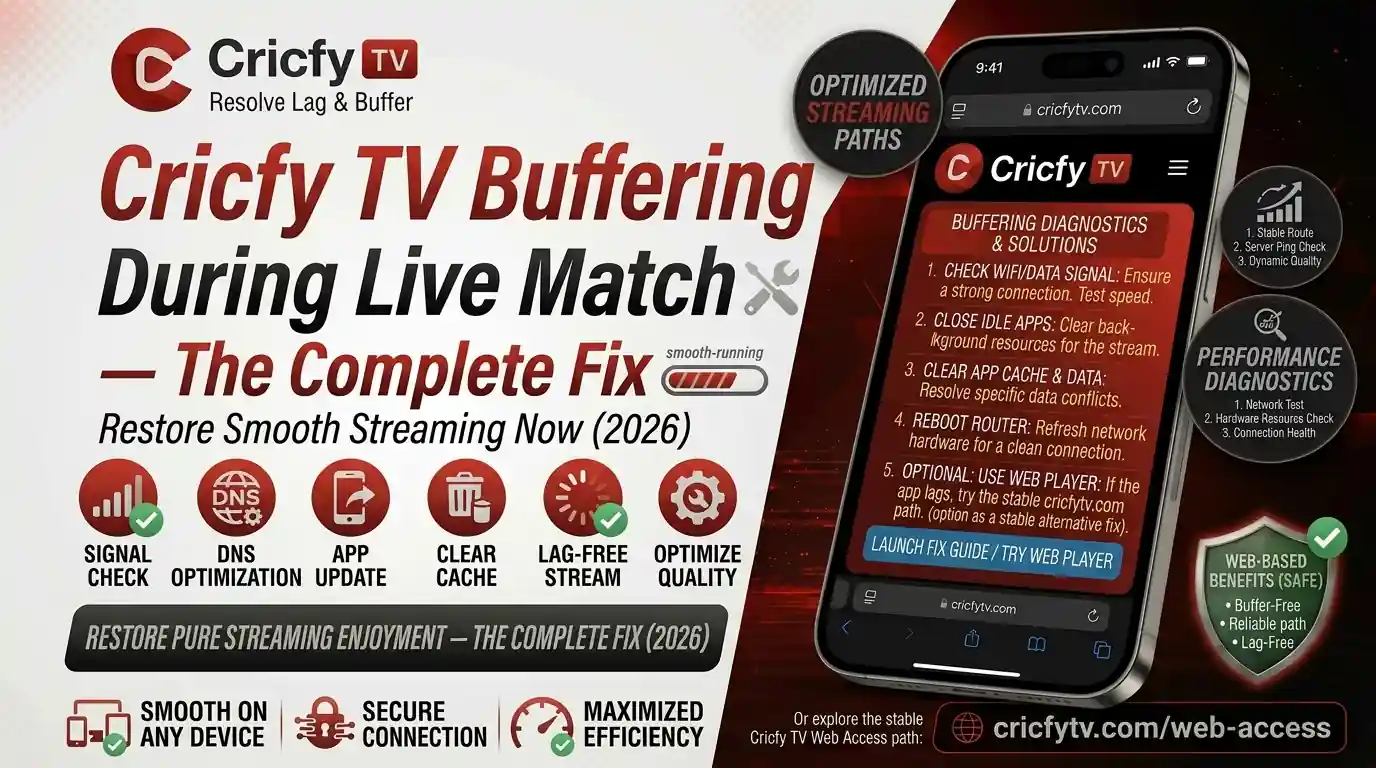
You are three balls away from a six that could win the match. Then the wheel starts spinning. Cricfy TV buffers right at the worst moment. You have been there. Everyone watching live cricket on Cricfy live TV has been there. The good news is that buffering is almost always fixable, and this guide covers every single reason it happens and every step to stop it permanently.
Why Does Cricfy TV Keep Buffering During Live Matches?
Before you fix anything, you need to understand what is actually causing it. Buffering happens when your device cannot receive video data fast enough to keep playback continuous. The app tries to load the next chunk of the stream, and when that chunk arrives slowly, the video pauses. That spinning circle you see is the Cricfy TV player waiting for data.
There are several layers where this breakdown can happen. It could be your internet connection, your device, the app itself, the streaming server, or even your internet service provider throttling your traffic. Most of the time it is not a Cricfy live TV problem on its own. It is a chain of factors, and you only need to fix the weakest link.
Here are the most common causes ranked by how often they appear:
| Cause | How Common | Typical Symptom |
|---|---|---|
| Slow or unstable internet | Very common | Constant spinning wheel throughout the stream |
| Weak Wi-Fi signal | Very common | Buffers in one room but not another |
| Overloaded streaming server | Common during big matches | Buffers only during high-demand events like India vs Pakistan |
| Accumulated app cache | Common | App was fine before, suddenly slows down |
| Outdated Cricfy TV APK version | Moderate | Stream fails to load or crashes on open |
| ISP throttling on streaming traffic | Moderate | Buffers every evening but works fine in the morning |
| Device RAM or processor limits | Moderate on old devices | App slows down the longer you watch |
| VPN conflicts | Less common | Stream loads but freezes randomly |
Before you dive into settings, do one quick test. Open YouTube or any other site and play a video. If that also buffers, your internet is the problem. If YouTube runs perfectly but Cricfy live cricket still buffers, then the issue is specific to the app or its servers. This one test saves you a lot of time.
Fix Your Internet Connection First
A slow or unstable internet connection causes the majority of buffering issues on Cricfy TV. Live cricket streaming in standard definition needs at least 3 Mbps to stay smooth. HD streaming needs 5 to 8 Mbps. Full HD at 1080p needs 10 Mbps or more sustained, not just a peak speed.
Your first move is always to restart your router. It sounds simple, but routers lose performance over weeks of continuous uptime. Power it off, wait 30 full seconds, then turn it back on. This clears the router’s memory and resets the network stack. A huge number of streaming problems disappear after this one step.
Next, try these steps in order:
- Turn off your router and modem. Wait 30 seconds. Turn them back on and wait for a full connection before opening Cricfy TV.
- Run a speed test at Fast.com or Speedtest.net. Note both your download speed and your ping (latency). For live streaming, ping under 80 ms is ideal.
- Close all other apps and tabs that are using the internet. Background downloads, social media feeds, and cloud sync apps all steal bandwidth during your match.
- Ask other people in your home to pause heavy downloads or video calls during the match. Every device connected to your network competes for bandwidth.
- If you are on mobile data, toggle airplane mode for 10 seconds and turn it off again. This forces your phone to reconnect to the nearest cell tower and often improves signal.
Wi-Fi vs Mobile Data: Which Works Better for Cricfy Live TV?
This is one of the most common questions, and the answer depends on your specific setup. Neither Wi-Fi nor mobile data is always better. What matters is signal strength, stability, and speed.
When Wi-Fi causes buffering
Wi-Fi signal weakens with distance and physical obstructions. If you are two rooms away from your router with walls in between, your signal can drop dramatically even if the router itself is fast. Move closer to the router. If that is not possible, use a Wi-Fi extender or switch to your router’s 5 GHz band if your device supports it. The 5 GHz band is faster but has a shorter range, while 2.4 GHz travels further but handles more interference.
Also check how many devices are on your network. Every smartphone, smart TV, laptop, and IoT device connected to your Wi-Fi uses a share of the available bandwidth. During IPL or PSL finals when everyone at home wants to watch, this congestion can bottleneck your Cricfy live cricket stream significantly.
When mobile data works better
If your home Wi-Fi is consistently slow, switching to 4G or 5G mobile data can actually deliver a faster and more stable connection for live streaming. A 4G connection averaging 15 to 20 Mbps handles Cricfy TV HD streams easily. And with 5G, buffering becomes almost non-existent if you have coverage in your area.
Live HD streaming on Cricfy TV uses roughly 1 to 1.5 GB per hour on mobile data. A full Test match day session of eight hours can use 8 to 12 GB. Keep an eye on your data plan, especially on limited mobile packages.
Exact Internet Speed Requirements for Cricfy TV
Many users blame the app when they actually do not have enough bandwidth to support the quality they are trying to watch. Here is a clear breakdown of what you need:
| Stream Quality | Minimum Speed | Recommended Speed | Best For |
|---|---|---|---|
| Low / 360p | 1 Mbps | 2 Mbps | 2G / weak mobile data |
| Standard / 480p | 2.5 Mbps | 4 Mbps | Basic mobile data, old Wi-Fi |
| HD / 720p | 5 Mbps | 8 Mbps | 4G, standard broadband |
| Full HD / 1080p | 10 Mbps | 15 Mbps+ | 5G, fiber broadband |
One important thing to understand: your internet plan’s advertised speed is the maximum, not the sustained average. During peak hours in the evening when many people in your area are online simultaneously, your real-world speed can drop to a fraction of what you pay for. This is why many users notice Cricfy live TV buffering specifically at night.
Furthermore, the speed shown on a speed test is not always what the streaming app receives. Background processes, device overhead, and network routing all reduce the effective bandwidth available to Cricfy TV. Always run a speed test and target results that are at least double the minimum requirement for the quality you want to stream.
Clear Cricfy TV App Cache and Data
Over time, the Cricfy TV app accumulates cached files. These include leftover stream fragments, old channel lists, and broken temporary data. When this cache becomes corrupted or too large, it causes the app to load slowly, freeze, or buffer even on a fast connection. Clearing it is one of the fastest and most effective fixes available.
Follow these steps on Android:
- Open Settings on your Android device.
- Go to Apps or Application Manager (varies by manufacturer).
- Find Cricfy TV in the list. Tap on it.
- Tap Storage or Storage and Cache.
- Tap Clear Cache first. Reopen the app and test streaming.
- If buffering continues, go back and tap Clear Data as well. Note that this resets any in-app settings you may have configured.
- Restart the app and try a live channel again.
On Android TV and smart TV boxes, the process is the same but you navigate using your remote. Go to Settings, find Apps, locate Cricfy TV, and clear the cache from the Storage section.
Clearing data will not delete the app itself. It only removes stored files. Your Cricfy TV APK stays installed. You may need to reselect your preferred streaming quality after clearing data, but that takes less than 30 seconds.
Switch to a Different Streaming Server Inside Cricfy TV
This is the fix that most people overlook, and it solves buffering faster than almost anything else. Cricfy TV provides multiple streaming servers for most major live channels. When one server gets overloaded, especially during high-demand matches like India vs Pakistan or PSL playoffs, switching to an alternate server delivers an instant improvement.
When you open a live channel inside Cricfy live TV and it starts buffering, look for a server selector or an alternative stream button inside the player. Depending on your app version, this may appear as numbered server options, a server list icon, or simply as alternate quality links below the main player. Tap the next available server and give it five to ten seconds to connect.
Cricfy TV typically maintains three to five server links per major match. If Server 1 is congested during an IPL final, Server 2 or Server 3 may be running perfectly fine. This is one of the app’s best features for uninterrupted cricket streaming and it costs you nothing to try.
During big matches with millions of simultaneous viewers, server congestion is the single most common cause of buffering on Cricfy live cricket streams. Always try switching servers before you blame your internet or device.
Lower the Streaming Quality Inside the App
If your internet speed is simply not fast enough for HD streaming at the moment, lowering the quality is the smartest move. You still watch the match live. You just watch it at a lower resolution. That is far better than watching it in HD with constant interruptions.
Inside the Cricfy TV video player, look for a quality or resolution selector. Cricfy TV supports adaptive bitrate technology, which means it can switch video quality automatically based on your connection speed. However, auto mode does not always switch fast enough when your speed drops suddenly. Setting it manually to 480p or even 360p during a slow connection keeps the stream running continuously.
Think of it this way: a continuous stream at 480p captures every ball, boundary, and wicket in real time. A buffering 1080p stream misses the key moment entirely. The match matters more than the pixels.
Once your internet stabilizes, you can switch back up to HD through the quality selector without restarting the stream.
Update the Cricfy TV APK to the Latest Version
Running an outdated version of the Cricfy TV app is a surprisingly common cause of buffering and stream failures. Each new version of the Cricfy TV APK includes server compatibility updates, bug fixes, and improvements to streaming stability. When the app’s servers receive an upgrade on the backend, older versions stop connecting cleanly and start breaking.
Since Cricfy TV is not listed on the Google Play Store, updates do not happen automatically. You need to manually download and install the latest APK. Always get the latest version from the official source to avoid modified or corrupted APK files that can cause streaming errors.
You can download the latest Cricfy TV version from the official Cricfy website at cricfyapp.pk. After installing the update, clear the app cache using the steps above and then test streaming a live channel.
Before installing a new APK, make sure you have enabled “Install from unknown sources” in your Android security settings. This is a one-time setting and does not stay enabled permanently if you choose to disable it afterward.
Is Your ISP Throttling Your Cricfy Live Cricket Stream?
This one catches a lot of people off guard. Your internet service provider can intentionally slow down specific types of traffic. ISPs use a technology called Deep Packet Inspection (DPI) that lets them detect not just how much data you use, but what type of data it is. When they identify live video streaming traffic, they can cap your speed on that specific type of traffic, even while your overall internet plan remains fast.
The telltale sign of ISP throttling is specific and unmistakable. Your Cricfy live TV stream buffers constantly in the evening. But if you run a speed test, it shows perfectly fast results. And if you open YouTube or browse social media, everything loads instantly. Only your live cricket stream is slow. That pattern almost always means your ISP is throttling streaming traffic during peak hours.
Another clear indicator: the same stream that buffers at 9 PM runs perfectly at 7 AM the next morning. Your internet connection did not get faster overnight. Your ISP reduced the throttling during off-peak hours when network load is lower.
The fix for ISP throttling is using a VPN, which is covered in the next section.
How to Use a VPN to Stop Cricfy TV Buffering
A VPN, or Virtual Private Network, creates an encrypted tunnel between your device and a secure server elsewhere. Because all your traffic is encrypted, your ISP cannot see that you are streaming live cricket. They see encrypted data, not streaming traffic. So they have no basis to throttle it. The result is that your Cricfy live TV stream gets your full bandwidth instead of a throttled portion of it.
Beyond throttling, a VPN can also route your traffic through a faster path to Cricfy TV’s streaming servers. In some cases, especially in Pakistan and South Asia, a VPN server in a nearby country like UAE, Singapore, or the UK delivers a faster and more stable connection than your ISP’s direct routing.
How to use a VPN with Cricfy TV on Android
- Download a reputable VPN app. ProtonVPN offers a free tier. NordVPN and ExpressVPN are excellent paid options with fast servers suited for live streaming.
- Open the VPN app and connect to a server in a nearby country. For users in Pakistan, a UAE or Singapore server typically works well.
- Once connected, open Cricfy TV and start the live stream. The buffering caused by throttling should stop immediately.
- If the VPN actually makes things slower, try a different server location. Also make sure you are not using a free VPN with bandwidth caps or slow servers, as these can create their own buffering problems.
Some versions of Cricfy TV may block connections from certain VPN IP addresses. If you connect a VPN and the stream fails to load at all (rather than just buffering), try a different VPN server or turn off the VPN and use a different fix from this guide instead.
Device-Specific Fixes for Cricfy TV Buffering
Android Phone and Tablet
Close all background apps before opening Cricfy TV. On Android, go to your recent apps screen and swipe away everything else. This frees up RAM for the streaming app. If your phone is more than four years old, it may struggle with HD video decoding. Switch to 720p or 480p to reduce the processing load.
Also check your battery saver settings. Battery saver mode on Android restricts background data and CPU usage, which directly throttles streaming apps. Turn off battery saver or set Cricfy TV as an exception in your battery optimization settings.
Android TV and Smart TV Box
Smart TV boxes and Android TV devices have limited RAM compared to phones. Clear the cache for Cricfy TV from Settings as described above. Also restart the TV box by unplugging it for 30 seconds rather than using the remote shutdown. A cold restart clears memory more completely than a soft restart.
If you are using an older TV box that is three or more years old, it may lack the hardware decoding capability for HD streams. Lower the quality to 480p. A hardware decoder limitation looks exactly like a network buffering problem but behaves differently: it gets worse the longer the stream runs, as the device overheats and throttles itself.
Amazon Firestick
The Firestick has limited internal storage and RAM. Over time, it accumulates apps and cached data that slow it down. Clear the Cricfy TV cache from Settings, then go to Settings and clear the cache for the Amazon launcher as well. Also force stop any streaming apps you are not using. For a deeper guide, read our Cricfy TV on Firestick setup guide.
PC via BlueStacks or NoxPlayer
If you watch Cricfy TV on PC through an Android emulator, allocate more RAM and CPU cores to the emulator in its settings. Also ensure your graphics drivers are up to date, as hardware video acceleration through the GPU significantly reduces buffering on emulators. Visit our full guide on Cricfy TV for PC using BlueStacks for step-by-step emulator optimization.
Windows 11
On Windows 11, using BlueStacks 5 or later with hardware virtualization enabled gives the best performance for Cricfy live cricket. Enable Hyper-V or HAXM in your BIOS if not already active. Our Cricfy TV for Windows 11 guide walks through this in detail.
Big Match Day Tips: How to Prepare for Zero Buffering
Some matches bring millions of simultaneous viewers onto Cricfy live TV at the same time. India vs Pakistan in a World Cup. A PSL final. An Asia Cup decider. These events stress every streaming server globally, not just Cricfy’s. Preparation before the match starts makes a massive difference.
Here is your pre-match checklist:
- Update the Cricfy TV APK the day before the match. Never update right before a critical game in case you run into installation issues.
- Clear the app cache on match morning. Start the stream with a clean slate.
- Test your internet speed at the time of day you will watch. If evening speeds are consistently slower at your location, consider watching via mobile data or connecting a VPN.
- Close all non-essential apps and disconnect any devices you are not using from your Wi-Fi before the match begins.
- Connect via ethernet if you are watching on a TV box or PC. A wired connection eliminates Wi-Fi variability entirely.
- Note which server worked best in your last streaming session and start there on match day rather than starting on the default server.
- Have a backup plan ready. Know which alternate quality settings or servers to try if you hit buffering. You will switch in seconds rather than fumbling through menus mid-over.
Change Your DNS Settings to Improve Streaming Speed
DNS, or Domain Name System, is the service your device uses to translate web addresses into IP addresses. By default, your device uses your ISP’s DNS servers. These are often slow and sometimes used to block or throttle specific types of traffic. Switching to a faster, more neutral public DNS can reduce the initial load time of streams and, in some cases, completely bypass simple ISP-level blocks.
The two best public DNS options for streaming are:
- Cloudflare DNS: Primary 1.1.1.1, Secondary 1.0.0.1 — fastest DNS resolver globally for most users
- Google DNS: Primary 8.8.8.8, Secondary 8.8.4.4 — highly reliable and widely supported
On Android, go to Settings, then Wi-Fi, then long-press your connected network and tap Modify Network. Switch from DHCP to Static and enter the DNS addresses manually. On Android 9 and above, you can use Private DNS: go to Settings, Network and Internet, Advanced, Private DNS, and enter one.one.one.one for Cloudflare.
This change takes effect immediately. Open Cricfy TV after changing DNS and check if stream loading time improves. Many users in Pakistan notice a significant improvement with Cloudflare DNS specifically, as local ISP DNS servers are sometimes slow to resolve international CDN addresses used by streaming platforms.
Reinstall Cricfy TV When Nothing Else Works
If you have tried everything above and Cricfy live TV is still buffering, a fresh reinstall is your next step. Reinstalling removes all corrupted app files, broken stream cache, outdated scripts, and any bugs introduced by a partial update. It gives you a completely clean installation of the latest version.
- Uninstall the current Cricfy TV APK from your device. On Android, long-press the app icon and select Uninstall, or go to Settings, Apps, Cricfy TV, and tap Uninstall.
- Restart your device after uninstalling. This clears any residual files from memory.
- Download the latest Cricfy TV APK from the official source at cricfyapp.pk. Do not install a version from an unofficial source, as modified APKs can cause additional problems and may carry security risks.
- Install the fresh APK and open the app. Do not restore any backup of the old app data.
- Test a live channel immediately. In most cases, this resolves persistent buffering issues that survived all other fixes.
A fresh reinstall also gets you all the latest server addresses embedded in the new APK version. This matters because Cricfy TV periodically updates its server infrastructure, and old APK versions sometimes lose their ability to connect cleanly after these backend changes.
Quick Fix Comparison: What Works for Which Problem
Use this reference table to match your exact buffering symptom to the right fix. You do not need to try every solution. You need the right one for your situation.
| Symptom | Most Likely Cause | Fastest Fix |
|---|---|---|
| Buffers from the moment you open any channel | Slow internet or weak Wi-Fi | Restart router, switch to mobile data |
| Works fine, then suddenly buffers mid-match | Server overload or network spike | Switch to alternate server inside the app |
| Buffers only during big matches like India vs Pakistan | Server congestion from peak viewers | Switch server, lower quality to 480p |
| Buffers only in the evening, fine in the morning | ISP throttling during peak hours | Enable a VPN |
| Was working before, started buffering recently | Corrupted cache or outdated APK | Clear cache, update the app |
| Gets worse the longer you watch | Device RAM or overheating | Close background apps, lower quality, restart device |
| YouTube works, only Cricfy buffers | ISP throttling or app-specific issue | VPN, server switch, or reinstall |
| Nothing loads at all, not just buffering | Outdated APK or VPN conflict | Disable VPN first, then update or reinstall APK |
Live Cricket Channels Available on Cricfy TV
Part of making your stream work well is knowing which channel to try and which backup to switch to. Cricfy live TV carries all major cricket broadcast channels. When one channel’s server is congested, another may be running the same match on a less-loaded feed.
Key live cricket channels on Cricfy TV include PTV Sports, Ten Sports, Star Sports 1, Star Sports 2, Sony Sports Ten, Willow TV, Sky Sports Cricket, beIN Sports, and DAZN cricket feeds. The complete Cricfy live TV channel list covers over 600 channels from broadcasters across South Asia, the Middle East, and Europe.
For a full breakdown of all available sports channels and how to navigate them, check the Cricfy TV live channel list on our site. You will often find that switching to a different broadcaster carrying the same match delivers a buffer-free experience when your primary channel server is overloaded.
Frequently Asked Questions
Why does Cricfy TV buffer only during big matches and not regular ones?
During high-demand events like India vs Pakistan or IPL finals, millions of simultaneous viewers put enormous load on Cricfy TV’s streaming servers. The same servers that handle regular matches without any problem can become overloaded during a blockbuster game. Switch to an alternate server inside the Cricfy TV player. The app provides multiple server options per channel exactly for this reason. Also try lowering the stream quality to 480p during peak traffic to reduce server load on your connection.
What is the minimum internet speed needed to watch Cricfy live cricket without buffering?
You need at least 3 Mbps for standard definition streaming without buffering on Cricfy live TV. For HD at 720p, you need a sustained 5 to 8 Mbps. For Full HD at 1080p, you need 10 Mbps or more. These are sustained speeds, not peak speeds. Run a speed test at fast.com or speedtest.net to check what you actually receive. If your speed falls below these numbers, lower the stream quality inside the app to match your available bandwidth.
Does clearing Cricfy TV cache delete my settings or the app itself?
No. Clearing cache only removes temporary files the app stored for faster loading. The Cricfy TV APK itself stays fully installed. Clearing cache does not delete the app. If you also clear Data (a separate option from Cache), you will lose any in-app settings you configured, but the app still stays installed. You simply open it fresh as if it were newly installed and reconfigure your preferences, which takes under a minute.
My internet is fast but Cricfy TV keeps buffering. Why?
Fast internet speed does not always mean all traffic moves at full speed. Your ISP may be throttling live video streaming traffic specifically, even while your overall plan is fast. The sign is that YouTube and other platforms work fine but Cricfy live TV buffers. A VPN fixes this by encrypting your traffic so the ISP cannot identify and throttle your streaming activity. Also try switching servers inside the Cricfy TV app, as a specific server congestion can cause buffering regardless of your internet speed.
Should I use a VPN with Cricfy TV all the time?
You do not need a VPN all the time. Use it specifically when you notice buffering that only occurs in the evening, or when your internet is fast but Cricfy still buffers, which strongly suggests ISP throttling. Some users find that a VPN actually adds slight latency, which can increase rather than decrease buffering if the issue is simply a slow connection rather than throttling. Test Cricfy TV both with and without a VPN and stick with whichever performs better in your specific location and at your specific time of day.
Why does Cricfy TV buffer on my TV box but not on my phone?
TV boxes, especially older ones, have less RAM and weaker processors than modern smartphones. They may struggle to decode HD video in real time, causing buffering even on a fast network. Clear the Cricfy TV cache on the TV box, lower the stream quality to 480p or 720p, and close all background apps. Also make sure the TV box is connected to the router via ethernet rather than Wi-Fi for the most stable connection. If the device is more than three years old, hardware limitations may be the core issue.
How do I switch servers on Cricfy TV during a live match?
When a live channel is playing inside Cricfy TV, look for a server selector option in or around the video player. Depending on your app version, this appears as numbered links below the player, a server icon, or alternate stream buttons. Tap the next server option and wait five to ten seconds for it to connect. Most major channels during high-demand matches will have three to five alternate servers available. Start with Server 2 if Server 1 is buffering and work down the list until you find one running smoothly.
Stop the Spin. Watch the Match.
Cricfy TV buffering during a live match is fixable almost every single time. Start with the quick diagnostic: open YouTube. If it buffers, fix your internet first. If it does not buffer, the issue is app or server specific. Then work through the fixes in order: switch servers, clear cache, lower quality, update the app, check for ISP throttling, and use a VPN if needed.
The combination of multi-server support, adaptive bitrate streaming, and a lightweight app design makes Cricfy live TV one of the most reliable free live cricket streaming options available. With the right setup, you will not miss a single ball. Download the latest version from cricfyapp.pk and get back to the game.
References
- Dacast — Video Buffering: Causes and Fixes for Live Streaming
- Speedtest by Ookla — Real-Time Internet Speed Test
- Fast.com by Netflix — Quick Speed Test Tool
- StreamCritic — How to Fix Buffering on Live TV Streams
- Husham.com — What Is ISP Throttling and How It Affects Streaming
- Wikipedia — Adaptive Bitrate Streaming
- Wikipedia — Content Delivery Network (CDN)
- Wikipedia — Deep Packet Inspection
- ICC — International Cricket Council (official broadcaster partner reference)
- PCB — Pakistan Cricket Board

12 Comments