Cricfy TV Channels Not Loading / Black Screen
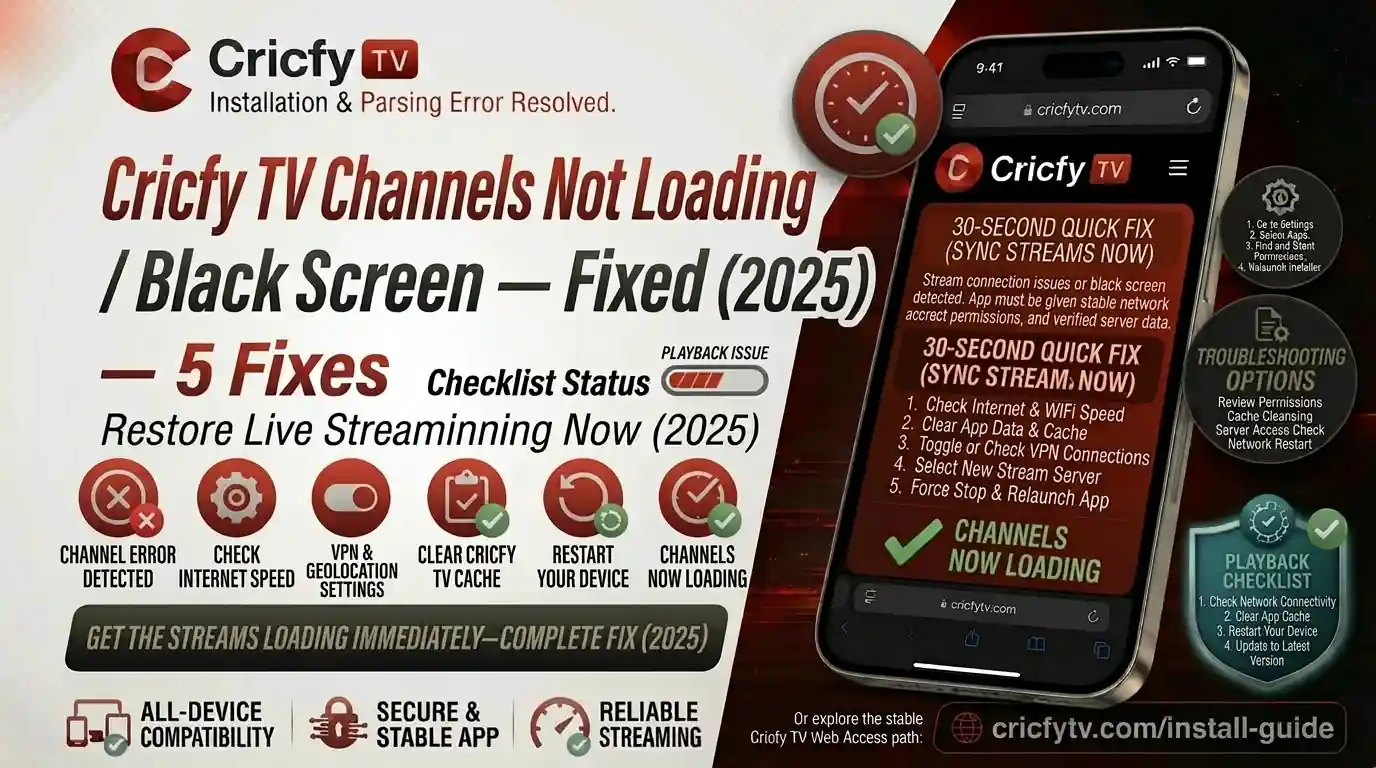
You open Cricfy TV to catch a live match on PTV Sports, Geo Super, or Star Sports — and boom. Black screen. The channel just will not load. Sound familiar? You are not alone. This is one of the most reported issues across Cricfy live TV users in Pakistan, India, and Bangladesh. The good news is that almost every single case of Cricfy TV channels not loading has a fix, and most of them take under two minutes.
In this guide, we cover every possible reason your Cricfy live stream goes black — from cache corruption and outdated APKs to ISP blocks and server overload — and we give you the exact steps to fix each one. No fluff, no guesswork. Just working solutions.
First, check if the problem is only on one channel or all channels. If it is only one channel (say, Star Sports loads but Ten Sports shows a black screen), the stream source for that specific channel may be temporarily down. Try switching to an alternate stream link inside the app. If all channels are black, follow the full guide below.
Why Do Cricfy TV Channels Show a Black Screen or Fail to Load?
The Cricfy TV app works as a live streaming aggregator. It pulls live channel feeds — PTV Sports, Geo Super, Ten Sports HD, A Sports, Star Sports, Sony LIV, and many others — from third-party stream sources and serves them inside the app. Because of this architecture, a black screen can come from multiple points of failure: your device, your internet, the app itself, or the stream source.
Here are the root causes, ranked by how often they actually occur:
| Cause | How Common | Affects | Fix |
|---|---|---|---|
| Outdated APK / app version | Very Common | All channels | Update APK |
| Corrupted cache / app data | Very Common | All or some channels | Clear cache |
| Poor or unstable internet | Very Common | All channels / buffering | Check connection |
| Server overload during big matches | Common | All channels | Wait or retry |
| VPN / proxy interference | Common | All channels | Disable VPN |
| Dead stream source for specific channel | Common | 1–2 channels only | Switch stream |
| ISP blocking or throttling | Moderate | All channels | Change DNS / use data |
| App permissions missing | Moderate | Player / video | Grant permissions |
| Corrupted installation files | Less Common | All channels | Reinstall clean |
| Unsupported Android / OS version | Less Common | All channels | Update OS |
Now let us go through each fix in detail, starting with the ones that solve the issue for most users.
Fix 1: Check Your Internet Connection First
Live cricket streaming on Cricfy live TV is bandwidth-heavy. A minimum of 5 Mbps is needed for smooth HD playback. If your connection dips below that, the player stalls and shows a black screen instead of buffering — especially on Smart TV or Firestick.
- Open a browser and visit fast.com or speedtest.net to check your speed.
- If you are on Wi-Fi, move closer to the router or restart it by unplugging for 30 seconds.
- Switch from Wi-Fi to mobile data (or vice versa) and reopen Cricfy TV. If it works on data but not Wi-Fi, your router is the problem.
- Close any background apps or downloads eating up your bandwidth.
- Try playing a different channel inside Cricfy live to confirm whether it is connection-related or channel-specific.
Standard quality: 2 Mbps minimum. HD quality: 5 Mbps. Full HD live sports: 8–10 Mbps. If your speed is fine but channels still show black, move to the next fix.
Fix 2: Clear the Cricfy TV App Cache and Data
This is the single most effective fix for the black screen issue. Over time, the Cricfy TV app builds up corrupted cache files that block the video player from loading stream content. Clearing them takes under a minute.
On Android Phone / Android TV
- Go to Settings on your device.
- Tap Apps (or Application Manager / Manage Apps depending on your Android version).
- Find and tap Cricfy TV.
- Tap Storage, then tap Clear Cache first. Reopen the app and test.
- If black screen persists, go back and tap Clear Data as well. Note: this logs you out of the app.
- Relaunch Cricfy live and check if the channels load now.
On Firestick
- From the Fire TV home screen, go to Settings > Applications > Manage Installed Applications.
- Select Cricfy TV.
- Choose Clear Cache, then Clear Data.
- Reopen the app.
Fix 3: Update to the Latest Cricfy TV APK
Using an outdated version of the Cricfy TV APK is one of the top reasons channels do not load. Each new version comes with updated stream endpoints, bug fixes for the video player, and improved server compatibility. If you are running an old version, channels will break — it is that simple.
Do not try to update Cricfy TV through the Google Play Store, as it is not listed there. You need to download the latest APK directly from the official source.
- Visit the official Cricfy live TV download page at CricfyApp.pk to get the latest APK.
- Before installing, uninstall the old version completely. Do not install over it — doing so can leave conflicting files behind.
- Go to Settings > Security and enable Install from Unknown Sources if not already done.
- Install the freshly downloaded APK.
- Open Cricfy live TV and test your channels.
Always download the Cricfy TV APK from CricfyApp.pk — the official and trusted source. Third-party sites sometimes distribute modified APKs that are either outdated or have malware injected.
Fix 4: Restart the App and Your Device
Sometimes the fix is embarrassingly simple. A restart clears temporary memory glitches that prevent the Cricfy live video player from initializing properly. Do not just close and reopen the app — do a full device restart.
- Force-close Cricfy TV by swiping it away from your recent apps.
- Hold the power button and select Restart (not just power off and on — a proper restart flushes RAM).
- Once rebooted, open Cricfy TV without opening any other app first.
- Try loading your channel again.
Fix 5: Turn Off Your VPN or Proxy
This one catches a lot of users off guard. Cricfy TV’s servers detect VPN connections and block them to prevent unauthorized region bypassing. If you have a VPN running in the background — even a free one you forgot about — it will cause a black screen or a connection error on all channels.
- Go to Settings > Network & Internet > VPN and disconnect any active VPN.
- If you use a proxy, go to your Wi-Fi settings, tap your network, and remove any proxy settings.
- Also check if any app like Turbo VPN, NordVPN, ExpressVPN, or similar is running in the background.
- Reopen Cricfy live and test.
Conversely, if you are in a country where your ISP has blocked Cricfy live entirely (see Fix 8), then a VPN is the solution rather than the problem. Use a VPN to connect to a Pakistani or Indian server in that case.
Fix 6: Wait for Server Overload to Clear (Peak Match Times)
During major cricket events — Pakistan vs India, ICC World Cup matches, PSL final, Asia Cup — millions of users hit the Cricfy live servers at the same time. This causes temporary server overload, which shows up as a black screen or infinite loading spinner on your end.
You will notice this happening across all channels simultaneously at the exact same time a big match starts. This is a server-side issue, not your device. Here is what to do:
- Wait 3–5 minutes and try again. Server loads usually normalize after the initial spike at match kickoff.
- Try a lower-quality stream if the app offers one (SD instead of HD).
- Switch to a different stream link for the same channel inside the app.
- Check the CricfyApp.pk official site or their social media for any server maintenance announcements.
Fix 7: Clean Reinstall the Cricfy TV App
If the cache clear and APK update did not work, your installation is likely corrupted at a deeper level. A clean reinstall removes all app files, traces, and broken dependencies and starts fresh.
- Go to Settings > Apps > Cricfy TV and tap Uninstall.
- After uninstalling, go to your file manager and check the
Downloadsfolder. Delete any old Cricfy APK files there too. - Restart your device.
- Download the fresh APK from CricfyApp.pk.
- Install and reopen. Most users find all channels load correctly after a clean reinstall.
Fix 8: Your ISP May Be Blocking Cricfy Live
In some regions, Internet Service Providers (ISPs) block access to free live streaming apps and services under local broadcasting regulations. This is common in parts of Europe, the Middle East, and Southeast Asia. If Cricfy TV channels show a black screen regardless of what you try, and you can confirm the app is up to date, your ISP may be throttling or blocking its stream sources.
Signs that your ISP is blocking Cricfy:
- The app opens fine but all channels show a black screen with no buffering animation.
- The issue exists on both Wi-Fi and mobile data from the same carrier.
- Other devices on the same network have the same problem.
- Switching to a different internet connection (a friend’s Wi-Fi) fixes it instantly.
The solution here is to change your DNS settings (Fix 9) or use a reliable VPN to bypass the ISP-level block.
Fix 9: Change Your DNS to Fix Channel Loading Issues
Changing your DNS from your ISP’s default to a public DNS like Google DNS (8.8.8.8 / 8.8.4.4) or Cloudflare DNS (1.1.1.1 / 1.0.0.1) can resolve channel loading failures caused by ISP-level DNS filtering. This is a safe, reversible change.
On Android (Static DNS via Wi-Fi)
- Go to Settings > Wi-Fi.
- Long-press your connected Wi-Fi network and select Modify Network.
- Under IP Settings, switch from DHCP to Static.
- Set DNS 1 to
8.8.8.8and DNS 2 to8.8.4.4. - Save and reconnect. Reopen Cricfy live.
On Android 9+ (Private DNS — Easiest Method)
- Go to Settings > Network & Internet > Advanced > Private DNS.
- Select Private DNS provider hostname.
- Enter
dns.googleorone.one.one.one. - Save. No reconnection needed.
Fix 10: Device-Specific Fixes
Smart TV (Samsung, LG, Sony, TCL)
Smart TVs running Tizen or WebOS have stricter memory management. If Cricfy TV was running for hours and then went to a black screen, the TV’s RAM is likely saturated. Power cycle the TV completely (unplug from the wall for 60 seconds) and relaunch the app. For LG WebOS users, also check our guide on Cricfy TV on LG WebOS TV.
Amazon Firestick
Firestick is notorious for RAM limitations. Use the built-in Manage All Applications tool to force-stop all background apps before opening Cricfy. If channels still show a black screen, go to Settings > My Fire TV > Restart. See our full Cricfy TV on Firestick guide for more.
Android TV / Google TV
On Android TV, make sure the Cricfy TV APK was installed with sideloading enabled and that the app has storage permissions granted. If you face a black screen only on certain resolutions, go to the TV’s display settings and set the output to 1080p / Auto instead of 4K forcing. Our Android TV & Google TV guide covers this in detail.
PC / Windows (BlueStacks Emulator)
If you are running Cricfy TV on Windows via an emulator like BlueStacks, a black screen usually means the emulator’s graphics engine is conflicting with the video decoder. Go to BlueStacks Settings > Graphics and switch from DirectX to OpenGL (or vice versa). See our Cricfy TV BlueStacks setup guide for the full process.
Fix 11: Check App Permissions
On Android 12, 13, 14, and 15, stricter permission controls mean the Cricfy TV app may lose access to the storage or network it needs to render video content. A black screen with no error message is a common symptom of a missing permission.
- Go to Settings > Apps > Cricfy TV > Permissions.
- Make sure Storage, Network, and Phone permissions are set to Allow.
- Also check that Background Data and Unrestricted Data Usage are enabled for the app under Data Usage settings.
- Relaunch the app.
Android 14 and 15 users experiencing crashes alongside the black screen should also check our dedicated Cricfy TV crashing on Android 14/15 fix guide.
Fix 12: Switch to an Alternate Stream Link Within the App
If only one or two specific channels are showing a black screen while others work fine, the stream source for that channel is temporarily offline. This happens regularly with free live streaming aggregators because they rely on third-party stream hosts.
Inside the Cricfy TV app, tap on the channel that is showing a black screen. Most channels offer multiple stream options — look for a Stream 1 / Stream 2 / Stream 3 selector or a refresh button within the player. Switch to Stream 2 or Stream 3. One of them will almost always be live and working.
PTV Sports and Geo Super tend to have the most stable streams in Cricfy live during Pakistan matches. Star Sports streams during Indian matches and Ten Sports streams during ICC events have the highest traffic and are most likely to hit temporary outages. Always keep Stream 2 or 3 as a backup.
Which Cricfy TV Channels Show Black Screen Most Often?
Based on user reports, some channels are more prone to loading failures than others, simply because of their streaming demand and the number of viewers hitting the same source simultaneously during live events.
| Channel | Black Screen Frequency | Peak Risk Time | Best Fix |
|---|---|---|---|
| Star Sports 1 HD | High (India match days) | IPL, Asia Cup, World Cup | Switch to Stream 2 |
| PTV Sports | Moderate | Pakistan series, PSL | Clear cache, retry |
| Geo Super | Moderate | Pakistan matches | Alternate stream |
| Ten Sports / A Sports HD | Moderate | ICC events | Update APK |
| Sony Sports | High (India match days) | India series, IPL | Switch stream, check DNS |
| Sky Sports | Moderate | England series | VPN off, retry |
| Willow TV | High | US-region dependent | DNS change, VPN toggle |
| ESPN / ESPN2 | Moderate | West Indies, tournaments | Clear data, reinstall |
For a full breakdown of every channel available on the platform, visit our Cricfy live TV channel list.
Quick Fix Reference by Device
The steps for clearing cache, reinstalling, or changing DNS differ slightly between devices. Here is a fast-reference table so you can jump to what applies to your setup.
| Device | Top Fix | Guide |
|---|---|---|
| Android Phone | Clear cache, update APK, check permissions | Android Guide |
| Android TV / Google TV | Sideload fresh APK, set display to 1080p | Android TV Guide |
| Amazon Firestick | RAM flush, force-stop background apps, reinstall | Firestick Guide |
| PC / Windows (BlueStacks) | Switch DirectX to OpenGL in emulator settings | BlueStacks Guide |
| Windows 11 (Emulator) | Update emulator, clear emulator cache | Windows 11 Guide |
| LG WebOS Smart TV | Power cycle TV, clear app data from TV settings | LG WebOS Guide |
| Smart TV (Samsung/Sony) | Unplug 60 sec, reinstall app from sideload | Smart TV Guide |
| iPhone / iOS | Reinstall IPA, check AltStore session | iOS Guide |
| Laptop (General) | Update emulator, adjust graphics renderer | Laptop Guide |
What If None of These Fixes Work?
If you have gone through every fix above and Cricfy TV channels are still not loading, here are the remaining possibilities:
- The app is down entirely. This happens after major updates or server migrations. Check social media for announcements and simply wait for the team to resolve it.
- Your device is incompatible. Cricfy TV requires Android 5.0 (Lollipop) or higher. Devices running Android 4.x will not run the app correctly. Update your OS if possible.
- Your security app is blocking it. Some aggressive antivirus apps (like MIUI Security on Xiaomi, or Avast Mobile) block Cricfy from accessing the internet entirely. Whitelist Cricfy TV in your security app settings.
- Date and time mismatch. An incorrect device date/time can cause SSL certificate failures, which prevent streams from loading. Make sure your device is set to auto-sync with network time. See our date and time error fix guide.
Also, if you are seeing a specific error message rather than just a black screen, these guides cover them:
How to Prevent the Black Screen Issue in the Future
Once you have fixed the problem, you want to make sure it does not come back every match day. Here are the habits that keep Cricfy live TV running smoothly:
- Always use the latest APK. Check CricfyApp.pk before major tournaments to make sure you are on the newest version.
- Clear the app cache weekly if you stream daily. This prevents cache buildup from causing player failures.
- Keep your Android OS updated. Android 12 and above have better memory management which actually helps streaming apps perform better.
- Use a wired connection if you stream on Smart TV or Android TV box — it is significantly more stable than Wi-Fi for live sports.
- Do not install too many background apps. On mid-range devices, background apps compete for RAM and cause the Cricfy TV player to stall.
- Bookmark the direct APK download page. So when a new version drops, you can update within 30 seconds rather than hunting for a trusted link.
The 12-Step Black Screen Fix Checklist at a Glance
| # | Fix | Time Needed | Works For |
|---|---|---|---|
| 01 | Check internet speed / switch networks | 1 min | All channels black |
| 02 | Clear app cache & data | 1 min | All / most channels |
| 03 | Update Cricfy APK (uninstall old first) | 3–5 min | All channels |
| 04 | Restart device fully | 2 min | Temporary glitches |
| 05 | Turn off VPN / proxy | 30 sec | All channels |
| 06 | Wait for server overload to pass | 3–10 min | Peak match time |
| 07 | Clean reinstall | 5–8 min | Corrupted install |
| 08 | Identify ISP block (test on different network) | 2 min | All channels, region-locked |
| 09 | Change DNS to 8.8.8.8 / 1.1.1.1 | 2 min | ISP DNS filtering |
| 10 | Device-specific fixes (see table above) | Varies | Smart TV / Firestick / PC |
| 11 | Grant app permissions (storage, network) | 1 min | Android 12–15 |
| 12 | Switch to alternate stream link | 10 sec | Single channel black screen |
Frequently Asked Questions
Why does Cricfy TV show a black screen only during live cricket matches?
During live matches — especially big events like Pakistan vs India or ICC World Cup games — server load on Cricfy’s streaming infrastructure spikes dramatically. The video player receives the channel request but the stream data does not come through fast enough, resulting in a black screen. Waiting a few minutes, switching to a lower quality stream, or selecting an alternate stream link inside the app usually resolves it.
PTV Sports loads fine but Star Sports shows black screen on Cricfy — why?
Different channels use different stream source hosts. If PTV Sports loads but Star Sports does not, it means the specific third-party host serving the Star Sports stream is temporarily down or overloaded. The fix: inside the Cricfy TV app, tap on Star Sports and look for a stream selector (Stream 1, Stream 2). Switch to a different stream option.
Cricfy TV worked yesterday but all channels are black today — what happened?
Overnight server maintenance, a new APK version push, or an ISP update may have broken your current setup. The first thing to check is whether a new Cricfy TV APK was released. If yes, update it. If not, clear the app cache and data. This combination fixes the issue in the vast majority of overnight cases.
Does clearing app data delete my saved channel preferences?
Yes, clearing app data resets the app to its default state, which means any saved preferences, favourite channels, or login status will be cleared. However, Cricfy TV does not require a login for basic use, so your channel list and preferences are reset — not permanently lost. You can set them up again in under a minute after reopening the app.
Can a security or antivirus app cause Cricfy TV channels not to load?
Absolutely. Apps like MIUI Security (Xiaomi), Avast Mobile, Bitdefender, and some manufacturer-built security tools aggressively block APKs from unknown sources from accessing the internet. If Cricfy TV opens but all channels show a black screen, try disabling your security app temporarily. If channels start working, whitelist Cricfy TV inside the security app and re-enable it.
Cricfy TV channels not loading on Smart TV — different solution?
Smart TVs have limited RAM and slower processors compared to smartphones. The most effective fix on Smart TV is a full power cycle (unplug from the wall for 60 seconds), followed by a clean reinstall of the Cricfy APK via a USB stick or direct sideloading. Also make sure the TV’s display output is set to 1080p rather than 4K, as forcing 4K can overwhelm the video decoder on mid-range panels.
What internet speed do I need for Cricfy live TV to work without black screens?
A minimum of 5 Mbps is recommended for smooth HD live streaming on Cricfy. For standard definition, 2 Mbps is the floor. For Full HD live sports, target 8–10 Mbps. If your speed is adequate but channels still show a black screen, the issue is not your internet — it is the app, device, or stream source.
Is Cricfy TV still free to use in 2026?
Yes. Cricfy live TV remains completely free to download and use. It is supported by ads, which is why you may occasionally see ad overlays before a stream loads. There is no subscription or paid tier required to watch live cricket, PTV Sports, Geo Super, Star Sports, Ten Sports, or other channels on the app.
Bottom Line
Cricfy TV channels showing a black screen is almost always fixable within a few minutes. For 9 out of 10 users, either clearing the app cache, updating the APK, or switching to an alternate stream link does the job. If the issue only happens during big matches, it is a server load problem — just wait it out or drop to a lower stream quality.
The key habit is staying on the latest APK version. Download it from CricfyApp.pk before every major tournament, clear your cache every week if you stream daily, and you will barely ever see a black screen again.
Still having trouble? Drop your device model and the exact channels affected in the comments below — we will help you sort it.