
Cricfy TV App Not Installing / Parsing Error — Fixed
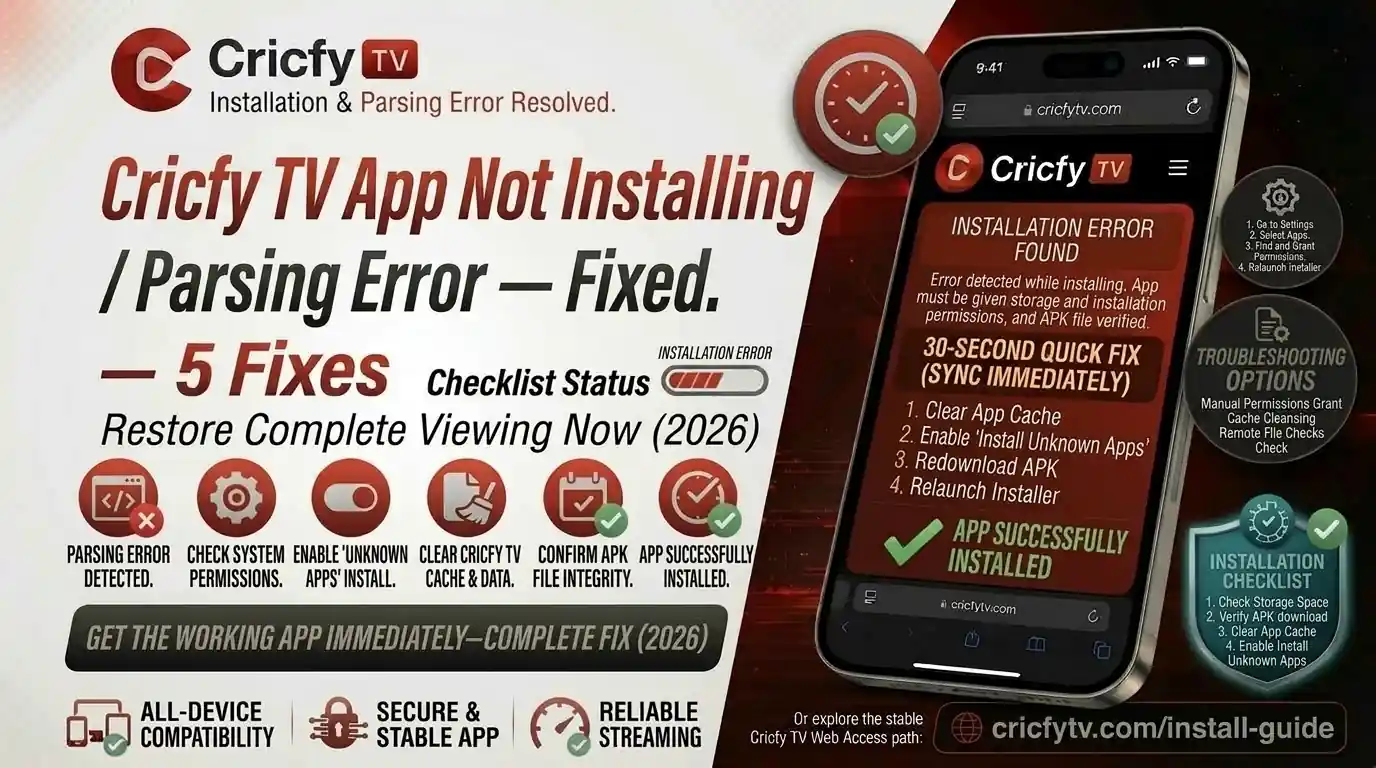
You tap the Cricfy TV APK, wait a second — and then boom. Either nothing happens or you see that dreaded message: “There was a problem parsing the package.” If Cricfy TV is not installing on your phone, Firestick, or Smart TV, you are not alone. The good news is that the parsing error and every other install failure have clear, fixable causes. This guide walks you through every single one of them — no tech skills needed.
What Is the Parsing Error — and Why Is Cricfy TV App Not Installing?
When Android tries to install an APK file, it goes through a process called parsing. The system reads the package metadata, verifies the digital signature, and checks if the file structure is valid. If any step in that process fails, Android throws the message:
“There was a problem parsing the package.”
On some Android skins, it may also appear as: “Parse error — There is a problem parsing the package” or simply “App not installed.”
This is not a Cricfy-specific bug. It is an Android Package Manager error that can affect any APK downloaded outside the Google Play Store — including Cricfy Live TV. The message tells you the system could not read or validate the file before even starting the installation.
The important thing to understand is this: the error almost always points to a problem with the file itself or your device settings, not a problem with Cricfy’s servers. So the fix is usually quick.
Why Cricfy TV App Not Installing — All Root Causes
Before jumping into fixes, you need to know what you are dealing with. Here are every known cause of the Cricfy TV not installing / parsing error:
| Cause | What Happens | How Common |
|---|---|---|
| Corrupted APK download | File downloaded incompletely or interrupted mid-way; the package is broken | Very Common |
| Unknown Sources disabled | Android blocks all third-party APK installations by default unless you grant permission | Very Common |
| Android version mismatch | The APK requires a higher Android API level than your device runs | Common |
| Outdated APK file | You are trying to install an old version over a newer one already on the device | Common |
| Invalid or tampered APK signature | File was modified or repackaged by a third-party site; digital signature mismatch | Moderate |
| Insufficient storage space | Device has no room left; installer aborts before parsing even completes | Moderate |
| Antivirus / security app blocking | Pre-installed security software flags the APK and cancels installation | Moderate |
| Package installer cache full | The Android Package Manager has stale data that prevents new installs | Less Common |
| Firestick / TV firmware too old | Older FireOS or WebOS cannot handle APKs built for newer Android API targets | Less Common |
Never download Cricfy TV APK from random third-party mirrors or APK aggregator sites. Many distribute outdated, modified, or even malware-injected versions that will always fail with a parsing error. Always get your APK from the official source at cricfyapp.pk.
How to Fix Cricfy TV App Not Installing on Android (Phone & Tablet)
Work through these fixes in order. Most users get it sorted with Fix 1 or Fix 2.
Fix 1 — Re-download the APK from the Official Source
This is the number-one fix. A corrupted download accounts for the majority of parsing errors. Delete whatever APK you have and download fresh from the official Cricfy app page.
- Open your File Manager and locate the Cricfy TV APK you downloaded previously.
- Delete it completely. Do not just move it to the trash — permanently remove it.
- Go to cricfyapp.pk on your mobile browser and download the latest version.
- Make sure your Wi-Fi or mobile data connection stays stable throughout the download. Do not switch networks mid-download.
- Once the download completes, check the file size in your File Manager. It should match what the site lists. A significantly smaller file means the download was interrupted.
- Now try installing again.
Fix 2 — Enable “Unknown Sources” / Install Unknown Apps
Android blocks third-party APK installations by default. If you never gave permission to your browser or file manager to install unknown apps, the parsing error triggers before installation even begins. Here is how to enable it:
Android 8.0 and above (most modern phones):
- Go to Settings on your phone.
- Tap Apps (or “Application Manager” on Samsung).
- Find and tap the app you used to download Cricfy TV — usually your browser (Chrome, Firefox) or your File Manager.
- Tap Install Unknown Apps or Install Unknown Sources.
- Toggle it On.
- Go back to the APK and tap Install.
Android 7.0 and below (older devices):
- Open Settings.
- Tap Security (or “Privacy” on some devices).
- Find Unknown Sources and toggle it On.
- Confirm the warning popup, then retry the installation.
Fix 3 — Check Your Android Version Compatibility
Cricfy TV requires Android 5.0 (Lollipop) or higher. If your device runs an older Android version, the APK simply cannot install regardless of what you try.
- Go to Settings > About Phone > Android Version.
- If you are on Android 5.0 or above, your OS is compatible. Move to the next fix.
- If you are below Android 5.0, you need to upgrade your device or try using Cricfy on a PC via an emulator. See our Cricfy TV on PC via BlueStacks guide.
Fix 4 — Uninstall the Old Version First
If you already have a previous version of Cricfy TV installed and you are trying to install an older APK over it, Android will reject it due to a version code mismatch. Always uninstall first.
- Go to Settings > Apps > Cricfy TV.
- Tap Uninstall and confirm.
- Download the latest APK from cricfyapp.pk and install fresh.
Fix 5 — Free Up Storage Space
If your device has less than 100 MB of free storage, the package installer may abort before finishing. The Cricfy TV APK is not large, but Android also needs working space during installation.
- Go to Settings > Storage and check available space.
- Delete unused apps, old photos, or cached data to free up room.
- Alternatively, move media files to an SD card if your device supports one.
- Retry the installation once you have cleared enough space.
Fix 6 — Clear the Package Installer Cache
The Android Package Manager sometimes holds corrupted cache entries that block new installs. Clearing it takes less than a minute.
- Go to Settings > Apps > See All Apps.
- Tap the three-dot menu or filter and enable Show System Apps.
- Find Package Installer in the list and tap it.
- Tap Storage, then tap Clear Cache.
- Also clear cache for Google Play Services while you are here.
- Restart your device and try installing again.
Fix 7 — Disable Your Antivirus or Security App Temporarily
Phones with pre-installed antivirus apps — common on Xiaomi, Realme, and Oppo — sometimes flag Cricfy TV as a threat and silently block the install.
- Open your phone’s Security or Antivirus app (often called “Phone Manager,” “Security Center,” or “Cleaner”).
- Look for a Real-time Protection or Install Protection toggle and disable it temporarily.
- Attempt the Cricfy TV APK installation.
- Re-enable your security app once the install is done.
On MIUI (Xiaomi) and ColorOS (Oppo/Realme), the built-in security scanner is aggressive. If you see “Virus detected” or a similar warning when tapping the APK, go to Settings > Security > Manage Apps > Install via USB / ADB and enable “Trust this source” for your file manager.
Fix 8 — Update Your Android OS
An outdated OS version can cause APK signature verification to fail. Check for a system update and install it if available.
- Go to Settings > System > Software Update (path may vary by brand).
- If an update is available, download and install it.
- After the device restarts, try installing Cricfy TV again.
How to Fix Cricfy TV Parsing Error on Amazon Firestick
The Firestick runs a customized version of Android called FireOS. The parsing error here usually means one of three things: Unknown Sources is off, the FireOS version is too old, or the APK was not built for ARM architecture.
For a full sideloading walkthrough, check our dedicated Cricfy TV on Firestick guide. But if you are specifically hitting the parsing error, here are the targeted fixes:
Enable Apps from Unknown Sources on Firestick
- From the Firestick home screen, go to Settings (gear icon at the top).
- Scroll right and select My Fire TV (or “Device” on older models).
- Tap Developer Options.
- Turn on Apps from Unknown Sources.
- Confirm the warning and go back to install the APK via Downloader or ES File Explorer.
Update Your Firestick Firmware
- Go to Settings > My Fire TV > About > Check for System Update.
- Install any pending update. The Firestick 4K and newer models running FireOS 7+ handle modern APKs with no issues.
- If you own a very old Firestick (1st generation), the hardware may no longer support the latest Cricfy TV build. Consider upgrading to a Fire TV Stick 4K.
Use Downloader App for Clean APK Install
- Install the Downloader app from the Amazon App Store — it is the most reliable method for sideloading on Firestick.
- Open Downloader, enter the Cricfy APK download URL from cricfyapp.pk.
- Let it download completely before tapping Install.
- If you see a parse error even after this, delete the file and re-download — the file likely did not transfer cleanly.
How to Fix Cricfy TV Not Installing on Smart TV / Android TV / Google TV
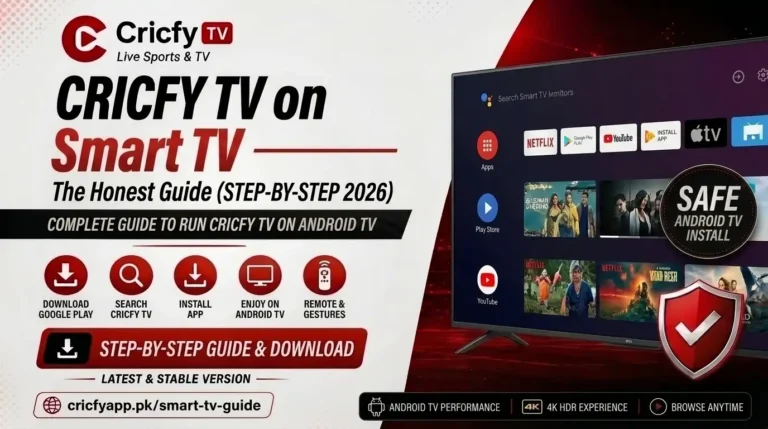
Installing Cricfy TV on a Smart TV or Android TV has a few extra considerations versus a phone. See our full Cricfy TV on Android TV guide, but here is what specifically causes the parsing error on TVs:
Unknown Sources Must Be Enabled on Android TV
- On your Android TV remote, open Settings.
- Go to Device Preferences > Security & Restrictions.
- Toggle Unknown Sources to On.
- You may need to do this individually for each sideloading app (like Send Files to TV or Downloader).
Check That You Are Using the Android TV APK (Not the Phone APK)
Some websites distribute phone-only APKs labelled as “TV” versions. Phone APKs are optimized for portrait-mode touchscreens and will parse-fail on a TV’s ARM-based chipset. Always use the standard Cricfy TV APK from the official site — it is compatible with both phone and TV.
Transfer the APK via USB Drive Instead of Network
- Download the Cricfy APK on your laptop or phone first.
- Copy it to a USB drive formatted as FAT32.
- Plug the USB into your Smart TV’s USB port.
- Open a file manager app on the TV, browse to the USB, and tap the APK to install.
- This method avoids any network interruption causing a corrupted download on the TV itself.
For LG webOS TVs, refer to our LG webOS installation guide as the process differs slightly.
Device-Specific Tips for the Parsing Error
Different Android skins behave differently. Here is a quick reference for the most popular brands:
Cricfy TV Installed But Not Opening or Showing Errors?
Sometimes Cricfy TV installs without a parsing error but then crashes on launch or shows streaming errors. These are separate issues from the install failure — but equally easy to fix.
App Crashes on Launch
If Cricfy TV crashes right after opening, go to Settings > Apps > Cricfy TV > Storage > Clear Cache. Also make sure you are running the latest version. For persistent crashing on Android 14 or 15, see our Cricfy TV crashing on Android 14/15 fix guide.
Unexpected Error Occurred
This runtime error appears during live streaming and is not related to installation at all. It is almost always caused by an outdated app version, an active VPN, or a date/time mismatch on your device. Read our Cricfy TV Unexpected Error fix guide for step-by-step solutions.
Channels Not Loading / Buffering
Live channels may buffer or fail to load if your internet speed is below 5 Mbps for standard quality or below 10 Mbps for HD. Use Speedtest.net to verify your connection and check our Cricfy TV buffering fix guide for network-specific solutions.
No Sound on Streams
Audio issues after installation are almost always a codec mismatch or a device volume setting. See our Cricfy TV no sound fix for a complete walkthrough.
VPN Detected Error
Cricfy TV blocks connections from known VPN IP addresses. If you use a VPN for privacy, disable it while using the app. Full explanation in our VPN detected error fix guide.
How to Prevent the Parsing Error in the Future
Once you get Cricfy TV installed and running, here are a few habits that will save you from hitting this error again:
- Always download from the official source. Bookmark cricfyapp.pk and never use a third-party mirror. Random APK sites often host tampered or outdated files.
- Keep your app updated. Check the site before big tournaments like the ICC Cricket World Cup, PCB domestic series, or IPL season to make sure you have the latest APK.
- Use a stable internet connection for downloads. A dropped mobile data connection mid-download is the single most common cause of a corrupted APK. Download on Wi-Fi whenever possible.
- Do not install over an existing version without checking. If the app auto-prompts an update within itself, use that path. If you download externally, uninstall the old version first.
- Keep “Unknown Sources” enabled for your file manager. You will not need to hunt through settings every time you update.
- Keep your device OS updated. Android security patches and firmware updates maintain the Package Manager’s ability to verify APK signatures correctly.
Bottom Line
The Cricfy TV parsing error looks scary but it is almost always a one-minute fix. Start by deleting your current APK and downloading a fresh copy from cricfyapp.pk. Then make sure “Unknown Sources” is enabled for your browser or file manager. Those two steps alone resolve about 80% of all parsing and installation failures.
If you are on a Firestick, update your FireOS first. If you are on a Smart TV, use the USB transfer method for the cleanest install. And if Cricfy TV installs but then misbehaves, head to our Cricfy TV Not Working guide for runtime troubleshooting. You will be watching live cricket in no time.
Frequently Asked Questions
Why does Cricfy TV show a parsing error even after enabling Unknown Sources?
If Unknown Sources is already enabled and you still see the parsing error, the most likely cause is a corrupted APK file. Delete the downloaded file completely and re-download from the official cricfyapp.pk site. Also check that the file size matches what is listed on the download page — a mismatch means the download was cut short.
Can the parsing error damage my phone?
No. The parsing error means the installation never started. Nothing was written to your system. Your phone is completely safe. Simply delete the APK and follow the correct installation steps above.
Does Cricfy TV work on Android 14 and 15?
Yes, the latest versions of Cricfy TV are fully compatible with Android 14 and Android 15. If you are on those versions and experiencing crashes rather than a parsing error, see our dedicated Android 14/15 crash fix guide.
I get “App not installed” but no parsing error message. Is it the same issue?
Often, yes. “App not installed” is a variant of the same package installation failure. Apply the same fixes: re-download the APK, enable Unknown Sources, clear the Package Installer cache, and ensure you have enough free storage.
How do I install Cricfy TV on an iPhone or iPad?
iOS does not support Android APK files, so there is no direct install. You need to sideload an IPA file using AltStore. See our complete Cricfy TV IPA / AltStore sideload guide for iOS for the full process.
Can I install Cricfy TV on a PC or laptop?
Yes. The easiest way is to use BlueStacks or any other Android emulator on Windows or macOS, then install the Cricfy TV APK inside the emulator. We cover this in detail in our Cricfy TV for PC via BlueStacks guide.
What channels can I watch on Cricfy TV?
Cricfy TV carries a wide range of live sports channels including PTV Sports, Ten Sports, Star Sports, GEO Super, ARY Digital, and many more. For the full updated list, visit our Cricfy TV live channel list.
Why does Cricfy TV keep showing “Date & Time Error”?
This is a separate runtime error — not a parsing or install issue. It happens when your device’s date or time is set incorrectly, causing Cricfy’s servers to reject the connection. Set your date and time to automatic in Settings and the error disappears. Full details in our Cricfy TV date time error fix guide.
References & Sources
- Android Developer Docs — App Manifest Overview (Google)
- Android APK Signature Scheme — Android Open Source Project
- International Cricket Council (ICC) — Official Site
- Pakistan Cricket Board (PCB) — Official Site
- Speedtest by Ookla — Internet Speed Test Tool
- IONOS — Parsing Errors: Causes and Fixes
- Cricfy TV Unexpected Error Fix — cricfyapp.pk
- Cricfy TV Not Working Fix — cricfyapp.pk
3 Comments