
Cricfy TV Not Working? 12 Fixes That Actually Work in 2026

Match is about to start. You open Cricfy TV. And instead of a live stream, you get a spinning wheel, a black screen, or the infamous “Unexpected Error Occurred” popup. Frustrating? Absolutely. But fixable? Almost always — and this guide walks you through every working solution, step by step, in under five minutes.
Here is the deal. Cricfy TV relies on third-party servers to deliver live streams of channels like PTV Sports, Geo Super, Star Sports, and dozens more. Those servers rotate, go down during peak hours, and sometimes conflict with your VPN, ISP, or phone settings. That means most Cricfy TV problems are not bugs — they are temporary conflicts with a straightforward fix.
Whether you are watching live cricket streaming on Cricfy Live TV, trying to catch a PSL match on your phone, or streaming the IPL on a PC via BlueStacks, the twelve fixes below cover every common error. Start with Fix 01 — it solves the problem for the majority of users — and work down only if needed.
Every Cricfy TV Error Message — Decoded
Before you start fixing, it helps to know what each error actually means. Different messages point to different root causes. Here is a quick reference for every common error you will encounter.
| Error message | What it actually means | Jump to fix |
|---|---|---|
Unexpected error occurred | Outdated app version, wrong date/time, or VPN conflict | Fix 01, 03, 04 |
Request failed | Server rejected the connection — usually ISP block or VPN issue | Fix 04, 11 |
| Black screen (no error text) | Stream server is down or your connection dropped mid-load | Fix 06, 05 |
| Infinite buffering / spinning | Bandwidth too low for the selected stream quality | Fix 05 |
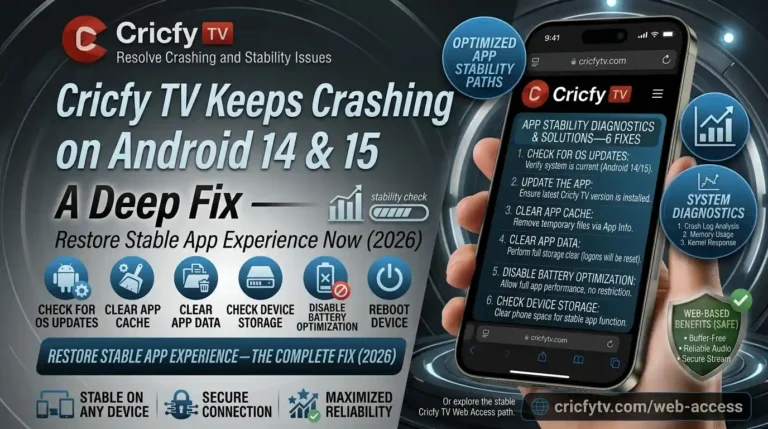
| App crashes on launch | Corrupted install, low storage, or Play Protect interference | Fix 02, 08, 09 |
| Channel list loads but nothing plays | Server rotation — the channel’s active server changed | Fix 06 |
Error connecting to server | DNS resolution failure or ISP-level domain block | Fix 10, 11 |
| Play Protect auto-uninstalls app | Google flagged the APK — not a virus, just a sideload warning | Fix 09 |
This single step fixes the problem for roughly nine out of ten users. Here is why: Cricfy TV streams content through M3U8 links hosted on rotating CDN servers. When the developers push a server-side change, older app versions lose the ability to connect. The result is the “Unexpected Error Occurred” message that stops everything.
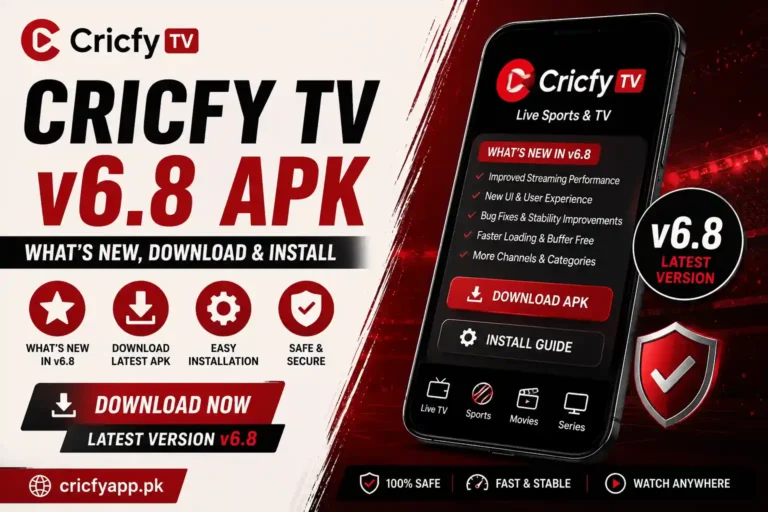
Version 6.8, released in August 2026, specifically patched connection errors affecting Android 14 and newer devices. If you are running anything older, update first before trying anything else.
- Open your browser and go to CricfyApp.pk.
- Tap the download button and save the latest APK file.
- Open the downloaded file and tap Install. Android will install over the old version without losing your settings.
- Reopen Cricfy TV and test a channel.
Cached data accumulates over time and eventually conflicts with newer server responses. Clearing it forces the app to pull fresh data on the next launch. This is the fastest fix for crashes, freezes, and stale channel lists.
- Go to Settings on your Android device.
- Tap Apps (or App Management on some brands).
- Find and tap Cricfy TV.
- Tap Storage & Cache.
- Tap Clear Cache first. Test the app.
- If the problem continues, go back and tap Clear Data. This resets the app to factory state — you will not lose anything important because Cricfy TV does not store accounts or personal data.
On Xiaomi and MIUI-based phones, the path is slightly different: Settings → Apps → Manage Apps → Cricfy TV → Clear Data. Samsung devices show it under Settings → Apps → Cricfy TV → Storage.
This one catches a lot of people off guard. Cricfy TV’s streaming servers validate your device’s timestamp when you request a stream. If the date or time on your phone is even a few minutes off, the server rejects the connection and throws the “Unexpected Error” message.
This is an officially confirmed fix from the Cricfy TV support channel. It is also the most common cause of errors on Android TV devices, where the clock often drifts after power outages.
- Open Settings → System → Date & Time.
- Enable Automatic date & time (uses network-provided time).
- Enable Automatic time zone.
- Restart the app and test.
VPNs are a double-edged sword with Cricfy TV. If you are outside Pakistan or India, a VPN with a South Asian server can unlock geo-restricted channels. However, many VPN IP addresses are already blocked by Cricfy TV’s CDN providers. The result? “Request Failed” or “Unexpected Error.”
Even a VPN running silently in the background — one you forgot to turn off — can trigger the error.
- Open your VPN app and disconnect.
- Alternatively, go to Settings → Network → VPN and toggle it off.
- Reopen Cricfy TV and test a channel.
- If you need a VPN for geo-unblocking, switch to a different server. Pakistani or Indian servers work best. Avoid free VPN providers — they route traffic through overloaded servers that Cricfy TV blocks aggressively.
Live streaming demands a stable, continuous connection. Cricfy TV needs at least 5 Mbps for standard-definition streams and 10 Mbps for HD. During peak match hours — especially ICC tournaments or PSL finals — even a strong connection can buckle if your router is shared across multiple devices.
- Run a speed test at speedtest.net. Anything below 5 Mbps will cause buffering.
- Move closer to your Wi-Fi router. Walls and distance kill signal strength.
- Switch between Wi-Fi and mobile data to see which performs better right now.
- Restart your router by unplugging it for 30 seconds and plugging it back in.
- Close background apps that eat bandwidth silently — WhatsApp, YouTube, Instagram, and cloud backup services.
- If you are on mobile data, make sure you have not exhausted your high-speed data cap. Throttled 2G speeds cannot stream video.
Also worth noting: during evening hours in Pakistan (7 PM to 11 PM PKT), ISP bandwidth in many cities drops because millions of users share the same infrastructure. Switching to mobile data during these windows often gives you a more stable stream.
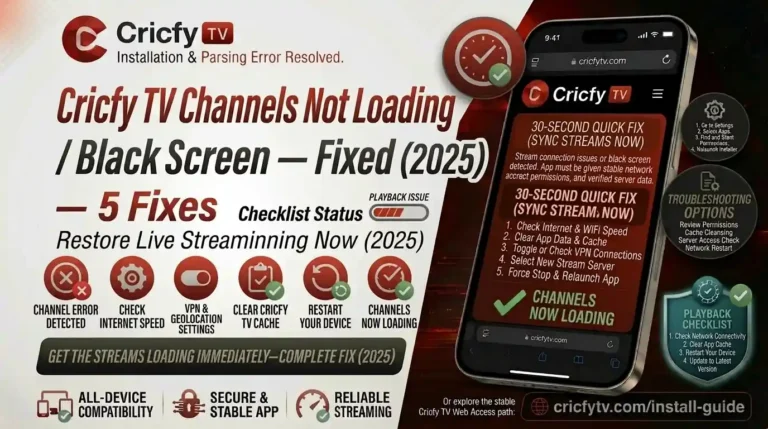
Most channels inside Cricfy Live TV have two to four backup servers. When one goes down or overloads during a big match, the others usually stay up. Switching servers is the fastest fix for a black screen or a channel that loads the interface but will not play video.
- Open a channel that is not playing.
- Look for the server selector — it appears as a numbered list (Server 1, Server 2, etc.) or a dropdown inside the player.
- Tap a different server.
- Wait five to ten seconds for the new stream to load.
- If none of the listed servers work, try the same broadcast channel under a different name. For example, if “PTV Sports” is down, check “PTV Sports HD” or “PTV Sports Server 2” in the sports category.
Simple? Yes. Effective? Surprisingly often. A restart clears temporary memory, kills stuck background processes, and refreshes network connections. It fixes those weird situations where the app worked yesterday but refuses to open today for no obvious reason.
- Press and hold the Power button on your phone or remote.
- Tap Restart (not just power off — a restart cycle is cleaner).
- Wait for your device to fully boot up.
- Open Cricfy TV and test.
If you are using a Fire TV Stick, unplug it from the HDMI port, wait ten seconds, and plug it back in. Fire TV devices do not have a traditional restart button.
When clearing cache and data does not work, the install itself may be corrupted. A fresh install replaces every file — the streaming engine, the channel database, and the ad SDK — and eliminates file-level corruption that a cache clear cannot touch.
- Long-press the Cricfy TV app icon and tap Uninstall.
- Go to CricfyApp.pk and download the latest APK.
- Before installing, run a quick VirusTotal scan on the downloaded file — it takes 30 seconds and confirms the file is clean.
- Open the APK and tap Install.
- Launch the app and test.
This step also helps when you previously installed a version from a source other than CricfyApp.pk. Modified APKs from clone sites often carry broken streaming scripts that cause persistent errors. A clean install from the official source eliminates that risk entirely.
Google Play Protect scans every app on your device — including sideloaded APKs. Because Cricfy TV is not distributed through the Play Store, Play Protect sometimes flags it and can auto-uninstall it without warning. This is a blanket policy for all sideloaded apps, not a specific malware verdict on Cricfy TV.
Users have reported Play Protect uninstalling Cricfy TV right before major matches — which is the worst timing possible.
- Open the Google Play Store app.
- Tap your profile picture in the top right corner.
- Tap Play Protect.
- Tap the gear icon (settings).
- Toggle off “Scan apps with Play Protect” temporarily.
- Reinstall Cricfy TV from CricfyApp.pk.
- After installation, you can re-enable Play Protect. The app will stay installed.
Your ISP’s default DNS server translates domain names into IP addresses. If your ISP blocks the domains Cricfy TV uses for streaming — or if their DNS server is slow — you will see “Error connecting to server” or streams that refuse to load.
Switching to a public DNS server like Google DNS or Cloudflare DNS bypasses these blocks and often speeds up the initial connection time.
- Go to Settings → Wi-Fi.
- Long-press your connected network and tap Modify network (or tap the gear icon).
- Expand Advanced options.
- Change IP settings from DHCP to Static.
- Set DNS 1 to
8.8.8.8(Google) and DNS 2 to8.8.4.4. - Alternatively, use Cloudflare:
1.1.1.1and1.0.0.1. - Save, reconnect, and test Cricfy TV.
On Android 9 and above, you can also use Private DNS: go to Settings → Network → Private DNS and enter dns.google or one.one.one.one. This method is simpler and applies system-wide.
Some internet service providers in Pakistan, India, and other countries actively block the domains and IP addresses that Cricfy TV’s streaming servers use. The Pakistan Telecommunication Authority (PTA) can direct ISPs to restrict access to specific content at the network level.
A quick diagnostic: if Cricfy TV works perfectly on mobile data (4G/5G) but fails completely on your home Wi-Fi, your ISP is almost certainly blocking it.
- Switch from Wi-Fi to mobile data and test the app. If it works, your ISP is the bottleneck.
- Try changing DNS (see Fix 10) — this resolves ISP blocks that work at the DNS level.
- If DNS change does not help, use a reputable VPN with a server in a region where the content is accessible. Connect to a Pakistani or Indian server for best results.
- Restart your router after any DNS or network changes.
Additionally, some broadband providers throttle streaming traffic during peak hours. If streams load but buffer constantly on Wi-Fi, and mobile data is fine, bandwidth throttling is the likely cause.
Sometimes the problem is not on your end at all. During blockbuster matches — a Pakistan vs India clash, a PSL final, an IPL playoff, or an ICC knockout game — millions of users flood Cricfy TV’s servers simultaneously. The servers buckle under the load, and you get errors regardless of your internet speed, app version, or device.
When every fix above has failed and you can see on social media that other users are reporting the same problem at the same time, the issue is server-side. Only the Cricfy TV development team can resolve it.
- Wait 10 to 15 minutes. Server load drops once the initial wave of connections settles.
- Try alternative servers inside the app (Fix 06).
- Check the official Cricfy TV Telegram channel (@cricfyappofficial) for real-time server status updates.
- Switch temporarily to a backup streaming app (see Backup Apps below) until Cricfy TV recovers.
Device-Specific Fixes
Some problems are unique to specific devices. Here are targeted fixes for the platforms where Cricfy TV behaves differently.
Fire TV Stick
The most common Fire TV error is “Unexpected Error” caused by incorrect date/time settings after a power cycle. Go to Settings → My Fire TV → About → Date & Time and set both to Automatic. Also make sure Apps from Unknown Sources is enabled under Developer Options. If the app was auto-removed, reinstall it using the Downloader method.
Android TV and Google TV
Android TV devices frequently restrict sideloaded apps. Navigate to Settings → Security & Restrictions → Unknown Sources and enable permission for the file manager or browser you used to install the APK. After enabling, reinstall the latest version.
PC via BlueStacks or LDPlayer
Emulator-specific issues usually come down to virtualization. Make sure Virtualization Technology (VT-x) is enabled in your BIOS. Without it, emulators run in software mode and streams stutter badly. Also allocate at least 4 GB RAM to the emulator in its settings. Check the Cricfy TV for PC guide for a full walkthrough.
Chromecast
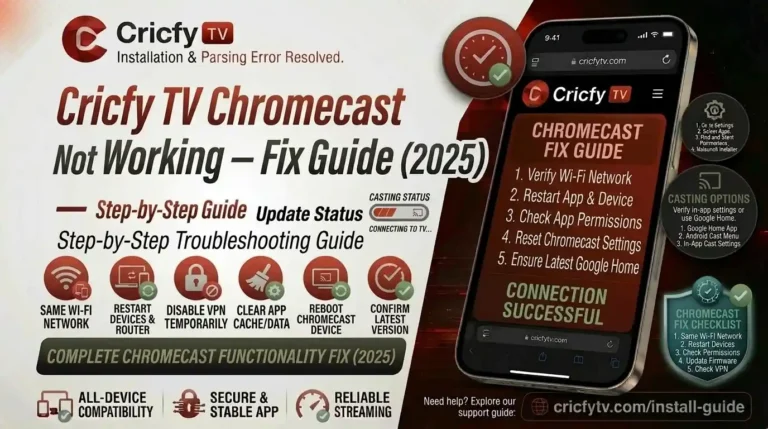
If casting from your phone shows a black screen on your TV, the issue is usually the Chromecast and your phone being on different Wi-Fi networks. Both devices must be on the same network. Restart both your router and Chromecast. Google has a detailed setup guide on their official Chromecast help page.
iPhone and iOS Workarounds
Cricfy TV does not have a native iOS app. If you are using a web-based workaround via Safari, make sure to clear Safari’s cache: Settings → Safari → Clear History and Website Data. For AltStore sideloading, remember that the certificate expires every 7 days and requires a refresh from a Mac or PC. Full details in our Cricfy TV for iOS guide.
Prevention Checklist — Stop Errors Before They Start
Most Cricfy TV problems are preventable with five simple habits. Build these into your match-day routine and you will rarely need the fixes above.
- Update before every major tournament. Check CricfyApp.pk for the latest APK before the PSL, IPL, ICC World Cup, or Asia Cup starts. Server changes happen most frequently before big events.
- Keep date and time on Automatic. Never set them manually unless you have a specific reason. Wrong timestamps cause the most preventable errors.
- Clear cache monthly. A quick cache clear from Settings → Apps → Cricfy TV → Clear Cache keeps the app lean and responsive.
- Bookmark the official download source. Save CricfyApp.pk in your browser bookmarks. Do not rely on links from WhatsApp groups or Facebook pages — those often lead to clone sites with tampered APKs.
- Keep a backup streaming app installed. Sportzfy TV, HD Streamz, or the legal option Tamasha — any of them work as a fallback when Cricfy TV servers are overloaded.
Best Backup Apps When Cricfy TV Goes Down
Even with every fix applied, there are moments when Cricfy TV simply will not work — server overload during a Pakistan vs India match, a major version update breaking something, or your ISP deciding to block it for the evening. A smart cricket fan keeps at least one backup installed.
| App | Best for | Legal status |
|---|---|---|
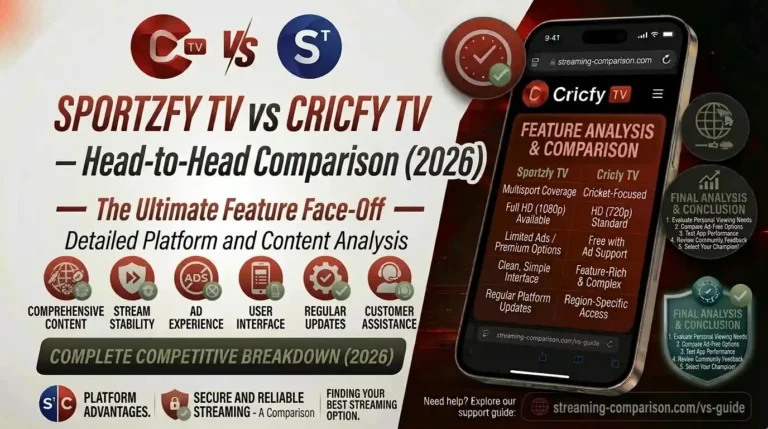
| Sportzfy TV | Closest alternative — similar interface, strong football and cricket coverage | Grey area (same as Cricfy) |
| HD Streamz | 1,000+ channels across many countries, reliable during tournaments | Grey area |
| Tamasha | PTV Sports and entertainment in Pakistan | Fully legal (licensed) |
| JioCinema | IPL, ICC events, free in India | Fully legal (licensed) |
| Yacine TV | European football leagues, La Liga, Premier League | Grey area |
| ICC.tv | ICC tournaments globally | Fully legal (official) |
For the full rundown on legal options, Tamasha covers Pakistan, JioCinema covers India, and Willow TV covers North America. Our Cricfy Live TV main guide has a complete comparison.
Frequently Asked Questions
Why does Cricfy TV keep showing “Unexpected Error Occurred”?
The three most common causes are an outdated app version, incorrect date and time settings on your device, and a VPN running in the background. Start by updating to the latest version from CricfyApp.pk, then set your date and time to Automatic, and finally disable any active VPN. This three-step sequence fixes it for the vast majority of users.
Cricfy TV works on mobile data but not on Wi-Fi — why?
Your internet service provider is likely blocking the domains or IP addresses that Cricfy TV uses for streaming. This is an ISP-level restriction, not a problem with your device or the app. Changing your DNS to Google DNS (8.8.8.8) or Cloudflare DNS (1.1.1.1) usually bypasses it. See Fix 10 and Fix 11 for step-by-step instructions.
Why did Google Play Protect uninstall Cricfy TV?
Play Protect flags and sometimes auto-removes any app not distributed through the Google Play Store. This is a blanket safety policy, not a specific malware verdict on Cricfy TV. Temporarily disable Play Protect during installation, then re-enable it. See Fix 09 for the full process.
How do I fix Cricfy TV buffering during live matches?
Buffering is almost always a bandwidth issue. Run a speed test and confirm you have at least 5 Mbps (10 Mbps for HD). Close background apps that consume bandwidth, switch between Wi-Fi and mobile data, and restart your router. If those steps do not help, drop the stream quality to 480p inside the player settings. During peak hours, switching to a less popular server inside the app also reduces buffering.
Does clearing cache delete my saved channels or settings?
Cricfy TV does not store user accounts, saved channel lists, or personal settings. Clearing cache and data simply removes temporary files. The app reloads its full channel list from the server the next time you open it. You will not lose anything.
What is the latest version of Cricfy TV in 2026?
As of August 2026, the latest stable version is v6.8. This version patched the “Unexpected Error” that was specifically affecting Android 14 devices and added improved server-switching logic. Always download the latest version from CricfyApp.pk to stay current.
Why does Cricfy TV not work on my Smart TV?
On Android TV and Fire TV, the most common issues are incorrect date/time and unknown source permissions being disabled. Set date and time to Automatic, enable unknown sources in developer options, and reinstall the latest APK. If the TV runs a proprietary OS (like Samsung Tizen or LG webOS), Cricfy TV is not compatible — use a Fire TV Stick or Android TV box connected via HDMI instead.
Can I use Cricfy TV on two devices at the same time?
Yes. Cricfy TV does not require an account or login, so there is no device limit. You can run it on your phone, tablet, Fire TV Stick, and PC emulator simultaneously without any conflict. Each device connects to the stream servers independently.
Is Cricfy TV down right now, or is it just me?
Check the official Cricfy TV Telegram channel (@cricfyappofficial) for real-time updates. You can also search Twitter/X for “Cricfy TV not working” to see if other users are reporting the same issue at the same time. If everyone is reporting errors during a major match, the servers are overloaded — wait 10 to 15 minutes and try again.
Does reinstalling Cricfy TV fix the “Request Failed” error?
It can, especially if the current install is corrupted or came from an unofficial source. However, “Request Failed” is more commonly caused by VPN interference or ISP blocking. Try disabling your VPN first (Fix 04), then switching DNS (Fix 10). If those do not resolve it, then a clean reinstall from CricfyApp.pk is the next step.
How much data does Cricfy TV use per hour?
Roughly 250 to 350 MB per hour on standard definition (480p) and 600 to 700 MB per hour on HD. If you are on a limited data plan, dropping to 480p gives you a significant data saving with only a minor quality difference. You can change the quality inside the player settings during a stream.
Why does Cricfy TV drain my battery so fast?
Live video streaming is one of the most power-intensive tasks for any smartphone. Expect 15 to 20 percent battery drain per hour of HD streaming. To extend battery life, lower the stream quality to 480p, reduce your screen brightness, and close unnecessary background apps. Using Wi-Fi instead of mobile data also uses less power.
The Bottom Line
Cricfy TV errors look scary, but they almost never mean the app is broken for good. Nine times out of ten, an update or a cache clear fixes everything in under two minutes. The remaining cases come down to VPN conflicts, ISP blocks, or server overload during peak match hours — all of which have clear, actionable fixes in this guide.
Start at Fix 01 and work down. Most users never get past Fix 03. If you do, the DNS and ISP sections cover the edge cases that trip up advanced users. And for the times when Cricfy TV is genuinely down on the server side, a backup app like Sportzfy TV or the fully legal JioCinema keeps you in the game.
Bookmark this page. The next time a PSL final or an ICC knockout match rolls around and your stream drops, you will know exactly where to look.
For the full app overview, device setup guides, and the complete channel list, head to our pillar guides: Cricfy Live TV — What It Is & How to Watch and Cricfy Live TV — Full Channel List.
- Google Android Help — Install apps from unknown sources
- Google Play Help — How Google Play Protect helps keep you safe
- Google Chromecast Help — Chromecast setup and casting guide
- VirusTotal — Free multi-engine malware scanner
- Wikipedia — Android application package (APK)
- Wikipedia — Domain Name System (DNS)
- PTA — Pakistan Telecommunication Authority official site
- PEMRA — Pakistan Electronic Media Regulatory Authority
- ICC — International Cricket Council official site
- PCB — Pakistan Cricket Board official site
- Wikipedia — Pakistan Super League
- Wikipedia — Indian Premier League
- JioCinema — Official licensed cricket streaming in India
- Wikipedia — M3U multimedia playlist format
14 Comments