
Cricfy TV Update Failed — Force-Update Guide
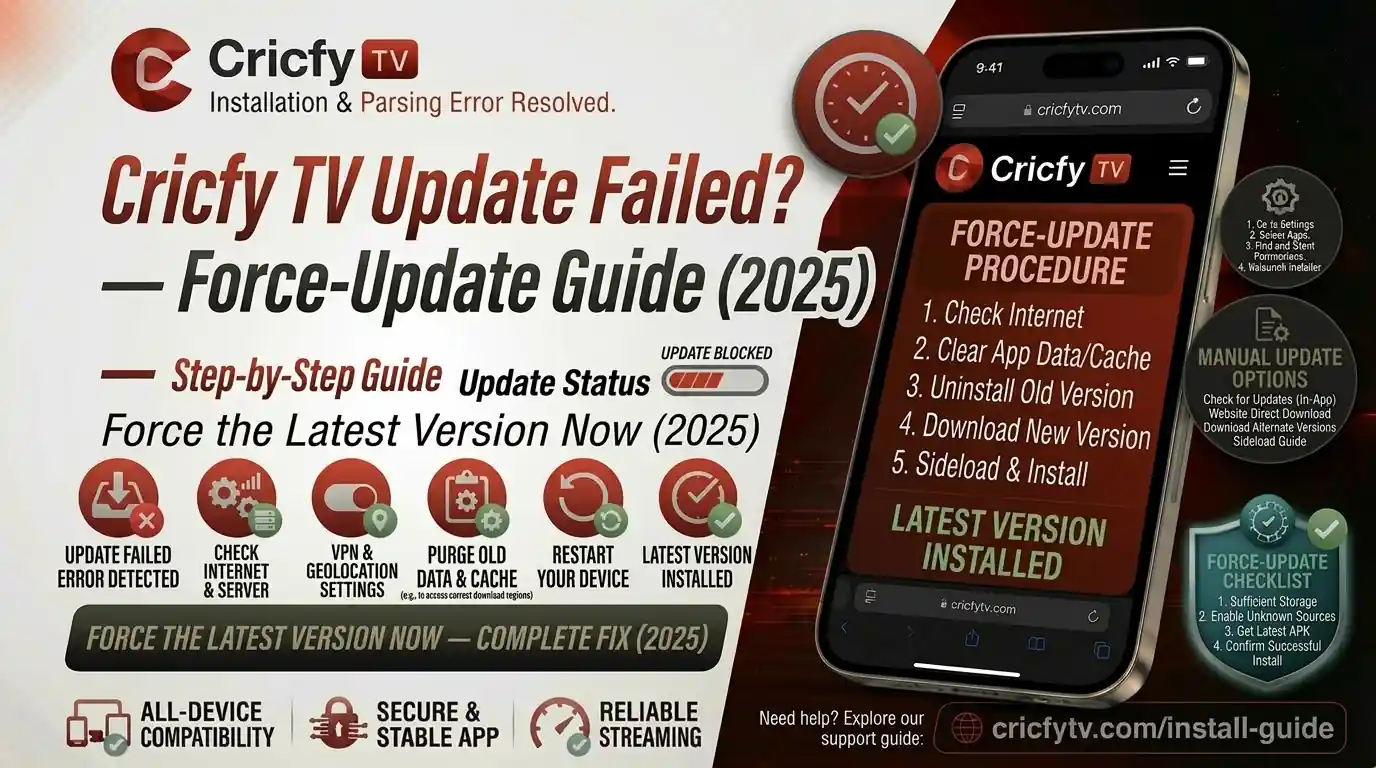
You fire up Cricfy Live TV to catch a live Pakistan vs India match, and the app throws an Update Failed message right in your face. Frustrating? Absolutely. But here is the thing — this is one of the most common Cricfy TV issues users on Android, Firestick, Smart TV, and PC face, and every single case has a fix. This guide walks you through every possible reason your Cricfy TV update failed and exactly how to force-update Cricfy TV on any device you own, step by step.
Cricfy TV is not on the Google Play Store or Amazon Appstore. All updates happen through manual APK sideloading from the official source at cricfyapp.pk. Never download Cricfy APKs from random third-party sites — you risk getting a fake or malware-laced file.
Why Does Cricfy TV Update Fail?
Cricfy TV is a sideloaded APK, not a store app. That means your Android phone, Firestick, or Smart TV does not auto-update it. Every update requires a fresh APK installation on top of the old one — and that process can fail for several reasons.
Understanding the root cause saves you time. So here is a quick breakdown of every known reason this error appears.
| Cause | What Happens | Affected Devices |
|---|---|---|
| Corrupted APK download | File is incomplete or damaged during download — installer fails immediately | All devices |
| Unknown Sources disabled | Android / Fire OS blocks sideloaded APK installations entirely | Android, Firestick |
| Signature mismatch | New APK has a different signing certificate than the installed version — Android refuses to update | Android, Android TV |
| Insufficient storage | Device has no room for the new APK files | All devices |
| Outdated Android / Fire OS | OS does not meet the minimum API level required by the new Cricfy build | Android, Firestick |
| Wrong APK architecture | APK built for ARM64 installed on an ARM device, or vice versa | Older Android phones, some TV boxes |
| Security / antivirus blocking | Play Protect or a third-party antivirus quarantines the APK before it installs | Android |
| Cached corrupted data | Old app data conflicts with the new APK — update stalls or rolls back | All devices |
| Wrong download source | Third-party APK is an older or tampered version that fails signature checks | All devices |
Cricfy TV Update Error Messages — What They Mean
The update failure does not always show the same message. Each error message points to a specific problem. Match yours below before jumping to fixes.
This shows when the new APK’s digital signature does not match the one on your installed Cricfy TV. Android’s package manager sees them as two different apps and refuses the update. The fix is to uninstall the old version first, then install the new APK fresh.
Android cannot read the APK manifest file. This usually means the downloaded file is incomplete, the file extension got changed during download (e.g., saved as .zip), or Unknown Sources is disabled so the installer cannot even read the package. Re-download over stable Wi-Fi and check your permissions.
Your browser or file manager app does not have permission to install packages. On Android 8.0 and above, each app needs individual install permission. Go to Settings > Apps > [Your Browser / File Manager] > Install Unknown Apps and toggle it on.
The most common one. It can mean storage is full, the old version is conflicting, or the APK file itself is corrupted mid-download. Work through the step-by-step fix for your device below — this almost always resolves within a couple of minutes.
Firestick and budget Android TV boxes are notorious for this — they ship with very limited internal storage. Clear unnecessary apps and cached data before attempting the Cricfy TV update again.
How to Force-Update Cricfy TV on Android Phone and Tablet
This is the most common device for Cricfy live cricket streaming in Pakistan, India, and Bangladesh. Follow these steps in order. Most people are done after Step 3.
-
Delete the old APK file from your Downloads folder.
Do not try to install an APK sitting in your Downloads from weeks ago. Open your file manager, go to Downloads, and delete any old
cricfy*.apkfile. A stale file is often the #1 reason the update fails. - Clear your browser cache before re-downloading. Open Chrome (or whatever browser you use), go to Settings > Privacy > Clear Browsing Data, check Cached Images and Files, and tap Clear. This forces a clean download on the next attempt.
- Download the latest Cricfy TV APK over stable Wi-Fi. Visit cricfyapp.pk and download the latest version. Use Wi-Fi, not mobile data — an interrupted mobile data connection is a frequent cause of a corrupted APK file.
- Check Unknown Sources permission for your browser. On Android 8.0+ (Oreo and above), go to Settings > Apps > [Chrome / Firefox] > Install Unknown Apps and turn on “Allow from this source”. Without this, Android blocks the installation entirely.
- Temporarily disable Google Play Protect. Open the Play Store > Profile icon > Play Protect > Settings, then turn off “Scan apps with Play Protect.” Play Protect occasionally flags Cricfy TV as an unknown app and blocks installation. Re-enable it after you finish.
- Tap the APK file and install. Open your file manager, navigate to the downloaded APK, tap it. If it says “App Not Installed,” skip to the next step. If it installs cleanly, you are done.
- Uninstall old Cricfy TV, then install fresh. If you hit “App Not Installed,” it means the signatures conflict. Long-press the Cricfy TV app icon, tap Uninstall, confirm. Then tap the APK again. This always works for signature mismatch errors. You will not lose any preferences since Cricfy TV does not require a login.
Samsung’s security settings and Xiaomi’s MIUI security app sometimes block APK installations even after you enable Unknown Sources. On Samsung, check Secure Folder settings and Device Care > App Protection. On Xiaomi, open the Security app > Permissions > Install Unknown Apps and enable it for your browser separately.
How to Force-Update Cricfy TV on Amazon Firestick
Firestick runs a custom version of Android called Fire OS. The update process is a bit different because you need to use the Downloader app to fetch the APK. Here is the complete force-update method for Cricfy TV on Firestick.
- Enable Developer Options on your Firestick. Go to Settings > My Fire TV > About. Click About about seven times rapidly. You will see a message that says you are a developer. Then go back one level and open Developer Options.
- Turn on “Apps from Unknown Sources.” Inside Developer Options, find Install Unknown Apps (or “Apps from Unknown Sources” on older Fire OS). Enable it for the Downloader app specifically.
- Clear Cricfy TV cache first. Go to Settings > Applications > Manage Installed Applications > Cricfy TV > Clear Cache. This removes corrupted temp files that might interfere with the update.
- Open the Downloader app and enter the APK URL. Launch Downloader, tap the address bar, and type in the direct APK download URL from cricfyapp.pk. Alternatively, use a short code if one is available from the official site. Let the file download completely — do not exit the app mid-download.
- Tap Install when Downloader prompts you. If Cricfy TV is already installed and the update installs cleanly — great, you are done. If you get an error, tap Done, go to Manage Installed Applications, find Cricfy TV, and tap Uninstall.
- Re-run the Downloader install. After uninstalling the old version, go back to Downloader and install the freshly downloaded APK. It should now install without any errors.
- Delete the install file to free storage. After installation, Downloader asks if you want to delete the APK. Always say yes. Firestick has very limited storage (typically 8 GB internal on older units) and keeping old APK files eats into it.
If your Firestick has less than 500 MB of free internal storage, Cricfy TV will not update even if everything else is correct. Go to Settings > My Fire TV > About > Storage and check your available space. If it is low, uninstall unused sideloaded apps first.
Need a detailed sideloading guide for Firestick from scratch? Check out our complete Cricfy TV on Firestick installation guide.
How to Force-Update Cricfy TV on Android TV and Smart TV
Android TV, Google TV (Chromecast with Google TV), and many budget Smart TV boxes run full Android under the hood. That means you can sideload APKs — but the process is slightly different from phones.
Method 1: Update via USB Drive
-
Download the APK on your PC or phone first.
Grab the latest Cricfy TV APK from cricfyapp.pk onto your computer. Rename the file to something simple like
cricfy.apkto avoid file manager display issues. - Copy the APK to a USB flash drive. Format the drive as FAT32 (most TVs cannot read NTFS). Copy the APK to the root of the drive, not inside a folder.
- Enable Unknown Sources on your TV. Go to Settings > Security > Unknown Sources and enable it. On newer Android TV / Google TV builds (Android 12+), go to Settings > Privacy > Security & Restrictions > Unknown Sources.
- Plug the USB into your TV and open a file manager. Use a built-in file manager or install FX File Explorer or X-plore from the Play Store. Navigate to the USB drive and tap the Cricfy APK file.
- Tap Install and confirm. If the old version is installed and you get a conflict error, uninstall it via Settings > Apps > Cricfy TV > Uninstall, then run the APK again from USB.
Method 2: Update via Send Files to TV App
If you do not have a USB drive handy, install Send Files to TV on both your Android phone and your TV. Send the APK wirelessly over the same Wi-Fi network, then open it through the TV’s file manager. This is the fastest method if you already have the APK on your phone.
Date and Time Fix for Android TV Users
Here is something most guides miss: an incorrect date and time setting on Android TV is one of the top causes of installation failures and streaming errors. If the device date is wrong, certificate verification on the APK fails silently. Go to Settings > System > Date & Time and enable Automatic Date & Time. Then retry the update.
For our complete guide on setting up Cricfy on a TV, see Cricfy TV on Android TV and Google TV.
How to Force-Update Cricfy TV on PC and Laptop
On a Windows PC or laptop, Cricfy TV runs inside an Android emulator — typically BlueStacks, MEmu, or LDPlayer. Updating Cricfy inside an emulator is simple because emulators handle APK sideloading natively.
- Download the latest Cricfy APK to your PC. Go to cricfyapp.pk and save the APK to your desktop or Downloads folder.
- Open your emulator (e.g., BlueStacks). Make sure your emulator itself is up to date. An outdated emulator version can block APK installations just like an outdated Android OS.
- Drag and drop the APK into the emulator window. On BlueStacks and most modern emulators, you can drag an APK directly into the emulator window. It will auto-install. Alternatively, click the APK install icon inside the emulator’s sidebar.
- If install fails, uninstall old Cricfy first. Inside the emulator, go to Settings > Apps, find Cricfy TV, uninstall it, then drag in the new APK again.
- Allocate more RAM to the emulator if needed. If the emulator crashes during install, open BlueStacks Settings > Performance and increase RAM to at least 2 GB. Low emulator RAM causes install failures on heavier APKs.
For a detailed emulator setup guide, see our Cricfy TV on PC — BlueStacks guide and the BlueStacks setup guide.
Cricfy TV Parse Error Fix — Full Guide
The Parse Error (full message: “There was a problem parsing the package”) is a specific APK installation failure. Android’s package installer could not read the APK’s AndroidManifest.xml file — the blueprint of the app. Here is every known cause and its fix.
| Parse Error Cause | How to Fix It |
|---|---|
| Corrupted download | Delete the APK, clear your browser cache, re-download on stable Wi-Fi |
| Wrong file extension | Confirm the file ends in .apk, not .apk.zip or .bin |
| Unknown Sources disabled | Enable for your browser in Settings > Apps > [Browser] > Install Unknown Apps |
| Android OS too old | Cricfy TV v7.x requires Android 5.1 (Lollipop) or above — update your OS |
| Antivirus blocking | Temporarily disable Play Protect or third-party antivirus, install, then re-enable |
| Split APK / wrong format | Download the standard .apk file, not an .xapk or .apks bundle |
After downloading, check the file size. The Cricfy TV APK should be in the range of 20–40 MB depending on the version. If your downloaded file is only a few KB or appears to be an HTML file, you did not download the APK — you downloaded the download page itself. Go back and look for the direct download button.
Storage and Permission Errors — How to Clear the Path
Free Up Space on Android
Go to Settings > Storage and check available space. You need at least 150–200 MB free to install a Cricfy TV update. If you are low, try the following:
- Clear cache for Chrome or your download browser (Settings > Apps > Chrome > Storage > Clear Cache).
- Clear cache for Cricfy TV itself (Settings > Apps > Cricfy TV > Storage > Clear Cache).
- Delete any old APK files sitting in your Downloads folder — they serve no purpose after installation.
- Move photos and videos to Google Drive or a microSD card if your device supports it.
Free Up Space on Firestick
Go to Settings > My Fire TV > About > Storage. If internal storage is below 500 MB, uninstall any sideloaded apps you do not use. Note that Firestick only has 8 GB of internal storage — there is no expandable storage option.
Fix “Installation Blocked” Permission Error
On Android 8.0 (Oreo) and above, Unknown Sources is no longer a global toggle. Every app that can open an APK file needs individual install permission. This is why you might have Unknown Sources enabled but still see a block. Fix it like this:
- Identify which app you use to open the APK. Is it Chrome, Firefox, your file manager, or Telegram? That specific app needs the install permission.
- Go to Settings > Apps > [That App] > Install Unknown Apps. Toggle it on. On some Samsung devices this is under Settings > Biometrics and Security > Install Unknown Apps.
- Re-tap the APK file to install. The installation blocked error should now be gone.
Cricfy TV Force-Update Checklist — Do This Every Time
Before you update Cricfy TV next time, run through this checklist. It will save you from 95% of update failures.
| # | Check | Status to Pass |
|---|---|---|
| 1 | Connected to stable Wi-Fi | Yes (not mobile data for download) |
| 2 | Old APK files deleted from Downloads | Yes |
| 3 | Browser cache cleared | Yes |
| 4 | Unknown Sources / Install from unknown apps enabled for your browser | Yes |
| 5 | Play Protect paused (or antivirus disabled temporarily) | Yes |
| 6 | Device has 200 MB+ free storage | Yes |
| 7 | Date and time set to automatic | Yes |
| 8 | APK downloaded from cricfyapp.pk | Yes — official source only |
How to Prevent Cricfy TV Update Failures in the Future
Once you get Cricfy TV running smoothly, you want it to stay that way. Here are the best habits to keep it updated without headaches.
Bookmark the Official APK Page
Bookmark cricfyapp.pk as your only Cricfy TV APK source. Avoid downloading from random APK mirror sites — they often lag behind on version updates and some host tampered files.
Check for Updates Before Major Cricket Events
Cricfy TV typically rolls out new APK versions before big cricket tournaments — PSL, IPL, Asia Cup, ICC World Cup. Check for a newer version a day or two before the tournament starts. That way you are not scrambling during a live match.
Keep “Install from Unknown Sources” Enabled for Your Browser
Some Android security updates reset your Unknown Sources permissions. After a phone software update, double-check that your browser still has install permission so next time you do not hit a blocked installation error mid-update.
Keep Cricfy TV Cache Clean
Every few weeks, go to Settings > Apps > Cricfy TV > Storage > Clear Cache. Cached data builds up over time and can conflict with a new update. This also fixes most of the buffering issues you might see during Cricfy live TV streaming.
Follow Cricfyapp.pk for Version Release Announcements
We publish detailed release notes for every new Cricfy TV version. Check our v6.8 APK release notes and v6.7 APK release notes for an example of what to look for.
Cricfy TV giving you other problems too? We have dedicated fix guides for every common issue: Cricfy TV Not Working, Unexpected Error Fix, Buffering Fix, No Sound Fix, Crashing on Android 14 / 15 Fix, and Parsing Error Fix.
Bottom Line
A Cricfy TV update failure is almost always fixable in under five minutes. The most reliable method on every device is the same: delete the old APK, re-download from cricfyapp.pk over Wi-Fi, confirm Unknown Sources permission, and install fresh. If you hit a signature mismatch — which shows as “App Not Installed” — uninstall the current Cricfy TV version first, then install the new one. That covers 99% of cases.
You are now fully set to watch Cricfy live TV without any update-related interruptions. Go catch your match.
FAQs — Cricfy TV Update Failed
Why does Cricfy TV show “Update Failed” when I try to install the new APK?
The most common reason is a signature mismatch between the installed version and the new APK, or a corrupted download. The fastest fix is to uninstall the old Cricfy TV version first, then install the freshly downloaded APK. Also make sure Unknown Sources is enabled for the app or browser you are using to open the APK file.
Will I lose my settings if I uninstall and reinstall Cricfy TV?
No. Cricfy TV does not require an account or login, and it stores no personal data on your device. Uninstalling and reinstalling is completely safe and is in fact the recommended method for a clean update.
Where is the safest place to download the Cricfy TV APK update?
Always download from cricfyapp.pk — the official Cricfy TV website for Pakistan users. Avoid third-party APK mirror sites as they often host outdated versions or tampered files. Third-party APKs are also a common source of “App Not Installed” and parse errors.
How do I update Cricfy TV on a Firestick?
Enable Developer Options on your Firestick by tapping About seven times in Settings. Then enable Install Unknown Apps for the Downloader app. Use Downloader to fetch the APK from cricfyapp.pk and install it. If you get an error, clear Cricfy TV’s cache first and uninstall the old version before trying again.
What is a Parse Error and how do I fix it during Cricfy TV update?
A Parse Error means Android cannot read the APK file. This is almost always caused by a corrupted or incomplete download, a wrong file format (e.g., the file saved as .zip), or Unknown Sources being disabled. Delete the file, clear your browser cache, re-download over stable Wi-Fi, and make sure the file ends in .apk.
Cricfy TV update installed but the app still shows an old version — why?
This usually means the new APK installed over the old one but cached data was not cleared. Go to Settings > Apps > Cricfy TV > Storage > Clear Cache, then relaunch the app. In some cases you may also need to tap Clear Data, which resets the app entirely.
Does Cricfy TV auto-update like Play Store apps?
No. Because Cricfy TV is a sideloaded APK and not available on the Google Play Store, there is no automatic update mechanism. You need to check cricfyapp.pk for new releases and manually download and install each update.
Can I update Cricfy TV on an iPhone or iPad?
iOS does not support APK files natively. To update Cricfy TV on an iPhone, you need to use a sideloading tool like Sideloadly or AltStore with the IPA file. See our complete guide on Cricfy TV iOS sideloading for step-by-step instructions.
2 Comments