
Cricfy TV on Smart TV — Install on Any Android TV
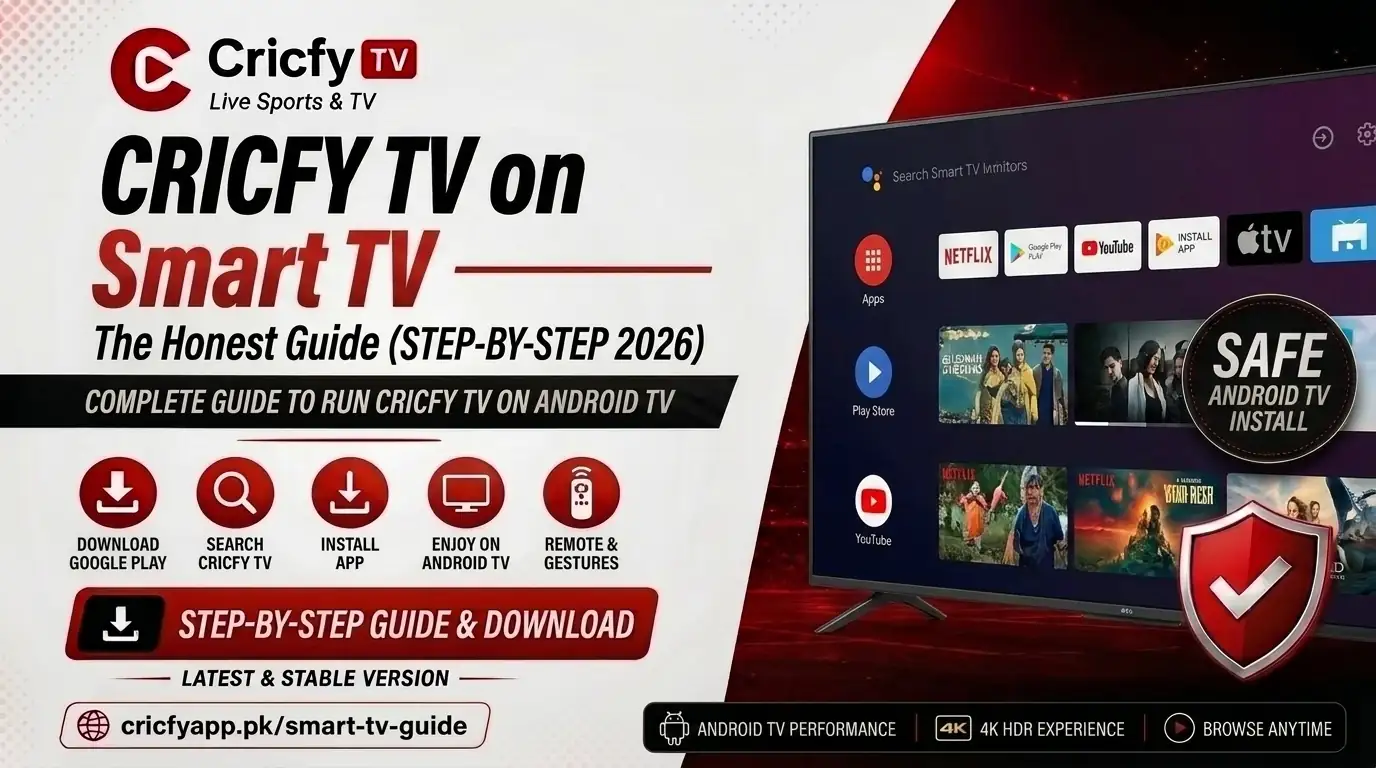
Your phone is great for cricket on the go. But the moment a big match starts — a Pakistan vs India final, a PSL decider, an ICC knockout — you want that action on the big screen. That is exactly what this guide covers. Here you will learn how to install Cricfy Live TV on any Android TV, Smart TV, or streaming stick, using every method that actually works in 2026.
What Is Cricfy TV and Why Watch It on a Smart TV?
Cricfy TV is a free live streaming application that gives you access to over 600 television channels from Pakistan, India, and around the world. No subscription. No sign-up. Just install the APK and start watching.
On your phone, Cricfy works brilliantly. But on a Smart TV, the entire experience levels up. You get a proper 40-inch, 55-inch, or 65-inch picture for every match. The crowd noise fills the room. The close-up replays actually show you the ball seam. Watching cricket this way is just better — there is no debate about it.
The key thing to understand is this: Cricfy TV is an Android APK. It is not in the Google Play Store. So you cannot simply search for it and tap Install. You need to sideload it — which means downloading the APK directly and installing it manually. That sounds harder than it is. This guide walks you through every route, step by step, regardless of which Android TV or Smart TV brand you own.
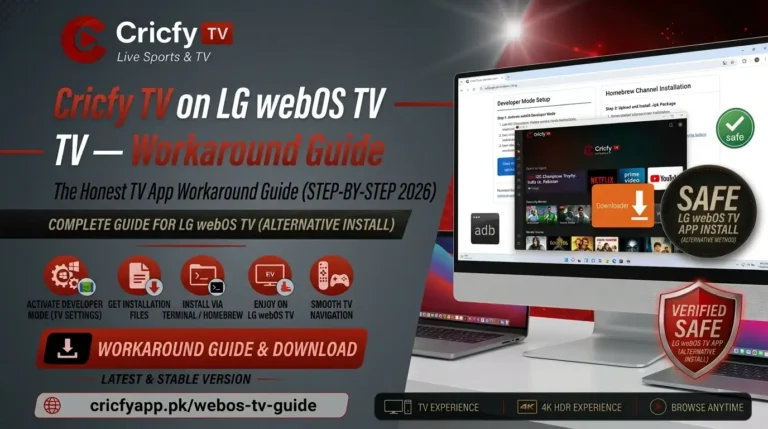
Not every Smart TV runs Android. Samsung TVs use Tizen OS. LG TVs use webOS. Cricfy TV — and APK sideloading in general — only works on Android-based TVs and streaming devices. If you own a Samsung or LG Smart TV without an Android TV box connected to it, none of the methods in this guide will apply directly. Scroll to the compatible devices section to check your device first.
If you have questions about the app itself — what channels it carries, its version history, or how it performs on mobile — check out the full Cricfy Live TV guide on CricfyApp.pk.
Which Smart TVs and Streaming Devices Are Compatible?
Before you start the installation process, confirm your device runs Android TV or Google TV. Here is the full picture.
Generic Android TV boxes, Xiaomi Mi Box S, Mi Box 4K, MECOOL KM7, and similar devices running Android TV 7.0 or higher. These give the most flexibility for sideloading and work flawlessly with Cricfy.
The Shield TV Pro and Shield TV Tube both run Android TV with easy sideloading access. The Shield’s processing power makes Cricfy run butter-smooth at 1080p. Best-in-class option for serious cricket viewers.
Sony Bravia TVs running Android TV (2015 onwards) and Google TV (2021 onwards) support sideloading. The Downloader method and USB method both work reliably on Sony sets.
Models running Android TV or Google TV — which covers most TCL, Hisense, and Philips mid-range and flagship sets from 2019 onwards — all support APK sideloading for Cricfy.
Fire TV Stick Lite, Fire Stick 4K, Fire Stick 4K Max, and Fire TV Cube all run Fire OS — a forked Android. Cricfy installs the same way as on Android TV. We cover the exact steps in a dedicated section below.
Google TV Chromecast (2020 and 2023 models) supports sideloading, but the process requires enabling Developer Options first. The Downloader method works once that step is complete.
| TV Brand / Device | Operating System | Cricfy APK Works? | Best Install Method |
|---|---|---|---|
| Xiaomi Mi Box | Android TV | Yes | Downloader app |
| Nvidia Shield TV | Android TV | Yes | Downloader app or ADB |
| Sony Bravia (2015+) | Android TV / Google TV | Yes | Downloader app or USB |
| TCL (2019+) | Android TV / Google TV | Yes | Downloader app |
| Hisense (2019+) | Android TV / Google TV | Yes | USB transfer |
| Amazon Fire Stick | Fire OS (Android-based) | Yes | Downloader app |
| Chromecast w/ Google TV | Google TV | Yes | Downloader app + Dev Options |
| Samsung Smart TV | Tizen OS | No | Use a Mi Box or Fire Stick instead |
| LG Smart TV | webOS | No | Use a Mi Box or Fire Stick instead |
If you own a Samsung or LG TV and want Cricfy on the big screen, pick up a Xiaomi Mi Box 4K or an Amazon Fire Stick 4K. Both plug into your TV’s HDMI port and give you a full Android TV / Fire OS environment for Cricfy to run in.
Method 1 — Downloader App (Easiest, Recommended for Everyone)
This is the simplest and most widely used method. The Downloader app — built by AFTVnews developer Elias Saba — lets you fetch any APK file directly on your Android TV using a URL or short code. No PC required. No USB drive needed. Just your TV remote.
Step 1 — Enable Unknown Sources on your Android TV
Before anything else, you need to allow your TV to install apps from outside the Google Play Store. The menu path varies slightly by device and Android version:
- Most Android TVs: Settings > Device Preferences > Security & Restrictions > Unknown Sources — toggle ON
- Google TV (newer models): Settings > Privacy > Security > Install Unknown Apps
- Sony Bravia: Settings > Apps > Security & Restrictions > Unknown Sources
- TCL / Hisense: Settings > More Settings > Security & Restrictions > Unknown Sources
On Android 8 and above — including most current Android TVs — you enable Unknown Sources per app rather than globally. That means you will toggle it on specifically for Downloader when the system prompts you. This is actually safer than the older global toggle.
Step 2 — Install Downloader from Google Play
Open the Google Play Store on your Android TV. Search for Downloader by AFTVnews. Install it — it is a free, lightweight app with over 10 million installs across Android TV and Fire OS devices. If your device does not have Play Store access, you can sideload Downloader itself via a USB drive first, then use it to fetch the Cricfy APK.
Full installation walkthrough
- Open Downloader on your Android TV. On the home screen you will see a URL input field.
- Using your remote or a connected Bluetooth keyboard, type the direct download URL for the latest Cricfy TV APK. Get the official link from CricfyApp.pk — always use the CricfyApp.pk link to ensure you download a clean, verified APK file.
- Press Go or the Select button. Downloader will begin downloading the APK. Depending on your internet speed, this takes 30 seconds to 2 minutes. The file size is typically 20–40 MB.
- Once the download finishes, Downloader automatically prompts you to install the file. Select Install using your remote.
- If a security prompt appears saying “Install blocked” or “Unknown Sources disabled,” select Settings from the pop-up and toggle Downloader to Allowed. Press Back and tap Install again.
- If a Play Protect warning appears, select Install anyway. Play Protect checks apps against Google’s database — Cricfy does not appear there since it is not a Play Store app, triggering the generic warning.
- After installation, select Open to launch Cricfy TV immediately, or tap Done and find it in your Apps section. Optionally tap Delete to remove the APK installer file and free up storage.
- Cricfy TV opens directly to the channel grid. Select a sports channel — PTV Sports, Geo Super, Star Sports — and the stream begins within a few seconds.
Typing a long URL with a TV remote is tedious. Two shortcuts help. First, if you pair a Bluetooth keyboard or mouse with your Android TV, input becomes instant. Second, many Android TV remotes support voice search — hold the microphone button and dictate the URL. Alternatively, check if CricfyApp.pk has a short numeric code for Downloader — these are much faster to enter than full URLs.
Method 2 — USB Transfer (Best When Your TV Has No Internet)
This method works when you prefer not to download directly on the TV, or when your internet connection is unstable. You download the APK on your phone or PC, transfer it to a USB drive, and plug that into your TV.
What you need
A USB flash drive formatted as FAT32 (most drives are already FAT32 out of the box), the Cricfy APK downloaded from CricfyApp.pk, and a file manager app on your Android TV. ES File Explorer and FX File Explorer are both available on Google Play and work well for this.
- On your PC or Android phone, download the latest Cricfy TV APK from CricfyApp.pk. Save it to a USB flash drive. Place it in the root folder or a clearly named folder like “Apps” — this makes it easier to find on the TV.
- Plug the USB drive into your Android TV’s USB port. Most Smart TVs and Android TV boxes have at least one USB-A port on the side or rear panel.
- On your Android TV, enable Unknown Sources if you have not already done so (see Method 1, Step 1 for the exact menu path).
- Open your File Manager app (ES File Explorer, FX File Explorer, or X-plore). Navigate to the USB drive — it usually appears as “USB Storage” or with the drive name.
- Find the Cricfy APK file. Select it with your remote. A prompt appears asking what you want to do — choose Install or Open > Package Installer.
- The Android package installer opens. Select Install. If a security warning appears, grant permission through the Settings link in the pop-up, then retry installation.
- Once installed, open Cricfy TV from your Apps section. The channel list loads. You can remove the USB drive at this point — the app is fully installed on your TV’s internal storage.
Android TVs cannot read NTFS or exFAT USB drives in most cases. If your TV does not recognise the USB drive, format it to FAT32 on your PC first. On Windows: right-click the drive in File Explorer > Format > FAT32. On Mac: use Disk Utility > Erase > MS-DOS (FAT).
Method 3 — Send Files to TV App (Wireless, No USB Needed)
This is the cleanest wireless method. The Send Files to TV app — available free on Google Play — lets you push files from your Android phone to your Android TV over the same Wi-Fi network. No cables, no codes, no third-party websites on your TV.
- Install Send Files to TV on both your Android phone and your Android TV from the Google Play Store.
- On your Android phone, download the Cricfy TV APK from CricfyApp.pk and save it to your phone’s Downloads folder.
- Make sure your phone and Android TV are on the same Wi-Fi network. This is essential — the transfer only works over local network, not mobile data.
- On your Android TV, open Send Files to TV and tap Receive. The app shows a waiting screen.
- On your Android phone, open Send Files to TV and tap Send. Select your TV from the device list. Then choose the Cricfy APK from your Downloads folder.
- The APK transfers to your TV — typically in under 10 seconds on a home Wi-Fi network. Once the transfer completes, your TV shows the file in the Send Files to TV app.
- Tap the APK file on your TV to install it. Enable Unknown Sources for Send Files to TV if prompted (same process as Method 1). Select Install and wait for the completion message.
- Open Cricfy TV from your Apps section and start streaming.
This method is ideal if you already have the Cricfy APK on your phone from a previous update, and you just want to push the newer version to your TV without going through the Downloader app again.
Method 4 — ADB Sideload via PC (Advanced Users)
ADB — Android Debug Bridge — is Google’s official developer tool for communicating with Android devices. It lets you push APKs from your Windows, Mac, or Linux PC to your Android TV over Wi-Fi or USB. This method is the most reliable and gives you the most control, but it requires a bit of technical comfort.
Enable Developer Options and ADB on your Android TV
- On your Android TV, go to Settings > Device Preferences > About. Highlight Build (or Android TV OS build) and press the Select button seven times rapidly. A message appears: “You are now a developer.”
- Return to Settings > Device Preferences > Developer Options. Scroll down and enable USB Debugging (also called ADB Debugging). Also enable Network Debugging if you want to connect over Wi-Fi without a USB cable.
- Note your TV’s IP address from Settings > Network > About or Settings > Wi-Fi > Advanced. You will need it in the next step.
Install ADB on your PC and push the Cricfy APK
- On your PC, download the Android Platform Tools from the official Android developer site. Extract the ZIP to a folder, for example
C:\adb\. - Open Command Prompt (Windows) or Terminal (Mac/Linux). Navigate to the ADB folder:
cd C:\adb\ - Connect to your Android TV over Wi-Fi:
adb connect [your-TV-IP-address]:5555. Your TV will show a pairing prompt — select Allow using your remote. If connecting via USB cable instead, just runadb devicesafter plugging in. - Push the Cricfy APK to your TV:
adb install /path/to/cricfy-tv.apk. Replace the path with the actual location of the Cricfy APK on your PC. The installation completes in about 30 seconds depending on file size. - On your TV, Cricfy TV now appears in your Apps section. No additional steps needed — ADB bypasses the Unknown Sources prompt entirely.
ADB is especially useful for Nvidia Shield TV users who want to keep installing updates cleanly. It is also the go-to method when Downloader cannot reach the APK URL due to regional blocks, and when you want to script automatic installs across multiple Android TV devices in the same household.
How to Install Cricfy TV on Amazon Fire Stick
Amazon Fire Stick runs Fire OS — Amazon’s customised version of Android. The process is very similar to standard Android TV, with one important difference in the settings menu location. These steps work for Fire Stick Lite, Fire Stick HD, Fire Stick 4K, Fire Stick 4K Max, and Fire TV Cube.
Enable Apps from Unknown Sources on Fire Stick
- From the Fire Stick home screen, go to Settings (the gear icon in the top menu bar).
- Select My Fire TV (older models show Device instead).
- Select Developer Options.
- Toggle Apps from Unknown Sources to ON. A warning appears — select Turn On to confirm.
Install Downloader and fetch Cricfy TV
- Press the Home button on your Fire Stick remote. Use the search icon to search for Downloader. Install it from the results — it is the same Downloader by AFTVnews that Android TV users install.
- Open Downloader. In the URL field, enter the direct APK download link for Cricfy TV from CricfyApp.pk.
- Select Go. The APK downloads. When complete, select Install.
- After installation, select Open to launch Cricfy TV. You will find it in your Fire Stick’s Apps & Games section going forward.
- Optionally go back to Settings > My Fire TV > Developer Options and turn Apps from Unknown Sources back to OFF for security. Your installed apps — including Cricfy — continue working fine.
If you are buying a streaming stick specifically for Cricfy live cricket, the Fire Stick 4K Max is the best value option. Its Wi-Fi 6 support delivers noticeably lower buffering on congested home networks — exactly what you need when half your household is streaming during a PSL match. The standard Fire Stick 4K also works well and costs less.
Every Channel You Can Watch on Cricfy TV — Smart TV Edition
On a Smart TV, you access the exact same channel library as the mobile app — but the bigger screen makes channels like PTV Sports, Star Sports, and beIN Sports feel dramatically different. Here is the full breakdown by category.
| Category | Key Channels | Why It Matters |
|---|---|---|
| Pakistan Cricket | PTV Sports, Geo Super, A Sports HD, Ten Sports | All Pakistan home and away series, PSL, domestic tournaments |
| India Cricket | Star Sports 1–3, Star Sports Hindi, Sony Ten 1, Sony Ten 3, Sony Ten 5 | IPL, India bilateral series, BCCI broadcast rights |
| International Cricket | Sky Sports Cricket, Willow TV, Fox Sports, SuperSport, ESPN | England vs Australia Ashes, Big Bash League, West Indies cricket |
| Football | beIN Sports 1–3, TNT Sports, Sky Sports Football, Sports18, BT Sport | Premier League, Champions League, La Liga, Bundesliga, Serie A |
| Pakistan News | Geo News, ARY News, Samaa TV, Bol News, Dunya News, Express News | Breaking news, current affairs, live political coverage |
| Entertainment (PK/IN) | Hum TV, ARY Digital, Geo Entertainment, Star Plus, Zee TV, Colors, Sony | Pakistani dramas, Indian soap operas, reality shows |
| Kids | Cartoon Network, Nickelodeon, Disney Channel, Pogo | Children’s programming — useful when the match is not on |
| International News | BBC News, CNN, Al Jazeera English, Sky News | Global news coverage in English |
For the complete, current channel list with server availability status, bookmark the Cricfy Live TV full channel list. Server availability for individual channels can change, and that page stays updated after every major Cricfy release.
What to watch during ICC tournaments
The ICC official tournament calendar lists every upcoming series with broadcast dates. Cross-reference those with the Cricfy channel list to know exactly which channel to open on match day. For ICC events in Pakistan, PTV Sports holds the primary rights. For events in India, Star Sports and Sony Ten carry the feeds. Both are available inside Cricfy TV on your Smart TV.
Streaming Quality on Smart TV — What to Realistically Expect
Cricfy TV on a Smart TV streams through HLS (HTTP Live Streaming) and RTMP protocols. Quality depends heavily on the server feeding that particular channel, your internet connection, and the time of day. Here is an honest breakdown.
| Quality | Resolution | Minimum Speed | Data / Hour | Looks Like On TV |
|---|---|---|---|---|
| HD Server | 1280×720 or 1920×1080 | 8–10 Mbps | 700–1,200 MB | Sharp, broadcast-quality feel on 40-55 inch screen |
| SD Server | 854×480 | 4 Mbps | 300–500 MB | Acceptable on 40-inch TV; looks soft on 65-inch |
| Low Server | 640×360 | 2 Mbps | 150–200 MB | Pixelated on large screens — use only as a backup |
HD streams on Cricfy TV genuinely look good on a 40-50 inch screen. On a 65-inch 4K TV, an HD 720p stream will upscale and look decent — not native 4K, but completely watchable for a cricket match. The ball tracking, replays, and stadium wide shots all come through clearly at 720p and above.
How to get the best quality every time
Always try the first server link before switching. In most cases, the default link is the highest-quality one available for that channel. If it buffers, switch to the next server — Cricfy usually offers two or three server options per channel. On a Smart TV, select the second server with your remote directly from the channel page.
Peak hours — 6 PM to 11 PM Pakistan Standard Time during a major match — are when servers get most congested. If HD is buffering at that time, drop to SD temporarily. The stream becomes stable and you follow the match without frustration. You can switch back to HD after the opening overs settle down.
For uninterrupted streaming on a Smart TV, an internet connection of at least 10 Mbps down is the practical threshold. Most urban Pakistan broadband packages easily meet this. On mobile data (4G/5G), a stable signal with 8+ Mbps suffices for HD.
Cricfy TV Not Working on Smart TV — Fix Every Problem
Smart TV-specific issues differ slightly from mobile problems. Here are the exact fixes for every error you are likely to encounter.
Cricfy TV not opening after installation
This usually means the APK version is incompatible with your Android TV’s architecture (ARM vs x86) or Android version. Download the TV-specific APK from CricfyApp.pk if available, or try the latest universal APK. If the app still crashes, clear the cache via Settings > Apps > Cricfy TV > Clear Cache, then relaunch.
App installed but not visible in Apps section
On some Android TV launchers, sideloaded apps do not auto-appear on the home screen. Go to Settings > Apps > See All Apps and find Cricfy TV in the full list. On Fire Stick, scroll down to the “Your Apps & Games” row, tap “See All,” and find it there. You can move it to the front row from the app’s options menu.
Streams load but video is choppy or keeps buffering
First, check your internet speed on the TV by opening YouTube and playing a 1080p video — if YouTube buffers too, your connection is the issue. If YouTube works fine but Cricfy buffers, switch to a different server link inside the channel. Also turn off any VPN running on your router or TV — VPNs add latency that frequently causes buffering on live streams. For a detailed diagnosis guide, read the Cricfy TV not working guide.
No sound on the stream
Check that your TV’s audio output setting matches your connected sound system (HDMI ARC, optical, or internal speakers). Some HLS streams use AAC audio which older soundbars may not decode over HDMI. Switch the TV’s audio output to PCM Stereo in Settings > Sound > Audio Output if your soundbar shows no audio.
“Parse Error” or “App Not Installed”
This means the APK file is corrupted or downloaded incompletely. Delete the file, re-download the Cricfy APK from CricfyApp.pk, and install again. Also confirm the APK matches your device architecture — most modern Android TVs use ARM64, which the standard Cricfy APK supports.
“Unexpected Error” on specific channels
Server-side issue. The specific channel server is down or overloaded. Try a different server link for the same channel. Wait a few minutes and retry. For a full breakdown of this error across all devices, check the Cricfy TV unexpected error guide.
Remote control does not navigate the Cricfy app properly
Cricfy TV was originally designed for touch screens. On Android TV, remote navigation works but some buttons may behave unexpectedly. Pair a USB or Bluetooth mouse with your Android TV box for precision control inside the app. Most Android TV boxes support Bluetooth mice out of the box. Xiaomi Mi Box and Nvidia Shield users can also use the Google TV companion app on their phone as a touchpad remote.
Cricfy TV update required — how to update on Smart TV
Cricfy TV does not auto-update on Android TV since it is not on Google Play. When a new version comes out, download the updated APK from CricfyApp.pk and install it directly over the existing installation using Method 1 or 2 above. Android handles the update without uninstalling first — your settings and preferences carry over. For the latest release notes and APK links, check the Cricfy TV v6.8 APK release page on CricfyApp.pk.
Pro Tips for a Better Cricket Experience on Your Smart TV
Getting Cricfy installed is just the start. These tips make the actual match-watching experience noticeably better.
Pair a Bluetooth mouse for easy navigation
Any Bluetooth mouse pairs with Xiaomi Mi Box, Nvidia Shield, and most Android TV boxes instantly. Inside Cricfy, a mouse lets you tap channels, switch servers, and control the player exactly as you would on a phone — far faster than remote navigation. This one change transforms the Smart TV experience.
Add Cricfy to your home screen as a favourite
On Xiaomi Mi Box and most Android TV launchers, long-press the Cricfy app icon and select “Move to front” or “Add to favourites.” During a tournament, having Cricfy one click from the home screen saves you from digging through the Apps section every time you turn on the TV.
Use wired Ethernet over Wi-Fi for big matches
Wi-Fi is convenient but inconsistent, especially during prime-time match hours when neighbours are also streaming. An Ethernet connection from your router to an Android TV box eliminates wireless interference and significantly reduces buffering. Most Android TV boxes have a built-in Ethernet port or support USB-to-Ethernet adapters.
Set your TV’s picture mode to “Cinema” or “Movie” for sports streams
Most Smart TVs default to a “Vivid” or “Dynamic” picture mode that oversaturates colours and adds heavy post-processing — making low-bitrate streams look worse, not better. Switch to Cinema or Movie mode. The picture looks more natural and grass on the pitch actually looks like grass rather than a neon green carpet.
Enable motion smoothing cautiously for cricket
TV motion smoothing (called TruMotion on LG, X-Motion Clarity on Sony, Auto Motion Plus on Samsung) can help with fast cricket action — but it sometimes creates the “soap opera effect” that looks unnatural. Test it during a practice session and keep it on a low setting (Low or Custom) rather than maximum.
Keep a backup app ready
During the PSL final or a Pakistan-India clash, Cricfy servers can get overwhelmed. Install Sportzfy or HD Streamz as a backup using the same APK sideloading method. Switch apps the moment your primary stream stutters during a crucial over.
Check the latest APK version before every tournament
Cricfy releases updates that fix server connections, add channels, and improve the player UI. Before major tournaments — PSL, Asia Cup, ICC events — visit CricfyApp.pk and check if a new APK has dropped. Installing the latest version on your Smart TV takes under 3 minutes and avoids compatibility issues that older builds can develop mid-tournament.
Frequently Asked Questions
Is Cricfy TV available on the Google Play Store for Android TV?
No. Cricfy TV is not listed on the Google Play Store — not for Android TV, phones, or tablets. You install it by sideloading the APK using the Downloader app, USB transfer, Send Files to TV, or ADB. All four methods are covered in detail above.
Does Cricfy TV work on Samsung Smart TV?
Not directly. Samsung Smart TVs run Tizen OS, which does not support Android APKs. However, you can connect an Amazon Fire Stick, Xiaomi Mi Box, or Nvidia Shield to your Samsung TV’s HDMI port and install Cricfy on that device. The Samsung TV then becomes the screen — Cricfy runs on the streaming box.
Does Cricfy TV work on LG Smart TV?
Same situation as Samsung. LG Smart TVs use webOS, which is incompatible with Android APKs. Connect an Android TV box or Fire Stick to your LG TV via HDMI and install Cricfy on that device.
Can I watch PTV Sports live on my Smart TV using Cricfy?
Yes. PTV Sports is one of the most reliably available channels on Cricfy. Open Cricfy TV, go to the Sports or Pakistan category, and select PTV Sports. Multiple server links are typically available during Pakistan matches — try the first one and switch if it buffers. PTV Sports on Cricfy carries all Pakistan home series, PSL matches, and ICC events for which PTV holds broadcast rights.
How much data does Cricfy TV use on a Smart TV per match?
A full T20 match (roughly 3.5 hours) at 720p HD uses approximately 2.5–4 GB of data. At 480p SD, expect 1–1.5 GB per match. On a broadband connection, data caps are rarely an issue. On a mobile data plan shared through hotspot, SD quality is the smarter choice for match day.
Does Cricfy TV support 4K streaming on Smart TVs?
No. The highest quality available through Cricfy’s servers is typically 1080p, and most channels peak at 720p HD. The Cricfy player does not output native 4K. Your 4K TV will upscale the 720p/1080p signal — it looks good but is not true 4K.
How do I update Cricfy TV on my Android TV?
Download the new APK from CricfyApp.pk and install it directly over the existing app using the Downloader app or USB method. Android installs the update without removing the old version. You do not need to uninstall first. After installation, Cricfy TV opens to the updated channel list automatically.
Can I connect Cricfy TV to my soundbar for better audio?
Yes. Cricfy streams audio through whatever sound system your Android TV box or built-in Smart TV outputs to. If your soundbar is connected via HDMI ARC or optical, Cricfy audio plays through it automatically. Set your TV’s audio output to PCM Stereo if you experience audio dropouts — some HLS streams are not compatible with Dolby Digital passthrough on older soundbars.
Is it safe to install Cricfy TV APK on my Smart TV?
Downloading Cricfy APK from CricfyApp.pk — the official source — is safe. The risk comes from downloading APK files from random sites or Telegram channels, where files can be modified to include malware. Always download from CricfyApp.pk. Once installed, Cricfy TV does not request permissions beyond network access, which is all a streaming app legitimately needs.
Can I watch IPL live on Cricfy TV through my Smart TV?
Yes. The IPL is available through Star Sports HD channels (Star Sports 1, Star Sports 2, Star Sports Hindi) and Sony Ten channels, all of which appear in Cricfy’s channel library during the IPL season. Both HD and SD server options are typically available for IPL matches. Check the channel list page on CricfyApp.pk for the most current server availability during the tournament.
What should I do if Cricfy TV shows a black screen on my Android TV?
Try a different server link inside the channel — the default server may be down. If all servers show a black screen, force-close the app from Settings > Apps > Cricfy TV > Force Stop, then relaunch. Also check that no VPN is running on your router or device, as VPNs frequently cause black screen issues with HLS streams on Android TV.
Does Cricfy TV work on Chromecast with Google TV?
Yes, after enabling Developer Options and sideloading the APK via the Downloader app. Go to Settings > System > About > Android TV OS Build and press OK seven times to enable Developer Options. Then follow the Downloader method covered in Method 1 above. The Chromecast with Google TV runs Android 12 or higher, which Cricfy fully supports.
The Verdict — Big Screen Cricket Made Easy
Cricfy TV on a Smart TV is not complicated. It just requires one extra step compared to a phone — sideloading the APK. Once that is done, you have 600+ live channels on a 40-65 inch screen, completely free, with no subscription and no login.
The Downloader app method is the right starting point for 90% of users. It takes under 5 minutes, needs nothing but your TV remote and an internet connection, and works on virtually every Android TV, Google TV, and Fire Stick device. If you have a Samsung or LG TV, grab a Xiaomi Mi Box 4K or Amazon Fire Stick 4K Max — plug it in, follow the same steps, and your non-Android TV becomes a Cricfy-capable streaming powerhouse.
Install the latest APK before your next tournament starts. Pair a Bluetooth mouse for effortless navigation. Wire up Ethernet for the finals. And keep CricfyApp.pk bookmarked — for every new APK update, troubleshooting fix, and channel list change as Cricfy evolves through 2026 and beyond.
Sources & References
- Wikipedia — Android TV overview and history
- Android Developers — Platform Tools (ADB download)
- AFTVnews — Sideloading with Downloader on Google TV / Android TV 14
- Android Authority — Sideloading apps on Android TV (full guide)
- Wikipedia — PTV Sports
- Wikipedia — Ten Sports
- ICC — Official tournament and events calendar
- Pakistan Cricket Board — Official broadcast partners per series
- Ookla Speedtest — Test connection before streaming
- CricfyApp.pk — Cricfy Live TV complete guide
- CricfyApp.pk — Cricfy TV not working: full fix guide
- CricfyApp.pk — Cricfy TV unexpected error: fix guide
- CricfyApp.pk — Cricfy vs Sportzfy vs HD Streamz
- CricfyApp.pk — Full Cricfy TV channel list
- CricfyApp.pk — Cricfy TV v6.8 APK: release notes and download
7 Comments