Cricfy TV v7.0 APK: The Redesign Explained
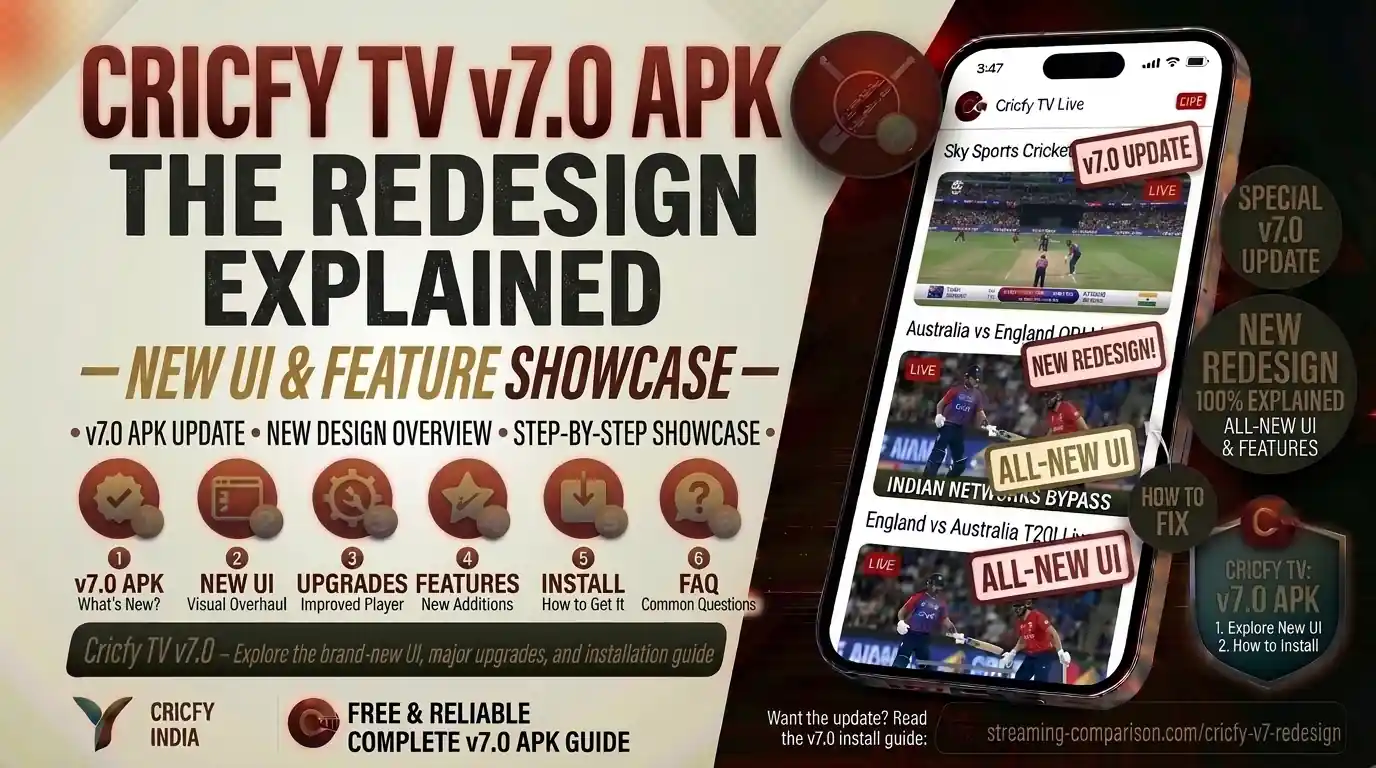
Cricfy TV v7.0 is not just another minor patch. It is a ground-up redesign of the entire app experience. If you have been using the app since v6.x, the first time you open v7.0 it will feel like a different product. And honestly? That is a good thing. This guide breaks down every change, explains why each decision was made, and tells you exactly what it means for your daily match-day routine.
What Changed in Cricfy TV v7.0
Before v7.0, Cricfy TV was already one of the most popular free live cricket streaming apps globally. But the interface had grown around features over time rather than being designed around them. Users had to dig through menus to switch streams. Live events and channel browsing competed for the same screen real estate. The player offered no clear way to try a backup link when the main one buffered.
Version 7.0 addresses all of that in one go. This is the biggest Cricfy refresh since the 5.0 release introduced external player support. Here is a quick summary of the core changes:
Live events now lead the experience. The screen separates All, Live, Recent, and Upcoming events clearly. Sport icons let you filter to a single discipline in one tap.
When more than one stream is available for the same match, the Multiple Links Available panel shows all options together. No more hunting for a backup source.
Categories and Sports now have their own dedicated screens, separated from the main live events feed. The side menu is cleaner and faster to navigate.
AQ (Adaptive Quality) and HD labels now appear beside stream options so you know what you are clicking before playback starts.
Because v7.0 is a full UI redesign, screenshots and step-by-step guides written for older versions no longer match what you see on screen. Always use updated guides when you need installation or troubleshooting help.
The New Home Screen
The home screen is the first thing every user sees, and v7.0 makes it count. The design team at Cricfy made a deliberate choice to put live events front and centre. That is the right call. When someone opens a sports streaming app, they want to find a live match in under ten seconds. The old layout sometimes required two or three additional taps. The new one does not.
Event Tabs: All, Live, Recent, Upcoming
Across the top of the home screen, four tabs organise every match by its current status. Tap Live to see only matches in progress right now. Tap Upcoming to plan ahead for today’s or tomorrow’s fixtures. Tap Recent to catch up with games that just ended. The All tab keeps everything in one list if that is what you prefer.
This matters because sports fans have very different needs depending on the time of day. Someone opening the app at 6 AM before a morning fixture wants Upcoming. Someone checking in at half-time wants Live. The tabs let you jump straight to the right status without scrolling past irrelevant content.
Sport Filter Icons
Below the tabs, a horizontal row of sport icons covers cricket, football, basketball, and other disciplines available on the app. Tap any icon and the event list instantly filters to that sport only. This is especially useful for users who follow multiple sports, like cricket and football, and want to switch between them quickly during a heavy fixtures day.
Match Cards
Each event in the list now has a consistent card layout. You see the competition name, the two sides playing, and the timing information at a glance. The cleaner card design removes the visual clutter that used to make the old event list hard to scan on smaller phone screens.
The Multiple Links Feature Explained
This is arguably the single most useful addition in v7.0 for anyone who watches live cricket on a regular basis. Here is the problem it solves.
Live sports streams can and do drop mid-match. Servers get overloaded during big events like an ICC final or a PSL knockout. Previously, when a stream failed, most users either refreshed repeatedly or navigated back through several menus to look for an alternative source. That whole process killed the momentum of watching a live match.
How Multiple Links Works
When Cricfy TV has more than one stream available for the same event, the Multiple Links Available panel collects all of them in one place. You see the source name and, where available, a quality label next to each option. You pick one and it starts playing. If it buffers, you switch to the next. The whole process takes about three seconds.
AQ vs HD Streams
Two types of quality labels appear in the Multiple Links panel. AQ stands for Adaptive Quality, which means the stream adjusts its resolution based on your connection speed. This is the smart choice if you are on mobile data or a weaker Wi-Fi connection. HD streams hold a fixed higher resolution and require a steadier, faster connection to play smoothly.
If you are watching over a 4G or 5G mobile connection, start with an AQ stream first. It adapts to signal fluctuations during the match, which means fewer buffering interruptions than a fixed HD link would produce on a variable connection.
Player-Level Stream Switching
The Multiple Links panel is also accessible from inside the player itself. You do not need to exit back to the event list to try a different source. Stream choices stay close to the video during playback. This is a small detail that makes a real difference when you are already 20 overs deep into an innings and the stream starts stuttering.
The New Categories and Sports Screens
Cricfy TV is not only a live-match app. It also gives access to hundreds of live TV channels covering sports, news, entertainment, and regional content. Version 7.0 finally gives these channels the dedicated navigation they deserve.
Categories Screen
The Categories screen groups large channel collections by type. Sports, News, regional collections, and entertainment content each sit in their own section. This makes it far easier to scan when you want something specific. Previously, all channels were mixed into a single scrollable list that could become overwhelming.
Sports Screen
Sports channels get a dedicated visual grid that is separate from general categories. If you are looking for a specific broadcaster like PTV Sports, Star Sports, Sky Sports, Ten Sports, Willow TV, beIN Sports, or any other regional sports network, this is where you go first. The visual grid format makes it quicker to recognise channel logos at a glance compared to a plain text list.
Cricfy TV carries a wide range of international sports broadcasters through its channel library. Coverage includes cricket, football, basketball, tennis, kabaddi, hockey, and boxing channels from broadcasters across South Asia, Europe, the Middle East, and beyond. The exact channel list changes with each server update. See our complete channel list for the most current lineup.
Why This Separation Matters
Think of it this way. When you open the app to watch a live PSL match, you want the Live Events screen. When you want to browse what is on PTV Sports right now, you want the Sports channels screen. When you want to watch a news channel, you want Categories. Version 7.0 routes each of those intents to the right place without overlap or confusion.
Player Design and Stream Controls
The in-app player received meaningful attention in v7.0. The layout now puts common viewing controls at the top of the player screen, which keeps them reachable with one hand on a typical smartphone.
Stream Quality Switching In-Player
As mentioned in the Multiple Links section, stream alternatives stay accessible from inside the player. This is particularly important during peak viewing moments. If a stream starts dropping frames during the last over of a T20 match, you switch sources without leaving the player. No navigation. No loading the event card again.
Aspect Ratio and Fullscreen Controls
The player includes standard aspect ratio controls and a fullscreen toggle. These work consistently across phones, tablets, and Android TV setups where users often sideload the APK onto their television hardware.
Chromecast Support
Cricfy TV supports Google Chromecast. With the cast icon visible in the player, you can push a stream directly to any Chromecast-enabled display. This is a popular setup for users who want to watch on a larger screen without dedicated TV hardware. It works with any TV that has Chromecast built in or connected.
External Player Compatibility
Power users who prefer third-party players like MX Player or VLC for Android can still open streams externally. This option has been part of Cricfy TV since v5.0 and continues to work in v7.0 with the same stream handoff behaviour.
Understanding AQ and HD Quality Labels
One of the small but genuinely useful additions in v7.0 is the quality label system. Here is what each label means in practice.
The stream adjusts its bitrate and resolution based on your available bandwidth. If your connection speeds up, the picture improves automatically. If it drops, the stream scales down to prevent buffering rather than stopping entirely.
Best for: Mobile data, shared Wi-Fi, rural connections, travel.
The stream delivers a fixed higher-resolution output. It does not scale down when your connection fluctuates. The picture quality is consistently sharper on a stable connection but requires at least 5 Mbps sustained throughput for smooth playback.
Best for: Home broadband, stable 5G connections, large screens.
Not every stream carries a label. When no label appears, the source has not been tagged by quality in that server update. These unlabelled streams still work. The label is additional information, not a gate.
Cricfy TV v6.x vs v7.0: Side by Side
If you have been on v6.8 or v6.7 and you are wondering whether the upgrade is worth it, this comparison makes the decision clear.
| Feature | v6.x (Old) | v7.0 (New) |
|---|---|---|
| Home Screen Design | Mixed events and channels list | Events-first layout with tab filters |
| Live Event Filtering | Scroll through one list | Live / All / Recent / Upcoming tabs + sport icons |
| Backup Stream Access | Navigate back and search | Multiple Links panel — in event view and in-player |
| Quality Information | No quality labels on stream links | AQ and HD labels where available |
| Channel Browsing | Single long channel list | Dedicated Categories and Sports screens with visual grid |
| Side Menu | Functional but cluttered | Reorganised with direct access to Scores, Floating Player, Low Quality Mode |
| Player Navigation | Exit to browse other streams | Switch streams from within the player |
| APK Size | ~17–22 MB | ~17–20 MB (leaner) |
You can read the detailed changelogs for earlier versions if you want to track how Cricfy has evolved: see v6.8, v6.7, and v6.6 on this site.
What You Can Watch on Cricfy TV v7.0
The redesign does not change the content library, but it makes that library significantly easier to navigate. Here is a breakdown of what the app covers for viewers around the world.
Cricket Coverage
Cricfy TV covers cricket across every major format and tournament. That includes bilateral Test series, ODI series, and T20I fixtures between international sides, as well as domestic leagues like the PSL, IPL, BBL, CPL, and The Hundred. For upcoming fixtures, ICC schedules and PCB announcements are worth bookmarking alongside the app. You can also check our dedicated pages for ICC World Cup 2027, PSL 2027, and the Asia Cup 2027 coverage on Cricfy.
Football
Football coverage spans club competitions and international fixtures. The app carries channels that broadcast the UEFA Champions League, major domestic leagues across Europe, and international tournament coverage including the 2026 FIFA World Cup. See our FIFA World Cup guide for more detail on how to watch through Cricfy.
Other Sports
Beyond cricket and football, Cricfy TV’s channel library includes coverage of basketball, tennis, kabaddi, hockey, boxing, and motorsport events, depending on what is active on the server at any given time. The Sports screen in v7.0 makes discovering these channels much easier than it was before.
Key Sports Broadcasters Available
- PTV Sports (Pakistan)
- Star Sports 1, 2, and 3 (South Asia) — see our Star Sports guide
- Sky Sports (UK) — see our Sky Sports on Cricfy guide
- Willow TV (North America) — see our Willow TV guide
- Ten Sports / Sony Sports Network
- beIN Sports (Middle East and North Africa)
- Fox Cricket / Kayo Sports (Australia)
- SuperSport (Africa)
For the full current channel list, visit the Cricfy TV channel list page on this site.
How to Install Cricfy TV v7.0 APK on Android
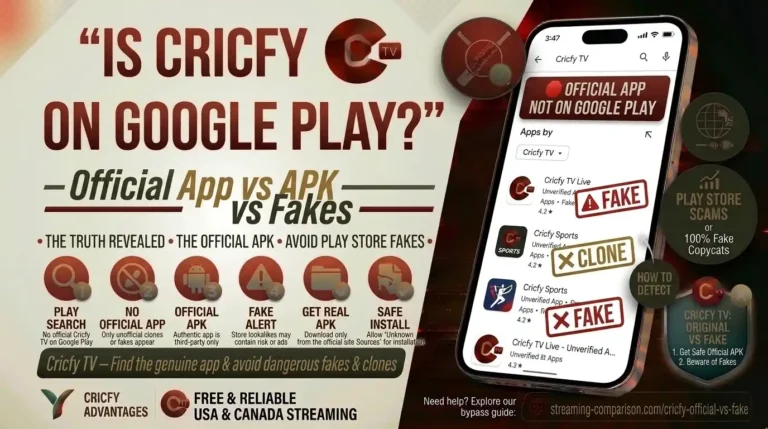
Cricfy TV is not on the Google Play Store. You install it as an APK. This is called sideloading and it is completely standard for apps like this one. The process takes under three minutes if you have not done it before.
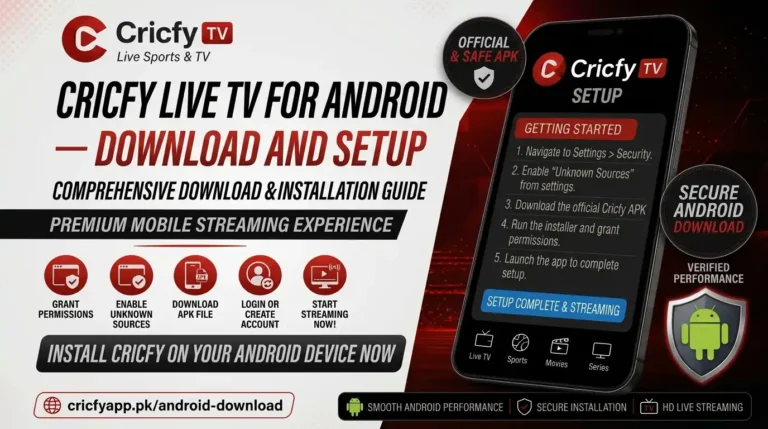
- Allow Installation from Unknown Sources. On Android 8.0 or newer, go to Settings, search for “Install Unknown Apps,” and give permission to your browser or file manager. This is a one-time toggle for the specific app you use to open the APK file. You can turn it off again after installation.
- Download the APK. Visit the official download page on cricfyapp.pk and tap the download button for v7.0. The file is around 17 to 20 MB. It downloads in seconds on most mobile connections.
- Open the File and Install. Find the downloaded APK in your notifications or in your File Manager under Downloads. Tap it. Android shows an install prompt. Tap Install. The process takes about 15 to 30 seconds.
- Open Cricfy TV. Tap Open on the install confirmation screen or find the Cricfy TV icon in your app drawer. The new v7.0 home screen loads. You are ready to watch.
Only download Cricfy TV from official sources. Unofficial sites often distribute outdated builds or, worse, modified APK files. Outdated builds stop working when server configurations change, which happens frequently. If you encounter a parsing error during installation, the APK file is likely corrupted or from a fake source.
Installing on Other Devices
Cricfy TV v7.0 works on more than just smartphones. The same APK runs on Android tablets, Android TV boxes, and Amazon Fire TV Stick. For specific setup guides, see:
Device Compatibility in v7.0
Cricfy TV v7.0 runs on Android 5.0 and above. That covers the vast majority of Android smartphones sold in the last several years worldwide. Here is how compatibility breaks down across device categories.
| Device Type | Compatibility | Notes |
|---|---|---|
| Android Phone | Full support (Android 5.0+) | Primary platform; all features available |
| Android Tablet | Full support | Wider layout; great for extended viewing sessions |
| Android TV / Google TV | Full support via sideload | D-pad navigation works; ideal for living room setup |
| Amazon Fire TV Stick | Full support via Downloader app | Fire OS is Android-based; sideloading is straightforward |
| Windows PC / Mac | Via Android emulator | BlueStacks, MEmu, or Nox Player required |
| iPhone / iPad (iOS) | Partial — via AltStore sideload | No App Store listing; see our iOS guide |
| Samsung Smart TV (Tizen) | Via screen mirroring or dongle | Direct APK install not supported; use casting or Fire Stick |
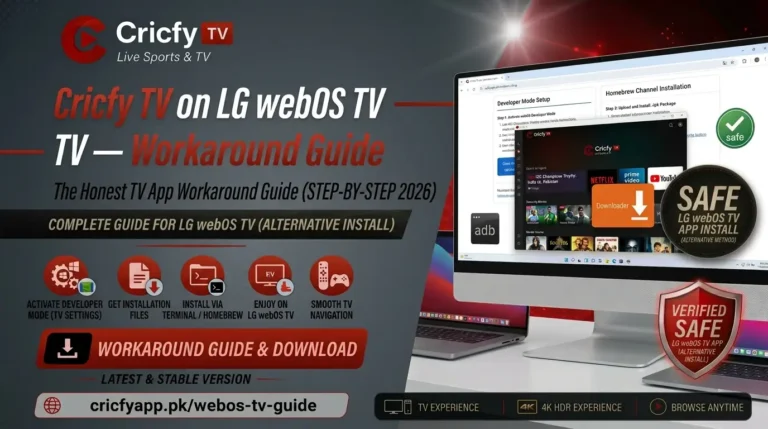
| LG webOS TV | Via Screen Share / HDMI dongle | No native APK support; see our LG webOS guide |
Watching Outside Your Home Country
Cricfy TV works from most locations globally. If you are travelling internationally or living abroad and you encounter geo-restricted content, a VPN resolves most of those issues. See our best VPN for Cricfy TV guide for tested recommendations. Regional guides also exist for the UK, the USA and Canada, and India.
Common Issues After Upgrading to v7.0
Upgrading from v6.x to v7.0 is smooth for most users. But a few things can trip people up. Here is what to check if something goes wrong.
Streams Not Loading or Black Screen
The most common cause after any major version update is a server configuration mismatch. The old build was talking to old endpoints. The new build connects to updated ones. If streams show a black screen right after updating, force-close the app and reopen it. If the problem continues, check the official Telegram channel for server status updates. Our full guide on channels not loading covers this in detail.
Buffering Problems
If the new interface loads but streams buffer frequently, switch from an HD link to an AQ link using the Multiple Links panel. The Low Quality Mode option in the side menu is also designed exactly for this situation. For a deeper fix, see our buffering fix guide.
App Not Installing
If the APK fails to install and shows a parsing error, the file did not download correctly or came from an unofficial source. Delete it, re-download from cricfyapp.pk, and try again. More details in our parsing error guide.
VPN Detected Error
Some stream sources in the Multiple Links panel do not work when a VPN is active. If you see a VPN detection message, disconnect your VPN and try a different stream from the Multiple Links panel. Full walkthrough in our VPN error fix guide.
No Sound / Audio Issues
Audio problems on specific channels usually relate to the codec used by that particular stream. Try opening the same channel with the external player option (MX Player or VLC) which handles a wider range of audio codecs natively. See the audio fix guide for more troubleshooting steps.
Crashing on Android 14 or 15
Android 14 and 15 introduced tighter app permission handling. If Cricfy TV v7.0 crashes on launch on these versions, check that you do not have any battery optimisation settings killing the app. See the dedicated Android 14/15 crash fix.
Update Failed
If the in-app Update App option in the side menu shows a failure, install the new APK manually from cricfyapp.pk. Android preserves your app data when you install a newer version over an existing one, so you will not lose any saved settings. Guide: update failed fix.
Frequently Asked Questions
What is the biggest change in Cricfy TV v7.0?
The biggest change is the complete redesign of the user interface. The home screen now focuses on live events with All, Live, Recent, and Upcoming tabs. The Multiple Links Available feature is new and lets you switch between available streams for the same match without leaving the event or the player. Categories and Sports also have dedicated screens for the first time.
Can I update from v6.x to v7.0 without losing my settings?
Yes. Installing the v7.0 APK over an existing Cricfy TV installation preserves your app data in almost all cases on Android. The standard process is to download the new APK and tap Install, the same as a fresh installation. Android handles the upgrade automatically.
Is Cricfy TV v7.0 available on iPhone?
Cricfy TV is an Android application and is not available on the Apple App Store. iPhone and iPad users can sideload a compatible build using AltStore. See the full guide on this site for the iOS sideload process. The experience is functional but requires more setup than the Android APK install.
What does AQ mean in the stream quality label?
AQ stands for Adaptive Quality. The stream automatically adjusts its resolution and bitrate based on the speed and stability of your internet connection. It is the recommended choice for mobile data users or anyone on a connection that fluctuates, because it reduces buffering by scaling down quality when needed rather than stopping.
Why is Cricfy TV not on the Google Play Store?
Google’s content policy does not allow apps that stream broadcast content without verified licensing agreements for every territory where the app is available. Because Cricfy TV aggregates streams from multiple international broadcasters and distributes them freely without regional licensing agreements, it does not qualify for a Play Store listing. This is the same reason most free live TV streaming apps operate as APK sideloads.
Does Cricfy TV v7.0 work on a Fire TV Stick?
Yes. Amazon Fire OS is based on Android, so Cricfy TV sideloads without any special workaround. The standard method is to install the Downloader app from the Amazon Appstore, paste the APK download link, and install the file. Full instructions are on the Cricfy TV on Fire TV Stick guide on this site.
Can I watch Cricfy TV if I am outside Pakistan?
Yes. Cricfy TV is a global app and works in most countries. It carries international sports broadcasters from the UK, Australia, South Asia, North America, the Middle East, and Africa. Specific broadcasters like Sky Sports, Star Sports, Willow TV, and beIN Sports are available through the channel library for viewers worldwide. If certain stream sources are geo-blocked in your country, a VPN resolves that in most cases.
How do I know when a new version after v7.0 is released?
The most reliable source for Cricfy TV release announcements is the official Telegram channel at t.me/cricfypro. The Update App option in the side menu of the app also notifies you when a newer build is available. Bookmarking cricfyapp.pk is also a good way to stay current, as new version posts are published as each update drops.
Final Verdict: Is the v7.0 Redesign Worth It?
Yes, without question. The Cricfy TV v7.0 redesign is not a cosmetic update. It addresses the three things that actually frustrated regular users of the old interface: finding a live match quickly, switching to a backup stream when the main one dies, and browsing channels without digging through a wall of content.
The new home screen, the Multiple Links panel, and the separated Categories and Sports screens all serve a clear purpose. The AQ and HD quality labels add information that was always missing. The redesigned side menu puts every tool you use on match day within one swipe.
If you are still on v6.x, update now. The process takes three minutes. Download from Cricfy Live TV and get the current build.
References
- Cricfy TV Official Telegram Channel — t.me/cricfypro
- ICC Official Website — icc-cricket.com
- Pakistan Cricket Board — pcboard.com.pk
- Google Android APK Install Guide — support.google.com
- Google Chromecast — store.google.com
- UEFA Champions League — uefa.com
- MX Player on Google Play — play.google.com
- PTV Sports Official — ptvsports.tv
- Star Sports Official — starsports.com
- Cricfyapp.pk — Cricfy Live TV Home