Cricfy TV on Roku & Samsung Smart TV: What Works in 2026
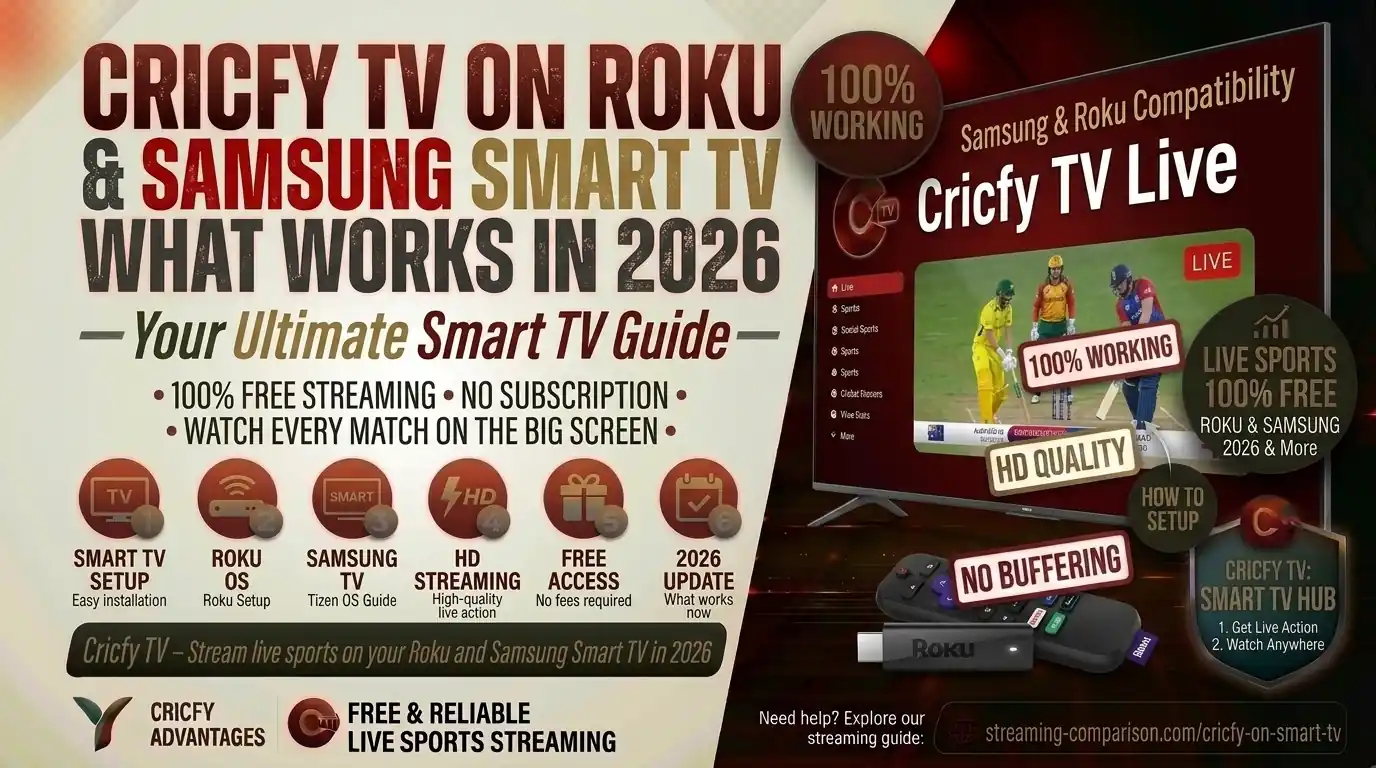
So you just got a Roku or a Samsung Smart TV and you want to run Cricfy Live TV on it. Makes total sense. Big screen, no phone squinting, just you and the match. But here is the honest answer nobody gives you upfront: Roku and Samsung Tizen cannot install the Cricfy TV APK directly. They work differently from Android, and that changes everything. The good news? You still have solid, working methods to watch Cricfy live on both devices in 2026 — and this guide walks you through every single one of them.
Why Roku and Samsung Smart TVs Cannot Install Cricfy TV Directly
Before you try anything, you need to understand one key technical fact. Cricfy TV is an Android APK. That means it runs on the Android operating system — and only on the Android operating system. Roku and Samsung Tizen are completely different operating systems built on entirely different architectures.
Roku OS: A Closed, Proprietary System
Roku runs on Roku OS, a proprietary Linux-based system. Roku apps are written in BrightScript and SceneGraph — not Java or Kotlin like Android apps. An APK file is literally unreadable on Roku hardware. The device has no framework to unpack or execute it. Roku also enforces strict digital rights management and only allows apps published to its official Channel Store. As of 2026, Roku has removed the old Private Channels sideloading path entirely. So direct APK installation is not just difficult — it is architecturally impossible.
Samsung Tizen: Also Not Android
Samsung Smart TVs run Tizen OS, Samsung’s own platform. Like Roku, Tizen has zero Android compatibility layer. The APK format simply does not exist in Tizen’s world. Samsung TVs that run Android TV are a different product line (sold under the Samsung Gaming Hub or specific models) — most standard Samsung QN, Q, S, and Frame series TVs run Tizen. If your TV’s Samsung app store shows Tizen-style tiles, you are running Tizen and you cannot install Cricfy TV natively.
Go to your TV’s Settings. If it says “Smart Hub” and shows a Tizen version, you have Samsung Tizen. If it says “Roku OS” with a BrightScript reference, you have Roku. Android TV/Google TV users can skip to our Android TV guide — you can sideload the APK directly.
Now that you know the limitation, here is where it gets practical. Both Roku and Samsung TV owners have real, working workarounds to watch Cricfy live TV on a big screen. Let us go through each one.
Cricfy TV on Roku: Every Working Method in 2026
Good news first: Roku supports screen mirroring from Android phones and tablets. That is your main path. Here is every method ranked from easiest to most involved.
Method 1: Android Screen Mirroring to Roku (Recommended)
This is the fastest route for Android users. You run Cricfy TV on your Android phone, then mirror your screen to the Roku device over Wi-Fi. Both devices need to be on the same Wi-Fi network.
- On your Roku, go to Settings > System > Screen Mirroring and set it to Always Allow or Prompt.
- Install Cricfy TV APK on your Android phone. Download the latest version from cricfyapp.pk.
- On your Android phone, open Quick Settings (swipe down twice) and tap Screen Cast or Smart View.
- Select your Roku device from the list of available devices.
- Once connected, open Cricfy TV on your phone. The stream will appear on your Roku TV.
- Adjust stream quality inside the Cricfy TV app if needed, then sit back and enjoy the match.
Screen mirroring ties up your phone. You cannot take calls, browse, or use other apps without interrupting the stream. Keep your phone plugged in — mirroring drains the battery fast. Also, notifications will pop up on your TV screen, so turn on Do Not Disturb before kick-off.
Method 2: Mirror from Windows PC to Roku via Miracast
If you would rather use your laptop, you can mirror a Windows PC screen to Roku using Miracast. Roku supports Miracast natively, so no extra app is needed on the TV side.
- Enable Screen Mirroring on Roku: Settings > System > Screen Mirroring > Always Allow.
- On Windows 10 or 11, press Win + K to open the Cast panel.
- Select your Roku device from the list.
- Choose Duplicate to mirror your full desktop.
- Open your browser, go to the Cricfy live stream source, and the content will appear on your TV via Roku.
The latency is a bit higher than phone mirroring, but it is a clean experience on a fast home network.
Method 3: Plug a Fire TV Stick into Your Roku TV’s HDMI Port
This is not exactly a Roku method — it bypasses Roku entirely. But it is worth mentioning here because many Roku TVs are just regular TVs with Roku built-in. They still have HDMI ports. Plug an Amazon Fire TV Stick (or any Android TV box) into that HDMI port, switch inputs on your remote, and you have a fully capable Android streaming device. Then you can install Cricfy TV on your Fire TV Stick using the Downloader app with code 229836. More on this in the dedicated section below.
Method 4: Roku Developer Mode (Advanced Users Only)
Roku has a developer mode that lets you sideload a custom BrightScript application packaged as a ZIP file. However, this does not run Android APKs. You would need to build a Roku channel from scratch in BrightScript that calls Cricfy TV stream sources. This is far beyond the average user and not practical as a streaming workaround. Mention it only for transparency.
Screen mirroring from Android is your best free option. For a hands-free native experience, the Fire TV Stick via HDMI beats every Roku workaround. That is just the honest truth.
Cricfy TV on Samsung Smart TV (Tizen OS): All Working Methods
Samsung TVs running Tizen share the same APK incompatibility as Roku. But Samsung has more built-in mirroring options, and in 2026, Samsung finally added native Google Cast support to its Tizen lineup. That opens up a better casting experience than ever before.
Method 1: Samsung Smart View (Screen Mirroring) — Easiest for Samsung Galaxy Users
If you have a Samsung Galaxy phone, Smart View is already baked in. It uses Miracast under the hood and connects to your Samsung TV in seconds.
- Make sure your Samsung phone and Samsung TV are on the same Wi-Fi network.
- On your Samsung TV, go to Settings > General > External Device Manager > Device Connect Manager and ensure Screen Sharing is enabled.
- On your Samsung Galaxy phone, swipe down to open Quick Settings and tap Smart View (or Screen Share).
- Your Samsung TV should appear in the list. Tap it to connect.
- Open Cricfy TV on your phone. The stream will show on your big screen.
Method 2: Google Cast — Now Available on Samsung Tizen (2023 and Newer Models)
This is a major development in 2026. Samsung rolled out native Google Cast support through its One UI Tizen firmware update (version v2115). Samsung TVs from 2023 onward are now receiving this update, and all 2026 Samsung TV models include it out of the box.
Google Cast works differently from Smart View. Instead of mirroring your screen, your TV pulls the stream directly from the internet. Your phone stays free for other tasks and does not drain battery during the cast.
- Update your Samsung TV firmware. Go to Settings > Support > Software Update > Update Now. You need firmware v2115 or later.
- Install Cricfy TV APK on your Android phone.
- Start a live stream in the Cricfy TV app.
- Look for the Cast icon in the player. If the stream source supports it, tap the Cast icon and select your Samsung TV.
- If there is no Cast icon in the Cricfy player, use Android’s system-level screen cast from Quick Settings instead — this mirrors the full screen as a fallback.
Google Cast works app-by-app. Whether the Cricfy TV player exposes a Cast button depends on the stream source. If it does not, system screen mirroring still works fine. The big win here is that Samsung TVs now behave more like Android TV in terms of casting convenience.
Method 3: Apple AirPlay 2 (for iPhone Users)
Samsung Smart TVs from 2018 onward support AirPlay 2 natively. If you run Cricfy TV on an iPhone (via the IPA sideload method — see our iOS guide), you can AirPlay the stream directly to your Samsung TV without any extra device.
- Ensure your Samsung TV has AirPlay 2 enabled: Settings > General > Apple AirPlay Settings > AirPlay: On.
- Connect your iPhone to the same Wi-Fi as your Samsung TV.
- Open Cricfy TV on your iPhone and start a stream.
- Swipe down to open Control Center, tap Screen Mirroring, and select your Samsung TV.
- Enter the AirPlay code shown on the TV when prompted.
Method 4: Plug an Android TV Box or Fire Stick into HDMI
Exactly like the Roku scenario: your Samsung TV’s HDMI port accepts any external streaming device. Plug in a Fire TV Stick, Android TV box, or Chromecast with Google TV. Switch the TV input to that HDMI port and you have a fully capable Android streaming environment where Cricfy TV installs and runs natively as a first-class app. This is the cleanest experience for daily use.
The Best Workaround for Both: Amazon Fire TV Stick via HDMI
Whether you have Roku or Samsung Tizen, the single best solution for a native, hands-free Cricfy TV experience is the Amazon Fire TV Stick plugged into an HDMI port. Fire OS is built on Android, which means you can sideload the Cricfy TV APK using the Downloader app — no PC required.
Here is the full process:
- Plug in the Fire TV Stick to any HDMI port on your Roku TV or Samsung TV. Use the power adapter, not the TV’s USB (for stable power).
- Switch TV input to that HDMI port using your TV remote.
- On the Fire Stick, go to Settings > My Fire TV > Developer Options > Apps from Unknown Sources > ON.
- Open the Amazon Appstore on the Fire Stick and search for Downloader by AFTVnews. Install it.
- Open Downloader, enter code 229836 in the URL/code field, and press Go. This will pull up the Cricfy TV APK download page.
- Tap Download, then Install when the APK finishes downloading.
- Launch Cricfy TV from your Fire Stick apps list. Browse live sports and watch.
Your phone stays free. No battery drain. No mirroring lag. You control Cricfy TV entirely with the Fire Stick remote — the app’s interface is already optimized for TV D-pad navigation. The Fire TV Stick 4K (or Lite for budget users) costs less than a month of a cable subscription and works with literally any TV that has HDMI.
Alternatively, a Chromecast with Google TV (Google’s streaming dongle) works the same way — it runs Android TV and supports APK sideloading. You can also use any Android TV box from brands like NVIDIA Shield, Xiaomi, or Mecool.
Stream Quality: What to Expect on a Big Screen
Let us be straight with you. Cricfy TV’s quality depends on the broadcast source, not the device you use. Most channels deliver in 480p to 720p under normal conditions. During major tournaments — IPL, PSL, ICC events, FIFA World Cup — HD and even 1080p feeds often become available through premium broadcasters like Star Sports HD, Sky Sports Cricket, and JioCinema Sports.
Factors That Affect Quality
Your internet connection speed is the biggest variable. Cricfy TV adapts quality based on your bandwidth — it will drop to 360p on a slow line rather than freeze the stream. On a stable home broadband connection of 10 Mbps or more, you will get a consistent 720p stream for most matches.
Screen mirroring adds a compression step. Your phone encodes the video, sends it over Wi-Fi to the TV, and the TV decodes it. This can introduce mild latency (1 to 3 seconds) and reduce perceived sharpness compared to native playback. If you care about quality, the Fire TV Stick native install always wins over mirroring.
Tips to Improve Quality
- Connect your Fire Stick or streaming device to your router via Ethernet (using an Ethernet adapter) for the most stable feed.
- Inside Cricfy TV, tap the quality selector in the player and choose the highest available option your connection can handle without buffering.
- If a stream keeps buffering, switch to a backup server — Cricfy TV lists multiple servers per channel. Tap the server icon and try the next one.
- Use a VPN if you are outside the broadcast region for a particular channel. Our best VPN for Cricfy TV guide lists top options.
- If quality drops on screen mirroring, reduce the mirror resolution in your phone’s Developer Options to 720p to reduce Wi-Fi load.
For persistent buffering issues, our dedicated Cricfy TV buffering fix guide has ten proven solutions.
What Channels Can You Watch on Cricfy TV
Cricfy TV aggregates live broadcast streams from dozens of sports channels worldwide. The lineup shifts with the calendar and the app version, but the core categories stay consistent. Here is what you can expect:
| Category | Key Channels | Coverage |
|---|---|---|
| Cricket | Star Sports 1 & HD, Sky Sports Cricket, PTV Sports, Ten Sports, Sony Six, Fox Cricket, SuperSport, T Sports | IPL, PSL, ICC events, Test series, T20I, ODI |
| Football | beIN Sports, Sky Sports Football, BT Sport, ESPN, Fox Sports | FIFA World Cup 2026, UEFA Champions League, EPL, La Liga |
| Multi-Sport | ESPN, Star Sports 2, Sony Ten 3, Sky Sports Main Event | Tennis, boxing, basketball, kabaddi, athletics |
| News / General | Various regional channels | News feeds, entertainment — varies by version |
The app carries 80+ live channels in its current build. Channel availability is not guaranteed — streams are third-party and can go offline during broadcast disputes or rights changes. Multiple backup servers are listed per channel so you can switch if one drops. See the full Cricfy TV channel list for a detailed breakdown.
For specific tournament coverage — like the ICC Champions Trophy, ICC World Cup 2027, or UEFA Champions League 2026-27 — check those dedicated guide pages on cricfyapp.pk for broadcast-by-broadcast breakdowns.
Troubleshooting Common Issues on Roku and Samsung
Screen Mirroring Not Working on Roku
The most common cause is both devices not being on the same Wi-Fi network. Check that your phone and Roku are connected to the same router band (both 5 GHz or both 2.4 GHz). Also confirm Screen Mirroring Mode on Roku is set to “Always Allow” rather than “Prompt” — a missed prompt can break the connection silently.
If mirroring connects but the stream stutters, reduce the screen resolution in your phone’s Developer Options to 1280×720 at 30 fps. This reduces the wireless load dramatically.
Smart View Not Finding Samsung TV
Go to your Samsung TV Settings and confirm Screen Sharing is enabled under External Device Manager. Then restart both your phone and TV and try again. Some Samsung firmware versions require you to toggle Screen Sharing off and on again after a firmware update.
Cricfy TV Crashing on Fire Stick
The Fire Stick Lite has limited RAM. If Cricfy TV crashes mid-stream, clear the app cache: Settings > Applications > Manage Installed Applications > Cricfy TV > Clear Cache. Also force-close all other background apps before launching Cricfy TV. Our Cricfy TV crashing fix guide has more options if the problem persists.
VPN Detected Error on Cricfy TV
Some stream sources on Cricfy TV block VPN IP addresses. If you see a VPN detected error, switch your VPN server to a different city or try a protocol change (WireGuard vs OpenVPN). Our VPN detected error fix page covers this in full.
Black Screen / Channels Not Loading
A black screen usually means the stream link has expired. Tap back to the channel list, wait 10 seconds, and re-enter the channel. If all channels show black screens, the app may need an update. Check channels not loading fix for step-by-step resolution.
Chromecast Not Working on Samsung TV
If you are trying to cast via Chromecast on your Samsung TV and it is not connecting, first confirm your Samsung TV firmware is updated to v2115 or later for native Google Cast. If you are using a Chromecast dongle in the HDMI port, make sure it is powered separately and not from the TV’s USB port. See our full Chromecast not working guide for more fixes.
Device Comparison: Best Ways to Watch Cricfy TV on a Big Screen
| Device / Method | Can Install APK | Difficulty | Phone Required | Quality | Cost |
|---|---|---|---|---|---|
| Android TV / Google TV (Sony, TCL, Hisense) | Yes — directly | Easy | No | Up to 1080p | Free |
| Amazon Fire TV Stick (via HDMI) | Yes — sideload | Easy | No | Up to 1080p | Device cost |
| Chromecast with Google TV (via HDMI) | Yes — sideload | Easy | No | Up to 1080p | Device cost |
| Samsung Tizen — Smart View mirroring | No | Easy | Yes | 720p typical | Free |
| Samsung Tizen — Google Cast (2023+ models) | No | Easy | Yes (to initiate) | 720p–1080p | Free |
| Samsung Tizen — AirPlay 2 (iPhone) | No | Easy | Yes (iPhone) | 720p typical | Free |
| Roku — Android screen mirroring | No | Easy | Yes | 720p typical | Free |
| Roku — Windows PC Miracast | No | Medium | No (PC instead) | 720p typical | Free |
For more platform-specific guides, check out our pages for Fire TV Stick, Android TV / Google TV, LG webOS TV, generic Smart TV setup, and PC via BlueStacks.
Frequently Asked Questions
Can I install Cricfy TV APK directly on a Roku TV?
No. Roku runs a proprietary OS called Roku OS that is not based on Android. APK files cannot be installed, read, or executed on any Roku device. Your options are screen mirroring from an Android phone or PC, or plugging an Android-based streaming device (Fire TV Stick, Chromecast with Google TV) into your Roku TV’s HDMI port.
Does Samsung Smart TV support Cricfy TV natively?
No. Samsung Tizen OS (found on most Samsung Smart TVs) cannot run Android APK files. However, Samsung TVs from 2018 onward support AirPlay 2, all Samsung TVs from 2016 support Smart View mirroring, and Samsung TVs from 2023 onward now support Google Cast after the Tizen v2115 firmware update in 2026. These cast and mirror options let you watch Cricfy TV on your Samsung TV without any extra hardware.
What is the best way to watch Cricfy TV on a Samsung TV in 2026?
For Samsung Galaxy phone users, Smart View mirroring is the easiest option. For users on updated 2023+ Samsung TVs, Google Cast (via the new Tizen v2115 firmware) gives a better experience since it does not tie up your phone. For the cleanest native experience with no phone dependency, plug an Amazon Fire TV Stick into the TV’s HDMI port and install Cricfy TV directly on the Fire Stick using the Downloader app.
Is Cricfy TV free on Roku and Samsung TV?
Yes. Cricfy TV itself is completely free. There is no subscription, no registration, and no paywall. The only cost involved is if you choose to buy an external streaming device like a Fire TV Stick (one-time hardware purchase) to get a native, hands-free experience. Mirroring via your existing phone is entirely free.
Will screen mirroring affect picture quality when watching Cricfy TV?
Yes, somewhat. Screen mirroring adds a compression step and mild latency compared to native playback. On a strong Wi-Fi connection you will get acceptable 720p quality, but for the best picture — especially during major tournaments — a native install on a Fire TV Stick or Android TV box gives noticeably crisper results because it eliminates the mirroring compression layer entirely.
Can I use Cricfy TV on a Roku TV with an iPhone?
Roku supports AirPlay 2 on most models from 2019 onward. If Cricfy TV is installed on your iPhone (via the IPA sideload method), you can AirPlay mirror your iPhone screen to a compatible Roku TV. Check your Roku model’s spec sheet on roku.com to confirm AirPlay 2 support before trying this method.
Does Cricfy TV work outside of Pakistan?
Yes. Cricfy TV works globally. You can use it in the UK, USA, Canada, Australia, India, the Middle East, and everywhere else with an internet connection. Some specific channel streams may be geo-restricted by the original broadcaster. A reliable VPN resolves this in most cases — see our best VPN for Cricfy TV guide. We also have country-specific guides for the UK and USA and Canada.
Is it legal to watch Cricfy TV on my TV?
Cricfy TV aggregates third-party streams. The legality of consuming these streams varies by country. In many regions, personal viewing of streams is treated differently from redistribution or broadcasting. You should check the copyright and streaming laws in your specific country before using the app. Official broadcasters for major tournaments include Star Sports (India), Sky Sports (UK), Fox Cricket (Australia), PTV Sports (Pakistan), and rights-holders listed on the ICC official site.
Final Verdict: What Actually Works in 2026
Here is the summary you came for. Roku and Samsung Tizen cannot run Cricfy TV natively — that is just how their operating systems work. But you are not stuck. Android screen mirroring from your phone works on both platforms and costs nothing. Samsung’s updated Tizen firmware in 2026 makes Google Cast a genuinely good free option for newer Samsung models. And if you want a completely hands-free native experience on any TV, a Fire TV Stick plugged into the HDMI port is the cleanest solution available — it costs a one-time fee, sets up in under ten minutes, and lets you run Cricfy TV exactly like an Android device.
Start with the free mirroring method. If you find yourself watching matches regularly, invest in the Fire Stick. You will not regret it. Now go enjoy the game on the big screen — that is exactly what it was meant for.
Get the latest Cricfy Live TV APK and start streaming today.