
Cricfy TV Audio Not Working / No Sound — 5 Fixes
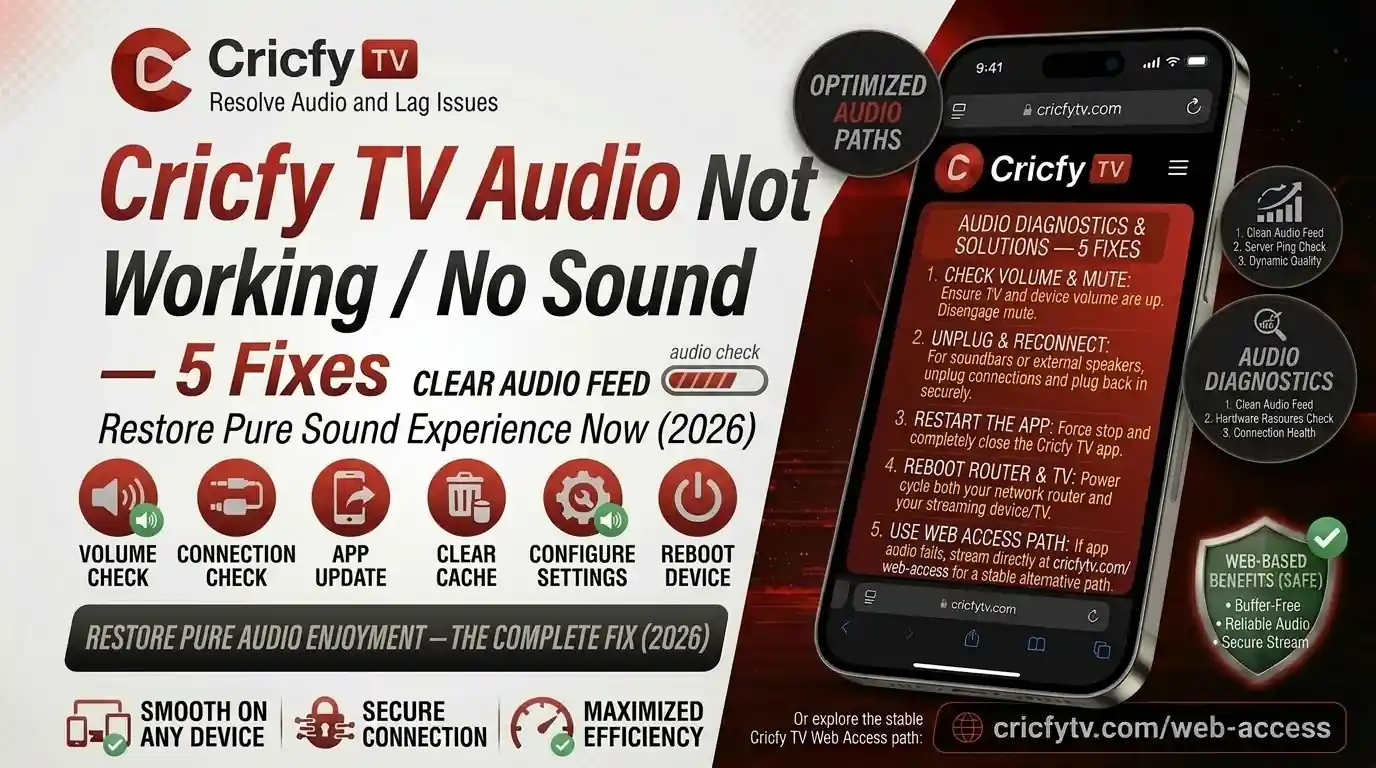
You open Cricfy Live TV, the match is streaming perfectly, video is crisp — but there is zero sound. Total silence. Nothing more frustrating, especially when a six gets hit or a wicket falls.
This exact problem — Cricfy TV audio not working — hits users on Android phones, Firestick, Android TV, Smart TV, PC, and everything in between. The good news? It is almost always fixable in under five minutes.
We have broken down every real cause and matched each one to a working fix. No filler. No generic advice. Just what actually works.
Why Does Cricfy TV Have No Sound?
Before jumping into fixes, it helps to understand what is actually going wrong. Cricfy TV streams live sports channels — PTV Sports, Ten Sports, Star Sports, Geo Super, and others — using HLS (HTTP Live Streaming) or RTMP protocol over the internet. Audio on these streams can fail for several distinct reasons.
Most no-sound cases in Cricfy live fall into three buckets: (1) device-level mute or wrong audio output, (2) a corrupted app cache blocking the audio decoder, or (3) the stream itself carrying a silent or broken audio track.
Here is a quick breakdown of every possible cause:
- Device is muted or volume is at zero
- Wrong audio output selected (TV speakers vs soundbar vs HDMI ARC)
- Corrupt app cache or app data conflicting with the audio renderer
- Outdated Cricfy APK with an audio codec bug
- The specific live channel stream has no audio (broadcaster-side issue)
- Audio format mismatch — for example, a Dolby Digital stream sent to a device expecting stereo PCM
- Bluetooth headphones connected to the device, silencing the main speaker
- Do Not Disturb or media volume restrictions enabled on Android
- Firestick or Android TV HDMI ARC handshake failure
Now let us go through each fix one by one, starting from the simplest and moving toward the more advanced ones.
Fix 1 — Check Device Volume and Audio Output
This sounds too obvious, but it catches more users than you’d think. The Cricfy TV app does not control your device master volume — your operating system does. So even if the in-app player looks fine, your device might be silencing it.
On Android Phone or Tablet
- Press the physical Volume Up button on your device while the stream is open. Watch for the on-screen volume bar to rise.
- Open the notification shade (swipe down from the top) and check if a media volume bar is separate from ring volume. Drag it all the way up.
- Check if a Bluetooth device is connected — headphones or a speaker. If yes, either disconnect it or play the audio through that device.
- Pull down the shade again and tap the Media Output icon (speaker icon). Make sure it points to the phone speaker, not another device.
- If your phone has a Do Not Disturb mode active, media audio can be blocked. Go to Settings → Sound → Do Not Disturb and turn it off.
On Firestick or Android TV
- Press the Volume Up button on your TV remote or the Firestick remote. Many users forget the Firestick remote controls the TV volume independently.
- Press the Mute button once to toggle mute off. The on-screen indicator will confirm.
- Go to Settings → Display & Sounds → Audio on Firestick. Check that the output is set to Stereo rather than Dolby Digital if you don’t have a surround sound system. A mismatch here causes complete silence.
- If you have a soundbar connected via HDMI ARC or optical cable, make sure the soundbar is powered on and the correct input is selected on it.
Open YouTube or any other video app and check if audio works there. If YouTube has sound but Cricfy does not, skip ahead to Fix 2 (cache) or Fix 4 (app update). If nothing has sound, Fix 1 is your answer.
Fix 2 — Clear Cricfy TV App Cache and Data
Over time, Cricfy TV accumulates temporary files — cached stream data, thumbnails, session tokens — inside your device storage. When these files get corrupted or grow too large, they start interfering with the audio decoder. The result is video playing perfectly while audio stays silent.
Clearing the cache fixes this instantly. It does not delete your settings or app preferences — it just removes the temporary junk. Here is how to do it on each platform.
Android Phone, Android TV, and TV Box
- Go to Settings → Apps (or Application Manager on older devices).
- Find Cricfy TV in the app list and tap it.
- Tap Storage (or Storage & Cache on newer Android versions).
- Tap Clear Cache first. Then reopen Cricfy and test audio.
- If sound still does not work, come back and tap Clear Data. This resets the app completely — like a fresh install.
Amazon Firestick
- From the Firestick home screen, go to Settings → Applications → Manage Installed Applications.
- Select Cricfy TV from the list.
- Choose Clear Cache, then Clear Data.
- Press the Home button and relaunch the app.
After clearing data on Cricfy live TV, let the app fully load before switching to any live channel. Give it 10-15 seconds to reinitialize the audio renderer properly.
Fix 3 — Fix Audio Output Settings (Smart TV, Soundbar, HDMI)
This fix is specifically for users watching Cricfy live TV on a Smart TV, Android TV box, or Firestick connected to a soundbar or home theater system. It is also relevant if you just switched cables or connected a new display.
Here is the issue: your device might be sending audio in a format — like Dolby Digital (AC3) or DTS — that your soundbar or TV speakers cannot decode. The result is total silence even though the video runs fine.
Change Audio Output Format on Firestick
- Open Settings on your Firestick.
- Go to Display & Sounds → Audio.
- Under Dolby Digital Output, switch it from Dolby Digital Plus to Stereo. This forces a basic 2-channel PCM signal that every TV speaker can handle.
- Reopen Cricfy TV and test. If audio comes back, your soundbar does not support passthrough properly.
Change Audio Output Format on Android TV
- Go to Settings → Device Preferences → Sound.
- Find Digital Audio Output and change it from Auto or Passthrough to PCM.
- Save and go back. Reopen Cricfy and test the audio.
Check HDMI ARC Connection
If you connect your TV to a soundbar via HDMI ARC, make sure you use the correct port. Most TVs only have one HDMI ARC port, usually labeled ARC or eARC on the back. Plugging into any other HDMI port means audio never reaches the soundbar.
If you only have TV speakers (no soundbar), set audio to PCM or Stereo. If you have a soundbar that supports surround sound, try Auto or Passthrough first. If that causes silence, switch to PCM. PCM always works — it is the safest setting.
Fix 4 — Update or Reinstall the Cricfy TV APK
An outdated version of the Cricfy TV app can carry audio-related bugs. Each new release patches issues with stream decoding, channel switching, and audio rendering. If you downloaded the APK a while ago and never updated, the audio issue might be a known bug that is already fixed in a newer build.
How to Update Cricfy TV
- Visit the official download page at CricfyApp.pk and download the latest APK.
- Before installing, go to Settings → Apps on your Android device and Uninstall the old Cricfy TV version completely. Do not just install over it — a clean install avoids leftover corrupted files.
- Allow installation from unknown sources if prompted: Settings → Security → Install Unknown Apps, then enable it for your browser or file manager.
- Run the downloaded APK and install it fresh.
- Open the app, select a live channel, and test the audio.
On Amazon Firestick, use the Downloader app to fetch the APK directly from the Cricfy URL. After downloading, Downloader will prompt you to install it. Then check Settings → My Fire TV → Developer Options → Install Unknown Apps and enable it for Downloader. See the full Cricfy on Firestick guide for detailed steps.
On PC (Windows via BlueStacks)
If you run Cricfy TV on PC through BlueStacks, make sure BlueStacks itself is updated. Also check BlueStacks audio settings: open the BlueStacks settings panel, go to Audio, and confirm the output device matches your speakers or headphones. BlueStacks can sometimes mute its internal audio channel after an update.
Fix 5 — Switch the Channel or Wait Out a Server-Side Issue
Sometimes the problem is not your device at all. The issue sits on the broadcaster’s end or on the stream server itself. Live sports streaming is complex — a broadcaster like PTV Sports, Geo Super, or Ten Sports pushes content to CDN (Content Delivery Network) servers, and Cricfy TV taps into those streams. If the audio track on a specific stream feed goes silent or drops entirely, every user watching that channel sees the same symptom.
How to Tell If It Is a Stream-Side Problem
- Audio suddenly disappears in the middle of a match, then might come back after a few minutes.
- Switching to a different channel inside Cricfy has audio, but only the one channel is silent.
- Other streaming apps showing the same channel (Sportzfy, HD Streamz) also have no audio at the same time.
What You Can Do
- Switch the stream link. Inside Cricfy TV, many live channels offer multiple server links or quality options (labelled Link 1, Link 2, HD, SD). Tap the alternative link. A different server feed often has working audio even when the primary one is silent.
- Refresh the stream. Exit the channel, go back to the channel list, and reopen it. This forces the app to fetch a fresh stream URL, which may carry a working audio track.
- Wait 2-3 minutes. Stream audio drops during live transitions — halftime, between overs, ad breaks — and can resume automatically. Give it a moment before troubleshooting further.
- Check your internet connection. A weak Wi-Fi signal causes partial stream data — video packets arrive but audio packets drop. Switch to a stronger Wi-Fi band (5 GHz) or move closer to your router.
Open Sportzfy or HD Streamz and check the same channel. If they also have no sound, it is definitely a broadcaster-side issue and not something you can fix locally.
Device-Specific Audio Fixes for Cricfy TV
Some devices have quirks that trigger the no-sound issue in specific ways. Here is what to do on each major platform.
Cricfy TV Audio Not Working on Smart TV (Samsung, LG, Sony)
Smart TVs running Android TV or their own OS can conflict with the Cricfy APK’s audio output. Here is the fastest path:
- Go to Settings → Sound → Sound Output and confirm it is set to TV Speaker, not an external device that may be off.
- Run the built-in Sound Test (Settings → Support → Self Diagnosis on Samsung) to confirm the speakers are working.
- Check for a TV firmware update. Outdated firmware can cause audio routing bugs that affect all apps.
- On LG WebOS TVs, go to Settings → Sound → Additional Settings → Digital Sound Out and switch from Auto to PCM.
See the full Cricfy TV on Smart TV guide and the LG WebOS setup guide for more details.
Cricfy TV Audio Not Working on Firestick
Firestick users hit the audio issue most often after updating Fire OS. The Dolby Digital Plus output setting can reset to a format your TV does not support.
- Settings → Display & Sounds → Audio → set Dolby Digital Output to Stereo.
- Restart the Firestick completely: hold the Select + Play buttons for 5 seconds, or unplug the power adapter for 30 seconds.
- If you just reinstalled Cricfy, clear its cache right away (see Fix 2) before opening any channel.
Cricfy TV No Sound on PC (BlueStacks / Waydroid)
On PC, the audio issue usually traces back to the emulator’s audio routing.
- BlueStacks: Right-click the volume icon in the Windows taskbar → Open Volume Mixer. Check that BlueStacks audio is not muted there. Also check BlueStacks Settings → Audio → set output to your default playback device.
- Waydroid on Linux: Audio inside Waydroid uses PipeWire or PulseAudio passthrough. Run
pactl list sinksin terminal to confirm an output sink is active. See the Waydroid crash fix guide for deeper troubleshooting. - Also try the BlueStacks setup guide for the correct instance configuration.
Cricfy TV Audio Not Working on Android TV / Google TV Box
- Force stop the Cricfy TV app (Settings → Apps → Cricfy TV → Force Stop) then relaunch it.
- Go to Settings → Device Preferences → Sound → Digital Audio Output and switch to PCM.
- If using a TV box like Mi Box or Nvidia Shield, check the HDMI cable. Replace it if it is older or shows any physical damage — a faulty cable can drop audio channels while keeping video stable.
- Check the Android TV and Google TV setup guide for device-specific steps.
Cricfy Live TV Audio Issues on Windows 11
If you use the Windows app version or run Cricfy on a laptop browser, check the Windows Sound Control Panel: right-click the volume icon → Open Sound settings → under Output, confirm the correct playback device is selected. Also see the Cricfy TV for Windows 11 guide.
Fix Comparison Table — Cricfy TV No Sound
| Fix | Symptom It Solves | Platform | Difficulty |
|---|---|---|---|
| Fix 1 — Volume / Audio Output | All apps silent, Bluetooth device connected, mute active | All | Easiest |
| Fix 2 — Clear Cache & Data | Video works, only Cricfy has no audio; recently installed or updated | Android, Firestick, TV Box | Easy |
| Fix 3 — Audio Output Format | Soundbar/AV receiver connected; silence after switching HDMI source | Smart TV, Firestick, Android TV | Medium |
| Fix 4 — Update / Reinstall APK | Issue started after app update; old APK version in use | Android, Firestick, PC | Easy |
| Fix 5 — Switch Stream / Wait | Audio disappeared mid-match; only one channel is silent; internet is slow | All | Easiest |
Bottom Line
The vast majority of Cricfy TV audio problems are fixed by either clearing the app cache (Fix 2) or switching the audio output format to PCM/Stereo (Fix 3). Start there. If neither works, a clean reinstall of the latest Cricfy APK from CricfyApp.pk resolves nearly everything else.
If the sound is gone on one channel but all others work — that is a stream-side issue, and the only fix is switching to an alternate link or waiting for the broadcaster to restore the audio feed.
Still having trouble? Check out the Cricfy TV Not Working guide for broader troubleshooting, or the Cricfy TV buffering fix if your stream is also stuttering.
FAQ — Cricfy TV Audio Not Working
Why does Cricfy TV show video but no sound?
This usually means the app’s audio decoder is blocked by a corrupt cache file, or your device is routing audio to an output that is off or not connected. Start by clearing the Cricfy TV app cache in Settings → Apps. If that doesn’t fix it, check your audio output settings — especially if you have a soundbar or HDMI audio setup.
Cricfy TV has no sound on my Firestick — what do I do?
Go to Settings → Display & Sounds → Audio on your Firestick and change the Dolby Digital Output to Stereo. This is the most common Firestick audio fix for any streaming app, including Cricfy. Also clear the Cricfy TV app cache in Settings → Applications → Manage Installed Applications.
PTV Sports or Geo Super stream has no audio in Cricfy — is it my device?
Not necessarily. Live sports channels on Cricfy use external stream links sourced from broadcasters. If a specific channel — like PTV Sports or Geo Super — has no audio while others work fine, the problem is on the broadcaster’s stream feed. Try switching to an alternate stream link inside the app, or wait a few minutes and refresh the channel.
How do I fix Cricfy live TV audio not working on Smart TV?
On Smart TVs, go to Settings → Sound and check the Sound Output is set to TV Speaker. Run a sound test to confirm the speakers are functional. Then change Digital Sound Output to PCM instead of Auto or Passthrough. Finally, clear the Cricfy TV app cache and restart the app.
Does clearing Cricfy TV data delete my settings?
Clearing cache does not delete any settings. Clearing app data resets the app to a fresh state — similar to uninstalling and reinstalling. Always try clearing cache first. If audio is still broken after that, then clear data as a second step.
Cricfy TV audio worked before but stopped after an update — why?
App updates can reset audio configurations or introduce temporary bugs in the audio decoder. The fix is to uninstall the current version and reinstall the latest Cricfy APK fresh from CricfyApp.pk. A clean install avoids leftover conflicting files from the previous version.
What if none of the 5 fixes work?
If all five fixes fail, restart your device completely (full power off, not just standby). Then reinstall the Cricfy APK fresh. If you are on a Smart TV or TV box, check for a firmware update. As a last resort, try watching on a different device — phone, laptop, or tablet — to determine if the issue is hardware-specific.
4 Comments