Cricfy TV on LG webOS TV — Workaround Guide
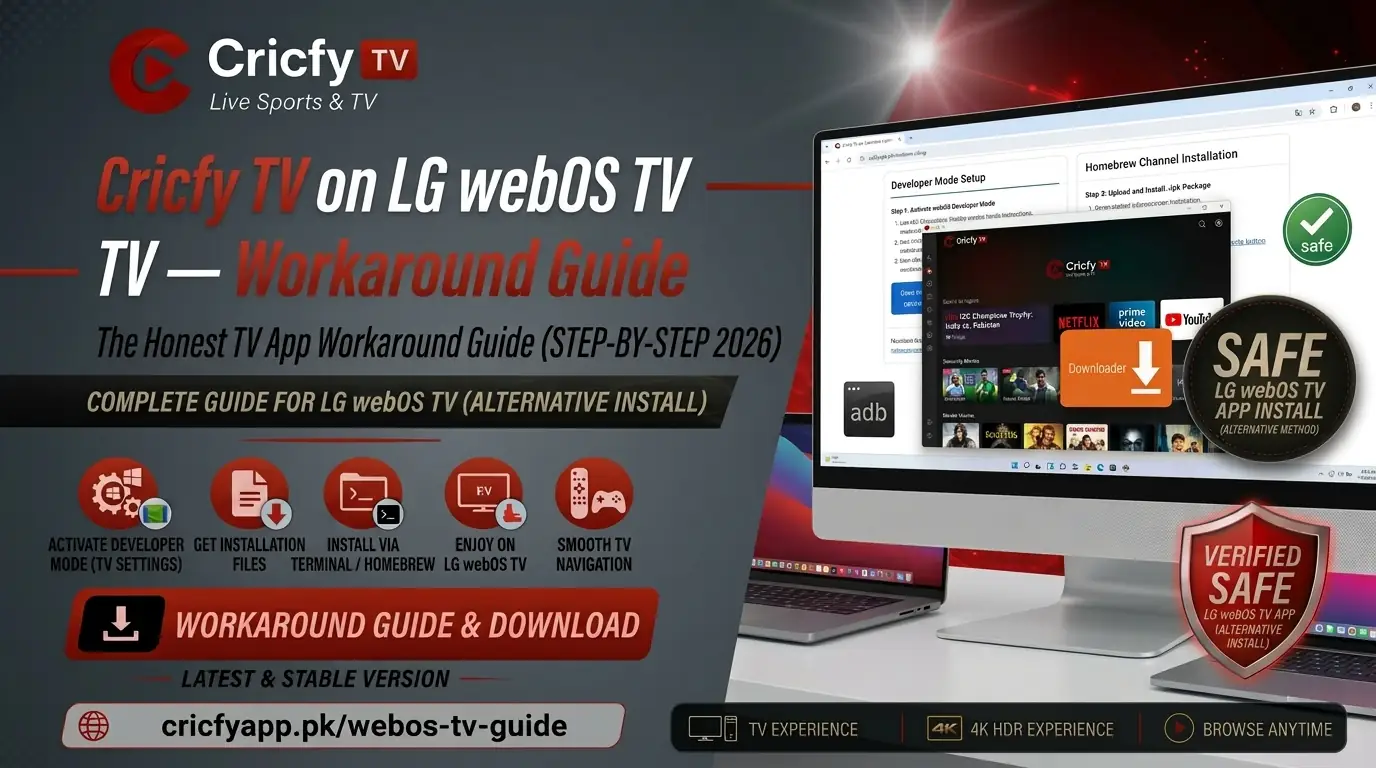
You grab the remote, open your cricfy tv on lg webos tv, and realise there is no Cricfy TV in the LG Content Store. No APK installer. No Play Store. Just webOS staring back at you. Frustrating, right? But there are real workarounds that thousands of fans in Pakistan and across South Asia use every single match day — and you are about to learn every single one of them.
Why You Cannot Install Cricfy TV Directly on LG webOS
First, let us get this clear so you stop searching for an APK installer that simply does not exist for LG TVs.
LG Smart TVs run webOS, which is a Linux-based operating system developed entirely by LG Electronics. It is not Android. This matters because Cricfy TV — like most third-party streaming apps — is packaged as an Android APK file. An APK needs the Android Runtime to execute. webOS does not have that runtime. So when you sideload an APK onto a webOS TV, nothing happens. The file format is simply incompatible at the system level.
Android TVs (Sony, TCL, Xiaomi, and others) let you install APKs via a file manager or the Downloader app. LG TVs do not offer that path. Instead, they only support apps from the LG Content Store or, for advanced users, IPK-packaged webOS applications installed through Developer Mode.
Since Cricfy TV has no native webOS version and is not in the LG Content Store, you need to work around this limitation. The good news is that several practical methods let you watch Cricfy Live TV on your LG screen without any compromise in quality.
Do not trust websites that tell you to install a Cricfy TV APK via USB on an LG webOS TV. webOS cannot run APK files. Any guide claiming otherwise is either wrong or describing a different TV (like an Android TV from another brand).
The 5 Working Methods at a Glance
Before diving into each method in detail, here is a quick comparison so you can pick the right one for your setup.
| Method | What You Need | Difficulty | Video Quality | Best For |
|---|---|---|---|---|
| Screen Mirroring | Phone + same Wi-Fi | Easy | Good | Everyone |
| Fire TV Stick | Amazon Fire TV Stick | Easy | HD / Full HD | Best overall experience |
| Chromecast | Google Chromecast | Easy | HD | Android phone users |
| Developer Mode (IPK) | PC + LG Dev account | Advanced | Full HD | Tech-savvy users |
| HDMI Cable | Phone/laptop + adapter | Easy | Best (wired) | Zero-lag viewing |
Most users should start with Method 1 (Screen Mirroring) or Method 2 (Fire TV Stick). Both require zero technical knowledge and get you watching live cricket in under five minutes.
Method 1 — Screen Mirroring (The Easiest Way)
Screen mirroring is the fastest route. You run the Cricfy TV app on your Android or iPhone, and your LG TV mirrors everything your phone displays. No cables, no extra hardware, no setup beyond a shared Wi-Fi network.
For Android Phones (Miracast / Smart View)
- On your LG TV, press the Home button, navigate to the apps list, and open Screen Share. This puts the TV in discovery mode, ready to receive a connection.
- Install the latest Cricfy TV APK on your Android phone if you have not already.
- On your Android phone, swipe down to open Quick Settings. Look for Cast, Smart View, Screen Mirroring, or Wireless Projection — the name varies by brand (Samsung calls it Smart View; stock Android labels it Cast).
- Tap your LG TV name from the list that appears. The connection usually takes five to ten seconds the first time.
- Open Cricfy TV on your phone. Your LG screen mirrors the app instantly. Use your phone as a remote to browse channels.
For iPhone Users (AirPlay)
LG TVs from 2019 onward support AirPlay 2, which means you can mirror directly from an iPhone without any additional app.
- Make sure your iPhone and LG TV are on the same Wi-Fi network.
- On your LG TV, go to Settings > AirPlay and make sure AirPlay is turned on.
- On your iPhone, swipe down to open Control Centre and tap Screen Mirroring.
- Select your LG TV from the list. Enter the AirPlay code shown on your TV if prompted.
- Open Cricfy TV on your iPhone. The stream appears on your big screen immediately.
Keep your phone plugged in while mirroring. Live cricket streams are battery-intensive. A dead phone mid-match is the worst possible outcome.
Method 2 — Amazon Fire TV Stick (The Best Experience)
If you want a permanent, dedicated solution, the Amazon Fire TV Stick is the cleanest answer. Plug it into your LG TV’s HDMI port, and it effectively turns that port into an Android environment. Cricfy TV installs on Fire TV Stick exactly like it would on any Android device.
This method gives you a dedicated remote, full HD streaming, and no need to keep your phone nearby or charged. It is the preferred choice for serious cricket fans who watch multiple matches every week.
- Plug the Fire TV Stick into a free HDMI port on your LG TV. Switch your TV input to that HDMI channel.
- Complete the initial Fire TV Stick setup — connect to Wi-Fi and sign in with your Amazon account.
- On the Fire TV Stick home screen, go to Settings > My Fire TV > Developer Options and enable Apps from Unknown Sources.
- Go back to the home screen and search for the Downloader app in the Amazon App Store. Install it.
- Open Downloader, type in the official Cricfy TV APK URL from cricfyapp.pk and download the APK.
- Once downloaded, tap Install when prompted. The app installs in seconds.
- Open Cricfy TV from the Fire Stick’s app list. Select any channel — PTV Sports, Geo Super, Star Sports — and start watching.
Once installed, Cricfy TV stays on your Fire TV Stick permanently. Switch to that HDMI port whenever there is a match. You do not need your phone at all.
The same steps apply to Roku (using its built-in browser or screen mirror from phone), NVIDIA Shield, and Mi Box. Any HDMI streaming stick that runs Android or has a browser gives you access to Cricfy Live TV.
Method 3 — Google Chromecast or Built-in Chromecast
Newer LG webOS TVs (webOS 6 and above, released from 2021 onward) include Chromecast Built-in. Older models work with an external Google Chromecast dongle plugged into an HDMI port. Either way, this method lets you cast the Cricfy TV stream from your Android phone to your LG TV with one tap.
Check if Your LG TV Has Chromecast Built-in
Press the Home button on your LG Magic Remote. If you see a Cast icon in the menu bar or quick settings, your TV has it built in. If not, buy a Chromecast dongle.
- Open the Cricfy TV app on your Android phone and start playing any channel.
- Look for the Cast icon (a rectangle with Wi-Fi waves in the corner) in the top-right of the Cricfy TV player or in your phone’s notification shade.
- Tap the Cast icon. Your LG TV or Chromecast device appears in the list.
- Select it. The stream transfers to your TV immediately and your phone becomes a remote control.
- You can now lock your phone screen — the stream continues on your TV independently.
Casting works only if the Cricfy TV app itself has a built-in cast button. If it does not appear, use the Screen Mirroring method instead, which mirrors your entire Android screen to the LG TV regardless of the app.
Method 4 — LG Developer Mode and webOS Dev Manager (Advanced)
This is the only method that installs something directly onto the LG TV itself, without any external device. It requires a free LG Developer account and a PC or Mac. The process involves installing a webOS-packaged version of an app (IPK format, not APK) through LG’s official developer tools.
To be clear: there is no official Cricfy TV IPK. However, some community members wrap streaming apps inside a webOS browser shell. If you find a trusted Cricfy-compatible IPK, here is how to install it.
- On your PC or phone, go to webostv.developer.lge.com and create a free LG Developer account.
- On your LG TV, press Home, open the LG Content Store, search for Developer Mode, and install that app.
- Open the Developer Mode app on your TV and sign in with the same LG Developer account. Toggle Dev Mode Status to ON. The TV restarts or refreshes. Note the TV’s IP address and the six-character passphrase shown in the app.
- On your PC, download and install webOS Dev Manager (available on Windows, macOS, and Linux). Open the app.
- In webOS Dev Manager, click New Connection. Enter your TV’s IP address and the passphrase from the Developer Mode app. Click Connect.
- Once connected, click Install and select your IPK file. The app installs directly onto your LG TV.
- Find the installed app on your LG TV Home screen and open it.
LG Developer Mode expires automatically after 50 hours. When it expires, any sideloaded IPK apps get removed. You need to reopen the Developer Mode app on your TV and tap Extend before the 50 hours run out to keep your apps. This makes it less ideal for everyday use compared to a Fire TV Stick.
Method 5 — HDMI Cable from Your Phone or Laptop
When you want zero latency and the absolute best video quality, plug your device directly into the LG TV with an HDMI cable. This is old school, but it never fails.
From an Android Phone
Most modern Android phones with a USB-C port support HDMI Alt Mode. Buy a USB-C to HDMI adapter, connect it to your phone, and plug the HDMI end into your LG TV. Switch the TV input to that HDMI port. Your phone screen mirrors at full resolution with zero wireless lag.
From a Laptop or PC
This is the simplest path of all. Install Cricfy TV on a Windows laptop using BlueStacks on PC or use the Cricfy TV Windows version. Then connect your laptop to your LG TV via HDMI. Set the TV as a second display or duplicate your laptop screen. Full HD cricket on the big screen in under two minutes.
If you use a laptop, use your TV’s remote to control volume and use your laptop’s keyboard and mouse to navigate the Cricfy TV app. It feels like having a proper smart TV setup.
What Channels Does Cricfy TV Give You on Your LG TV?
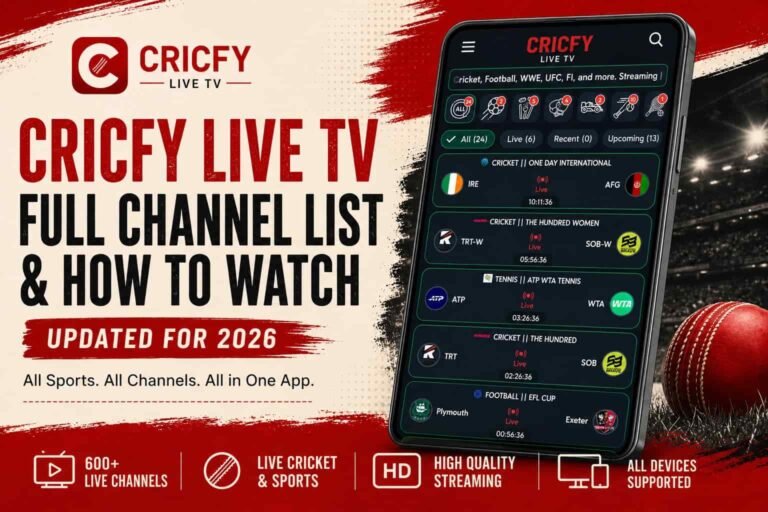
Once you get Cricfy Live TV running on your LG screen through any of the methods above, you get access to a wide lineup of live sports, news, and entertainment channels. Here is what to expect.
Cricket and Sports Channels
| Channel | Content | Region |
|---|---|---|
| PTV Sports | Pakistan international cricket, PSL matches | Pakistan |
| Ten Sports | Cricket, WWE, football, UFC, tennis | Pakistan / South Asia |
| Geo Super | Pakistan cricket, football, combat sports | Pakistan |
| A Sports | Pakistan Super League, Pakistan cricket | Pakistan |
| Star Sports 1 | India international cricket, IPL | India / South Asia |
| Star Sports 2 / 3 | India cricket, mixed sports | South Asia |
| Sony Ten 1 / 2 / 3 | Cricket, football, combat sports | South Asia |
| Willow TV | Cricket for diaspora fans | USA |
| Sky Sports | England cricket, Premier League | UK |
| beIN Sports | La Liga, UEFA Champions League, football | Middle East |
| ESPN | Mixed global sports | USA / Global |
Beyond sports, Cricfy TV also streams Pakistani and Indian entertainment channels, news networks like Geo News and ARY News, and kids’ content. Check the full lineup on our Cricfy Live TV Channel List page.
Major ICC tournaments — including ICC World Cup and Champions Trophy matches — air on PTV Sports, Star Sports, and Sky Sports. All three are available through Cricfy Live. So you never miss a single delivery.
Tips for the Best Cricfy TV Experience on Your LG Smart TV
1. Use a 5 GHz Wi-Fi Band
Most routers broadcast on both 2.4 GHz and 5 GHz. Connect both your phone and your LG TV to the 5 GHz band. It has less interference and handles HD video streaming far better. This single change removes most buffering issues.
2. Position Your Router Closer
A weak Wi-Fi signal is the number-one cause of buffering. Place your router in the same room as your LG TV or use a Wi-Fi extender. A signal strength of at least -60 dBm at the TV is ideal for HD live streaming.
3. Select Lower Quality First, Then Bump Up
In the Cricfy TV player, start at 480p to check that the stream is stable, then switch to 720p or 1080p. Live streams are more sensitive to bandwidth than on-demand videos. Starting low avoids the frustrating initial buffering spin.
4. Close Background Apps on Your Phone
When screen mirroring, your phone processes both the Cricfy TV stream and the wireless projection simultaneously. Close WhatsApp, Instagram, and other background apps to free up RAM and keep the stream smooth.
5. Update Cricfy TV Before a Match
Server links in streaming apps change frequently. Check cricfyapp.pk for the latest Cricfy TV APK before a big match day and install the newest version. An outdated app is the most common reason channels stop loading. You can check recent update notes like Cricfy TV v6.8 APK to stay current.
6. Restart the LG TV Before a Match
LG webOS builds up cache over time. A quick restart before a big match clears the memory and ensures your screen sharing or casting connection is fresh and stable.
7. Use Ethernet for Your LG TV
If your LG TV has an Ethernet port and your router is nearby, a wired connection is always more reliable than Wi-Fi for casting and streaming. This is especially useful during high-traffic events like Pakistan vs India matches when everyone in the neighbourhood is streaming simultaneously.
More Cricfy TV Device Guides
If you found this guide useful, here are other platform-specific walkthroughs on the site:
- Cricfy TV on Fire TV Stick — the complete install guide
- Cricfy TV on Android TV and Google TV
- Cricfy TV on Smart TV — general guide for all TV types
- Cricfy TV for PC via BlueStacks
- Cricfy TV on Laptop
- Cricfy TV for iPhone (iOS)
Frequently Asked Questions
Can I install Cricfy TV APK directly on my LG Smart TV?
No. LG webOS TVs run a Linux-based operating system, not Android. They cannot execute Android APK files at all. The methods in this guide are your only real options to watch Cricfy TV on an LG screen.
Which method gives the best picture quality on my LG TV?
An HDMI cable from your laptop gives the absolute best quality since it is a wired, direct connection. After that, a Fire TV Stick with Cricfy TV installed is the next best, delivering steady Full HD. Screen mirroring is slightly behind due to the wireless overhead but still very watchable.
Does screen mirroring from an iPhone to LG TV work for Cricfy TV?
Yes, as long as your LG TV supports AirPlay 2 (most models from 2019 onward do). Just enable AirPlay in your LG TV settings, use Screen Mirroring from your iPhone’s Control Center, and open Cricfy TV on your phone. The stream appears on your TV instantly.
My LG TV does not have AirPlay. What can I do with my iPhone?
Connect your iPhone to your LG TV using a Lightning to HDMI adapter or a USB-C to HDMI adapter (for newer iPhones). This gives you a wired mirror with no AirPlay requirement.
Will the Developer Mode method permanently install Cricfy TV on my LG webOS TV?
Not exactly. LG Developer Mode automatically deactivates after 50 hours, which removes all sideloaded apps. You need to extend it before the timer runs out. For a permanent solution, use a Fire TV Stick or keep a dedicated laptop connected via HDMI.
I get heavy buffering when screen mirroring. What should I do?
Switch both your phone and LG TV to the 5 GHz Wi-Fi band. Close all background apps on your phone. Reduce the Cricfy TV stream quality from 1080p to 720p temporarily. If you still get buffering, use the HDMI cable method instead — it completely eliminates wireless buffering.
Does Cricfy TV show PTV Sports and Geo Super live on LG TV?
Yes. PTV Sports, Geo Super, Ten Sports, A Sports, Star Sports, and dozens more channels are available through Cricfy Live TV. Once you get the app running on your LG screen using any of the methods above, you get the full channel list.
Is using Cricfy TV on LG Smart TV safe?
When you use screen mirroring or a wired HDMI connection, your LG TV itself is not affected — you are simply projecting an image. With the Fire TV Stick method, only the Stick itself runs the app. Ensure you download the Cricfy TV APK only from the official source at cricfyapp.pk to avoid modified or malicious files.
Which LG webOS version do I have?
Press the Home button on your LG Magic Remote, go to Settings > Support > About This TV. The webOS TV version is listed there. LG TVs from 2021 onward typically run webOS 6 and above.
Bottom Line
LG webOS is a great operating system, but it simply was not built to run Android apps like Cricfy TV. That does not mean you are stuck watching cricket on your phone. Screen mirroring gets you going in under two minutes. A Fire TV Stick gives you a permanent, clean install. An HDMI cable gives you zero-lag perfection.
Pick the method that fits your setup, follow the steps above, and you will be watching Cricfy Live TV on your LG screen with all the channels — PTV Sports, Star Sports, Geo Super, Ten Sports, and more — before the toss is even done.
Download the latest version from cricfyapp.pk and never miss a ball again.
Sources & References
- LG webOS TV Developer Portal — Official Developer Mode Documentation
- Wikipedia — webOS
- Wikipedia — PTV Sports
- Wikipedia — Ten Sports
- ICC — International Cricket Council (Official)
- PCB — Pakistan Cricket Board (Official)
- LG Electronics — Official Support
- Cricfy TV on Fire TV Stick — cricfyapp.pk
- Cricfy TV on Android TV — cricfyapp.pk
- Cricfy TV Channel List — cricfyapp.pk
9 Comments