
Cricfy TV on Firestick — Sideload Guide 2026
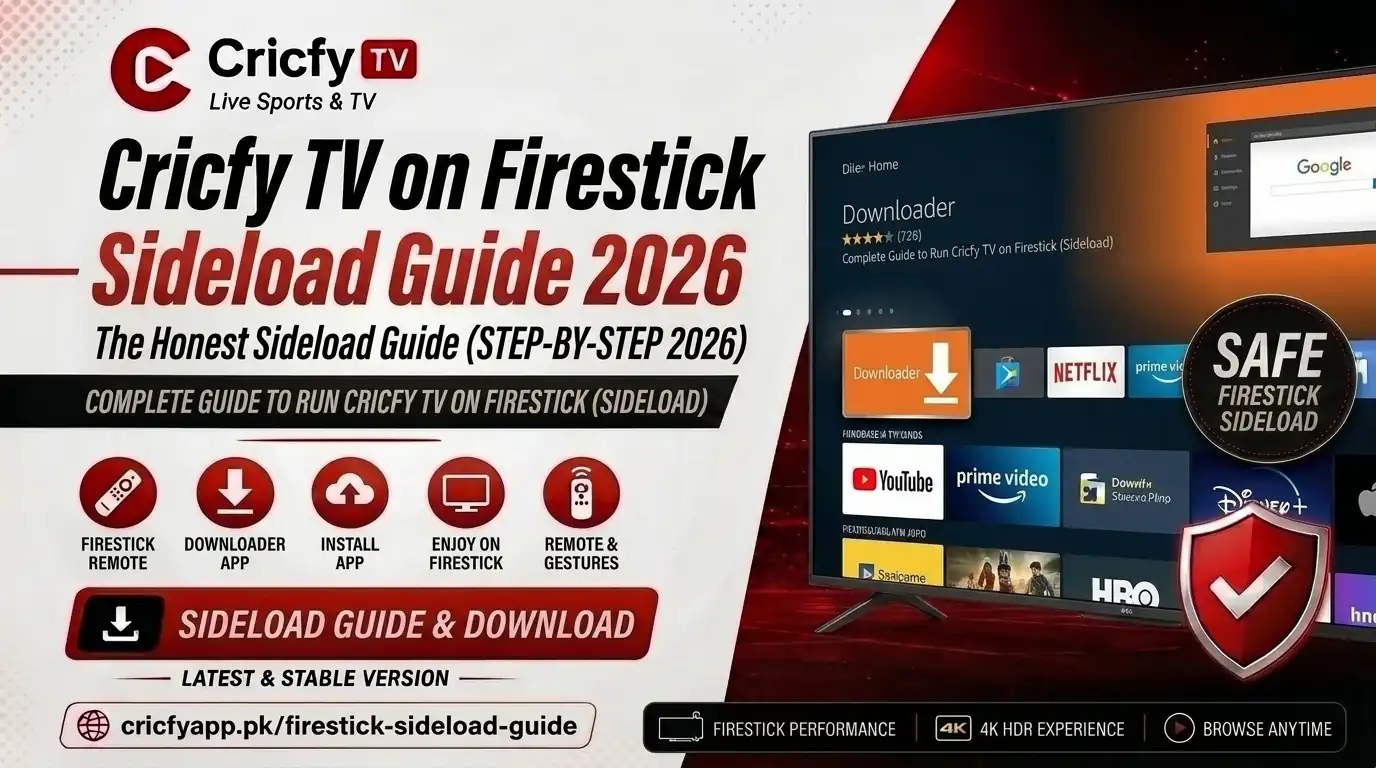
You want to watch live cricket, football, and 600+ channels on your big screen — for free. The problem? Cricfy TV is not on the Amazon Appstore. So you sideload it. And this guide shows you every step, from enabling Developer Options to finding the app after installation.
Sideloading sounds intimidating, but it is nothing more than installing an APK file from outside the official store. Millions of Firestick users do it every day. The Downloader app makes the whole thing point-and-click. No laptop, no USB cable, no tech skills needed.
This is the only Cricfy TV on Firestick guide you need in 2026. We cover installation, channels, troubleshooting, tips for smooth streaming, and everything else you might search for along the way.
What Is Cricfy TV — and Why Do Millions Use It?
Cricfy TV is a free sports streaming app built for Android. It delivers live cricket, football, basketball, WWE, kabaddi, and dozens of other sports through a clean, remote-friendly interface. You get access to premium sports channels — Star Sports, PTV Sports, Ten Sports, Sony Sports, Willow TV, Geo Super, beIN Sports, ESPN, Sky Sports, DAZN, and many more — without paying a single subscription fee.
Because Fire OS on Amazon Firestick is built on Android, Cricfy TV runs natively on it. The app is not on the Amazon Appstore, so you install it through a process called sideloading — which is nothing more than downloading an APK file directly onto the device. Amazon officially supports this via Downloader, a free utility available in the Appstore itself.
In 2026, Cricfy TV has become one of the go-to apps for fans in Pakistan, India, Bangladesh, and cricket-following communities worldwide. It covers major tournaments including the ICC World Cup, IPL, PSL, Asia Cup, BBL, CPL, BPL, Test series, and ODI fixtures — all live and in HD.
Watching a tense last-over finish on a phone is fine. Watching it on a 55-inch screen with your family is an entirely different experience. That is the main reason people install Cricfy TV on Firestick instead of just using their phone.
The app does not host streams on its own servers. Instead, it aggregates links from multiple servers so you can switch if one goes down mid-match. It also supports custom M3U playlist URLs, which means you can add your own IPTV feed on top of the default content.
You can learn more about the full Cricfy TV channel list and the Cricfy Live TV homepage for the latest news and updates about the app.
Which Firestick Models Work with Cricfy TV?
Good news: every current Amazon Fire TV device runs Cricfy TV without any problem. Here is a quick compatibility breakdown.
Full HD streaming. Most common model in homes today.
Budget model. Handles 1080p streams on a stable connection.
Best performance for Cricfy TV. Smooth UI, fast app loads.
Top-of-the-line model. Handles any stream Cricfy delivers.
Hands-free Alexa control works alongside Cricfy TV.
Same Fire OS underneath — same sideload process applies.
The sideloading method you learn below works identically on all these devices. If you own a first-generation Fire TV Stick (2014), it may run the app but performance could be sluggish. Upgrading to any current model is worth it for live sports streaming.
What You Need Before You Start
The install takes about five minutes. Before you jump in, just make sure you have these four things ready.
- An Amazon Firestick plugged into your TV and connected to Wi-Fi
- Your Firestick remote
- At least 50 MB of free storage on the device
- A stable internet connection (5 Mbps or faster for HD streaming)
That is literally it. No laptop, no USB cable, no Android phone, and no Amazon account changes needed beyond what you already have. Everything happens through the Firestick remote.
Go to Settings → My Fire TV → About → Storage. If you have less than 200 MB free, clear some space before starting. Sideloaded apps install faster and run better with breathing room.
Always download Cricfy TV from the official source. Get the latest v6.8 APK directly from the Cricfy team.
Download Cricfy TV APK (Official)Step 1 — Enable Developer Options and Unknown Sources
Fire OS hides sideloading behind Developer Options by default. You only do this once. After that, the permission stays on unless you reset your device.
- From the Firestick home screen, navigate to the top navigation bar and select Settings (the gear icon on the far right).
- Scroll right and select My Fire TV. On older Fire OS versions, this may appear as Device.
- Select About.
- Find your device name (for example, “Fire TV Stick 4K”) and click it seven times rapidly. A popup will say “No need, you are already a developer” or “You are now a developer.” Either message means you are done with this step.
- Press the Back button. You will now see Developer Options in the My Fire TV menu. Select it.
- Find Install unknown apps (or Apps from Unknown Sources on older Fire OS builds) and toggle it ON.
On newer Fire OS versions (7+), Amazon lets you grant the unknown-sources permission per app. Enable it only for Downloader. This keeps your device more secure compared to enabling it globally.
Step 2 — Install the Downloader App
Downloader is a free, Amazon-approved app that acts as a browser and file installer for your Firestick. It is the standard tool that millions use to sideload APKs. You will not find a safer or simpler method.
- From the Firestick home screen, go to the search bar (magnifying glass icon) or press the Search button on your remote.
- Type Downloader and select it from the search results.
- Select the Downloader app (orange icon, developed by AFTVnews). Press Download or Get, then wait for it to install.
- Open Downloader. On first launch, it asks to enable accessibility — skip that, it is optional. The home screen shows a URL input box. You are ready.
Once Downloader is installed, you never need to re-install it. You can also use it in the future to update Cricfy TV, install alternative streaming apps, and browse the web on your TV.
Step 3 — Download and Install Cricfy TV APK
This is the main step. You are going to tell Downloader where to get the Cricfy TV APK file, and it handles the rest.
- Open Downloader on your Firestick.
- Select the URL input box at the top of the screen. Your remote will bring up an on-screen keyboard.
- Type the official Cricfy TV APK download URL from cricfyapp.pk. Alternatively, enter the Downloader short code 730116 — this takes you directly to the download without typing a long URL.
- Press Go. Downloader connects to the server and starts downloading the APK. The file is approximately 22 MB, so it takes 20–60 seconds depending on your connection speed.
- When the download finishes, Downloader automatically shows an Install prompt. Select Install using your remote.
- Wait for the installation to complete. Select Done (not Open — we will get to finding the app in the next section).
- Downloader now asks if you want to delete the APK file. Select Delete to free up storage. The app is already installed — you do not need the APK file anymore.
This usually means an older version of Cricfy TV is already on your device. Go to Settings → Applications → Manage Installed Applications → Cricfy TV → Uninstall. Then repeat the installation steps above.
Cricfy TV v6.8 is a clean, lightweight install. It does not require root access, it does not touch other system files, and it does not ask for unnecessary permissions. The whole process is the same as installing any sideloaded app on any Fire TV device.
Step 4 — Find Cricfy TV on Your Firestick After Install
Here is something that confuses a lot of people: sideloaded apps do not automatically appear on the Firestick home row. They land in your full app list instead. Here is how to find and pin Cricfy TV so it is always one click away.
To find the app
- Press and hold the Home button on your Firestick remote for 3 seconds until the menu appears.
- Select Apps.
- Scroll to the bottom of the list. Cricfy TV will be there, usually at the end since it was recently installed.
To pin it to the home screen
- From the home screen, scroll right on the top row to find Apps & Channels.
- Select See All.
- Highlight the Cricfy TV icon and press the menu button (three horizontal lines) on your remote.
- Select Move to Front or drag it to your preferred position.
After this, Cricfy TV appears right on your home screen every time you turn on the Firestick. No digging through menus required.
What Channels Can You Watch on Cricfy TV?
This is where Cricfy TV genuinely stands out. Most free streaming apps give you a handful of sports channels. Cricfy TV delivers 600+ channels across sports, news, entertainment, kids content, and regional programming. Here is what cricket fans specifically get access to.
Cricket and sports channels
Entertainment, news, and more
Beyond sports, you also get access to news channels (BBC News, CNN, Al Jazeera), entertainment (Colors TV, Zee TV, Sony Entertainment), and regional channels covering South Asian and international audiences. The app supports custom M3U playlists too, so you can add your own IPTV feeds on top of the default library.
IPL 2026, PSL 2026, ICC events, Asia Cup, T20 internationals, ODI series, Test matches, FIFA World Cup 2026, UEFA Champions League, Premier League, and more. If there is a major cricket or football match happening anywhere in the world, Cricfy TV will have a stream for it.
For the full and updated channel list, check the official Cricfy TV channel list page on our site.
Tips for the Smoothest Streaming Experience on Firestick
Cricfy TV on Firestick performs well out of the box. But a few simple tweaks can make the difference between a smooth 1080p stream and a frustrating buffering loop — especially during peak-viewership events like an India vs Pakistan match.
| Tip | What to Do | Why It Helps |
|---|---|---|
| HDMI extender | Use the included extender to move the Firestick away from the TV’s HDMI port | Reduces Wi-Fi interference from the TV chassis |
| Switch servers | If Stream 1 buffers, tap Server 2 or 3 inside the app | Different CDN nodes have different loads during big matches |
| Match stream quality to speed | Select 720p if your connection is below 10 Mbps | Prevents buffering without sacrificing the viewing experience |
| Clear Firestick cache | Settings → Applications → Manage Installed Applications → Cricfy TV → Clear Cache | Removes temporary files that slow the app down over time |
| Restart before a big match | Unplug the Firestick for 30 seconds and plug it back in | Frees RAM that background processes have accumulated |
| Use 5 GHz Wi-Fi | Connect your Firestick to your router’s 5 GHz band if available | Faster, less congested band for HD video streaming |
| Close background apps | Hold Home button → select Apps → close apps you are not using | Frees up the Firestick’s limited RAM for the stream |
Should you use a VPN with Cricfy TV on Firestick?
A VPN is not required for Cricfy TV to work. However, some ISPs throttle streaming traffic during high-viewership events. If you notice consistent buffering during popular matches but your internet speed tests fine, your ISP may be throttling the connection. In that case, a VPN like ProtonVPN or ExpressVPN encrypts your traffic and can help bypass throttling.
On the other hand, if Cricfy TV shows errors or fails to load channels while you are connected to a VPN, turn the VPN off first. The app sometimes cannot connect to its servers through certain VPN exit nodes.
How to Update Cricfy TV on Firestick
Sideloaded apps on Firestick do not update automatically. There is no background updater pulling new versions. When Cricfy TV releases a new APK, you need to install it manually — but the process is simple.
- Open Downloader on your Firestick.
- Enter the latest APK URL from cricfyapp.pk or use the short code 730116.
- Press Go and download the new APK.
- Select Install. Fire OS will install the new version over the existing one — your favourites and settings will remain intact.
- Select Done and delete the APK file when prompted.
You do not need to uninstall the old version first unless the installer specifically tells you to. Most Cricfy TV updates install cleanly on top of the previous version.
Outdated versions are the most common reason Cricfy TV stops working or shows unexpected errors on Firestick. Whenever channels stop loading or the app crashes, the first thing to try is installing the latest APK from cricfyapp.pk before anything else.
Check our Cricfy TV v6.8 release notes to see what changed in the latest version and whether it is worth updating right away.
Cricfy TV on Firestick Not Working? Fix It Here
Even a perfectly installed app runs into issues now and then. Here are the most common problems Firestick users face with Cricfy TV, and exactly how to fix each one.
-
01“App not installed” during APK install
You already have an older version of Cricfy TV installed. Go to Settings → Applications → Manage Installed Applications → Cricfy TV → Uninstall. Then reinstall from scratch using Downloader.
-
02Constant buffering during live matches
Switch to a different server inside the app (tap the server icon on the player screen). If that does not help, lower the stream quality from HD to 720p or 480p. Also try restarting the Firestick and moving it to the 5 GHz Wi-Fi band.
-
03Channels not loading or showing a black screen
Clear the app cache: Settings → Applications → Manage Installed Applications → Cricfy TV → Clear Cache. Then restart the app. If the problem persists, the app version you have is likely outdated — install the latest APK.
-
04“Unexpected error occurred” message
This error appears when Cricfy TV cannot connect to its servers, often because of an outdated app, unstable internet, or a VPN conflict. Turn off your VPN, check your internet speed (5 Mbps minimum for HD), and update to the latest version. For a detailed fix guide, read our Cricfy TV unexpected error solution.
-
05App crashes or freezes on Firestick
Close all background apps first. If the problem continues, clear the Cricfy TV cache and data (note: clearing data resets your favourites). Restart the Firestick by unplugging it for 30 seconds. A fresh install of the latest APK usually resolves persistent crashes.
-
06Cricfy TV not showing on home screen after install
Sideloaded apps land in the App Library, not the home row. Press and hold the Home button → Apps → scroll to the bottom. To pin it, go to Apps & Channels → See All → highlight Cricfy TV → press the menu button → Move to Front.
-
07Downloader says “unknown sources” permission is denied
You skipped Step 1 or the permission was turned off. Go back to Settings → My Fire TV → Developer Options → Install Unknown Apps → Downloader → Allow.
-
08Firestick connected via Ethernet but Cricfy shows “Open Wi-Fi settings”
This is a known quirk where Cricfy TV’s connectivity check does not always detect a wired connection. Restart both the Firestick and your router. If the prompt persists, temporarily connect to Wi-Fi, bypass the error message once, then switch back to Ethernet.
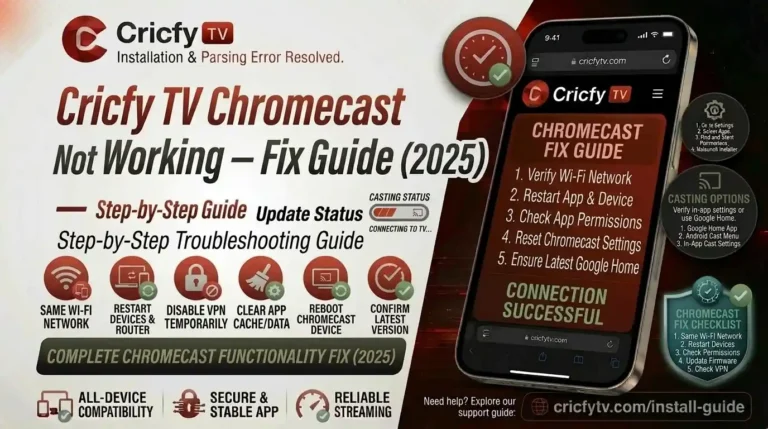
If none of the above fixes work, the issue is likely temporary server downtime on Cricfy’s end — especially during high-demand events like an IPL final or Pakistan vs India match. In that case, wait 10–15 minutes and try again. You can also read our full Cricfy TV not working guide for additional solutions.
Cricfy TV vs Sportzfy vs HD Streamz on Firestick
Since all three apps are popular sideloaded sports streamers for Firestick, here is a quick comparison so you know which one suits you best.
| Feature | Cricfy TV | Sportzfy | HD Streamz |
|---|---|---|---|
| Cost | Free | Free | Free |
| Cricket focus | Primary focus | Strong | Moderate |
| Ad-free (Firestick) | Yes (v6.8) | Mostly | Some ads |
| Channel count | 600+ | 400+ | 500+ |
| M3U playlist support | Yes | No | Yes |
| Multi-server streaming | Yes | Yes | Yes |
| App size | ~22 MB | ~18 MB | ~25 MB |
| Firestick remote compatibility | Good | Good | Good |
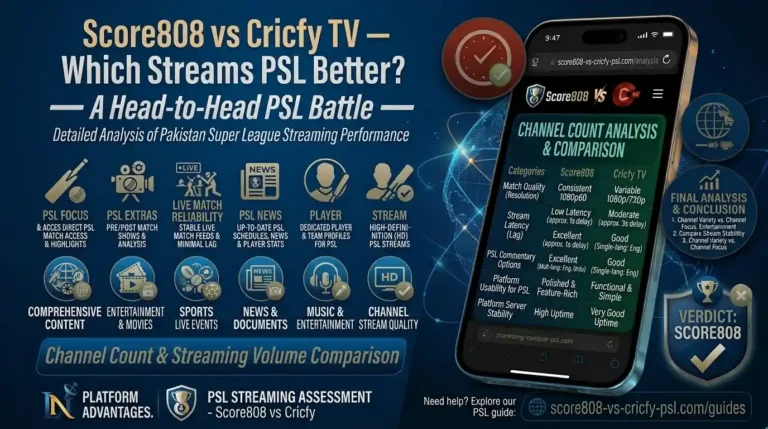
Cricfy TV wins on cricket coverage depth, the ad-free experience on Firestick, and the M3U playlist feature. For a deeper analysis, read our full Cricfy TV vs Sportzfy vs HD Streamz comparison.
If you are on PC and not a Firestick, check out our guide on Cricfy TV for PC with BlueStacks. And if you use an iPhone, we have a dedicated Cricfy TV for iPhone guide too.
Bottom Line
Cricfy TV on Firestick is the easiest way to watch live cricket and 600+ channels on your television for free. The install takes five minutes, the app runs smoothly on every current Fire TV device, and v6.8 is completely ad-free. You enable Developer Options once, install Downloader from the Amazon Appstore, enter the APK URL, and you are done.
Bookmark this page. Whenever the app needs an update or throws an error, everything you need is right here. And whenever there is a new release, you will find it first at cricfyapp.pk.
Frequently Asked Questions
Is Cricfy TV free on Firestick?
Yes, Cricfy TV is completely free. There is no subscription, no sign-up, and no hidden fees. You download and install the APK, open the app, and start watching. Version 6.8 does not show ads on Firestick.
Do I need a VPN to use Cricfy TV on Firestick?
No, a VPN is not required. Cricfy TV works without one. A VPN can sometimes help if your ISP throttles streaming traffic during busy match times, but if you already have a VPN running and the app is not loading channels, turn the VPN off first.
Why does Cricfy TV not appear on my Firestick home screen after install?
Sideloaded apps land in the App Library by default, not on the home row. Press and hold the Home button, select Apps, and scroll to the bottom. To pin Cricfy TV to the home screen, go to Apps & Channels → See All → highlight Cricfy TV → press the menu button → Move to Front.
How do I update Cricfy TV on Firestick?
Sideloaded apps do not update automatically. Open Downloader, enter the latest APK URL from cricfyapp.pk or use code 730116, download, and install over the existing version. Most updates install cleanly without uninstalling first.
Can I watch PSL, IPL, and ICC matches on Cricfy TV for Firestick?
Yes. Cricfy TV covers PSL, IPL, ICC World Cup, Asia Cup, T20 internationals, ODI series, and Test matches through channels like PTV Sports, Star Sports, Geo Super, Ten Sports, Willow TV, and Sony Sports. If the match airs on any of these broadcasters, Cricfy TV will have it.
Is sideloading Cricfy TV on Firestick safe?
Sideloading through Downloader is a standard, widely used practice in the Fire TV ecosystem. The key is downloading the APK from a trusted source — use cricfyapp.pk, the official Cricfy website. Avoid random third-party sites that might bundle the APK with unwanted software.
Does Cricfy TV work on the Fire TV Cube?
Yes. The Fire TV Cube runs the same Fire OS as the Firestick. The installation process is identical, and the app performs excellently on the Cube’s more powerful hardware.
What internet speed do I need for Cricfy TV on Firestick?
A minimum of 5 Mbps is recommended for smooth HD streaming. For 1080p with no buffering, 10 Mbps or above is ideal. If your connection is slower, select 480p or 720p inside the app to prevent interruptions.
Can I add my own IPTV playlist to Cricfy TV on Firestick?
Yes. Cricfy TV supports custom M3U playlist URLs. Inside the app, go to the playlist or IPTV section, tap the add button, and enter your M3U URL. Your IPTV channels will appear alongside the built-in Cricfy channel library.
References
- Amazon Appstore — Downloader by AFTVnews
- ICC — International Cricket Council (official broadcaster schedule)
- PCB — Pakistan Cricket Board (PSL and bilateral series)
- Wikipedia — Amazon Fire TV Stick
- Wikipedia — Sideloading (definition and practice)
- Cricfy Live TV — Official Download & Home Page
- Cricfy TV v6.8 — Release Notes and Download
- Cricfy TV Not Working — Full Troubleshooting Guide
- Cricfy TV Unexpected Error — Solution & Fix
- Cricfy TV vs Sportzfy vs HD Streamz — Full Comparison
9 Comments