
Cricfy TV Date/Time Error — Fix in 30 Seconds
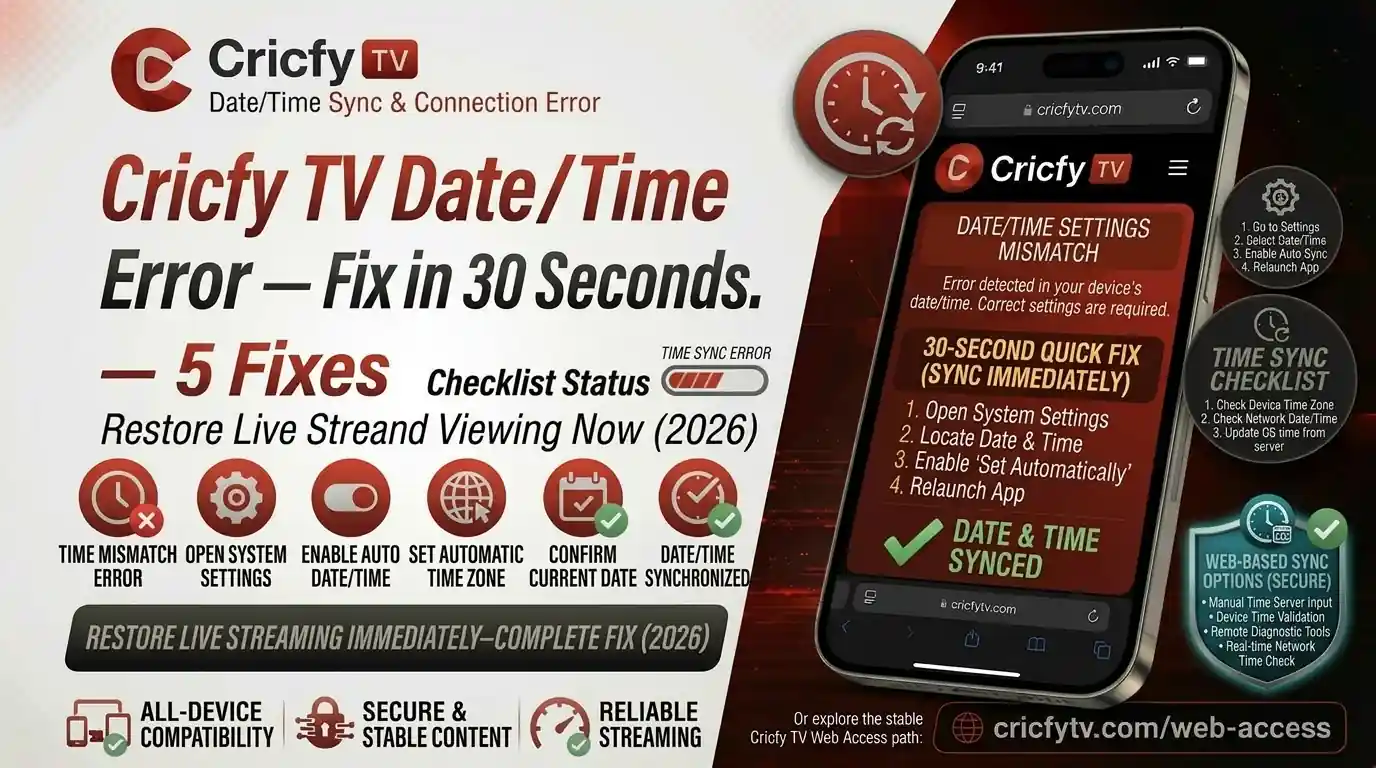
The Cricfy TV date time error fix is simpler than you think. You open Cricfy TV, a big match is live, and the app throws a date or time error right in your face. Relax — this is one of the easiest errors to resolve on the entire platform, and in most cases you can clear it in under 30 seconds flat.
This Cricfy TV date time error fix guide covers every device: Android phones, Android TV boxes, Amazon Firestick, LG WebOS, Google TV, and Windows. We explain why the error happens, give you a single one-tap fix first, and then walk through every fallback solution if that does not do it.
Why Does the Cricfy TV Date Time Error Happen?
Here is the real reason, and it is simpler than you think. Cricfy Live TV uses HTTPS to stream channels. HTTPS encrypts every connection using an SSL/TLS certificate. That certificate has a validity window — a “valid from” date and an expiry date.
When your device clock is wrong — even by a few hours in the wrong timezone — your device compares the current time against that certificate window. If the numbers do not match, the device thinks the certificate is either expired or not yet valid. So it refuses the connection entirely. Cricfy TV then surfaces this as a date/time error or sometimes as a generic stream failure.
Live cricket streaming on Cricfy Live TV is delivered over secure HTTPS connections. A clock that is even 15 minutes off in the wrong direction can break the SSL handshake and kill your stream instantly. This is not a bug in Cricfy TV — it is how all secure internet connections work.
Most Common Triggers
You are most likely to see this error in these situations:
- You just factory reset your Android TV box or Firestick and skipped the time setup step.
- Your device lost power and the internal clock reset to a default date (often Jan 1, 2000).
- You changed timezone manually but forgot to update the time to match.
- Automatic Date and Time was turned off at some point — maybe after a firmware update.
- You are using a cheap Android TV box with no battery-backed RTC (real-time clock) chip.
| Cause | How Common | Quick Check |
|---|---|---|
| Automatic date and time is OFF | Very common | Open Settings → Date & Time. Is “Automatic” toggled on? |
| Wrong timezone selected | Common | Does your device clock show the right time for your region? |
| Clock reset after power loss | Common on TV boxes | Does the clock show Jan 1, 2000 or a similar past date? |
| Manual date set incorrectly | Less common | Did someone change the date manually on this device? |
| Firmware update reset clock | Less common | Did you recently update the device OS? |
Fix the Date/Time Error on Android Phone or Tablet
This is the fastest fix on the list. It takes under 30 seconds and works on every Android version from Android 9 through Android 15.
The One-Tap Fix
- Open Settings on your Android device.
- Tap General Management (Samsung) or System (stock Android, Xiaomi, OnePlus, Realme).
- Tap Date and Time.
- Toggle Automatic date and time to ON. If it was already on, toggle it OFF and back ON to force a refresh.
- Toggle Automatic time zone to ON as well.
- Close Settings and relaunch Cricfy TV. The error should be gone.
On MIUI 12 and above, go to Settings → Additional Settings → Date & Time. The path is slightly different but the toggle is the same. MIUI sometimes resets this toggle after security patches.
If Automatic Date and Time Was Already On
Sometimes the toggle is on but the time is still wrong. This usually means your device could not reach an NTP (Network Time Protocol) server. In that case:
- Turn off Wi-Fi for 5 seconds, then turn it back on.
- Go back to Date & Time settings and toggle Automatic off, wait 3 seconds, then back on.
- Your device will now pull the correct time from the network.
- Restart Cricfy TV.
Fix the Date/Time Error on Amazon Firestick
Firestick is one of the most popular devices for watching Cricfy TV on Firestick, and date/time errors are especially common here after power outages or long periods without use.
- From the Firestick home screen, go to Settings (gear icon in the top row).
- Select Device (or My Fire TV on newer models).
- Scroll down to About → Date & Time.
- Set Automatic Time Zone to ON.
- Set Automatic Date & Time to Use Network Time.
- Go back to the Firestick home screen and relaunch Cricfy TV.
If your Firestick shows the correct time but still throws the error, clear the Cricfy TV app cache. Go to Settings → Applications → Manage Installed Applications → Cricfy TV → Clear Cache. Then try streaming again.
Fix the Date/Time Error on Android TV and Google TV
Android TV boxes — including Nvidia Shield, Xiaomi Mi Box, and TCL or Sony sets running Google TV — all follow a similar path. This fix also works if you use Cricfy TV on Android TV or Google TV.
Android TV (Classic Menu)
- Press the Home button on your remote.
- Go to Settings → Device Preferences.
- Select Date & Time.
- Set Automatic Date & Time to Use Network Time.
- Set the correct time zone for your region (e.g., Asia/Karachi for Pakistan).
- Press Back and relaunch the Cricfy live TV app.
Google TV (Newer Interface)
- Press and hold the Settings button on your remote, or navigate to the Settings icon in the top-right of the home screen.
- Go to System → Date & Time.
- Enable Set time automatically.
- Enable Set time zone automatically.
- Exit and open Cricfy TV again.
Some cheap Android TV boxes cannot fetch network time if they were never connected to the internet during setup. Make sure your box is online and connected to Wi-Fi before toggling Automatic Date & Time on. The device needs an active connection to pull time from an NTP server.
Fix the Date/Time Error on LG WebOS TV
If you use Cricfy TV on LG WebOS, the fix is slightly different because LG uses its own operating system. Here is how to do it:
- Press the Settings button on your LG Magic Remote (the gear icon).
- Go to All Settings → General.
- Select System → Time & Date.
- Make sure Set Automatically is enabled.
- Confirm the correct time zone is selected.
- Relaunch Cricfy TV from the Home Screen.
On some LG WebOS 6 models, the time auto-sync may require the TV to be connected via Ethernet rather than Wi-Fi for the first sync. After the first successful sync, Wi-Fi works fine for future updates.
Fix the Date/Time Error on Windows PC or Laptop
Running Cricfy TV on Windows 11 or Windows 10? The date/time fix on a PC is the simplest of all.
Windows 11 / 10
- Right-click the clock in the bottom-right corner of the taskbar.
- Select Adjust date and time.
- Turn on Set time automatically.
- Turn on Set time zone automatically.
- Click Sync now under “Synchronise your clock” — this forces an immediate time update from Microsoft’s time servers.
- Close and reopen Cricfy TV. The error will be gone.
If You Use Cricfy TV via BlueStacks on PC
If you run Cricfy TV through BlueStacks on your PC, the fix is on Windows itself — not inside BlueStacks. Follow the Windows steps above. BlueStacks inherits the system time from Windows automatically.
Cricfy TV Date Time Error Still Showing After the Fix?
In rare cases, fixing the date and time does not immediately clear the error. That happens because the app cached the failed connection. Here is what to do next:
Step 1 — Clear the Cricfy TV App Cache
- Go to Settings → Apps (or Application Manager).
- Find Cricfy TV and tap it.
- Tap Storage.
- Tap Clear Cache. Do not tap Clear Data yet — that resets all settings.
- Relaunch the app and test.
Step 2 — Restart Your Device
A full restart forces your device to re-sync time with network servers on boot. This clears any stuck session data as well. Power off completely, wait 10 seconds, then power back on.
Step 3 — Update Cricfy TV to the Latest Version
An outdated APK can sometimes have time-validation bugs of its own. Head to cricfyapp.pk and download the latest version. You can also check our full Cricfy Live TV guide for the most current APK download link.
Step 4 — Check for Other Related Errors
If the stream still fails after all the above, the problem may have shifted to something else entirely. Read our guide on Cricfy TV Unexpected Error fixes and the Cricfy TV Not Working troubleshooting guide for a full diagnosis.
A date/time fix sometimes reveals a second underlying issue. If you now see a buffering error, read our Cricfy TV buffering fix guide. If you see a VPN detection message, check our VPN detected error fix.
How to Stop the Date/Time Error From Coming Back
Once you fix it, you want it to stay fixed. Here are the best practices to keep the date/time error away for good.
Always Keep Automatic Date and Time Enabled
This is the single most important thing. As long as your device is connected to the internet and “Automatic date and time” is toggled on, your device clock stays synced with NTP time servers. The error simply cannot occur.
Never Set the Date or Time Manually
Manual time entry is the single biggest cause of this error. There is almost no reason to set the time manually on a streaming device. Always let the network do it.
Keep Cricfy TV Updated
App updates occasionally include improvements to how the app handles time validation and SSL errors. Stay on the latest version. Visit cricfyapp.pk regularly for new APK releases.
For Android TV Boxes Without a Battery RTC
Cheap TV boxes lose the clock every time they lose power. The fix is simple: make sure the box is always connected to the internet when you power it on. It will sync automatically within a few seconds of booting. You can also verify the correct current time on your phone and compare it to what the box shows.
| Setting | Correct State | Where to Find It |
|---|---|---|
| Automatic Date & Time | ON / Use Network Time | Settings → Date & Time |
| Automatic Time Zone | ON | Settings → Date & Time |
| Cricfy TV Version | Latest APK from cricfyapp.pk | cricfyapp.pk |
| Device Internet Connection | Connected before app launch | Wi-Fi or mobile data |
Frequently Asked Questions
Why does Cricfy TV care about my device’s date and time?
Cricfy Live TV streams content over HTTPS, which uses SSL/TLS certificates for security. These certificates have a validity window. If your device clock is off, the device incorrectly thinks the certificate is expired or not yet active, so it refuses the connection and Cricfy TV cannot stream.
My phone shows the correct time but Cricfy TV still gives the error. Why?
The most likely reason is a stale app cache. Even after the time is corrected, the app may have cached a failed connection. Clear the Cricfy TV app cache from Settings → Apps → Cricfy TV → Storage → Clear Cache, then restart the app.
Does this error affect all Cricfy TV channels or just some?
It affects all channels because the issue is at the connection level, not the channel level. Every stream on Cricfy TV — whether it is PTV Sports live, Ten Sports live, Star Sports live, or any other channel — uses the same HTTPS connection that requires a valid device clock.
Will fixing the date and time on my TV box fix Cricfy TV on all other apps too?
Yes. A wrong clock affects every app that uses HTTPS — which is basically every modern streaming app. Fixing the date and time will likely also resolve issues with YouTube, Netflix, or any other app that was not loading properly on that device.
I fixed the time but now I get a different error. What should I do?
That means the date/time fix worked and exposed a second underlying issue. Check our Cricfy TV not working guide for a full diagnosis of every possible error. The most common second errors are buffering (connection speed) and the unexpected error (app version or VPN).
Can a VPN cause a date/time error on Cricfy TV?
Not directly. A VPN does not change your device clock. However, some VPNs can interfere with NTP time synchronization, which can indirectly cause the clock to drift. If you use a VPN, also check our Cricfy TV VPN detected error guide.
Does this fix work for Cricfy TV on iOS?
Yes. On iPhone, go to Settings → General → Date & Time → and enable “Set Automatically.” The principle is identical across all platforms. For full iOS setup, see our Cricfy TV iOS sideload guide.
Bottom Line
The Cricfy TV date time error fix comes down to one toggle in your settings. Turn on Automatic Date and Time, let your device sync with network time, and you are back to watching Cricfy live cricket and all your favourite sports channels in under a minute.
Keep that toggle on permanently, stay on the latest Cricfy TV APK from cricfyapp.pk, and this error will never bother you again.
Sources & References
- NIST — Internet Time Service (NTP)
- RFC 5280 — Internet X.509 PKI Certificate and CRL Profile (IETF)
- Google Support — Set date, time, and time zone on Android
- Amazon — Firestick Date and Time Settings
- Cricfy TV Not Working — Full Fix Guide
- Cricfy TV Unexpected Error Fix
- Cricfy TV Buffering Fix
- Cricfy Live TV Channel List
2 Comments