
Cricfy TV Floating Player (Picture-in-Picture): How to Turn It On
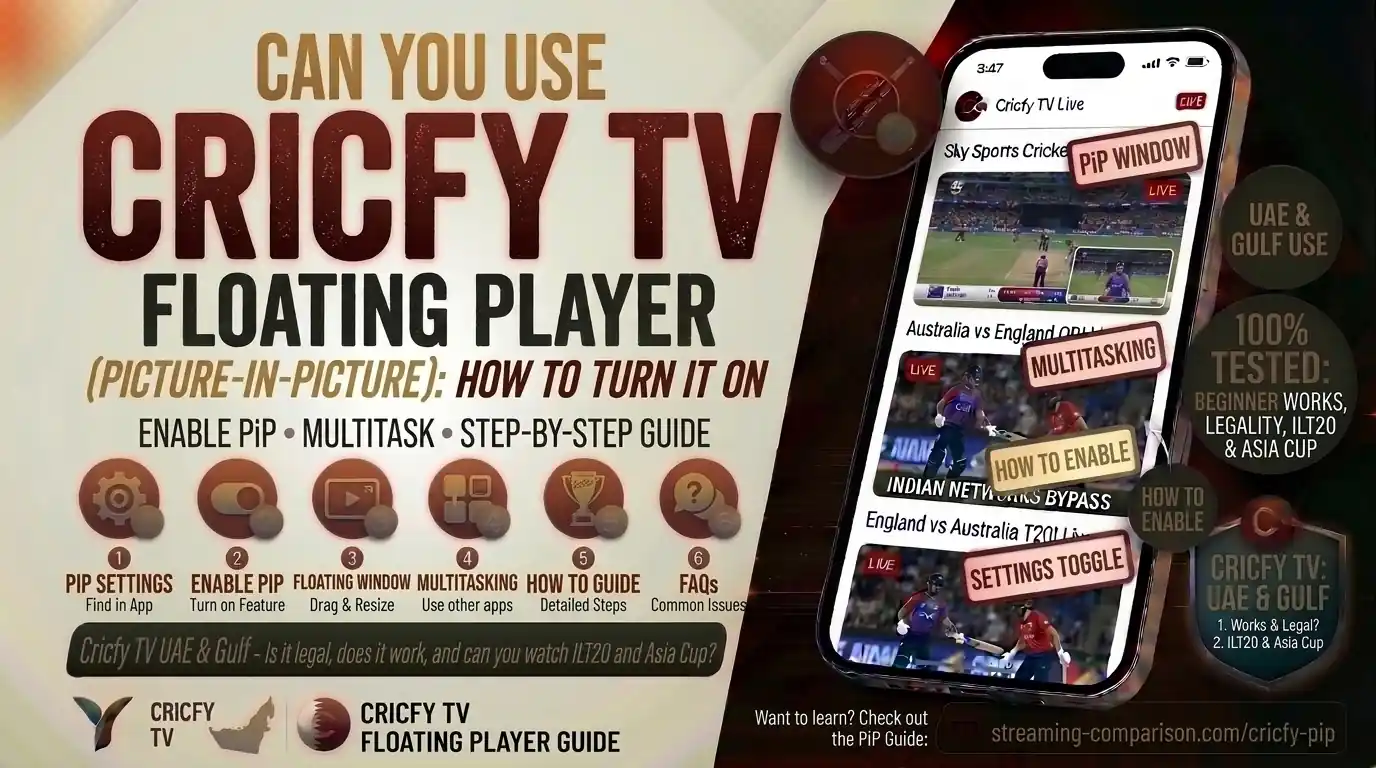
You are watching a live cricket match on Cricfy TV. A notification pops up. You switch apps for two seconds and suddenly the stream disappears from view. Frustrating, right? Picture-in-Picture (PiP) mode fixes that for good. It keeps the Cricfy TV floating player running in a small window on top of everything else while you scroll, reply to messages, or browse. This guide shows you exactly how to turn it on, across every device you own.
What Is Picture-in-Picture Mode on Cricfy TV?
Picture-in-Picture is a multitasking feature built into modern operating systems. It shrinks the video into a compact floating window that stays on top of every other app. So while Cricfy live TV keeps playing in the corner, you can check WhatsApp, reply to emails, or scroll social media without missing a single ball.
This floating player works like a mini screen overlay. You can drag it to any corner, resize it on most devices, and tap it to jump straight back into the full-screen Cricfy TV app when you want.
Live sports streaming demands attention at key moments. PiP mode means you stay informed during every wicket, goal, or crucial play even when life pulls you away from full screen.
PiP vs. Background Play: Know the Difference
Background play means audio continues when the screen is off or the app is minimized. PiP means the video itself keeps showing in a floating window on top of other apps. Both are useful, but they are different things. This guide focuses on PiP — the visual floating player.
| Feature | What It Does | Screen Required? |
|---|---|---|
| Picture-in-Picture (PiP) | Floating video window on top of other apps | Yes — screen stays on |
| Background Play | Audio continues after app is minimized | No — screen can be off |
| Split Screen | Two apps side by side | Yes — both apps visible |
How to Enable Cricfy TV PiP on Android
Android has supported Picture-in-Picture natively since Android 8.0 (Oreo). If your phone runs Android 8 or later, you have everything you need. The process splits into two parts: grant the permission first, then trigger PiP while streaming.
Make sure you are running the latest version of Cricfy TV. Older builds may not declare PiP support. Download the latest Cricfy TV APK here.
Step 1 — Grant the PiP Permission
- Open Settings on your Android phone.
- Tap Apps (some devices show this as Apps & Notifications or Application Manager).
- Find and tap Cricfy TV in the list.
- Scroll down and tap Advanced (not required on all Android skins).
- Tap Picture-in-Picture.
- Toggle Allow Picture-in-Picture to on.
Alternatively, you can reach the same screen faster. Go to Settings > Apps > Special App Access > Picture-in-Picture. All PiP-compatible apps appear there at once, including Cricfy TV.
Step 2 — Trigger the Floating Player While Streaming
Once the permission is on, triggering PiP is instant. Start a live channel in Cricfy TV and use any of these methods:
- Home button: Press the Home button while the stream plays. The video shrinks into the floating PiP window automatically.
- Swipe gesture: On phones without a physical Home button, swipe up from the bottom to go home. PiP activates the same way.
- Recent apps swipe: Swipe up and hold briefly to open the recents screen. The video may minimize into PiP as you do this.
Samsung One UI, Xiaomi MIUI, Realme UI, and stock Android all follow the same path. The exact label varies slightly: “Allow permission,” “Permitted,” or just a toggle — but the location is the same.
Android PiP Quick Reference by Brand
| Brand / Android Skin | Path to PiP Setting |
|---|---|
| Stock Android | Settings > Apps > Cricfy TV > Picture-in-Picture |
| Samsung One UI | Settings > Apps > Cricfy TV > Advanced > Picture-in-Picture |
| Xiaomi / MIUI | Settings > Apps > Manage Apps > Cricfy TV > Other Permissions > PiP |
| OnePlus / OxygenOS | Settings > Apps > Cricfy TV > Special App Access > Picture-in-Picture |
| Realme UI | Long-press app icon > App Info > Picture-in-Picture > Allowed |
| Oppo / ColorOS | Settings > Apps > Cricfy TV > Notifications & Actions > PiP |
How to Enable Cricfy TV PiP on iPhone and iPad
Apple added system-level Picture-in-Picture support in iOS 14 for iPhone and earlier for iPad. If your iPhone runs iOS 14 or later, PiP works at the OS level and third-party apps can use it.
Cricfy TV is not on the App Store. You must sideload it using AltStore or similar. Once installed, the PiP behavior depends on how the app streams. If Cricfy TV uses a standard AVPlayer or WebView, iOS PiP works natively. See the full iOS sideload guide here.
Enable PiP in iOS System Settings
- Open Settings on your iPhone or iPad.
- Scroll to General.
- Tap Picture in Picture.
- Toggle Start PiP Automatically to on.
Trigger PiP While Watching Cricfy Live TV on iOS
- Start a live channel in Cricfy TV.
- Swipe up from the bottom to go to the Home screen (or press the Home button on older iPhones).
- The video shrinks into a floating PiP window in the top-right corner of your screen.
- Drag the window to any corner you prefer.
- Tap the window to bring Cricfy TV back to full screen.
On iPad, you can also resize the PiP window by pinching in or out with two fingers. This makes it very comfortable to multitask on the larger display.
How to Use Cricfy TV Floating Player on FireStick
Amazon FireStick runs Fire OS, which is based on Android. PiP behavior on FireStick therefore follows similar rules, but the interaction is remote-controlled rather than touch-based.
Some FireStick models support PiP natively for apps that declare it. However, FireStick is primarily a lean-back device, so PiP is less common there. The more practical approach on FireStick is to use background playback or switch to a different input while keeping audio running.
That said, if you want to try PiP on FireStick with Cricfy TV:
- Open Cricfy TV and start a live channel.
- Press the Home button on your Fire TV remote.
- If the app supports PiP on Fire OS, the stream continues in a small corner of the FireStick home screen.
Not all Cricfy TV builds behave the same on Fire OS. For the most stable experience on FireStick, refer to the full Cricfy TV on FireStick guide.
How to Use Cricfy TV PiP on Android TV and Google TV
Android TV (and Google TV on devices like Chromecast with Google TV) supports PiP from Android 8.0 onwards. The gesture is different because you use a remote, not a touchscreen.
- Launch Cricfy TV on your Android TV or Google TV device.
- Start any live sports channel or Cricfy live cricket stream.
- Press the Home button on your remote while the stream plays.
- The video shrinks to a floating window in the corner of the TV home screen.
- You can now navigate other apps while the stream continues.
Older Android TV boxes with limited RAM (1 GB or less) may struggle with PiP. The device must decode video and run another app simultaneously. If you face lag, close background apps first. See the Cricfy TV on Android TV full guide for optimization tips.
On some Android TV launchers, you need the app to explicitly declare PiP support in its manifest. If the Home button does not trigger PiP, check whether a newer Cricfy TV version is available, as updates often add or improve PiP declarations.
How to Use Cricfy TV Floating Player on PC and Browser
If you watch Cricfy live TV through a browser on Windows, macOS, or Linux, your browser itself handles Picture-in-Picture. Modern browsers like Google Chrome, Mozilla Firefox, and Microsoft Edge all support native browser PiP.
Method 1 — Browser PiP Button
- Open the Cricfy TV stream in your browser.
- Right-click on the video player twice (first click opens the player menu, second click opens the browser menu).
- Select Picture in Picture from the context menu.
- The video floats in a window that stays on top of other browser tabs and even other applications.
Method 2 — Chrome PiP via Address Bar
- Play the Cricfy live stream in Chrome.
- Click the small PiP icon that appears in the browser’s address bar area during video playback (a rectangle with a small arrow).
- The floating window activates immediately.
Method 3 — Windows Native PiP (Windows 11)
Windows 11 added a native PiP feature for any video playing in a browser. If you use Cricfy TV on Windows 11, hover over any playing video and click the PiP icon in the top-left corner of the video overlay.
Running Cricfy TV on BlueStacks on PC? Use the same Android steps above inside the emulator. BlueStacks itself also offers a floating window mode for the whole emulator, which achieves a similar result.
Floating Window Controls: What You Can Do Inside PiP
Once the Cricfy TV floating player is active, you get a set of quick controls. These vary slightly by operating system, but here is what you generally see when you tap or hover on the floating window:
| Control | What It Does | Platform |
|---|---|---|
| Play / Pause | Pause the live stream without closing PiP | Android, iOS, Browser |
| Expand / Maximize | Return to full-screen Cricfy TV | Android, iOS, Browser |
| Close | Dismiss the floating window and stop the stream | All platforms |
| Drag | Move the floating window to any screen corner | Android, iOS, Browser |
| Resize | Pinch to change the window size | iOS (iPad), Browser |
| Skip / Seek | Jump forward or back in the stream | Browser, Android TV |
On Android, dragging the PiP window to the bottom edge of the screen dismisses it. This is a quick way to close the floating player without returning to Cricfy TV first.
Cricfy TV PiP Not Working? Here Are the Fixes
If the floating player does not appear when you press Home, something is blocking it. Work through these fixes in order.
Fix 1 — Update Cricfy TV to the Latest Version
Older Cricfy TV APKs may not declare PiP support in their app manifest. Download the most recent build from cricfyapp.pk. Check the latest changelog to confirm PiP is listed as a supported feature in that release.
Fix 2 — Re-check the App Permission
The PiP permission sometimes resets after an app update or after the OS updates. Go back to Settings > Apps > Cricfy TV > Picture-in-Picture and verify the toggle is still on. Toggle it off and back on if needed.
Fix 3 — Check Your Android Version
PiP requires Android 8.0 or higher. Go to Settings > About Phone > Android Version and confirm. Devices running Android 7 or below do not support PiP at the OS level, so no app can offer it regardless of its own code.
Fix 4 — Disable Battery Optimization for Cricfy TV
Aggressive battery saver modes kill background processes including PiP windows. Go to Settings > Battery > Battery Optimization, find Cricfy TV, and set it to “Don’t optimize” or “Unrestricted.” This is especially important on Xiaomi, Huawei, and Samsung devices with strong battery management.
Fix 5 — Free Up RAM
PiP requires the device to run Cricfy TV in the background while another app is in the foreground. If RAM is too low, Android kills the background process. Close unused apps before triggering PiP. The minimum comfortable RAM for PiP is 2 GB free.
Fix 6 — Clear Cricfy TV Cache
A corrupted app cache can cause unexpected behavior including broken PiP. Go to Settings > Apps > Cricfy TV > Storage > Clear Cache. The app restarts fresh and your streams resume normally. For more fixes, see the Cricfy TV not working guide.
Fix 7 — Check for Unexpected Errors
If Cricfy TV crashes when you try to trigger PiP, the issue may be a broader app stability problem. The Cricfy TV unexpected error guide and the Android 14 and 15 crashing fix cover the most common crash scenarios in detail.
A VPN running in the foreground can sometimes interfere with app backgrounding. If PiP fails while your VPN is active, try pausing the VPN temporarily to test. See the best VPN for Cricfy TV guide for VPNs that work smoothly with the app.
Pro Tips to Get the Most Out of Cricfy TV PiP Mode
Pin the Floating Window to Your Preferred Corner
Android places the PiP window in the bottom-right corner by default. You can drag it to whichever corner works best for how you hold your phone. Bottom-left tends to work well if your thumb naturally lands on the right side when typing.
Use PiP During Live Score Checking
Open a cricket scores app or website, then trigger PiP in Cricfy TV. You get live video in the corner and ball-by-ball scores on the main screen at the same time. This combination is especially useful during live cricket matches today when tracking multiple games.
Combine PiP With Do Not Disturb
Turn on Do Not Disturb during key match moments. PiP keeps playing, but incoming notifications will not cover or minimize the floating window. This prevents interruptions during the last over of a T20 innings.
Use PiP to Monitor Multiple Matches
Open one match in full screen and use PiP for a second one. Split-screen and PiP together let you follow two live sports events simultaneously. This matters during major tournament days when multiple channels stream different games at once.
Keep the App Updated for Smoother PiP
Each Cricfy TV update refines performance including PiP stability. The v7.2 changelog and earlier releases like v7.0 brought significant player improvements. Staying on the latest build means fewer PiP interruptions and better stream quality overall.
Frequently Asked Questions
Does Cricfy TV support PiP on all Android devices?
PiP works on any Android device running Android 8.0 (Oreo) or later. If your phone was released after 2017, it almost certainly qualifies. Devices on Android 7 or below do not support PiP regardless of which app you use, because the feature is built into the operating system itself.
Can I use PiP and keep the stream running when my phone screen turns off?
No. PiP requires the screen to stay on. It is a visual overlay, not a background audio feature. If you want audio to continue after the screen turns off, you need background playback support, which is a separate feature from PiP.
Why does the PiP window close when I open certain apps?
Some apps, particularly those with strict security policies like banking apps, force other overlays to close when they open. This is a system-level security feature and is not specific to Cricfy TV. It affects all PiP windows on Android, not just this app. There is no workaround for this — it is intentional OS behavior.
Does PiP mode use more internet data?
No. The stream quality and data consumption stay the same whether you watch in full screen or PiP mode. The video continues at the same resolution and bitrate. PiP only changes where the video displays on your screen, not how it streams.
Why is the PiP window very small and I can not resize it?
On Android phones, the PiP window size is fixed by default. Resizing is available on some Android versions (Android 12 and later added pinch-to-resize) and on iPad via iOS. On Android phones running Android 11 or earlier, the window size stays fixed and you can only drag it to different corners.
Does Cricfy TV PiP work when I am abroad outside Pakistan?
PiP mode itself is a device feature and works globally. However, some Cricfy TV channels may be geo-restricted in certain regions. If you face a geo-block, a VPN resolves it. The PiP floating player continues working normally once the stream is live. See the guides for Cricfy TV in the UK, USA and Canada, and watching Cricfy TV abroad.
Can I use PiP on Samsung Smart TV?
Samsung Tizen OS smart TVs do not support standard Android PiP in the same way. However, some Samsung TV models have a built-in multi-view or PiP TV input feature that is separate from app-level PiP. For app-based Cricfy TV viewing on Samsung, see the Samsung Smart TV guide.
The PiP permission for Cricfy TV keeps turning off after updates. Why?
When you install a new APK version over an existing one, Android sometimes resets special permissions including PiP. This is a standard Android security behavior. After every Cricfy TV update, go back to Settings > Apps > Cricfy TV > Picture-in-Picture and re-enable the toggle. It takes five seconds and only needs doing once per update.
Bottom Line
Cricfy TV PiP mode is one of the simplest yet most useful features you can enable. It takes under a minute to set up on Android or iOS, and once it is on, your live streams never get in the way of everything else happening on your screen. Grant the permission, press Home, and the floating player handles everything else.
Keep the Cricfy TV app updated for the best PiP stability, disable battery optimization for the app, and you will rarely run into issues. If something does go wrong, the fix list above covers every common scenario. Enjoy uninterrupted live sports, wherever you are in the world.
2 Comments