
Cricfy TV on Android TV / Google TV
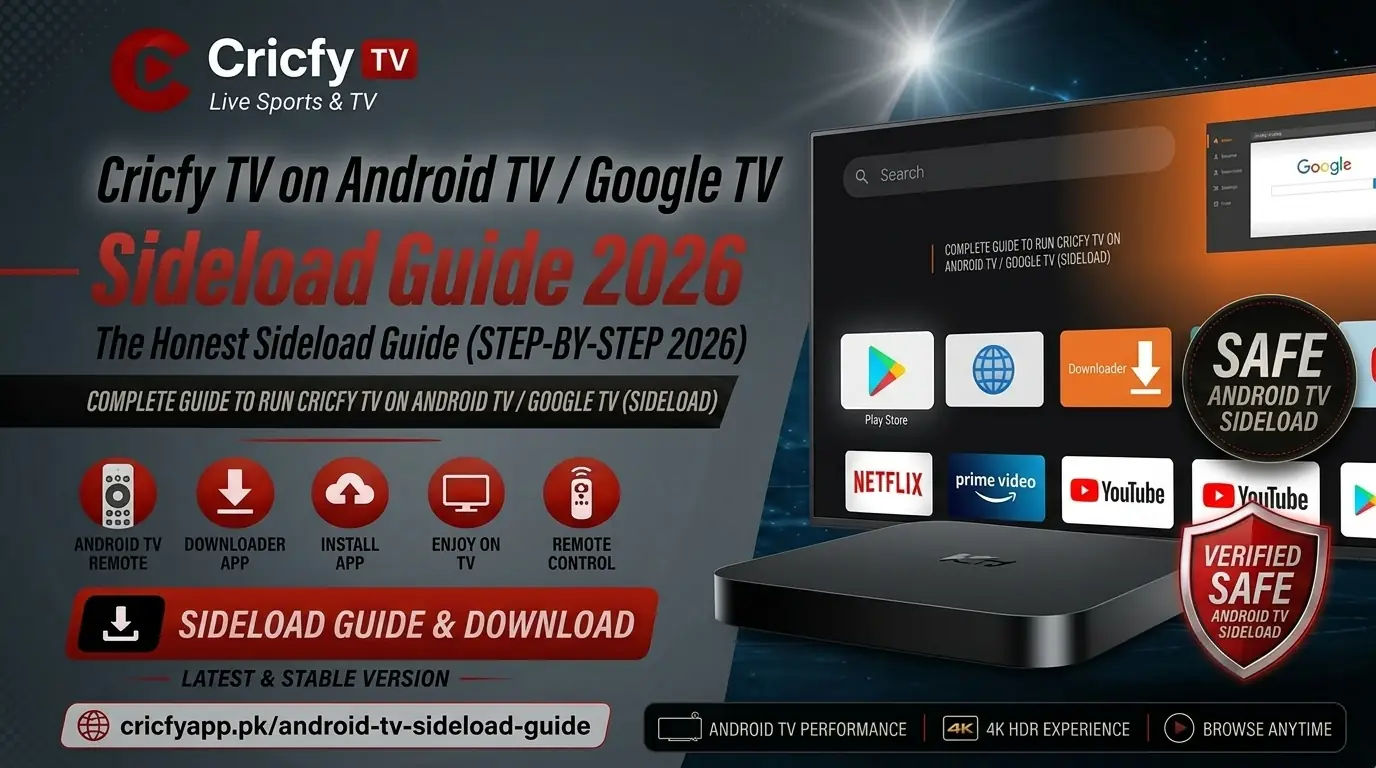
So you want to watch live cricket on your big screen — without buying a cable subscription or paying for a premium sports app. Good news: Cricfy TV works brilliantly on Android TV and Google TV, and getting it running takes less than ten minutes. This guide walks you through every method, step by step, so you can kick back and catch live matches on PTV Sports, Ten Sports, Star Sports, and dozens more — all for free.
What Is Cricfy TV?
Cricfy TV is a free live streaming app developed primarily for South Asian cricket fans. It streams live sports channels over the internet — think IPTV-style delivery — without locking you behind a paywall. You get PTV Sports, Ten Sports, Star Sports, GTV, A Sports, ARY Digital, and over 100 other channels in a single app.
The app started as a mobile-first solution, but the team has steadily improved TV-screen compatibility. Today, Cricfy TV runs smoothly on Android TV boxes, Google TV dongles like the Chromecast with Google TV, and smart TVs powered by Android TV firmware.
Because Cricfy TV distributes as an APK file rather than a Play Store listing, you install it through a process called sideloading. That sounds more technical than it actually is — and this guide breaks it down into plain steps anyone can follow.
Cricfy TV is not available on the Google Play Store. You must download the APK directly from cricfyapp.pk to get the official, clean version. Third-party mirrors may bundle unwanted files.
Android TV vs Google TV — What Is the Difference?
People often use these terms interchangeably, but they refer to two distinct platforms. Understanding the difference helps you pick the right installation method.
| Feature | Android TV | Google TV |
|---|---|---|
| OS Base | Android (AOSP TV layer) | Android + Google TV interface layer |
| Home Screen | App-grid style launcher | Content-first, personalised feed |
| Common Devices | Sony Bravia (older), Philips, Sharp, Mi Box | Chromecast with Google TV, TCL, Hisense (newer) |
| Sideloading Support | Yes — toggle Unknown Sources | Yes — toggle Unknown Sources in Security settings |
| Cricfy TV Compatibility | Full support | Full support |
| File Manager Built-In | Sometimes yes | Rarely — use the Downloader app instead |
The installation steps are nearly identical across both platforms. The only real difference is where you find the “Unknown Sources” or “Install Unknown Apps” toggle in settings. This guide covers both.
Before You Start — A Quick Checklist
Run through this before you pick an installation method. It saves you from hitting avoidable walls halfway through.
- Your Android TV or Google TV is connected to the internet via WiFi or Ethernet.
- You know your device’s Android version (Settings → About → Android Version). Cricfy TV requires Android 5.0 or higher — virtually all current TV devices qualify.
- You have a stable broadband connection of at least 5 Mbps for SD streams and 10 Mbps for HD. For 4K streams, aim for 25 Mbps or above.
- You have the latest Cricfy TV APK URL ready — always get it from cricfyapp.pk.
- If you plan to use the USB method, you have a USB OTG adapter and a FAT32-formatted USB drive.
On Android TV: go to Settings → Device Preferences → Security and Restrictions → Unknown Sources, then toggle it on for whichever app will handle the APK install (Downloader, File Manager, etc.).
On Google TV: go to Settings → System → About → then back to Settings → Apps → Security and Restrictions → Unknown Sources.
Method 1: Install Cricfy TV Using the Downloader App (Easiest)
This is the go-to method for most users because it requires zero extra hardware and works on both Android TV and Google TV. The Downloader app by AFTVnews is free on the Google Play Store and lets you type in a URL directly from your TV remote.
Step-by-Step Installation
- Open the Google Play Store on your Android TV or Google TV. Search for Downloader by AFTVnews and install it. It is a small, trusted utility.
- Go to Settings → Device Preferences → Security and Restrictions (Android TV) or Settings → Apps → Security and Restrictions (Google TV). Find Downloader in the list and toggle Unknown Sources on for it.
- Open the Downloader app. Select the URL box in the middle of the screen. Using your remote’s keyboard, type in the direct download URL for the Cricfy TV APK. You can find the current direct APK link at cricfyapp.pk/cricfy-live-tv/.
- Press Go. Downloader fetches the APK file. Depending on your internet speed, this takes between 30 seconds and 2 minutes.
- Once the download completes, Downloader automatically prompts you to install the APK. Select Install. Wait for the installation to finish.
- When installation is done, select Open to launch Cricfy TV immediately. You can also find it in your app drawer going forward.
Downloader supports short numeric codes. Check cricfyapp.pk for any active short code for Cricfy TV. Instead of typing the full URL, you just punch in the 5-digit code — much faster with a TV remote.
Method 2: Sideload Cricfy TV via USB Drive
If your internet connection is slow or you want to skip the in-TV download entirely, the USB method is your best friend. You download the APK on your phone or laptop first, then transfer it to the TV.
What You Need
- A USB flash drive formatted as FAT32
- A USB OTG adapter (if your TV box only has micro-USB or USB-C ports)
- A file manager app on your TV (many Android TV devices include one; if not, install FX File Explorer or X-plore File Manager from the Play Store)
- On your laptop or phone, go to cricfyapp.pk and download the latest Cricfy TV APK. Save it to the root of your USB drive so it is easy to find.
- Plug the USB drive into your Android TV box or TV. If needed, use the OTG adapter.
- Open your TV’s file manager. Navigate to the USB drive. You should see the Cricfy TV APK file listed.
- Select the APK file. Your TV will ask whether you want to install it. Tap Install.
- Wait for the install to complete. The app now appears in your app drawer.
This method also works perfectly on Mi Box S, Mi Box 4K, Nvidia Shield TV, and most third-party Android TV boxes that have full USB ports.
Method 3: Send Files to TV from Your Phone (No USB Needed)
This method uses a Bluetooth or local-network file transfer app to push the Cricfy APK from your Android phone to your TV. It is wireless, fast, and requires nothing extra besides your phone.
- On your phone, download the latest Cricfy TV APK from cricfyapp.pk.
- Install Send Files to TV on both your phone (from Google Play) and your Android TV or Google TV (from the Play Store on the TV side).
- Make sure both devices are on the same WiFi network. Open Send Files to TV on your TV — it shows a receiving screen.
- On your phone, open Send Files to TV, tap Send, select the Cricfy TV APK from your Downloads folder, then select your TV from the list of detected devices.
- The APK transfers in seconds. On the TV, a notification appears asking you to install the received file. Tap Install.
The Chromecast with Google TV lacks a USB port, which makes this the easiest cable-free alternative alongside the Downloader app method. Both work equally well.
Method 4: Install Cricfy TV via ADB Wireless (Advanced)
ADB (Android Debug Bridge) is a developer tool that lets you push APKs from a PC to your TV over WiFi. It is the most powerful method, but it requires a little more setup. If the other three methods failed, or you manage multiple TV devices, this one is worth learning.
Enable ADB on Your TV
- Go to Settings → Device Preferences → About. Scroll down to Build and click it seven times. This unlocks Developer Options.
- Go back to Settings → Device Preferences → Developer Options. Enable USB Debugging and Network Debugging (also called ADB over Network).
- Note your TV’s IP address: Settings → Network → About or Settings → Device Preferences → About → Status.
Connect and Push the APK from Your PC
- On your Windows PC or Mac, download Android Platform Tools from the official Android developer site. Extract the zip file.
- Open Command Prompt (Windows) or Terminal (Mac). Navigate to the platform-tools folder.
- Type:
adb connect [YOUR-TV-IP]:5555— for example,adb connect 192.168.1.105:5555. Your TV may show a prompt to allow the connection. Select Allow. - Confirm connection with
adb devices. You should see your TV listed. - Now push the APK:
adb install /path/to/cricfy-tv.apk. Replace the path with the actual location of the APK file on your PC. - Wait for the “Success” message. Cricfy TV installs silently in the background. Find it in your app drawer.
The ADB method also lets you update Cricfy TV in the future by running adb install -r cricfy-tv.apk — the -r flag reinstalls while keeping your settings.
Live Channels You Can Watch on Cricfy TV
One of the biggest reasons people choose Cricfy TV is the sheer breadth of live sports and entertainment channels it streams. Here is a breakdown of the major channel categories:
| Category | Channels Available |
|---|---|
| Pakistan Cricket | PTV Sports, A Sports, GTV Sports |
| International Cricket | Star Sports 1, Star Sports 2, Star Sports Select, Sony Sports, Ten Sports 1, Ten Sports 2, Ten Sports 3 |
| Football | beIN Sports, Sky Sports, BT Sport streams |
| Pakistani Entertainment | ARY Digital, Geo TV, Hum TV, Express Entertainment, Ary News |
| Indian Entertainment | Zee TV, Sony LIV, Colors, Star Plus |
| News | Geo News, ARY News, Samaa TV, Dawn News, Al Jazeera English |
| Kids | Cartoon Network, Nick, Disney Channel |
You can see the full updated channel list at cricfyapp.pk/cricfy-live-tv-channel-list/. The lineup expands with every major app update.
Stream Quality and Internet Speed Requirements
Cricfy TV offers multiple quality levels depending on the channel and the server load at a given time. Understanding what your connection can handle helps you set the right expectations.
| Stream Quality | Resolution | Minimum Speed | Recommended Speed |
|---|---|---|---|
| Low / SD | 360p – 480p | 2 Mbps | 4 Mbps |
| Medium / HD | 720p | 5 Mbps | 8 Mbps |
| High / Full HD | 1080p | 10 Mbps | 15 Mbps |
| Ultra / 4K (select streams) | 2160p | 25 Mbps | 40 Mbps |
If you notice buffering, always try a different stream link within Cricfy TV before blaming your connection. Many channels offer multiple CDN-backed links, and one may be significantly faster than another at any given moment.
For the best experience on a 55-inch or larger TV, connect your Android TV box or TV directly to your router using an Ethernet cable. A wired connection eliminates the interference and latency spikes that WiFi can introduce during peak hours.
Compatible Android TV and Google TV Devices
Cricfy TV works on any device running Android TV 5.0 or higher. That covers a very wide range of hardware. Here are the most popular ones tested and confirmed working:
Google’s own streaming dongle running Google TV. No USB port, so use the Downloader app (Method 1) or Send Files to TV (Method 3). Performs excellently — supports up to 4K HDR streams.
Xiaomi’s Android TV boxes are among the most popular budget options. They have a full-size USB port, so all four installation methods work. Smooth performance at 1080p.
The most powerful Android TV box available. Runs Cricfy TV effortlessly. The Shield TV Pro’s USB ports make installation trivial. ADB method also works flawlessly.
Sony’s smart TV lineup runs Android TV (older models) or Google TV (2021 and newer). Both generations support sideloading. Sony’s built-in file manager makes USB installation especially straightforward on older Bravia models.
Budget to mid-range smart TVs from TCL and Hisense now ship with Google TV built in. Install Cricfy TV via the Downloader app — it takes under five minutes and works exactly as described in Method 1.
Cheap Android TV boxes (X96, H96, T95, etc.) running Android 9 or higher work fine. These often have full-size USB ports and built-in file managers, so USB sideloading is the simplest path. Performance depends on the box’s processor and RAM — aim for at least 2 GB RAM for smooth 1080p streaming.
Troubleshooting Cricfy TV on Android TV and Google TV
Even with the right setup, things occasionally go wrong. Here are the most common issues users run into on TV devices — and exactly how to fix them.
Cricfy TV Will Not Install — “Parse Error” or “App Not Installed”
This almost always means the APK file got corrupted during download. Delete the file, go back to cricfyapp.pk, and download a fresh copy. If you downloaded it on your phone first, make sure the transfer to USB or via Send Files to TV completed fully before attempting installation.
Cricfy TV Is Not Showing in My App Drawer After Installation
Restart your TV or TV box. On some Android TV launchers, newly sideloaded apps do not appear until after a reboot. Alternatively, go to Settings → Apps → See All Apps and look for Cricfy TV there — you can open it directly from the app list.
Channels Are Buffering or Not Loading
Try these fixes in order: switch to a different stream link within the app, check your internet speed with Speedtest.net, switch from WiFi to Ethernet if possible, clear Cricfy TV’s app cache (Settings → Apps → Cricfy TV → Clear Cache), and restart your router. For a deeper dive, check our Cricfy TV not working guide.
Cricfy TV Shows an “Unexpected Error” When Opening a Channel
This is a server-side issue, not a device problem. It usually resolves within minutes as servers recover. You can also try switching between stream links. We have a full breakdown of this in our Cricfy TV unexpected error fix.
The App Crashes Immediately on Launch
Your installed version may be outdated or incompatible with your TV’s firmware. Uninstall the current version, download the latest APK from cricfyapp.pk, and reinstall. Always use the latest version to avoid compatibility issues introduced by app updates.
Remote Navigation Feels Broken or Unresponsive
Cricfy TV’s UI is primarily phone-optimised. On some older Android TV launchers, certain buttons may not respond correctly. In this case, pair a Bluetooth mouse with your TV box — it instantly solves all navigation issues and makes the app feel like a desktop browser experience.
“Unknown Sources” Toggle Is Missing or Greyed Out
Some carrier-branded or ISP-provided set-top boxes lock down the Unknown Sources option. If this is your situation, try the ADB wireless method (Method 4), which bypasses the UI toggle entirely — as long as Developer Options are accessible, you can still sideload via ADB.
Pro Tips for the Best Cricfy TV Experience on Your Big Screen
- Bookmark your favourite channels. Cricfy TV lets you mark channels as favourites. Use this to build a quick-access list of PTV Sports, Ten Sports, and Star Sports so you never have to scroll the full channel grid during a live match.
- Keep the app updated. Check cricfyapp.pk regularly for new APK releases. Updates often bring new stream links and fix bugs. Our Cricfy Live TV page always lists the latest version.
- Use a VPN if streams are geo-blocked. Some satellite broadcast streams are region-locked. A reputable VPN — set to a Pakistan or India server — unlocks these streams. ExpressVPN and NordVPN are both compatible with Android TV.
- Lower resolution during peak hours. If your ISP throttles evening bandwidth, manually drop the stream quality to 720p or even 480p. A smooth 720p stream beats a stuttering 1080p one every single time.
- Schedule updates during off-peak hours. If you update the APK via the Downloader app, do it in the morning rather than 30 minutes before a big match. It avoids rushed installs and reduces stress.
- Compare Cricfy TV with alternatives. If Cricfy does not satisfy your needs on a particular day, it helps to know your options. Check our Cricfy vs Sportzfy vs HD Streamz comparison for a side-by-side look.
- Also install on your phone as a backup. Download the Cricfy TV APK on your phone too. If the TV has an issue, you can keep watching on mobile without missing a ball.
Frequently Asked Questions
Is Cricfy TV available on the Google Play Store for Android TV?
No. Cricfy TV is not listed on the Google Play Store. You install it by sideloading the APK file, which you download from cricfyapp.pk. All four methods in this guide walk you through the process step by step.
Does Cricfy TV work on Chromecast with Google TV?
Yes, fully. The Chromecast with Google TV supports sideloading. Use Method 1 (Downloader app) or Method 3 (Send Files to TV) since the Chromecast has no USB port. Both methods are straightforward and take less than ten minutes.
Can I watch PSL, ICC World Cup, and Asia Cup live on Cricfy TV through my Android TV?
Yes. Cricfy TV streams PTV Sports, A Sports, and Ten Sports live, which broadcast Pakistan Super League, ICC tournaments, and Asia Cup matches. Stream availability depends on broadcasting rights — check the channel list for the specific tournament’s broadcaster before a match.
How do I update Cricfy TV on my Android TV?
Go to cricfyapp.pk, download the latest APK, and install it over your existing installation. You do not need to uninstall first — Android TV handles the update as a reinstall over the top, keeping your app settings. Alternatively, use the ADB install -r command if you prefer the command-line approach.
Is it safe to install Cricfy TV APK on my smart TV?
As long as you download the APK from the official source — cricfyapp.pk — it is safe. Avoid third-party APK mirror sites, as they sometimes repackage apps with added code. The official APK from cricfyapp.pk is clean and regularly tested.
Can I cast Cricfy TV from my phone to Chromecast or Android TV?
Cricfy TV does not have a built-in Cast button. However, you can use Android’s built-in screen mirroring (Google Cast / Miracast) to mirror your entire phone screen to the TV. The stream plays on the TV, though screen mirroring adds a small latency and slightly reduces quality compared to installing the app directly on the TV.
Does Cricfy TV have a dedicated Android TV or Google TV interface?
Cricfy TV runs in phone-app compatibility mode on TV. Navigation works with the D-pad and remote, but the layout is designed for portrait phone screens. The app adapts reasonably well to landscape viewing on a TV. For smoother navigation, pair a Bluetooth mouse with your TV box.
What should I do if Cricfy TV is blocked in my region?
Use a VPN configured to Pakistan or India to access all streams without geo-restrictions. Install a VPN app compatible with Android TV (ExpressVPN, NordVPN, and Surfshark all have official Android TV apps on the Play Store) and connect before opening Cricfy TV.
Bottom Line: Cricfy TV Belongs on Your TV Screen
If you are a cricket fan in Pakistan or the South Asian diaspora, Cricfy TV on Android TV is the best free way to watch live matches on a big screen. The sideload process is a one-time setup that takes under ten minutes. After that, you get access to PTV Sports, Ten Sports, Star Sports, and 100+ channels — no subscription, no paywalls.
Start with Method 1 (the Downloader app). It is the fastest and most beginner-friendly path. If you run into any issues, this guide has you covered from parse errors to remote navigation. Grab the latest Cricfy APK from cricfyapp.pk and get your big screen set up before the next match.
More from CricfyApp.pk
- Cricfy Live TV — Official App Home
- How to Install Cricfy TV on Firestick
- Cricfy TV on Smart TV — Full Setup Guide
- Cricfy TV for PC via BlueStacks
- Cricfy TV for iPhone / iOS
- Cricfy TV Not Working — Fix It Fast
- Cricfy TV Unexpected Error — Solutions
- Cricfy vs Sportzfy vs HD Streamz — Which Is Best?
- Cricfy TV Full Channel List
References and Further Reading
- Android Platform Tools — Official Google Developer Documentation
- Android TV — Official Platform Overview
- Chromecast with Google TV — Google Official Page
- Android TV — Wikipedia
- Google TV Operating System — Wikipedia
- International Cricket Council (ICC) — Official Site
- Pakistan Cricket Board (PCB) — Official Site
- Speedtest by Ookla — Check Your Internet Speed
- Cricfy TV — Official APK Download Page
- Cricfy TV Full Live Channel List
14 Comments