
Cricfy TV on Windows 11 — APK Install Without Play Store
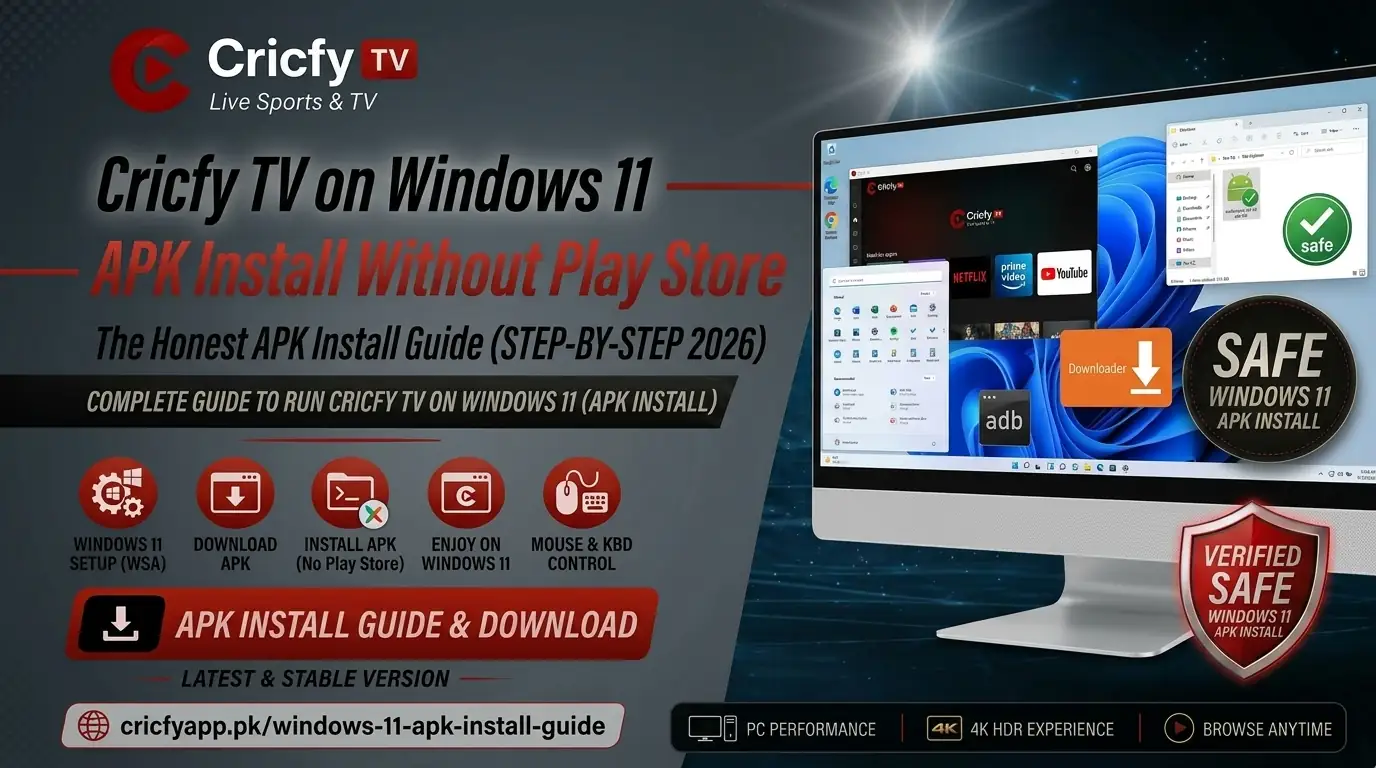
So you want to run Cricfy Live TV on your Windows 11 PC — but there is no Play Store, and you do not want to touch some sketchy third-party store either. Good news: you have two solid, well-tested methods to get the Cricfy TV APK running on your Windows 11 machine without the Play Store. This guide covers both of them step by step, so you can pick the one that fits your setup and get to watching live cricket on a big screen today.
What Is Cricfy TV and Why Do People Love It on PC
Cricfy Live TV is a free Android streaming app built specifically for cricket fans. It pulls live feeds from major sports broadcasters like PTV Sports, Star Sports, Ten Sports, Sony Sports, Willow TV, Sky Sports, beIN Sports, and over 30 more — all inside a single, clean interface. No subscription. No credit card. Just live cricket, on demand.
Beyond cricket, the app also carries a massive channel list spanning football, basketball, Formula 1, WWE, kabaddi, news, entertainment, and kids content. That breadth is exactly why so many users want it on Windows 11 — the big-screen experience turns a mobile-first app into something that genuinely rivals a cable subscription.
The app supports adaptive bitrate streaming. It automatically shifts between 360p, 720p HD, Full HD 1080p, and even 4K depending on how strong your internet connection is at any given moment. On a capable Windows 11 PC connected to a good broadband line, stream quality is excellent.
Cricfy TV is a native Android APK. There is no standalone Windows desktop version. To run it on Windows 11, you need either an Android emulator or the Windows Subsystem for Android — both covered in this guide.
Why You Cannot Just Use the Play Store on Windows 11
Google Play Store does not exist as a native Windows application. Microsoft tried bridging this gap with the Windows Subsystem for Android (WSA) paired with the Amazon Appstore — but that partnership officially ended. Microsoft removed WSA from the Microsoft Store on March 5, 2025.
So right now, there is no official one-click way to install Play Store on Windows 11. You work around it. That is exactly what this guide teaches — two proven workarounds that real users run every day to watch live cricket on their PCs.
Microsoft pulled WSA from the Store on March 5, 2025. If you already had WSA installed before that date, it still works. For new installs, you use a trusted community build called WSABuilds — covered fully in Method 2 below. BlueStacks remains the easiest option for most people.
System Requirements Before You Start
Check these before downloading anything. Running an Android emulator adds overhead on top of Windows, so your PC needs to meet these baselines for a smooth live-streaming experience.
| Component | Minimum | Recommended (Smooth HD) |
|---|---|---|
| OS | Windows 11 64-bit | Windows 11 22H2 or later |
| CPU | Intel Core i3 / AMD Ryzen 3 | Intel Core i5 / AMD Ryzen 5 or better |
| RAM | 4 GB | 8 GB or more |
| Storage | 10 GB free | 15 GB+ free on SSD |
| GPU | DirectX 11 compatible | Dedicated GPU — NVIDIA or AMD |
| Virtualization | Intel VT-x or AMD-V (must be ON in BIOS) | Same — required for both methods |
| Internet | 10 Mbps for SD streaming | 25 Mbps+ for Full HD |
| Admin Rights | Required | Required |
How to Check If Virtualization Is Enabled
Press Ctrl + Shift + Esc to open Task Manager. Click the Performance tab, then select CPU. Look for “Virtualization” at the bottom of the panel. If it says “Enabled,” you are good to go. If it says “Disabled,” enter your BIOS at boot (typically by pressing F2 or Del) and enable Intel VT-x or AMD-V. Every modern motherboard supports this — it is just sometimes off by default.
Method 1: Install Cricfy TV APK on Windows 11 via BlueStacks
BlueStacks is the most popular Android emulator on the planet, and it is the easiest path for most users. It creates a full virtual Android environment on your Windows 11 PC. You then install the Cricfy TV APK directly into that environment — no Play Store required, no ADB commands, no command line at all.
BlueStacks 5 works on Windows 11 with or without Hyper-V enabled since version 5.20. It is free, regularly updated, and handles streaming apps like Cricfy TV without the frame drops you sometimes get in lighter emulators. It also lets you install APKs directly without signing in to Google.
Step-by-Step: BlueStacks + Cricfy TV APK
- Download BlueStacks 5 from the official site. Go to bluestacks.com and download the latest version. The installer is roughly 500 MB to 1 GB. Always use the official site to avoid bundled software or modified installers.
- Run the installer as Administrator. Right-click the downloaded .exe file and choose “Run as administrator.” Follow the installation wizard with the default settings. BlueStacks will download additional runtime components during the process, so keep your internet connection active until it finishes.
- Launch BlueStacks and complete initial setup. BlueStacks opens automatically after installation. You can sign in with a Google account if you want Play Store access, but for Cricfy TV you do not need to. Skip Google sign-in if you prefer and go straight to the home screen.
- Download the Cricfy TV APK to your PC. Get the latest Cricfy TV APK from the official Cricfy APK download page on cricfyapp.pk. Save the .apk file somewhere easy to find — your Downloads folder works perfectly.
- Install the APK inside BlueStacks. You have two options. Either drag and drop the .apk file directly onto the BlueStacks window, or click the “Install APK” button in the BlueStacks side toolbar (it looks like a small Android icon). BlueStacks processes the file and installs Cricfy TV within seconds.
- Launch Cricfy TV from the BlueStacks home screen. Find the Cricfy TV icon in the BlueStacks app drawer and click it. The app opens exactly as it does on Android. Navigate to your preferred live channel — PTV Sports, Star Sports, Ten Sports, or whichever match is live — and start streaming.
- Optimize BlueStacks for streaming performance. Open BlueStacks settings via the gear icon. Go to the Performance tab. Set CPU allocation to 4 cores and memory to at least 4 GB if your machine allows. Set Graphics mode to “Performance.” This removes most lag during live HD streams.
If you experience stutter during live streaming inside BlueStacks, switch the Graphics renderer from OpenGL to DirectX in BlueStacks Performance settings. On most Windows 11 PCs, DirectX delivers noticeably smoother video playback.
Method 2: Install Cricfy TV APK on Windows 11 via WSABuilds and ADB
This method gives you a more native Android experience. Apps installed through WSABuilds appear directly in your Windows 11 Start Menu and run in their own window — just like a regular Windows application. It takes a few more steps than BlueStacks, but the result is cleaner and lighter on system resources.
Since Microsoft removed WSA from the Microsoft Store in March 2025, you install it via a community-maintained open-source project called WSABuilds, hosted on GitHub. This is the most trusted community solution as of 2026. Always download from the verified GitHub repository and scan files with Windows Defender before running.
Part A: Install WSABuilds on Windows 11
- Confirm virtualization is active. Check Task Manager as described in the system requirements section. Virtualization must be enabled in BIOS for WSA to work — there is no workaround on this requirement.
- Enable required Windows features. Open “Turn Windows features on or off” from the Start Menu search. Check both “Virtual Machine Platform” and “Windows Hypervisor Platform.” Click OK and restart your PC when prompted. These features power the WSA subsystem.
- Download the WSABuilds package from GitHub. Go to the WSABuilds GitHub releases page and download the latest GApps version for Windows 11. The GApps build includes Google Play Services, which improves compatibility with apps that rely on Google frameworks. File size is around 700 MB.
- Extract the package to a permanent folder. Extract the downloaded .zip to a permanent location — not your Downloads folder. Something like C:\WSA works well. Right-click the “Run.bat” file inside the extracted folder and select “Run as administrator.” Follow the on-screen prompts to complete the WSA installation.
- Launch WSA settings and enable Developer Mode. Search for “Windows Subsystem for Android” in the Start Menu and open it. Inside the settings panel, toggle on “Developer mode.” Note the IP address shown — you will need it shortly. Keep this WSA window open so the Android virtual machine stays running.
Part B: Sideload Cricfy TV APK via ADB
- Download Android Platform Tools (ADB). Get the official Windows version from the Android Developer Platform-Tools page on developer.android.com. Extract the folder to a location like C:\platform-tools.
- Copy the Cricfy TV APK into the platform-tools folder. Download the latest Cricfy TV APK from cricfyapp.pk and move it into your C:\platform-tools folder. Keeping the APK and adb.exe in the same folder makes the install command much simpler.
- Open Windows Terminal inside the platform-tools folder. Hold Shift and right-click inside the platform-tools folder. Select “Open in Terminal” or “Open PowerShell window here.” This opens a command prompt already pointing at the right directory.
-
Connect ADB to the WSA instance. Type the command below and press Enter. The WSA ADB port is always 58526 — not the generic emulator port 5555 found in older guides:
adb connect 127.0.0.1:58526
You will see a message like “connected to 127.0.0.1:58526” or “already connected.” -
Install the Cricfy TV APK. Run the command below, replacing the filename with your actual APK filename:
adb install cricfy-tv.apk
Wait for the “Success” message. The install takes about 20 to 30 seconds. - Launch Cricfy TV from the Windows 11 Start Menu. Search for “Cricfy” in the Start Menu. The app appears there just like any installed Windows application. Click it and it opens in its own window. You can resize it, go fullscreen, and pin it to the taskbar.
The WSA local ADB endpoint is always 127.0.0.1:58526 — not 5555. Using the wrong port causes a “connection refused” error. If you ever disconnect from a WSA session, re-run the connect command before trying to install anything.
BlueStacks vs WSABuilds: Which Method Should You Choose
Both methods work. The right choice depends on what you value most — ease of setup or a native-feeling result. Here is a direct comparison.
| Factor | BlueStacks 5 | WSABuilds + ADB |
|---|---|---|
| Ease of Setup | Very easy — installer handles everything | Moderate — requires command line steps |
| APK Sideloading | Drag and drop | ADB command line |
| App Integration | Apps live inside BlueStacks only | Apps appear in Windows Start Menu |
| Resource Usage | Higher (full emulator overhead) | Lower — runs closer to the OS layer |
| Streaming Performance | Excellent after optimization | Excellent — often smoother on mid-range PCs |
| Hyper-V Conflict | No conflict since v5.20 | Requires Hyper-V features enabled |
| Google Play Access | Yes — sign in with any Google account | Yes — with GApps build of WSABuilds |
| Best For | Beginners, quick setup | Power users, cleaner Windows integration |
Bottom line: if you want Cricfy TV running in under 15 minutes without touching a command line, use BlueStacks. If you prefer an app that sits in your Start Menu and feels like a native Windows app with lower RAM overhead, WSABuilds is the better choice.
What Channels Can You Watch on Cricfy TV via Windows 11
Once Cricfy TV is running on your Windows 11 PC — through either BlueStacks or WSABuilds — you get access to the full channel library. It is a substantial collection that covers cricket comprehensively and extends well beyond it.
Cricket Channels
The cricket lineup is the core selling point. You get PTV Sports, Star Sports 1, Star Sports 2, Star Sports 3, Ten Sports, Sony Ten 1, Sony Ten 2, Sony Ten 3, Sony Six, Willow TV, Sky Sports Cricket, Fox Cricket, A Sports, Geo Super, Astro Cricket, T Sports, and S Cricket. These channels collectively cover every ICC event, bilateral series, PSL, IPL, BBL, CPL, BPL, and Test match throughout the year.
Football and Other Sports
For football, Cricfy TV carries Sky Sports, TNT Sports (formerly BT Sport), beIN Sports, ESPN, DAZN, Eurosport, Canal+, Nova Sports, and LaLiga TV. Premier League, La Liga, Serie A, Bundesliga, and UEFA Champions League coverage runs through these every match week. On top of that, you get dedicated channels for WWE, UFC, Formula 1, NBA, boxing, kabaddi, tennis Grand Slams, and rugby.
Entertainment and News
Beyond sports, the app includes BBC News, CNN, Colors TV, ZeeTV, Sony LIV, Star Network entertainment channels, and regional language channels covering Hindi, Urdu, Bengali, Tamil, and more. On a big Windows 11 screen, it genuinely replaces a cable subscription for the whole family.
For the complete, regularly updated channel list, check the Cricfy TV channel list page on cricfyapp.pk.
Performance Tips for Smooth HD Streaming on Windows 11
Getting Cricfy TV installed is half the battle. Getting it to stream HD cricket without buffering is the other half. These tips apply regardless of whether you use BlueStacks or WSABuilds.
Allocate More CPU and RAM to the Emulator
In BlueStacks settings under the Performance tab, set CPU cores to 4 and memory to at least 4 GB. The default allocations are conservative. Live streaming is more demanding than most mobile games, so giving BlueStacks more headroom makes a real and noticeable difference to playback smoothness.
Use a Wired Internet Connection
Wi-Fi is convenient, but a wired Ethernet connection delivers lower latency and more consistent throughput — both critical for live sports streaming. If you experience buffering on Wi-Fi, plug in directly to the router before changing any app settings. This single change resolves buffering for many users.
Close Background Applications
Chrome, Discord, Slack, and similar apps consume RAM and CPU cycles that your emulator needs. During live matches, close everything you are not actively using. Task Manager shows you exactly what is consuming resources at any given moment.
Update Your Graphics Drivers
Outdated GPU drivers cause rendering issues inside emulators. Open Device Manager, expand Display adapters, right-click your GPU, and select “Update driver.” Alternatively, download the latest driver directly from NVIDIA, AMD, or Intel’s official support page for your specific GPU model.
Switch Streaming Servers Inside the App
Cricfy TV provides multiple server links for each channel. If one server buffers, tap the server selector inside the Cricfy TV player and switch to another. Most live channels have 3 to 5 servers, and load varies depending on how many concurrent viewers are on them during peak match times.
Lower Quality During Peak Match Hours
During major matches — a Pakistan vs India clash or a PSL final — server load spikes globally. If you notice buffering specifically during high-profile events, drop the stream quality one notch inside the Cricfy TV player settings. 720p on a PC monitor still looks crisp and streams far more reliably than a struggling 1080p feed during peak load.
Troubleshooting Common Issues
BlueStacks fails to start or shows a virtualization error.
Confirm virtualization is enabled in BIOS. Then open Windows Features and check that “Windows Hypervisor Platform” is enabled. Restart the PC. If BlueStacks still fails, right-click its shortcut and run it as administrator. If you also run Docker or WSL2, note that BlueStacks 5.20 and above handle Hyper-V coexistence natively — update BlueStacks to the latest build if you are on an older version.
Cricfy TV installs but shows a black screen on launch.
Wait 10 to 15 seconds — the app sometimes needs a moment to initialize, especially on the first launch. If the black screen persists, close the app and reopen it. In BlueStacks, try switching Graphics Mode from OpenGL to DirectX in Performance settings. Clear the app cache inside the emulator’s App Management section if the issue continues.
ADB shows “connection refused” when connecting to WSA.
The WSA virtual machine stops when no Android app is running. Launch any app inside the WSA environment first to boot the virtual machine, then run your adb connect command again. Also verify you are using port 58526 — not 5555. The wrong port is the most common cause of this exact error.
Channels load but buffer constantly during live matches.
Switch to a different server inside the Cricfy TV player. Major matches attract millions of concurrent viewers, which overloads individual servers. Try the second or third server option. Also verify your internet speed at speedtest.net — you need at least 10 Mbps for SD and 25 Mbps for Full HD. Switching from Wi-Fi to wired Ethernet often fixes this instantly.
APK installation fails inside BlueStacks with “App not installed.”
The APK may be corrupted during download or incompatible with the Android version inside BlueStacks. Re-download the APK from the official Cricfy APK page on cricfyapp.pk. Compare the file size with what the page states — a mismatch indicates a partial or corrupt download. Every current Cricfy TV version targets Android 5.0 or above, which BlueStacks supports fully.
Video plays but no audio comes from the stream.
Check the in-app volume control first — Cricfy TV has its own volume slider separate from the Windows system volume. Make sure your default Windows audio output device is set correctly in Sound settings. In BlueStacks, also verify the audio output device in BlueStacks settings under the Advanced tab. Restarting the stream (backing out and re-entering the channel) fixes audio sync issues in most cases.
For issues specific to the Cricfy TV app itself — such as an unexpected error message on launch — see the dedicated Cricfy TV unexpected error fix guide and the Cricfy TV not working troubleshooting page on cricfyapp.pk.
Frequently Asked Questions
Can I install Cricfy TV on Windows 11 without any emulator?
Not directly. Cricfy TV is an Android APK, and Windows 11 no longer supports Android apps natively since Microsoft ended WSA support in March 2025. You need either BlueStacks (an emulator) or a manually installed WSABuilds environment to run it. Both methods are covered step by step in this guide.
Is BlueStacks safe to use in 2025 and 2026?
Yes. BlueStacks is one of the most widely used Android emulators globally, trusted by over a billion users. It does not carry malware, spyware, or harmful software when downloaded directly from bluestacks.com. Always use the official website. The free version may show game recommendations inside the interface — this is normal advertising, not a security issue.
Does Cricfy TV run well on a low-end Windows 11 laptop?
It depends on the hardware. With 4 GB RAM and a dual-core CPU, BlueStacks runs but may lag on HD streams. Lowering stream quality to 480p inside the app and setting BlueStacks to Compatibility graphics mode helps significantly on weaker machines. The WSABuilds method uses fewer system resources than BlueStacks and is the better choice for older or lower-spec hardware.
Which Cricfy TV APK version should I download for Windows 11?
Always download the latest stable version from cricfyapp.pk. The current version as of mid-2026 is in the v6.8 range. Check the release notes pages before updating — including the v6.8 release notes and the v6.7 release notes — to see what changed in each build.
Can I watch PSL and ICC matches live on Cricfy TV through Windows 11?
Yes. Cricfy TV carries the channels that broadcast PSL, ICC T20 World Cup, ICC Cricket World Cup, Champions Trophy, Test series, and bilateral ODI series. PTV Sports, A Sports, Geo Super, Star Sports, and Ten Sports are all available inside the app and cover these tournaments with live feeds throughout the year.
Is the WSABuilds method legal and safe to use?
WSABuilds is an open-source community project hosted publicly on GitHub. It packages the Windows Subsystem for Android so users can install it manually after Microsoft ended the official Store distribution. Using it is generally considered safe when you download from the verified GitHub repository. Scan any downloaded files with Windows Defender before running them, and only install APKs from sources you trust.
How does Cricfy TV compare to Sportzfy or HD Streamz on Windows 11?
All three are free Android streaming apps that carry cricket content, but they differ in channel depth, server reliability, and update frequency. For a detailed, side-by-side breakdown, read the Cricfy vs Sportzfy vs HD Streamz comparison on cricfyapp.pk. In general, Cricfy TV leads in cricket-specific channel coverage and streaming consistency.
Can I use Cricfy TV on other devices besides Windows 11?
Absolutely. Cricfy TV runs natively on Android phones and tablets. It is also available on Android TV and Google TV, Smart TVs via APK sideload, Amazon Firestick, and iOS devices. See the dedicated guides on cricfyapp.pk: Cricfy TV on Smart TV, Cricfy TV on Firestick, Cricfy TV on Android TV, and Cricfy TV for iPhone and iOS.
Bottom Line
Getting Cricfy Live TV on Windows 11 without the Play Store is genuinely straightforward once you know the route. BlueStacks gets you there in under 15 minutes with zero command-line work. WSABuilds takes a little longer but delivers a cleaner, more native result that sits right in your Start Menu.
Either way, you end up with live PTV Sports, Star Sports, Ten Sports, and over 30 cricket channels streaming directly on your PC — free, in HD, and on demand. Pick your method, follow the steps above, and you will be watching live cricket on Windows 11 before the next match starts.
For the latest APK download, full channel list updates, and version release notes, always come back to cricfyapp.pk — the official Cricfy Live TV resource.
References and Further Reading
- BlueStacks Official Website — bluestacks.com
- Android Platform Tools — developer.android.com
- WSABuilds GitHub Releases — github.com/MustardChef
- BlueStacks 5 System Requirements — support.bluestacks.com
- Cricfy Live TV — cricfyapp.pk (Pillar Page)
- Cricfy TV Full Channel List — cricfyapp.pk
- Cricfy TV for PC via BlueStacks — cricfyapp.pk
- International Cricket Council (ICC) — icc-cricket.com
- Pakistan Cricket Board (PCB) — pcb.com.pk
- Windows Subsystem for Android — Wikipedia
9 Comments